
Learn how to add custom questions to your event website forms and store the answers in custom fields.
What Are Custom Questions?
Custom questions let you collect event-specific information from participants and donors on your event website forms. For example, you can ask for team names, golf handicaps, T-shirt sizes, or employer details.
Each question's answers are saved in a custom field on the related record, so you can find them later. See Store Answers Using Custom Fields.
Open the Custom Questions Page
Click Event in the left sidebar, then click Custom Questions in the page sidebar.
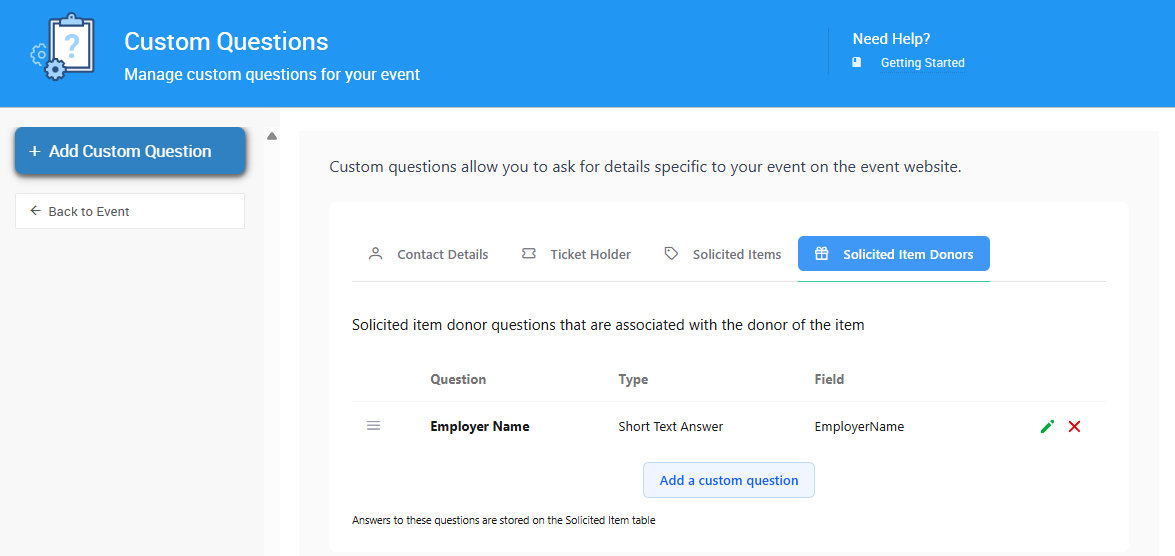
An example Custom Questions page from a demonstration event.
The page has a tab for each type of form you can add questions to:
| Tab | Where the Question Appears | Where Answers Are Stored | Example |
|---|---|---|---|
| Contact Details | Registration and checkout forms, for the person registering or purchasing. | The participant's record. | How did you hear about us? |
| Ticket Holder | Ticket purchase forms, once for each ticket. | The guest's participant record. | Golf handicap |
| Solicited Items | Solicited item donation forms, about the donated item. | The solicited item's record. When the item is accepted, answers are copied to the new item. | Pick-up or drop-off? |
| Solicited Item Donors | Solicited item donation forms, about the donor. | The solicited item's record. When the item is accepted, answers are copied to the donor. | Employer name and address |
Add a Custom Question
- Click the tab for the form you want to add a question to.
- Click Add Custom Question.
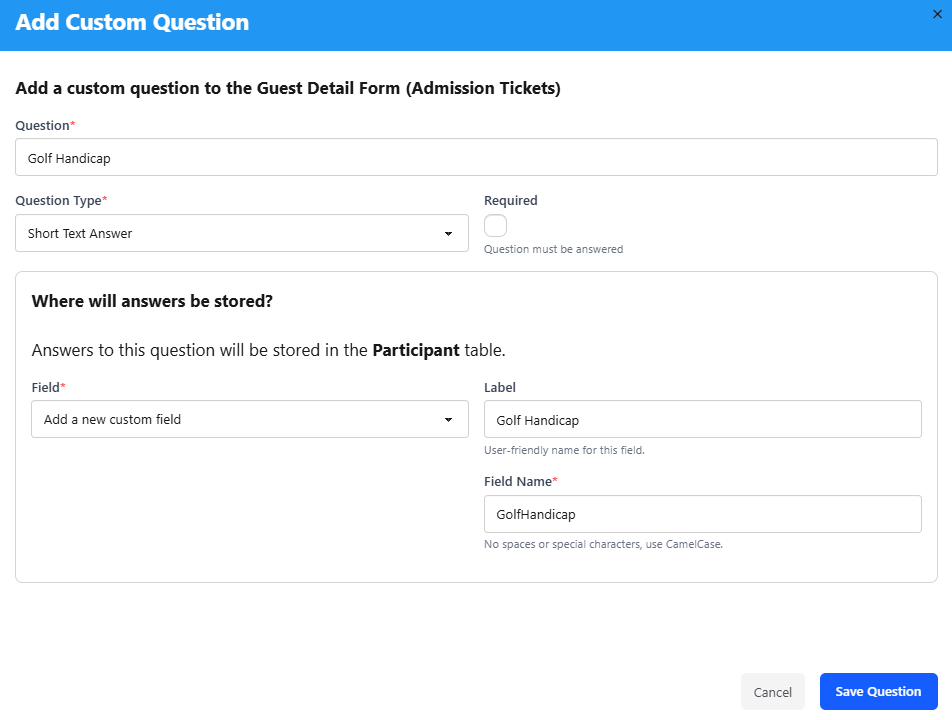
The Add Custom Question window from a demonstration event.
- Enter your question text.
- Choose a question type:
| Question Type | Use For |
|---|---|
| Short Text Answer | Brief answers, such as a name or size. |
| Long Text Answer | Longer answers, such as comments or descriptions. |
| Choices | Picking one option from a list. |
| Multiple Choices | Picking one or more options from a list. |
| Checkbox | Yes/no answers. |
- If you chose Choices or Multiple Choices, click Add Choice in the Choices box for each option. Drag options to change their order.
- Select Required if the question must be answered to submit the form.
- Choose where answers will be stored. See Store Answers Using Custom Fields.
- Click Save Question.
Two ways to add a question
You can also click Add a custom question below the list on each tab. Both buttons add a question to the tab you're on.
Store Answers Using Custom Fields
Each custom question must be linked to a custom field. The custom field stores the answer on the related participant or item record.
In the Where will answers be stored? section, open the drop-down and choose one of these options:
- Use an existing field: Select one of the custom fields listed below Add a new custom field.
- Create a new field: Select Add a new custom field, then fill in these fields:
| Field | Description |
|---|---|
| Label | Optional. The display name for the field. |
| Field Name | Required. Use letters and numbers only, with no spaces. Auctria fills this in from the Label, and you can change it. |
One question per field
Each custom field can only be used by one custom question. Contact Details and Ticket Holder questions both store answers on participant records, so they can't share a field.
Field Visibility
A custom field's Visibility controls what guests on your event website can do with it. Fields created from the Add Custom Question window are set to Public, so guests can answer your question.
You can set Visibility when you add or edit a custom field. To manage your custom fields, click Event in the left sidebar, then click Custom Fields in the page sidebar.
| Visibility | What Guests Can Do |
|---|---|
| Public | View and enter a value. |
| Read Only | View the value, but not enter or change it. |
| Private | Nothing. The field is hidden from guests. |
Keep question fields Public
If you change a question's field to Read Only or Private, guests won't be able to answer that question.
Visibility only affects guests on your event website. It doesn't limit what organizers can see in the dashboard.
Edit, Delete, or Reorder Questions
Each tab lists the custom questions for that form.
- Edit a question: Click the pencil icon on the question's row.
- Delete a question: Click the × on the question's row.
- Change the question order: Drag a row up or down. Questions appear on the form in this order.
Where Answers Appear
Once you save a custom question, it appears on its form on your event website.
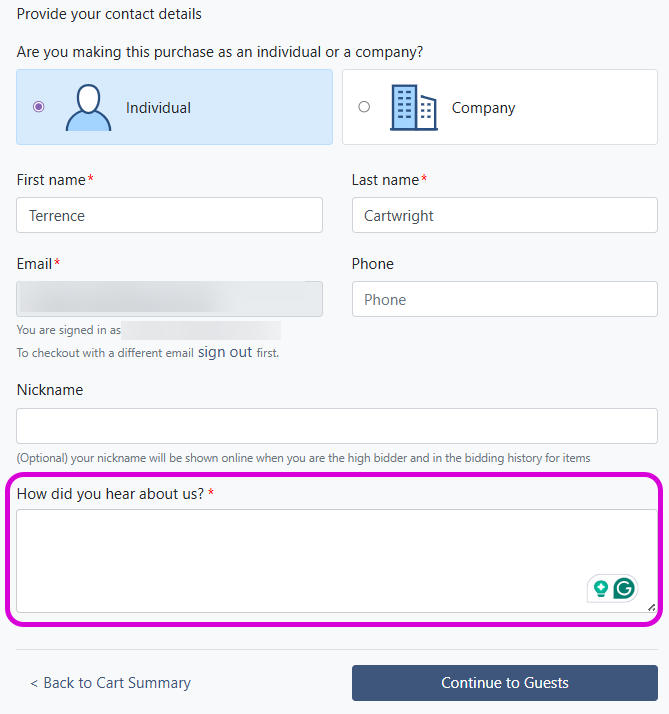
A custom question on the contact form from a demonstration event.
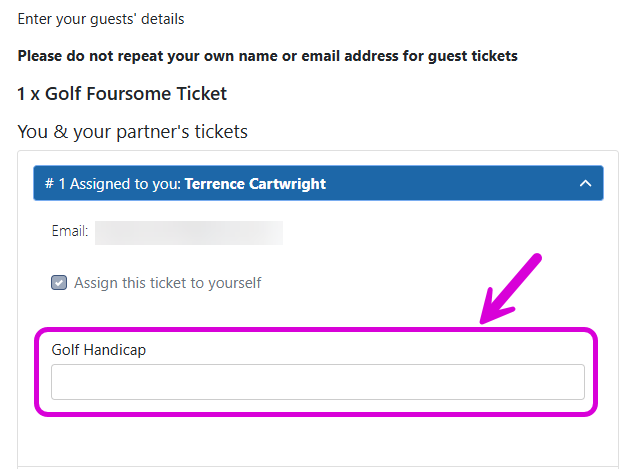
A custom question on an admission ticket form from a demonstration event.
Answers appear in the Custom Fields section of the related record.

The Custom Fields section of a guest record from a demonstration event.
Solicited item answers
When you accept a solicited item, its answers move with it. Solicited Items answers are copied to the new item's record, and Solicited Item Donors answers are copied to the donor's record. If a matching custom field doesn't exist on those records yet, Auctria creates it.