
Learn how to use Auctria's Text-To-Give page to run a text-based donation drive or paddle raise.
With Text-To-Give, participants can donate by sending a simple text message to your event's text messaging phone number.
To open the Text-To-Give dashboard, from the main Auction Dashboard, click Communication (left sidebar) → Texting → Text-To-Give.
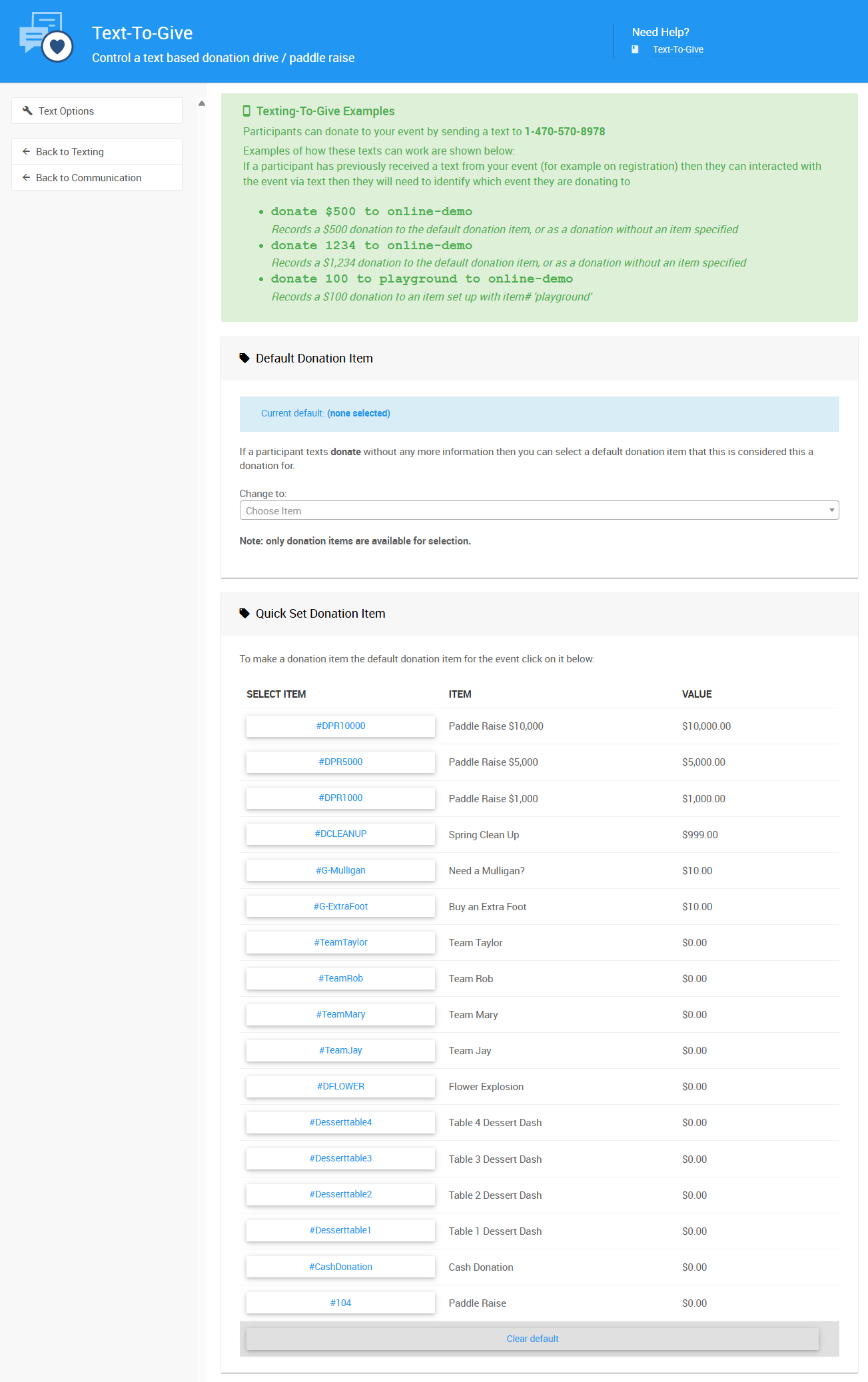
The Text-To-Give dashboard from a demonstration event.
Choose a Default Donation Item
The Text-To-Give page has two sections. In each, you can select a specific donation item from your auction to be the single default item. When a participant texts donate (or give) to the text messaging phone number, their donation is made against this default item.
Default Item Requirements
The Donation Item you choose as the default must have a single set amount to be used this way.
What Participants Can Text
| Participant texts | What happens |
|---|---|
donate or give | Makes a donation against the default item, for its configured amount. |
donate $150 | Makes a donation of $150 against the default item, overriding the configured amount. |
| A text that names another donation item, or a cash donation | Makes the donation against that item or as a cash donation instead. |
Participants Can Choose Their Own Amount
Although the donate command requires the default Text-To-Give item to be configured with a single amount, a donor can still pledge a different amount. For example, if donate pledges $100, texting donate $150 instead pledges $150.
To make a donation against a different donation item, or a cash donation, participants need to say so in their text. See Text Bidding for the full list of commands.
Text-To-Give Sidebar
The sidebar of the Text-To-Give dashboard includes these Actions:
| Option | Description |
|---|---|
| Send Text Message | Opens the Send Custom Text page. |
| Send Text Statement | Opens the Text Statements page. |
| Back to Communication | Returns to the main Communication dashboard page. |