
Learn how to add a new page to your event website using the Website Editor.
Manage Pages
To add a new page, from the Website Editor Sidebar, click Manage Pages.
This will open the Website Pages window. Then, click Add New Page.
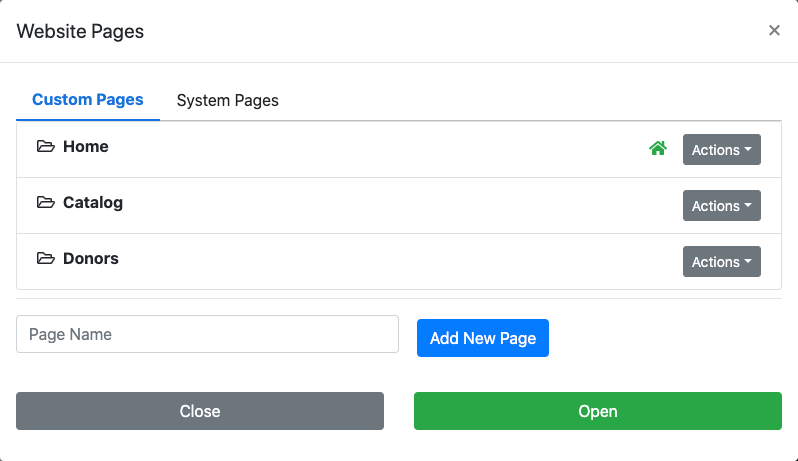
An example from a demonstration event.
Add New Page
Enter the title of the new page in the Page Name field and click New Custom Page. This will open the Add Section window, where you can choose the initial layout for the page.
See Adding A Section for details on choosing a Basic or Pre-built section layout.
Tip
If you prefer to start with a completely empty page, click the x in the top-right corner of the Add Section window to close it without adding a section. The page will be created with an empty section that you can fill in later.

An example from a demonstration event.
Next Steps
Once the page is created, the Website Editor will switch to the new page automatically. The page's menu entry will appear at the far-right end of the navigation menu in the Header element.
From here you can continue building the page by adding Row Content, Column Content, or additional rows and sections.
You can also rearrange the menu order. See Configuring Menu Entries for more details.