
Learn how to manually make a bid the winning bid, or remove its winning status.
Key Topic
Editing TransactionsPromote and demote are options on biddable items only. A winning bid has the Demote to not winning option. A non-winning bid, including a previously demoted one, has the Promote to winner option instead.
Demote A Bid
- On the Activity tab of the Item Details page, click the options icon beside the winning bid.
- Click Demote to not winning.
- Confirm. The dialog notes that No other bids will be affected.
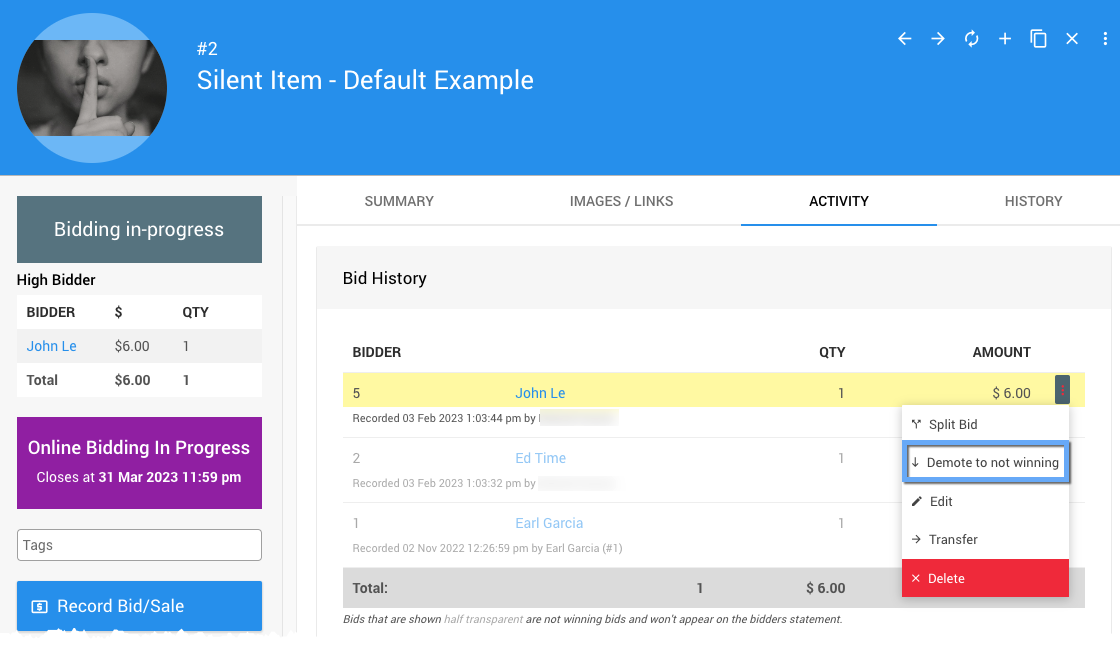
An example from a demonstration event.
Demoting a bid:
- Doesn't promote any other bid.
- Turns off that participant's maximum bid on the item.
- Removes the bid from the participant's Activity tab.
In the example below, the item is left with three non-winning bids.
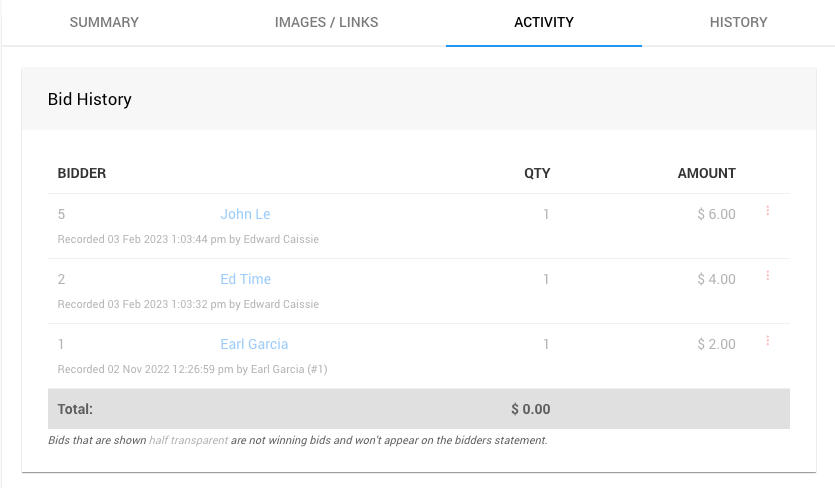
An example from a demonstration event.
If the item should still have a winner, promote another bid next.
Promote A Bid
- On the Activity tab of the Item Details page, click the options icon beside the non-winning bid.
- Click Promote to winner.
- Confirm. The dialog notes that Other bids may be demoted as a result.
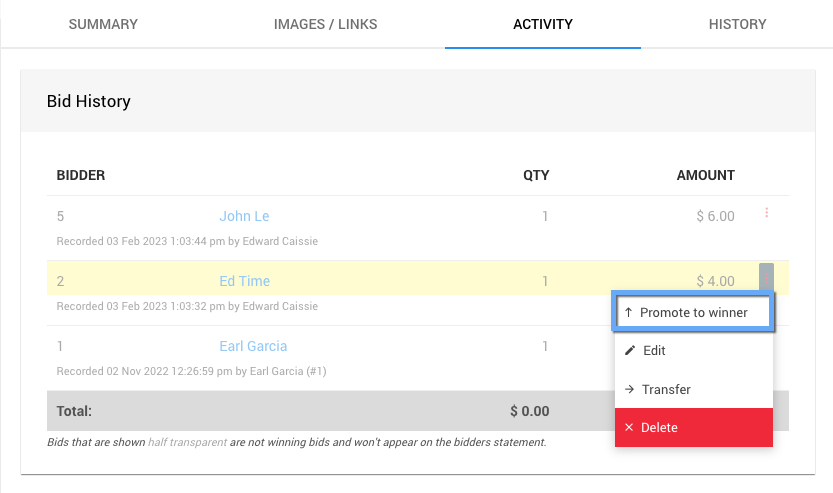
An example from a demonstration event.
What happens to the other bids depends on the item:
| Item | Effect Of Promoting A Bid |
|---|---|
| Single winner | The existing winning bid is demoted automatically. |
| Multiple winners, with a set quantity | If the winning bids no longer fit the quantity, the lowest winning bids are demoted. |
| Multiple winners, with unlimited quantity | No bids are demoted. |
Any Maximum Bid attached to a demoted winning bid is also removed.
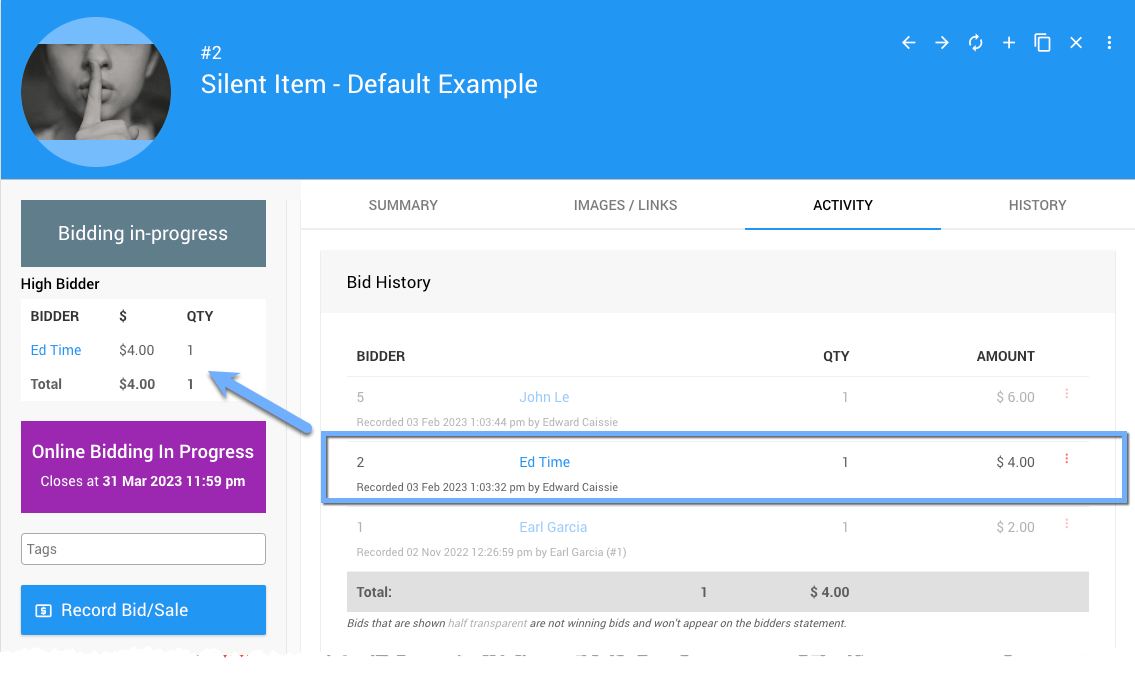
An example from a demonstration event.
Bids are always listed by amount, highest first, so the winning bid may not be the highest one in the list.
Bid History
Every promotion and demotion is shown on the History tab of the Item Details page.
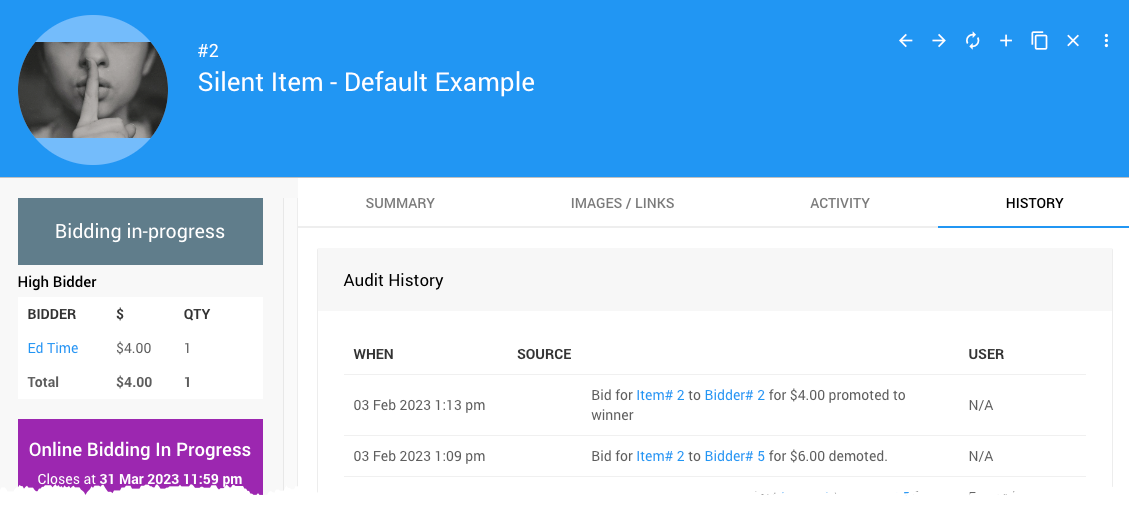
An example from a demonstration event.