
Learn how to quickly and easily connect a Stripe account to your Auctria organization.
You can connect an existing standard Stripe account to Auctria or you can create a new Stripe account to use with Auctria as part of this process.
Step 1: Go To The Credit Card Dashboard
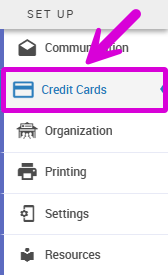
From the main dashboard, click Credit Cards on the left sidebar, under Set Up.
An example from a demonstration event.
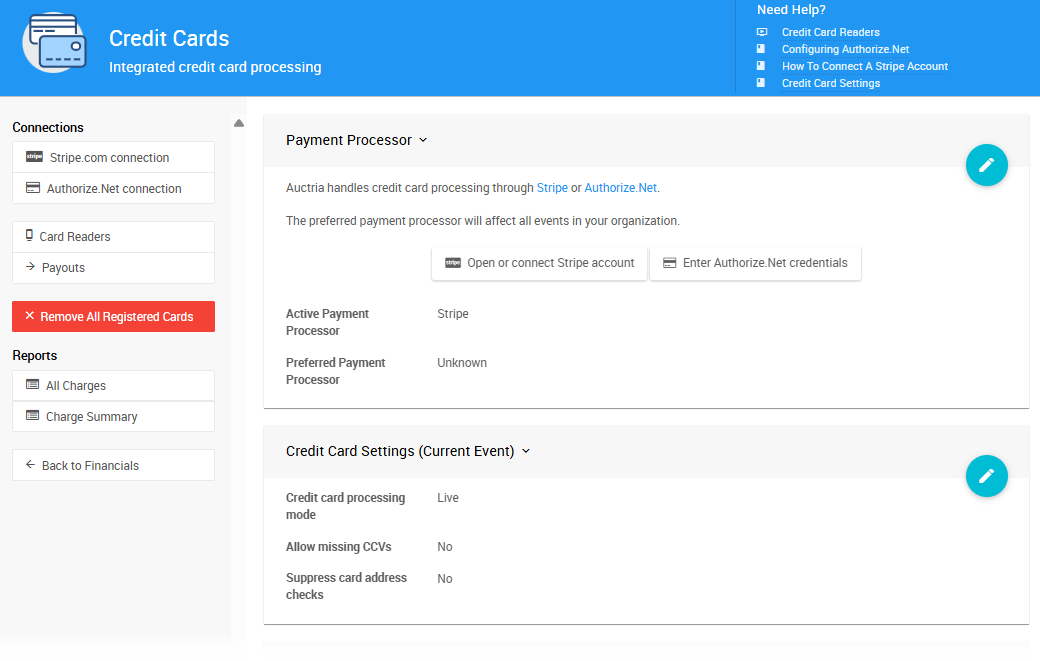
This will open the Credit Cards Dashboard where you will be working for this action.
An example from a demonstration event.
User Account Permissions
Your Auctria User Account must have administrator level privileges to Connect A Stripe Account.
See User Accounts for more details on this.
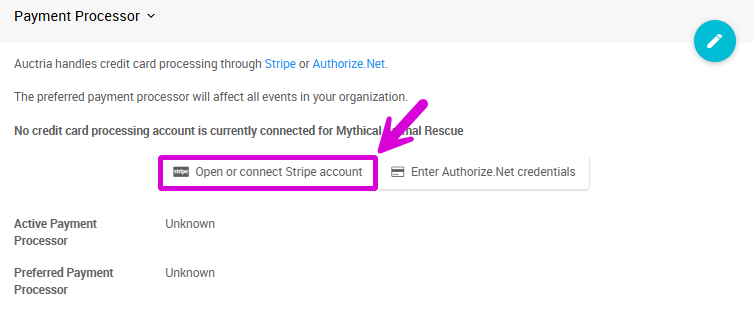
To continue with the process, click on the Open or connect Stripe account button in the Payment Processor section. This will open the Stripe.com Connection dashboard.
An example from a demonstration event.
Step 2: Continue To Stripe.com
An example from a demonstration event.
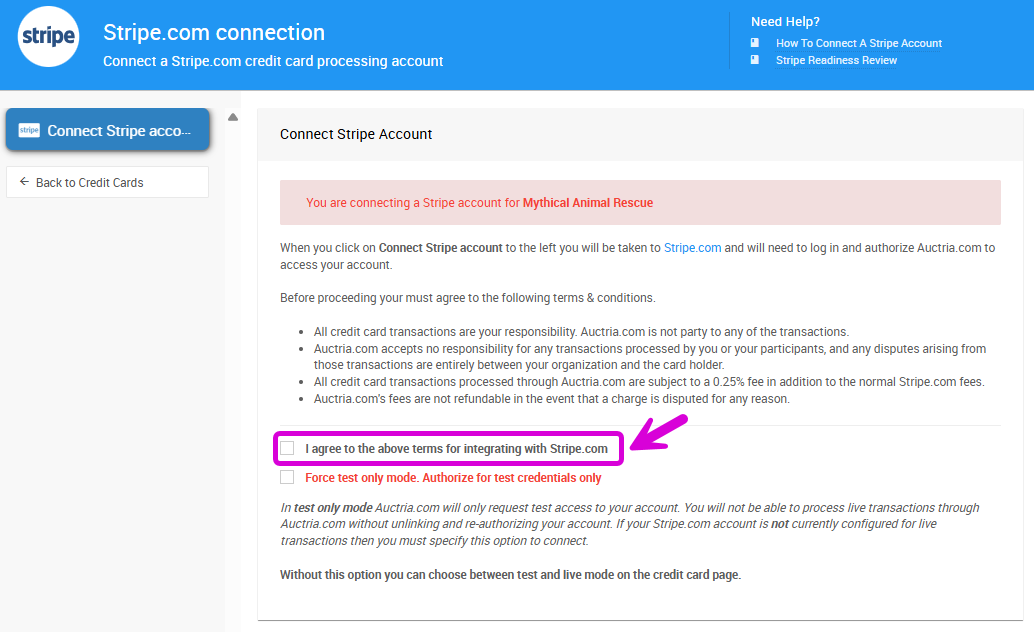
Please read through the terms and click the I agree to the above terms for integrating with Stripe.com. checkbox.
Click Connect Stripe account, which will bring you to a Stripe.com connection page.
Step 3: Complete The Stripe.com Connect Page
Creating a credit card processing account can be completed with any "personal" email address (@gmail.com, @live.com, @me.com, @yahoo.com, @aol.com, etc.).
Organization Email Accounts
We strongly recommend using an email address directly relevant to your organization.
See Payment Processors for more information.
You will be prompted to provide this email address in the box of the Stripe.com connect page. If you want to connect an existing Stripe account, simply enter that email address in the provided box. To connect with a new Stripe account, you can enter the email address you would like to use for your new Stripe account and complete the subsequent form to create your new Stripe account.
Using a Secondary Stripe Account
If you do have an existing Stripe.com account, you can still create a secondary account just for the fundraisers being offered on Auctria.
This may provide for an easier division of funds to help better manage the fundraiser income. Remember to make certain you are signed out of your existing Stripe.com account before proceeding.
Step 4: Return To Auctria
If you were not signed into your Stripe.com account (from above), after you sign into Stripe.com you may need to return to Auctria and re-start the process of connecting to Stripe. To do this, simply start back at the top of this page and go through the same steps in the same browser tab as you signed into Stripe with.
Clicking the Connect my Stripe account button will complete the linking process and return you to Auctria and our Stripe.com connection page. This information populated here will verify Auctria is connected to Stripe.com.
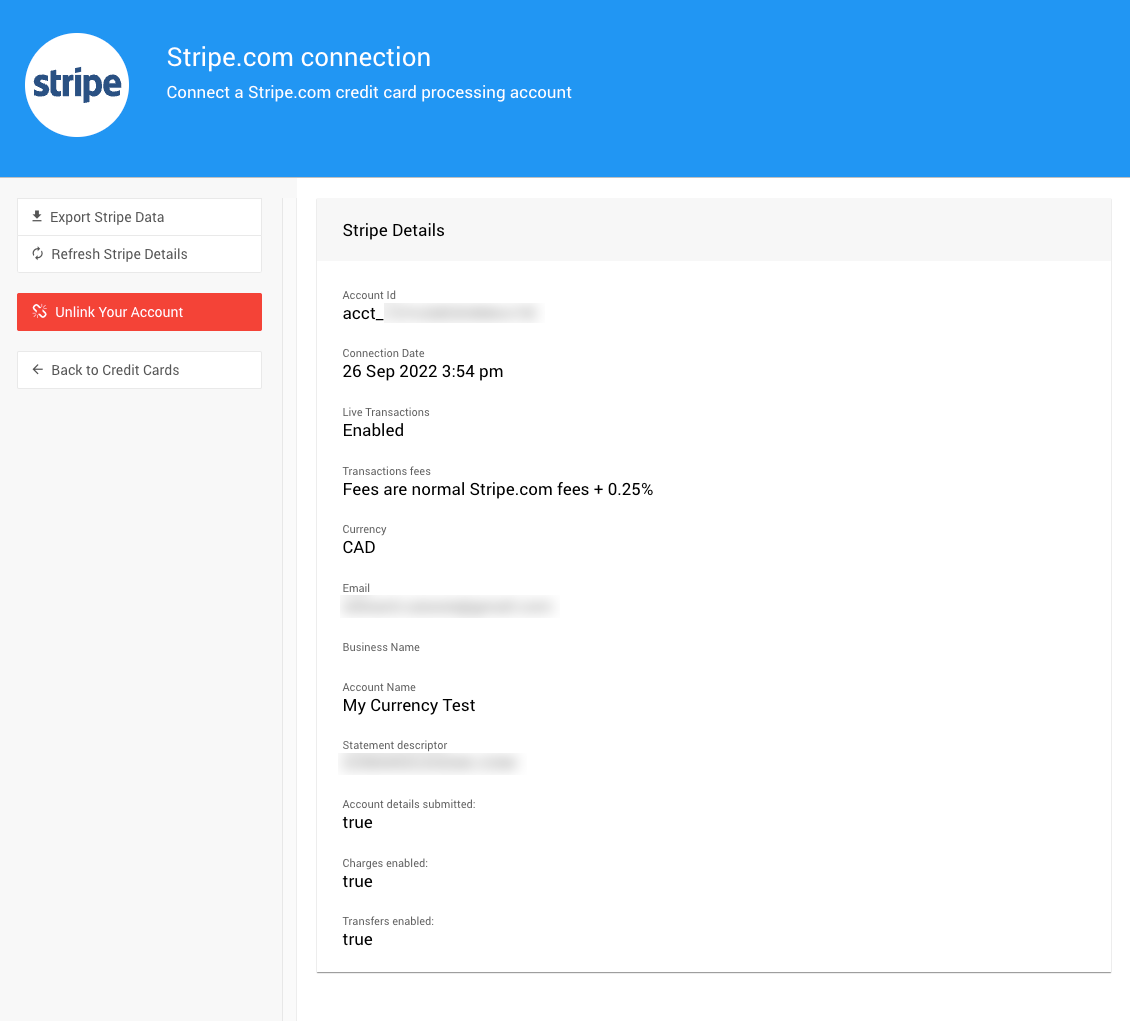
An example from a demonstration event.
Step 5: Connect In Test Mode Only (Optional)
To connect in Test mode only, click the Force test only mode. Authorize for test credentials only box in addition to the "Terms" box (see Step 2 above).
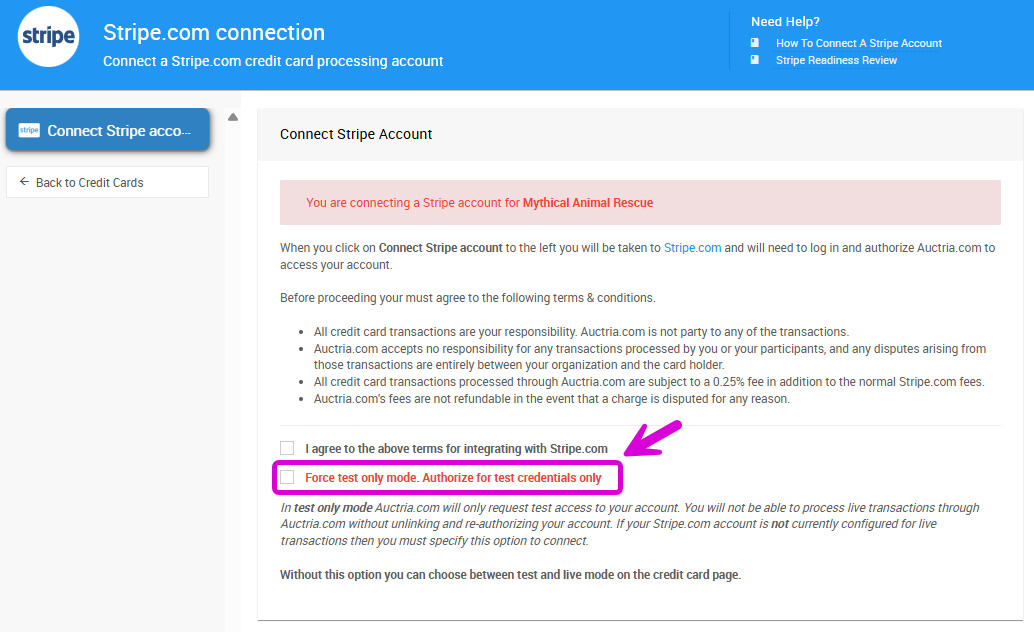
An example from a demonstration event.
If you have a test only Stripe account (i.e.: one that isn't set up for live transactions), you must use "Force test only mode".
You can quickly set up a Stripe account like this if you want to test out credit card processing without providing Stripe with any actual details about the Organization, however, you will need to go through this connection process again to enable "Live" transactions.
If you have a "normal" Stripe account, you can still use test mode and there is no need to use the "Force test only mode" option here. See Test & Live Modes for more details on this.
If you selected "Force test only mode", a popup Stripe Integration window will appear reminding you that you cannot process live transactions.
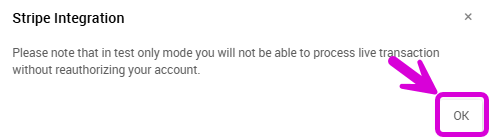
An example from a demonstration event.
Click the OK button to continue.
You will be redirected to the Stripe.com connection page.
Skip Account Form
If you are using test mode and do not wish to provide all of your account information at this time you can click Skip this account form at the top of the window.

An example from a demonstration event.
Once logged-in and connected to Stripe.com you will be redirected back to Auctria and have a message displaying you are currently in Test mode only on the Stripe.com connection page.
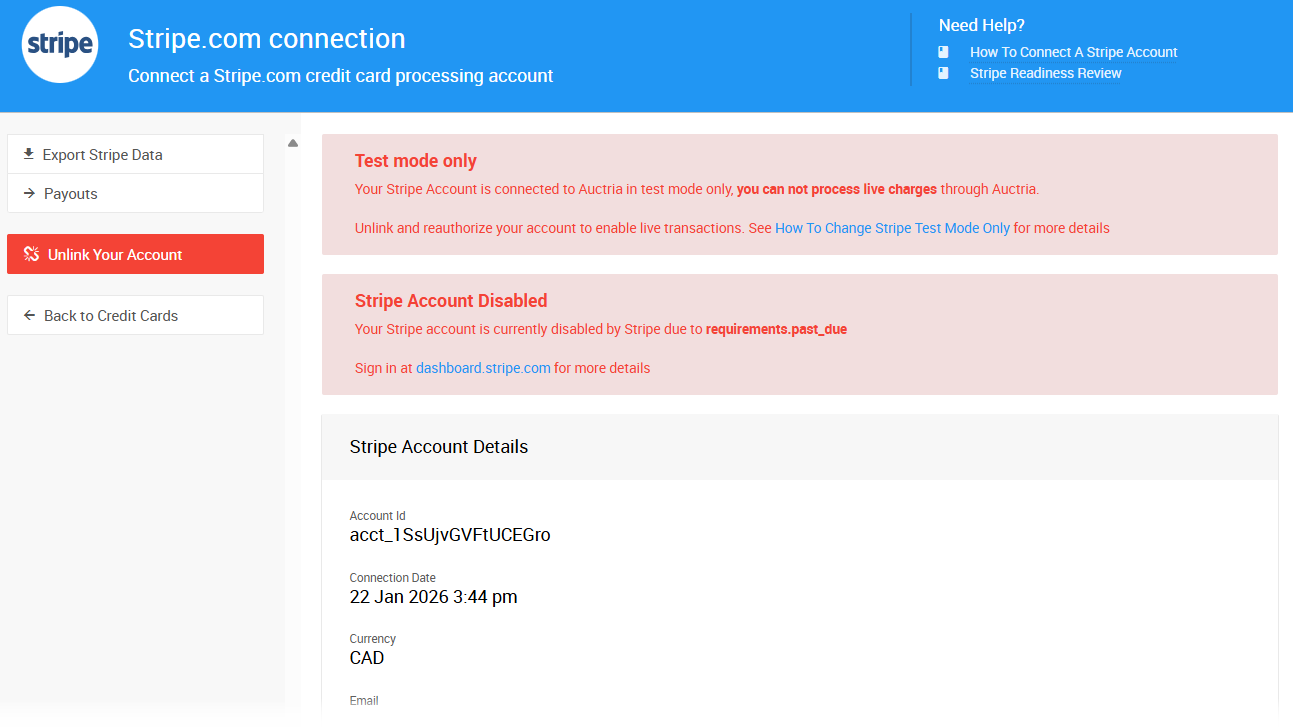
An example from a demonstration event.
Step 6: Verify Your Connection In Stripe
On Stripe.com you can see the status of your connection to Auctria by clicking through to your Stripe.com Dashboard. Make sure you are viewing the correct Stripe.com "account" then click on the Settings icon in the header.
Clicking the Settings option will open the settings page for the specific Stripe.com account you are viewing. Look under TEAM AND SECURITY for the Authorized applications link.
Clicking on the the Authorized applications link will display the current applications connected to the specific Stripe.com account.
You will see Auctria listed for the account you have connected to.
Stripe account: Settings > Authorized applications
A Stripe account "Team member" can remove the Organization's access from within Stripe by clicking its Revoke access button.
Step 7: Remove Your Stripe.com Connection
If you no longer want to use Stripe.com with Auctria, or you need to change the authorization for Stripe.com (for example, from "Test mode only" to "Live" mode) you can Unlink Your Account.
Go to Stripe.com connection on the Credit Cards dashboard and click on the red Unlink Your Account link under the Actions sidebar.
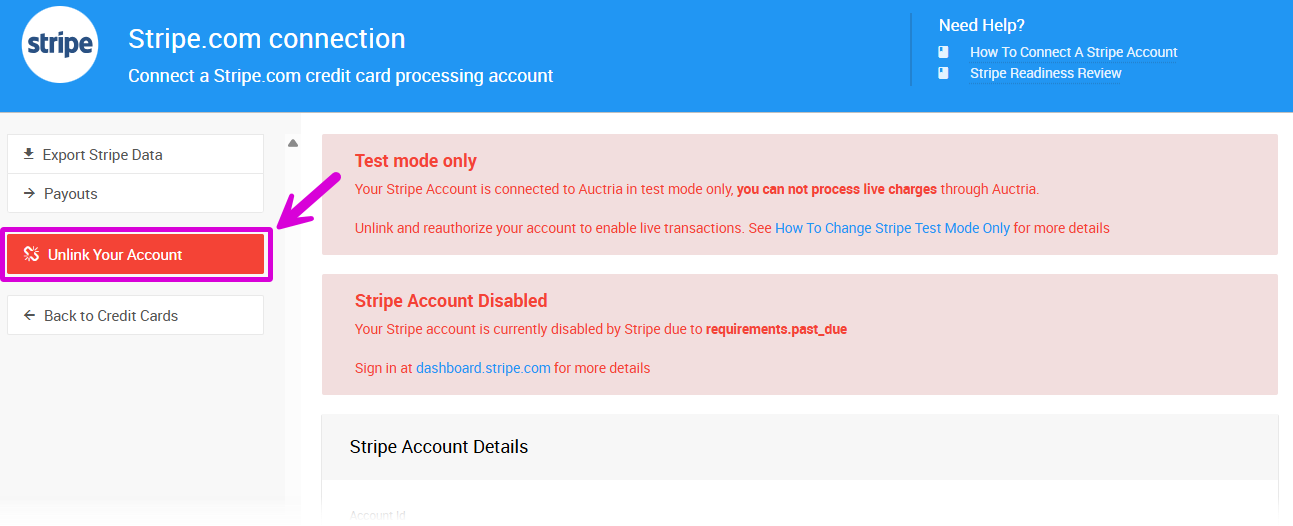
An example from a demonstration event.
Clicking on the link will pop-up a Remove connection to Stripe? window. Click Continue, or "Cancel" if you changed your mind.