
Learn how to add a new Item Category, either from the Items Dashboard or by typing a name into an item's Item category field.
You can set up your categories before you add your items, or create them as you go. See Item Categories for how categories are used.
Add A Category From The Items Dashboard
Use this method when you want to set all of a category's details as you create it.
- Click Items → Add New Category. The Add New Category action is in the Item Categories group in the Items Dashboard sidebar.
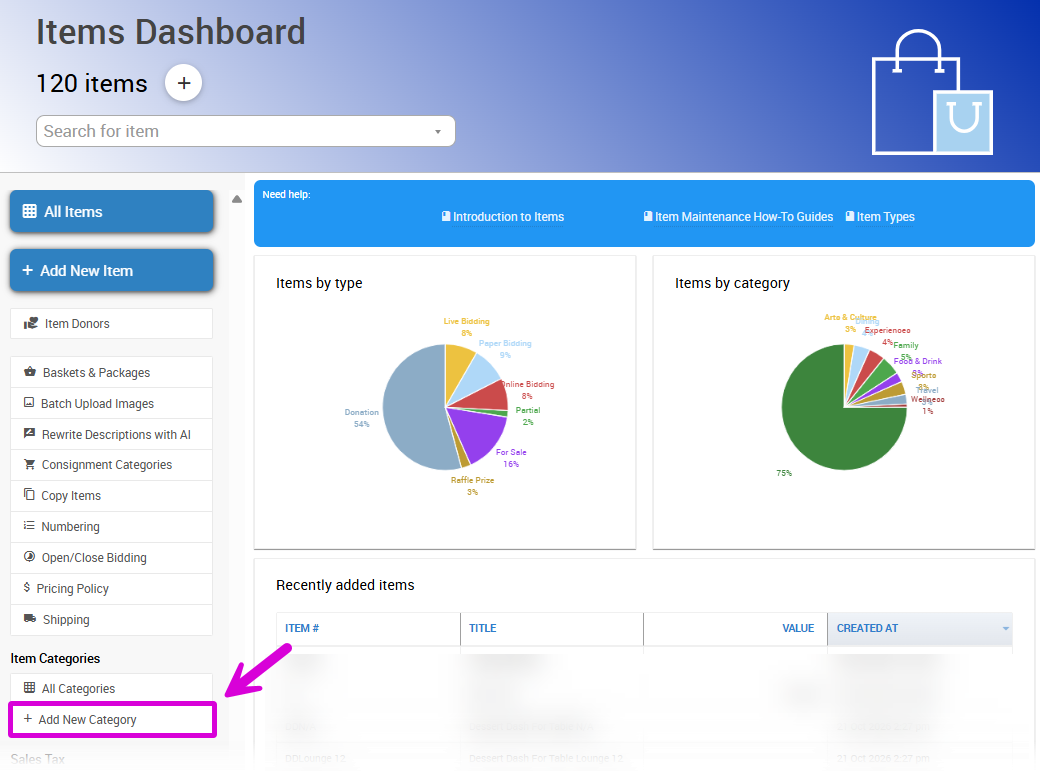
The Add New Category action on the Items Dashboard, from a demonstration event.
- Fill in the fields on the Add Item Category page. Only Name is required.
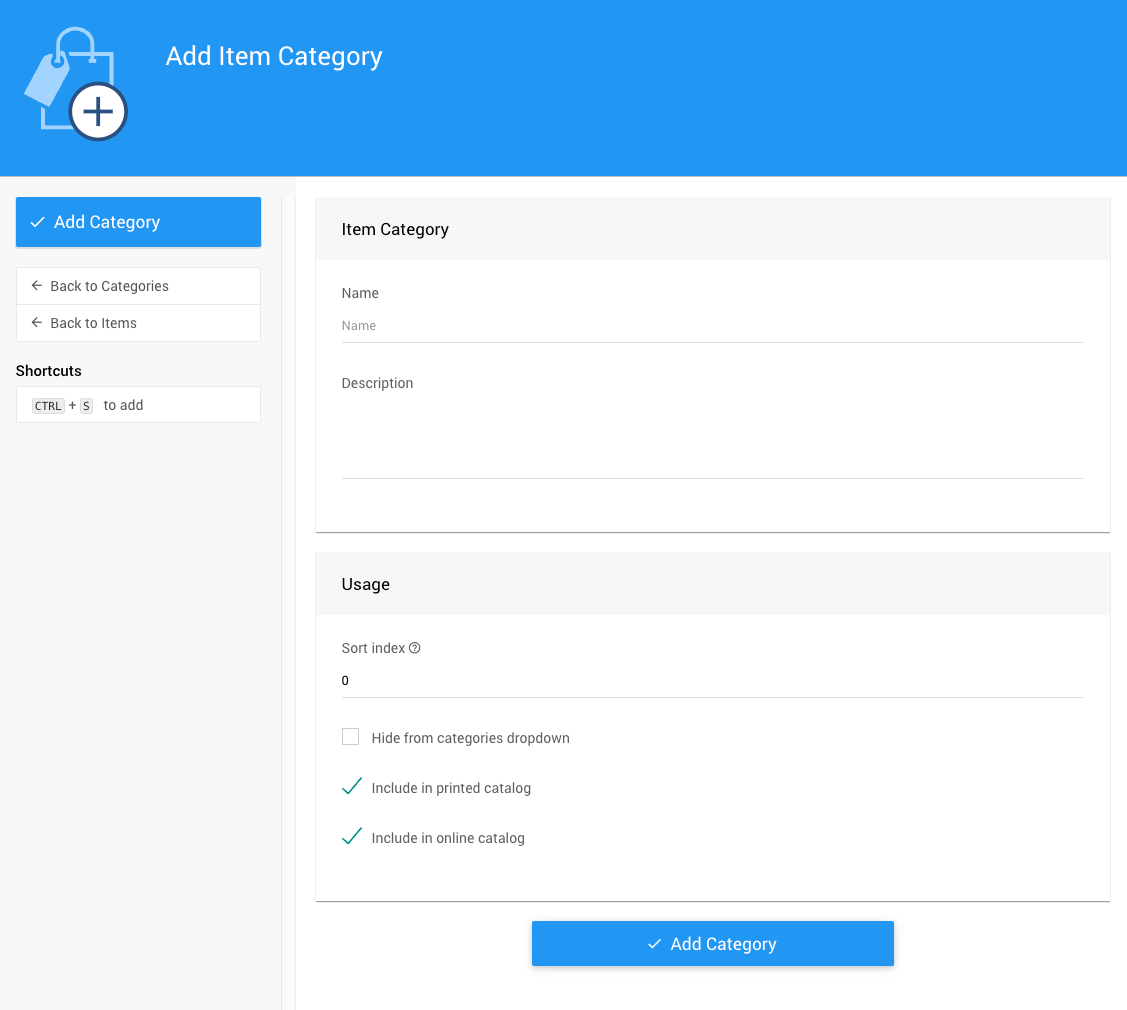
An example Add Item Category page from a demonstration event.
| Field | Description |
|---|---|
| Name | The category's name. Required. |
| Description | Optional. A description for your own reference. |
| Sort index | Sets the category's position when categories are listed in order. Categories are sorted by sort index, then by name. See Sort Order. |
| Hide from categories dropdown | Hides the category from the Show me... drop-down in the Item Catalog element on your event website. Off by default. |
| Include in printed catalog | Includes the category's items in printed item catalogs. On by default. |
| Include in online catalog | Includes the category's items in the item catalog on your event website. On by default. |
- Click Add Category.
Auctria saves the category and returns you to the Item Categories list. To add another category, click Items → Add New Category again.
Add A Category From An Item
You can also create a category while you're adding or editing an item. This method only sets the category's name. To change its other settings later, see Edit An Item Category.
- Open the Add Item page, or the item's Item Details page.
- Click the Item category field.
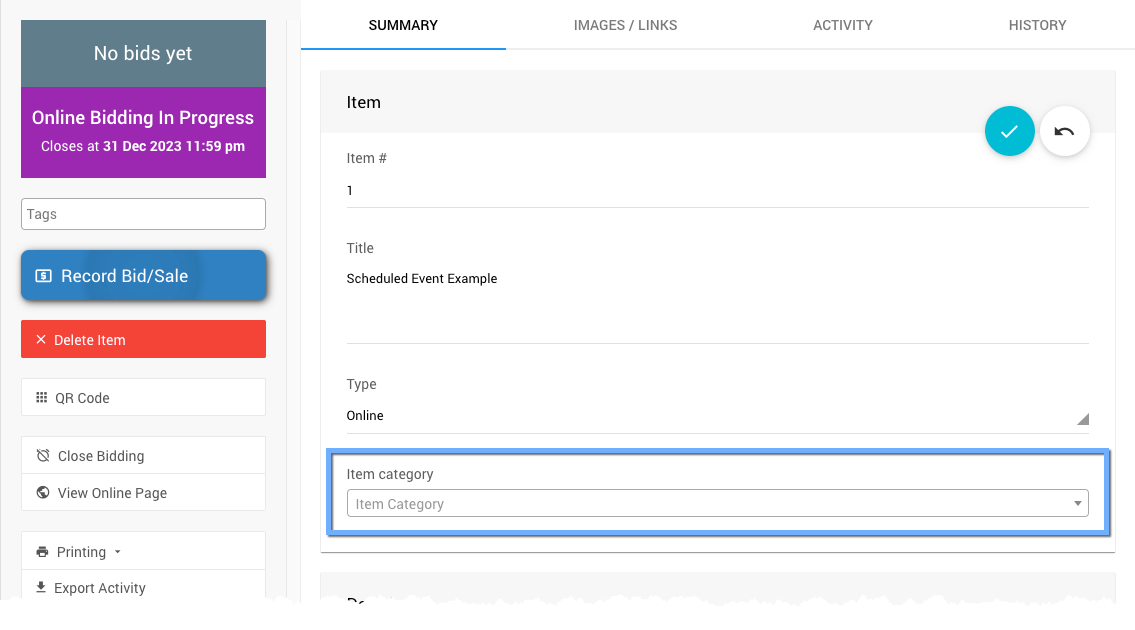
The Item category field on an item's Summary tab, from a demonstration event.
- Type the new category's name, then press Enter/Return.
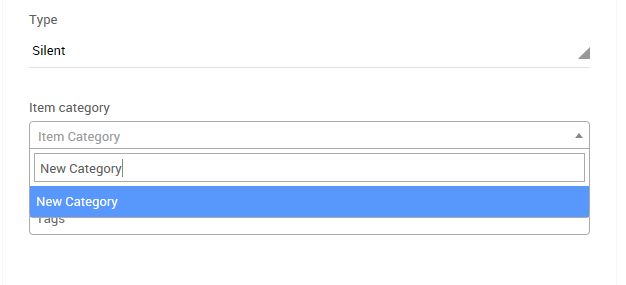
Creating a new category from the Item category field, from a demonstration event.
- Save the item.
Auctria creates the category and assigns it to the item.