
Learn how to change ticket items.
From time to time, you may need to change a ticket sold to one of your guests — for example, switching them to a different ticket item, or moving them to a bundle with a different number of admissions.
Change a Ticket Item
- Navigate to the ticket item that was originally purchased and open its Activity tab (on Item Details). Locate the transaction you want to change.
- Click the options menu at the far right of the transaction's row, then click Edit.
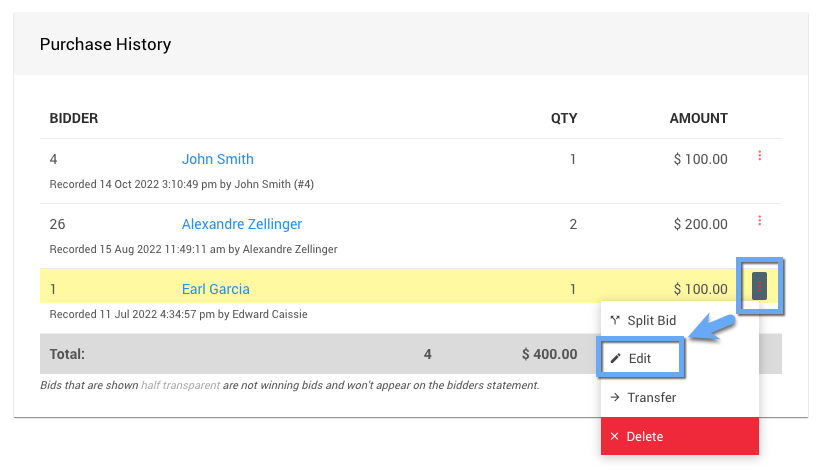
An example from a demonstration event.
- This opens the Bid Details dashboard for the transaction. Click Change Item in the left sidebar.
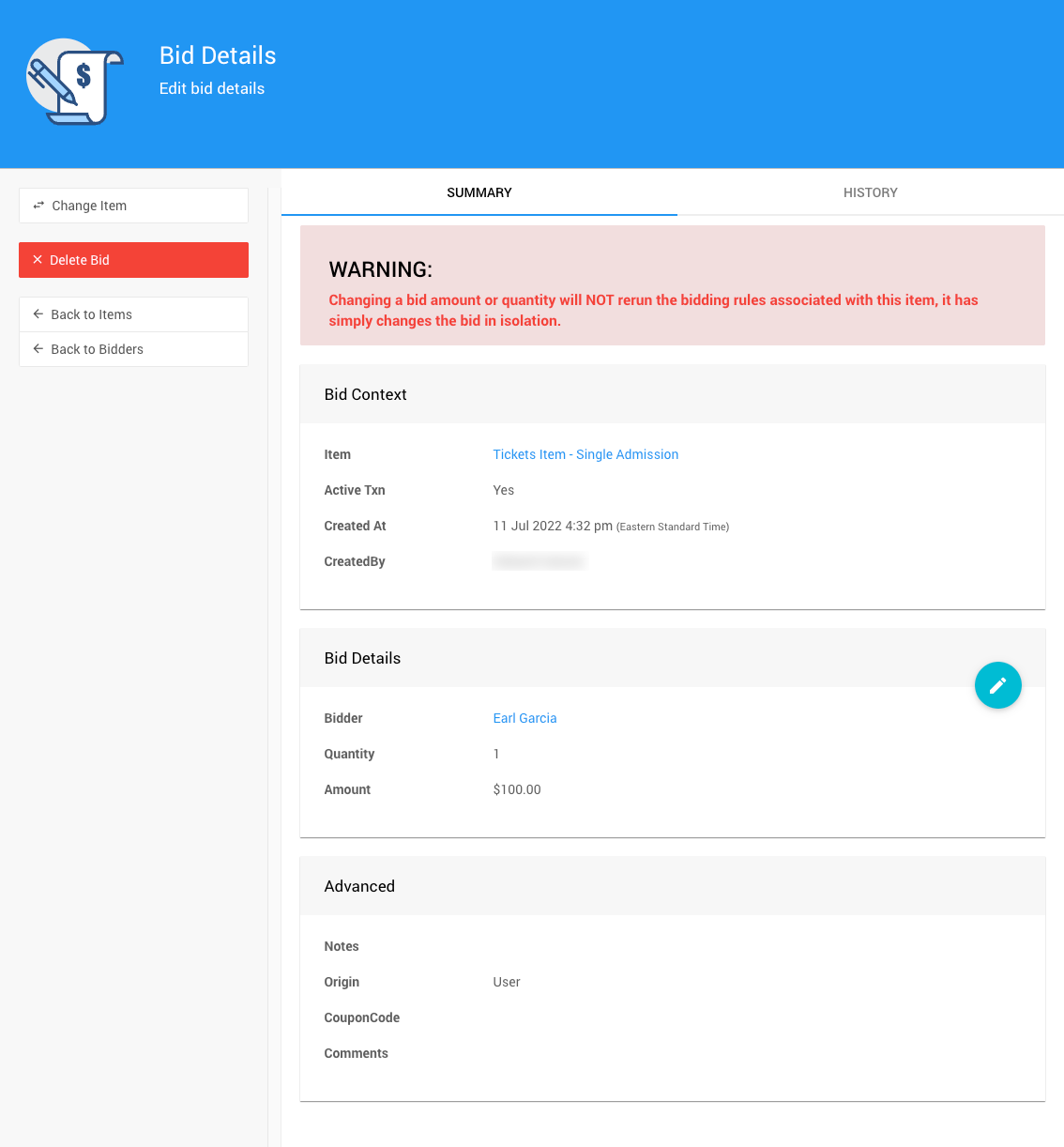
An example Bid Details dashboard from a demonstration event.
- Select the new ticket item from the drop-down in the pop-up window, then click Change Item on the left.
- Confirm the change by clicking Continue.
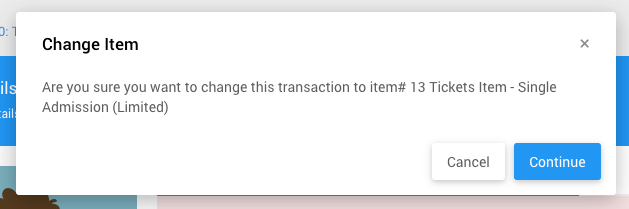
An example from a demonstration event.
The Bid Details page automatically refreshes with the updated information.
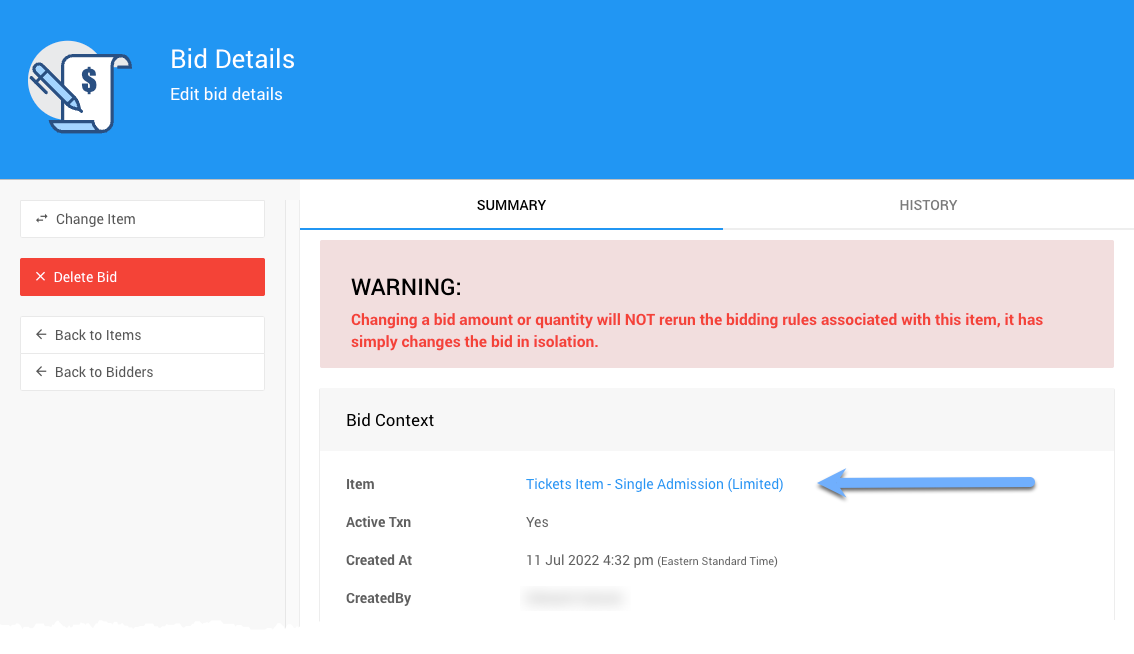
An example Bid Details page from a demonstration event.
Tip
Using Change Item also moves all of the guests from the original ticket item to the new one.
For more information about changing a ticket's status instead of its item, see Activating & Deactivating Tickets.