
Learn how to move a previous event texting number to your current event.
If you have used the Text Messages feature set with Auctria before, you don't need to go through the process of assigning a new phone number. Instead, you can transfer the Text Messages phone number from the previous event you were using it with.
Advanced Texting Required
You can only transfer a Text Messages number if you are using the Advanced Texting feature set. See How To Set Up Advanced Texting for how to set it up.
Step 1: Open Text Settings
You transfer an existing phone number from one event to another on the Text Settings dashboard.
- From the main Auction Dashboard, click Communication.
- Click Texting to open the Text Settings dashboard.
Step 2: Transfer the Phone Number
Click the Transfer Phone# button. This moves your organization's existing Text Messages phone number from the event it is currently associated with to the event you are logged into.
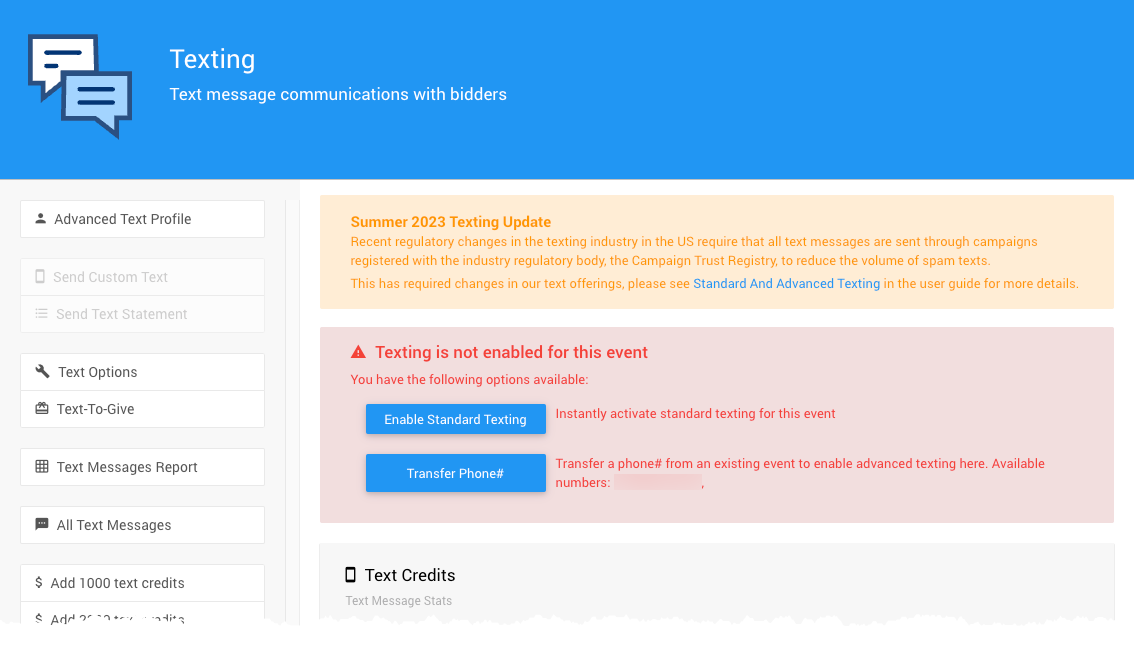
The Transfer Phone# button on the Text Settings dashboard.
Step 3: Confirm the Transfer
Once the transfer is complete, the Text Settings dashboard shows a message confirming that Advanced Texting is now enabled for your current event.
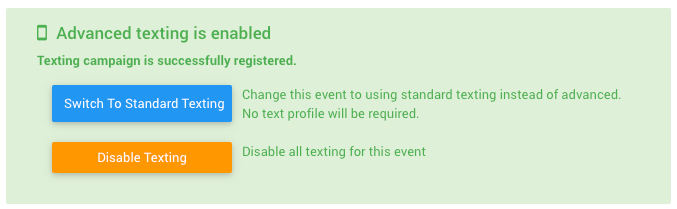
The Text Settings dashboard after the transfer, with Advanced Texting enabled.