
Auctria Academy
F.A.Q.
Getting Started
Popular Pages
Course
Auctria Dashboard
  • Getting Started
    • First Steps
      • Create Account & Event
    • Plan
    • Run
    • Close
    • Auctria Costs
    • Popular Pages
    • Glossary
    • Resources
  • Core Features
  • Event
    • Add A New Event
    • Change Events
    • Copy Event
    • Archive Event
    • Event Details
    • Event Permissions
    • Health Checks
    • Connectivity
    • Create An Online Store
    • Custom Questions
    • Event With Tickets
    • In-Person Events
    • Set Up A Donation Only Event
    • Set Up An In-Person Event
    • Set Up An Online Event
    • Terminology
  • Event Dashboards
    • Default Dashboard
    • Income Summary
    • Item Summary
    • Your Profile
      • Access My Profile
  • Credit Cards
    • Payment Processors
    • Credit Card Costs
    • Stripe
      • Connect Stripe Account
      • Change Test Mode
      • Export Stripe Data
      • Stripe Readiness Review
    • Authorize.Net
      • Configuration
      • Fraud Detection
      • Card Registration
      • Card Code Required
      • AVS Mismatch
      • Authorize.Net Readiness Review
    • Credit Card Settings
    • Credit Card Reports
    • Test & Live Modes
    • Participant Fee Coverage
    • Check Total Credit Card Fees
    • Registered Credit Cards
    • Remove All Registered Cards
    • Credit Card Full Refunds
    • Credit Card Partial Refunds
    • Readers And Swipers
      • Standalone Card Readers
    • Connect A Mobile Card Reader
    • Create Online Payment Link
    • Require ReCaptcha Validation
    • Make cc.fees Tax Deductible
  • Auctions
    • Online Auctions
      • Participants In Online Events
    • Paper Auctions
    • Live Auctions
    • Online Bidding Settings
    • Kiosk Mode Bidding Setup
      • Slide Shows
      • Mobile Device Locking
    • Monitor Auction
  • Participants
    • Participant Details
    • Add New Participant
    • Participant Numbering
    • Sharing Participant Numbers
    • Turn Off Participant Numbers
    • Link Participants
    • Unlink Participants
    • Merge Participants
    • Copy Participants
    • Duplicate Participant
    • Participant Maintenance
      • Duplicate Emails
      • Duplicate Names
      • Link Participants
      • Multiple Tickets
    • Catering
    • Registration/Checkout
    • Statements
      • Email Statements
      • Printed Statements
      • Text Statements
    • Choose Participants Filters
    • Correct Email Typos
  • Communication
    • Email
      • System Emails
        • System Emails Summary
        • System Email Options
      • Custom Emails
      • Send Custom Emails
      • Email Manager
      • Editing Emails
        • Email Element Visibility
        • Email Safe Fonts
      • Add Block
      • Add Table References
      • Use Conditional Content
      • Customize Email Header
      • Customize Email Footer
      • Email Edits For Online Auctions
      • Email Ticket Holders
      • Email Participants With A Balance
      • Email Text Link
      • Review Duplicate Emails
    • Text Messages
      • Text Settings
      • Text Options
      • Participants & Phone Numbers
      • Advanced Texting Profile
      • Set Up Advanced Texting
      • Send Custom Text
      • Text-To-Give
      • Transfer Text Number
      • A2P 10DLC
    • System Notifications
    • Mobile Notifications
    • Transactional vs Marketing Emails
    • Ticket Sales Communication
  • Items
    • Item Types
      • Paper Bidding Type
      • Live Bidding Type
      • Online Bidding Type
      • Partial Items
      • For Sale Items
      • Donation Items
      • Raffle Prize Items
      • Buy It Now Only Items
    • Item Details
      • Summary
      • Images and Links
      • Contents
      • Activity
      • History
      • Open Item Bidding
    • Item Numbering
      • Bulk Renumbering
      • Drag And Drop Ordering
      • Live Auction Ordering
      • Random Shuffle
      • Set Next Item Number
    • Add New Items
    • Item Maintenance
      • Copy Items
      • Delete Item
      • Hide Items
      • Duplicate Items
      • Export Items
      • Open/Close Bidding
      • Open Multiple Quantity Items
      • Re-Open Unsold Items
    • Baskets And Packages
      • Build Baskets
      • Set Basket Descriptions
      • Basket Value
      • Combine For Sale Items
      • Combine Partial Lot Items
    • Batch Image Upload
    • Add A Scheduled Event Item
    • Choose Items Filters
    • Choose Items Sort
    • Pricing Policy
    • Pricing Examples
    • Multiple Winners
      • Winning Multiples
    • Online Pre-Bidding
    • Coupon Codes
    • Shipping
    • After Event Sales
    • Fund-A-Need
    • Peer-to-Peer
    • Auctria Voting
    • Sales Tax
      • Sales Tax Mode
    • Taxable Value
    • Create A Gift Certificate
    • Change Donation Item
    • Track Paddle Raise Donations
  • Financials
    • Expenses
      • Add A New Expense
      • Edit Expenses
      • Add Expense Category
      • Add Category to Expense
    • Consignments
    • Reference Materials
  • Raffles
    • Creating Raffles
    • Running Raffles
    • How-To Guides
  • Tickets
    • Ticket Management
      • Add Or Edit Tickets
        • Add Early Bird Tickets
        • Add Early Bird Table Ticket
        • Add Multi-Day Tickets
      • Changing Tickets
      • Activate/Deactivate Tickets
      • Transfer Tickets
      • Repair/Reissue Tickets
      • Tables And Seating
        • Assign Seating
      • Meal Choices
      • E-Tickets
        • Preview E-Ticket
        • Ticket Styling
      • Ticket Claim
      • Ticket Statements
      • Ticket Details
      • Ticket Settings
    • Ticket Sales
      • Sell Tickets
      • Sell Free/Discount Tickets
        • Create Ticket Donation Item
      • Stop Selling Tickets
      • Managing Ticket Sales
      • Refund Tickets
    • How-To Guides
  • Sponsorships
    • Add & Sell Sponsorships
      • Sell Sponsorships
    • Displaying Sponsors
  • Reports
    • Report Configuration
      • Change Report Views
      • Selecting By Tags
      • Drop-Down Selectors
      • Choosing Columns
    • Bulk Editing/Mass Changes
      • Bulk Editing
      • Delete Multiple Records
      • Bulk Edit Tags
      • Change Sales Tax Categories
    • Reference Materials
      • Item Reports
      • Donor Reports
      • Participant Reports
      • Ticket And Sponsorships Reports
      • Financial Reports
      • Other Reports
      • Raffles Reports
  • Actions
  • Check-In
    • Check-In By Organizer
    • Check-In Settings
    • Self Check-In Request
    • Participant Access
  • Checkout
    • Checkout By Organizer
    • Batch Checkout
    • How-To Guides
      • Checkout And Payments
      • Delete Purchase With Payment
      • Add Shipping Costs Manually
      • Negative Payment Refund
      • Splitting Bids
      • Transfer Payments
    • Checkout Payment Options
    • Online Purchase Behavior
    • Record Payment
    • Transfer Payment
    • Delete Non-CC Payment
    • Give Event Credits
    • Handling Payments
    • Issuing Refunds
  • Bidding Dashboard
    • How-To Guides
      • Promote Or Demote Bids
      • Edit Bids
      • Remove In-Progress Bid
      • Remove Maximum Bid
    • Editing Transactions
    • Live Auction
    • Online Auction
    • Paper Auction
  • Donations Dashboard
    • Dessert Dash
    • Paddle Raise
    • Record Donation
  • Sales Dashboard
    • Add For Sale Item
    • Add New Sponsorship
    • Add New Ticket
  • Event Website
  • Event Websites
    • Create New Event Website
    • Save & Restore Website
    • Get QR Code
    • Track Visitors
  • Website Editor
    • Website Editor Sidebar
      • Preview Website Pages
      • Manage Pages
        • Add New Page
        • Set Home Page
        • Custom Pages
        • System Pages
        • Purpose-Built Pages
      • Current Page Settings
      • Theme Settings
      • Site Settings
      • Add Rows & Sections
      • Website Locked
      • Website Editor Mode Effects
    • Configure Menu Entries
      • Special Pages
      • Hide Website Pages
    • Page Properties
      • Edit Columns
    • Website Content
      • Headers and Footers
      • Row Content
        • Item Catalog
        • Header
        • Donation Element
        • Donor Catalog
        • Footer
        • Sponsors Catalog
        • Sponsors Row
        • Item Details
        • Leaderboard
        • Donate an Item
      • Column Content
        • Text Element
        • Heading
        • Image
        • Button
        • Divider
        • Image Carousel
        • Item Image Carousel
        • Parallax Image
        • Countdown
        • Expandable Block
        • Document Preview
        • Progress Tracker
        • Map
        • Share Event
        • Video
        • YouTube Live Chat
        • Profile Bar
        • Callout
        • Content Cards
        • Hero Element
        • Profile Cards
        • Quote
      • Common Element Actions
        • Add Behavior
          • Website Element Visibility
          • Date and Time View
        • Add Button
        • Add Cash Donations
        • Add a Pop-Up Video
        • Add Style
          • Background
          • Fonts
          • Height
        • Change Catalog Button Colors
        • Catalog Style
        • Choose File
        • Choose Image
        • Color Picker
        • Configure Items Displayed
        • Item Catalog Custom Cards
        • Display Donation Items
        • Clickable Images
        • Modify Bidder Registration Form
        • Move Elements
        • Customize Shopping Cart
        • Track Bidder Donations
      • Fix Page Content
  • Online Experience
    • Website Guest Experience
    • Self Check-In
    • My Account
    • Ticket Hub
    • Placing Bids
      • Bid Extension for Bidders
      • Kiosk Mode Bidding
      • Text Bidding
    • Maximum Bidding
      • Max Bidding Examples
      • Change Maximum Bid
    • Mobile Bidding
      • Bidder Mobile App
      • Bidder Sign In
      • Sign Into A Different Event
  • Mobile Apps
  • Auctria Mobile Apps
  • Auctria Admin App
    • Admin App Bids & Donations
    • Admin App Check-In
    • Admin App Checkout
    • Admin App Sales
    • Charging A Credit Card
    • Mobile Card Readers
    • Pairing A Phone
    • Registering Credit Cards
    • Scan QR Codes
  • More Features
  • Settings
  • Online Settings
    • Online Availability
    • Online Bidding Times
    • How-To Guides
      • Online Pay Later
      • Reopen Online Bidding
      • Set Limited Ticket Times
      • Closing Online Bidding
      • Pause An Online Event
      • Set Up Online Pre-Bidding
      • Tracking Online Donations
    • Online Visibility
    • Timezones
  • Organizations
    • Auctria License
    • Auctria Balance
    • Upgrade License
    • User Accounts
    • Adding Users
    • Edit Users
    • Removing Users
    • Replace User
    • Tag Maintenance
    • Filters
    • Change Contact Email
    • New Organization By Participant
    • Create Test Event
    • Standalone Card Readers
  • Categories
    • Item Categories
      • Add New Category
      • Grouping Items By Category
    • Expense Categories
    • Sales Tax Categories
    • Consignment Categories
      • Add Consignment Categories
    • Edit Categories
    • Ordering Categories
  • Item Donors
    • Add In-Kind Donation
    • Add Item Donor
    • Item Donors Dashboard
      • Item Donor Details
      • Donor Receipts
      • Donor Maintenance
    • Solicited Items
    • Solicited Items Settings
  • Printing
    • How-To Guides
      • Pre-Populate Bid Sheet Values
      • Print Quantity On Bid Sheets
      • Defining Bid Sheet Columns
      • Customize Bid Sheets
      • Generate Thank You Letters
      • Fix Blank Pages
      • Word Documents
      • Print Participant Paddles
      • Print Bid Sheets 2 Up
      • Print Catalog Booklet
      • List Terms and Conditions
    • Reference Materials
      • Bid Sheets
      • Event Catalog
      • Display Pages
      • Gift Certificates
      • Live Reporting Sheet
      • Stationery
    • Attach Stationery
    • Baskets & Forms
    • Bid Sheets Examples
    • Create Stationery
    • Word Templates
    • Labels
      • Item Labels
      • Donor Mailing Labels
    • Upload Stationery
  • Images
    • Adding And Modifying Images
      • Select a Default Image
      • Edit Images
      • Delete Images
    • Dimensions And Sizes
  • Advanced
  • Advanced Features
    • Advanced Tagging
      • Using Advanced Tagging
    • Adding Custom CSS
      • Site Custom CSS
      • Current Element Custom CSS
        • Checkout Form Stylings
        • Item Catalog Stylings
        • Item Details Stylings
        • Sponsor Catalog Stylings
        • Video Element Stylings
    • Advanced Mode
    • Custom Website Variables
    • Advanced How To Guides
      • Convert To Online Only
    • Filter Reference
      • Event
      • Participant
      • Bid History
      • Credit Card Charge
      • Donation
      • Donor
      • Expense
      • Item
      • Item Category
      • Item Donors
      • Organization
      • Payment
      • Raffle
      • Raffle Ticket
      • Solicited Item
      • Ticket
    • Item Catalog Template
    • Using Tags In Auctria
  • Import/Export
    • Map Fields for Import
    • Export Settings
    • LGL Export
  • Advanced Styling
    • Styling By Target
    • Styling by Code
On This Page
Accessing the Automation Dashboard
Connecting Zapier to Auctria
Creating a Zap
Example Automations
Best Practices

Automations

The Automations feature lets you send outbound notifications when key events happen in your organization — like a sale or new registration — to tools like Slack or Gmail via Zapier.

Automations are not intended as a full CRM integration. It's a lightweight notification layer built on Zapier, connecting Auctria events (sales, registrations, item activity, etc.) to downstream tools. A common use case is notifying a person or channel the moment a sale occurs online — for example, emailing a staff member when a sponsorship is sold.

Prerequisites

  • An Auctria account.
  • A free Zapier account.

Accessing the Automation Dashboard

The Automation button appears by default on the Organization page. Check the Enable automation box to enable automations for your organization.
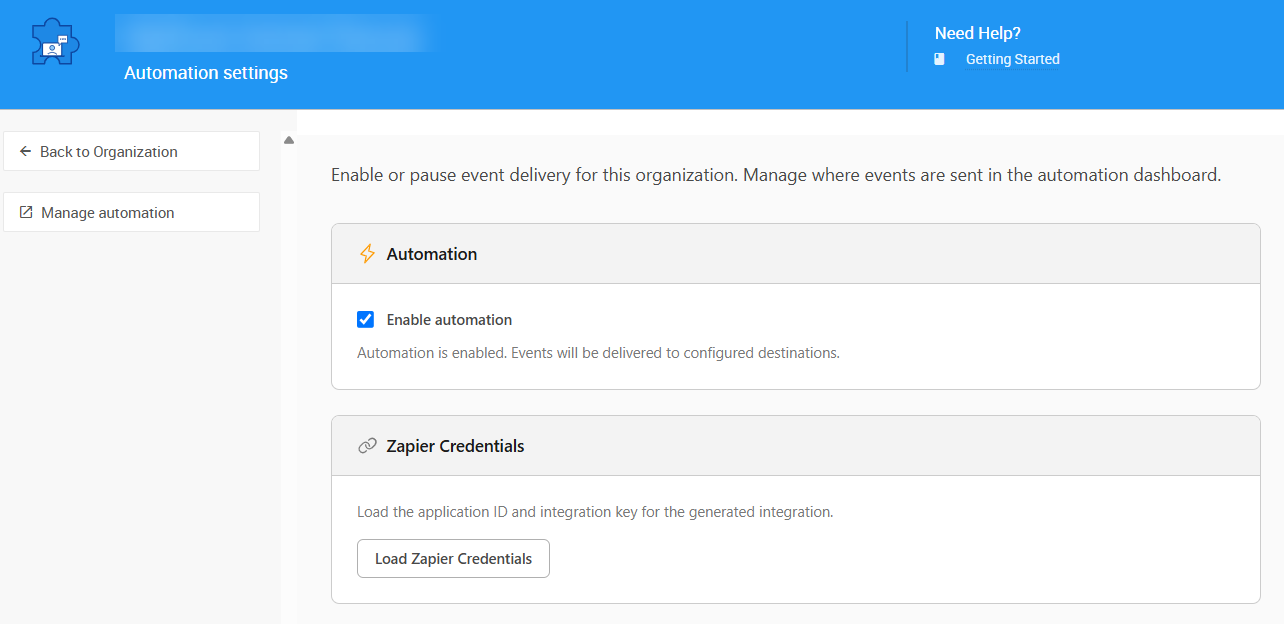
Automation Settings page in Organizations dashboard

An example from a demonstration event.

Click Manage automation to open the control center.
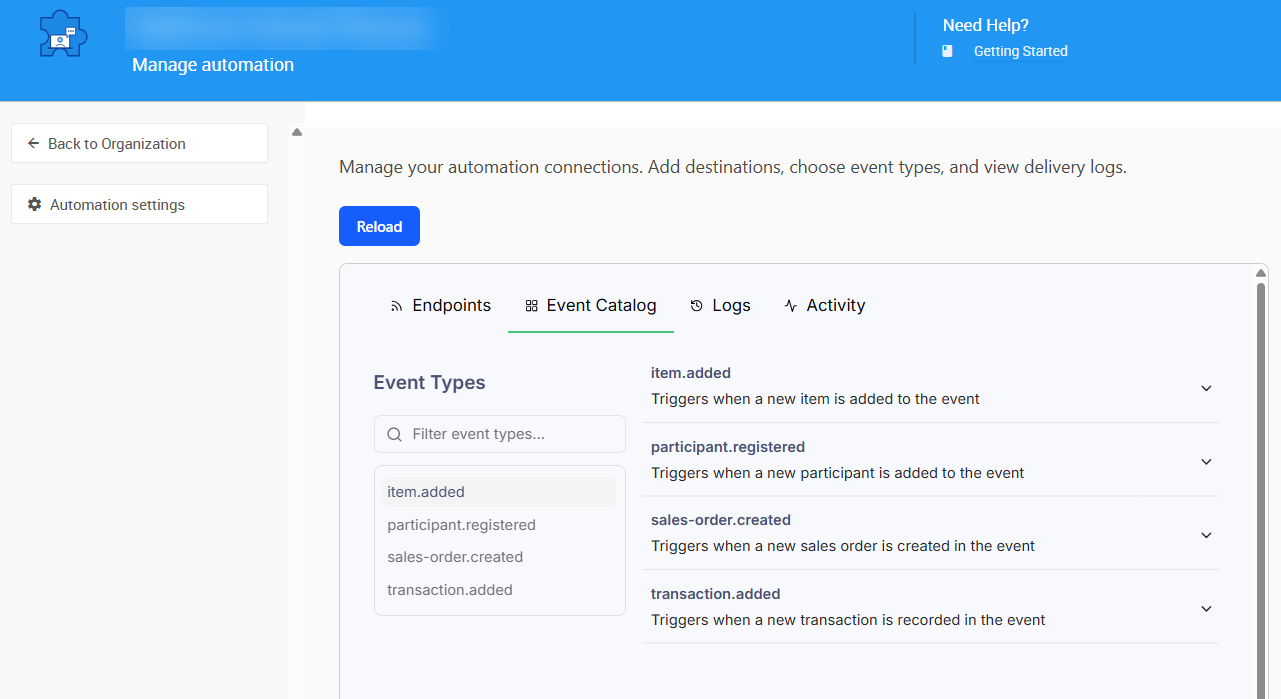
img

An example from a demonstration event.

From here you can access:

  • Endpoints — review connected webhooks and check error rates
  • Event Catalog — browse available trigger events
  • Logs — verify 200 OK delivery responses and inspect event payloads

Connecting Zapier to Auctria

The Auctria app is public in Zapier's directory, so it's searchable and ready to connect right away.

  1. In the Auctria dashboard, go to Organization → Automation, then click Load Zapier Credentials. This generates an Application ID and Integration Key.
  2. In Zapier, go to App connections and create a new connection.
  3. Search for Auctria and enter the Application ID and Integration Key to connect the app.

Auctria will now appear in your list of Zapier app connections.

Keep Your Integration Key Secret

Treat your Integration Key like a password — never share it over unencrypted or shared channels.


Creating a Zap

  1. In Zapier, search for Auctria as the trigger app.
  2. Select a trigger event — this is the Auctria event that starts the Zap:
    • item.added — fires when a new auction item is created. Connects fields like item name, description, and starting bid.
    • participant.registered — fires when a new bidder/user registers for the event. Connects participant name, email, and paddle number.
    • sales-order.created — fires when a checkout completes. Connects sales order ID, items purchased, and total amount. This is the trigger most notification use cases, like a sponsorship sale alert, will use.
    • transaction.added — fires when a financial transaction is recorded. Connects transaction type, amount, and associated participant.
  3. Click Continue, then Test trigger. You may need to verify against existing records in your Auctria event.
  4. Choose a connected app for the action step (Slack, Gmail, Google Calendar, etc.), sign in if prompted, and pick the action event (Send Channel Message, Send Email, etc.).
  5. In the action step's fields, click the + (insert) button inside the field you want to fill (e.g. a Slack message body). This opens the Payload tree — an expandable list of every field Auctria sent with the trigger event. Expand it and click a variable to insert it. Zapier drops in a small pill/token representing that field — this is the actual data reference, not typed text, and it's how data from the trigger event flows into the message or record Zapier creates downstream.
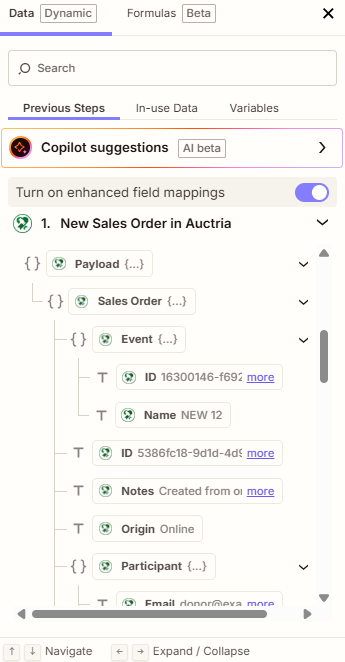
Clicking the + button on a Zapier field opens the Payload tree, where individual fields can be selected and inserted as tokens

Clicking the + button on a Zapier field opens the Payload tree, where individual fields can be selected and inserted as tokens.
  1. Test the Zap.
  2. Publish it.

Payload Fields Can Be Nested

The Payload tree can be nested — some fields (like participant details) contain their own sub-list of variables. Expand a branch to see everything available underneath it.


Example Automations

Slack notification when a sponsorship sells

  1. Create a new Zap and choose Auctria as the trigger app.
  2. Select the sales-order.created trigger event, then test it against a real sales order in your event.
  3. Choose Slack as the action app and sign in if prompted.
  4. Select the Send Channel Message action event.
  5. Choose the channel you want notified (e.g. #event-day).
  6. Click into the Message Text field, then click the + button to open the Payload tree. Select the item name field, then go back and select the sales order total field, so both get inserted as tokens into your message. Type your own text around them, for example: "🎉 Sponsorship sold: [item name token] for [total token]!"
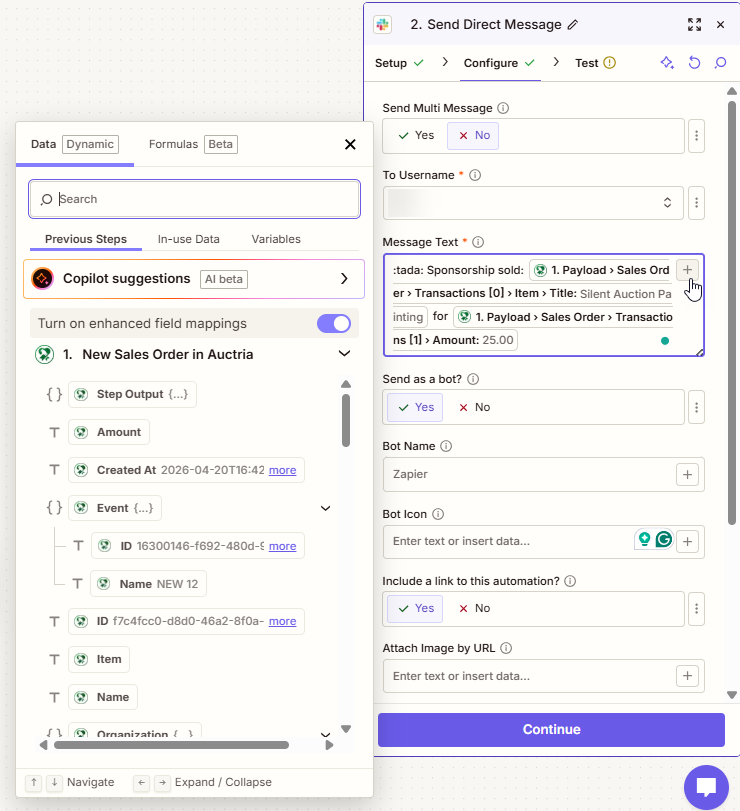
Building a Slack message with inserted Payload tokens for item name and sales order total.

Building a Slack message with inserted Payload tokens for item name and sales order total
  1. Test the Zap, then publish it.

Now every time a sale completes online, your team gets an instant heads-up in Slack.

Gmail notification for a sponsorship sale

  1. Create a new Zap and choose Auctria as the trigger app.
  2. Select the transaction.added trigger event, then test it against an existing transaction.
  3. Choose Gmail as the action app and sign in if prompted.
  4. Select the Send Email action event.
  5. Enter the recipient (e.g. your development director), a subject line, and a body.
  6. Click into the email body field, click the + button, and select the transaction fields you want from the Payload tree — such as transaction type, amount, and associated participant. Each one is inserted as a token you can arrange in your own sentence.
  7. If you only want emails for certain transaction types (e.g. sponsorships), add a Filter by Zapier step between the trigger and the action. In the filter, click + to insert the Item Title field from the Payload tree, then set the condition to (Text) Contains and enter Sponsorship.
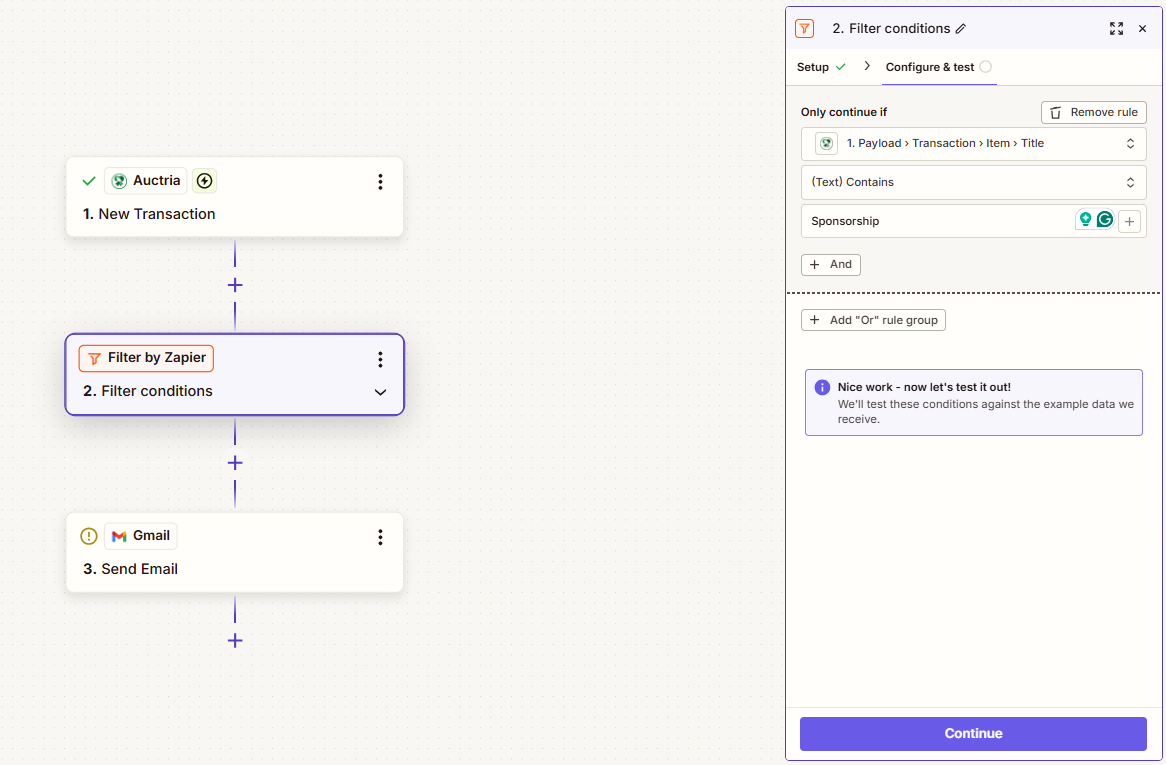
Adding a Filter by Zapier step between the trigger and action, with a condition set on Item Title

Adding a Filter by Zapier step between the trigger and action, with a condition set on Item Title.
  1. Test the Zap, then publish it.

This way, the right staff member finds out immediately when a specific kind of transaction comes in, without being copied on every sale.

More Trigger Ideas

Other useful triggers to consider: an SMS or Slack DM to an event coordinator when participant.registered fires for VIP or major-donor tiers.


Best Practices

  • Secure credential storage — never disclose your Integration Key in unencrypted or shared channels.
  • Monitor webhooks — periodically check delivery rates in the Logs tab, especially during peak auction hours, to ensure high-volume throughput doesn't cause delivery issues.
  • Inspect logs — use the Logs tab under Manage Automation to confirm 200 OK responses and troubleshoot failed deliveries.

See also:

  • Introduction To Organizations

Last reviewed: August 2026
guide.auctria.com/redirect?id=OrganizationAutomations
OrganizationAutomations
/organizations/automations/
organizations
automations
Automations
The Automations feature lets you send outbound notifications when key events happen in your organization — like a sale or new registration — to tools like Slack or Gmail via Zapier.