
One of the most powerful features that Auctria provides is the ability to track and analyze everything in your auction database.
You can reach these reports from the main Event Dashboard by clicking on the Reports entry.
Options And Controls
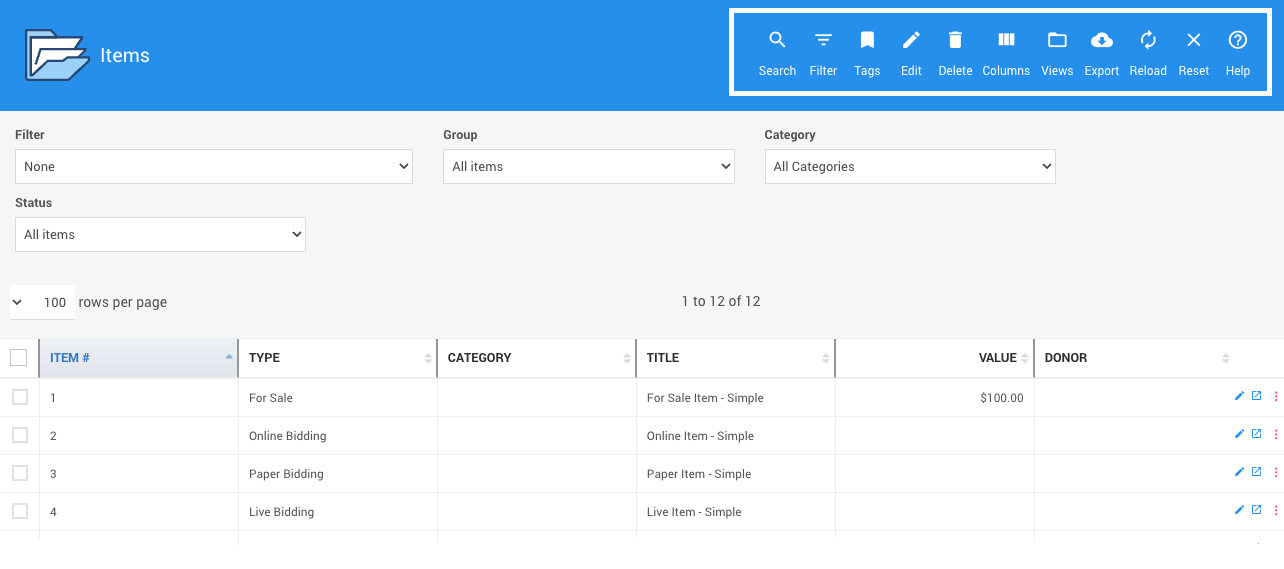
An example All Items (current event) report.
All reports have these icons representing the Options And Controls available to modify your Reports as needed. Each action icon works as a toggle to display its function.
Search
Magnifying Glass () -- this opens a field for searching the current report.
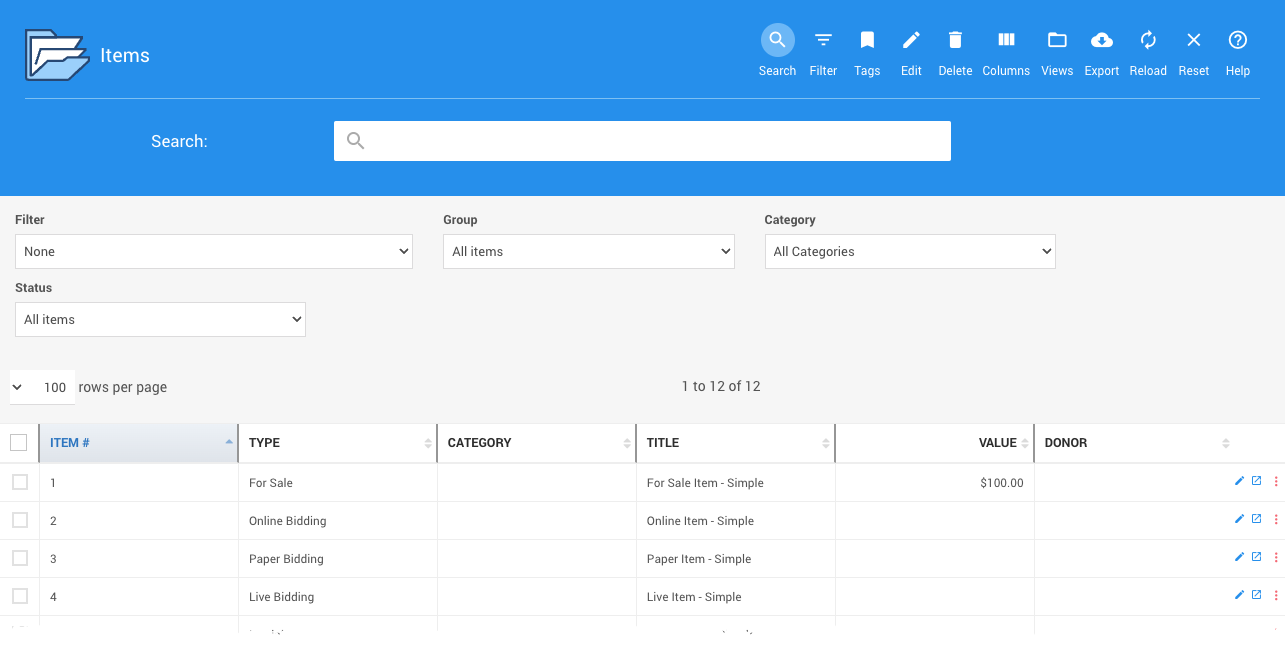
An example from a demonstration event.
Filter (advanced) (work in progress)
Filter List () -- this opens the Advanced Filter bar. Using this option, you can enter ad hoc filter expressions to quickly filter the displayed report results.
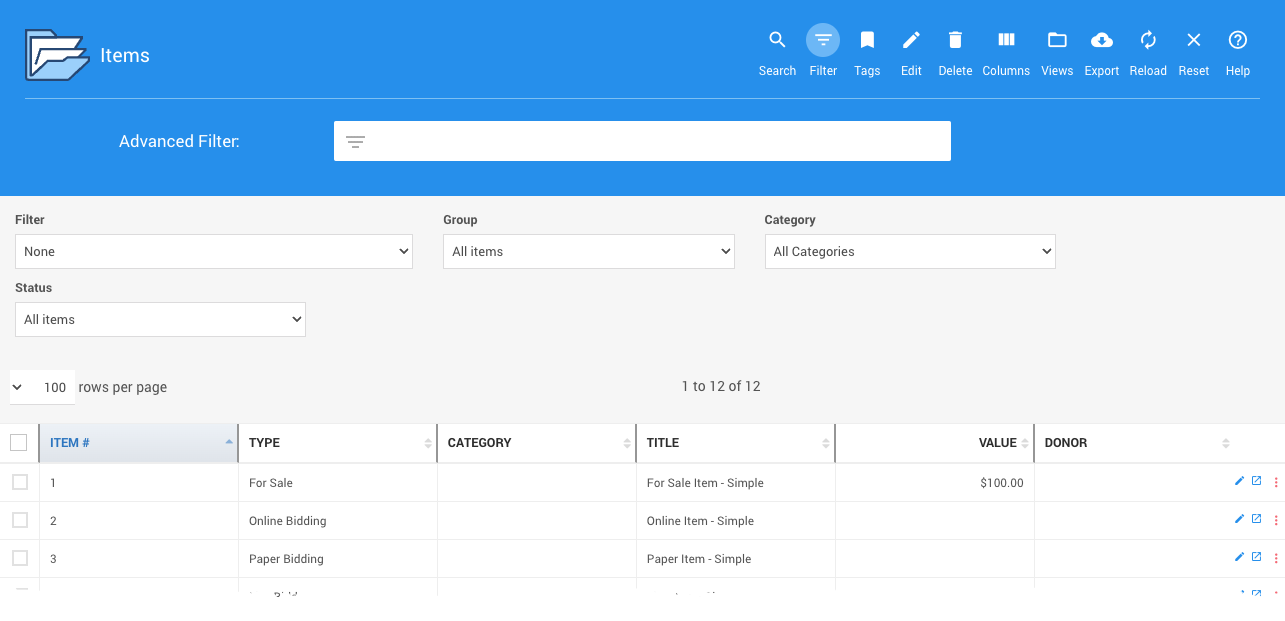
An example from a demonstration event.
Tags
Ribbon/Bookmark () -- this opens a field to search the current report specifically by Where Tags Can Be Used In Auctria attached to the event items. See Columns (below) for more on displaying the Tags column for reference.
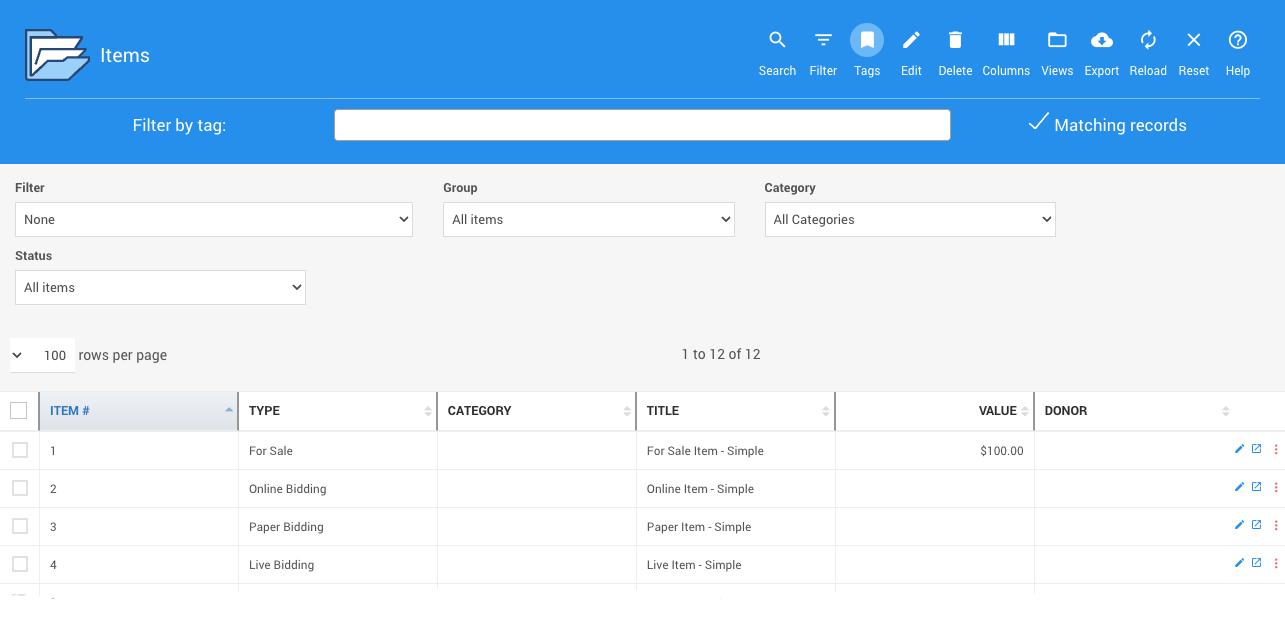
An example from a demonstration event.
See How To Bulk Edit Tags for more information.
Edit
Pencil () -- this opens the Mass Changes and Tag Editor fields.
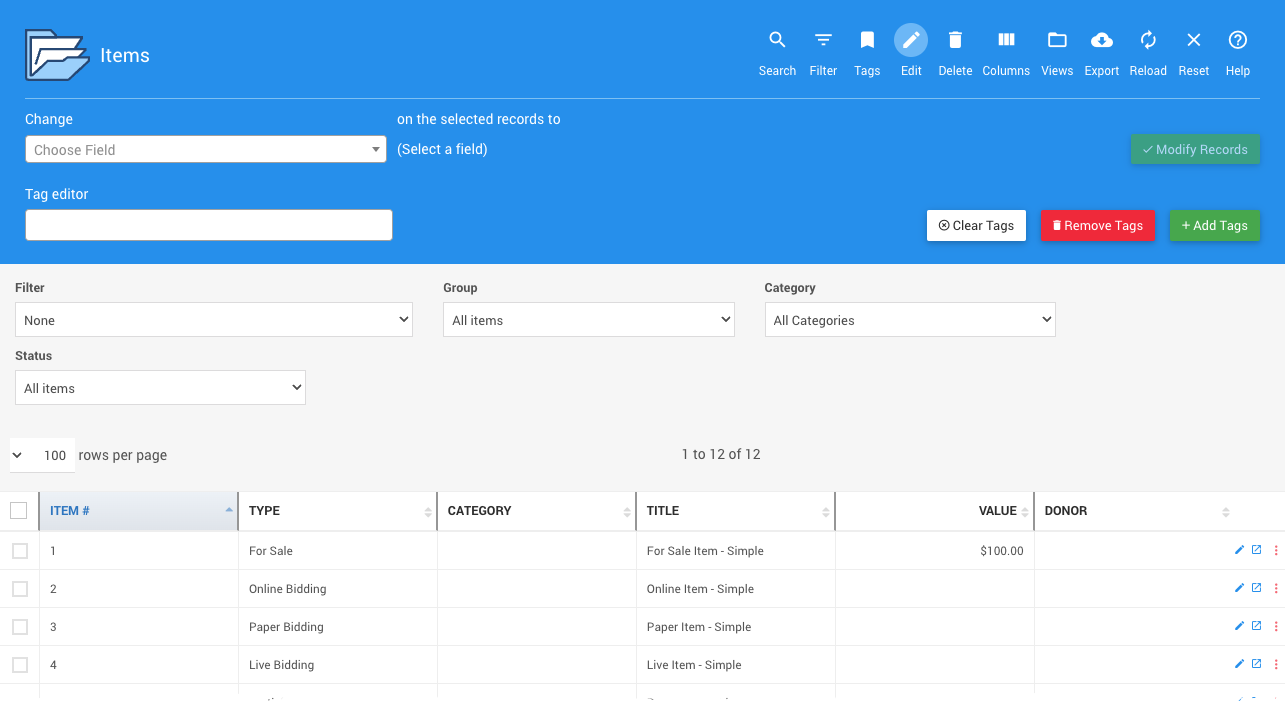
An example from a demonstration event.
See Using The Bulk Editing Feature Set for more information.
Delete
Trash can () -- this will immediately delete any displayed records that you have selected by checking their respective check box.
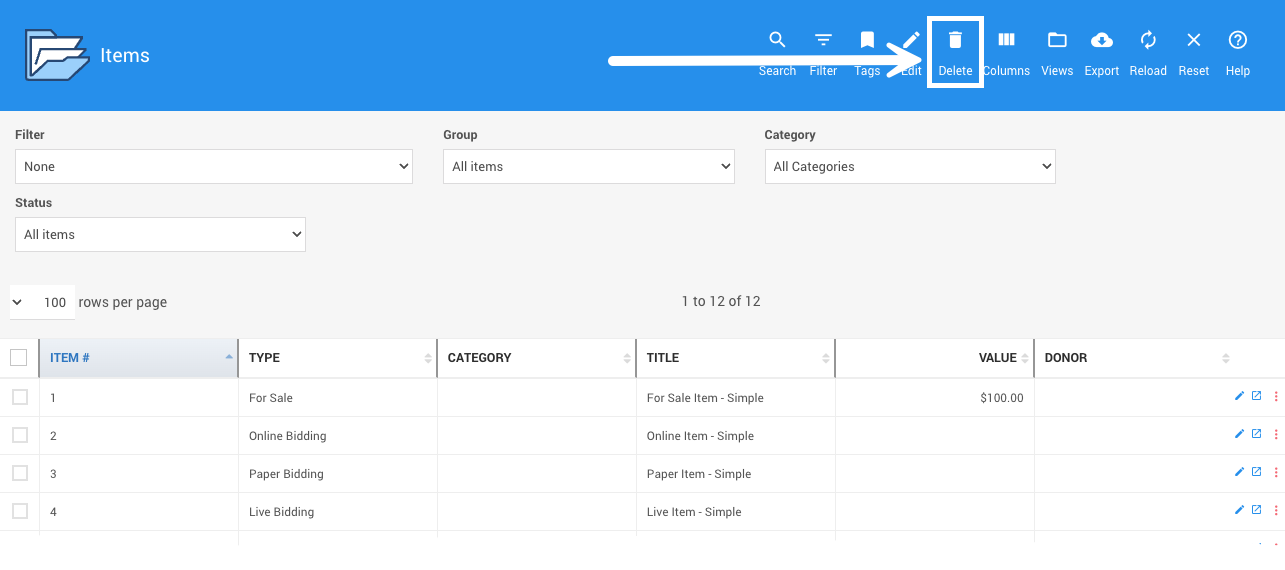
An example from a demonstration event.
Columns
Three Vertical Bars () -- this opens the Choose Visible Columns window where you can add (or remove) columns available for the current report by checking the appropriate box.
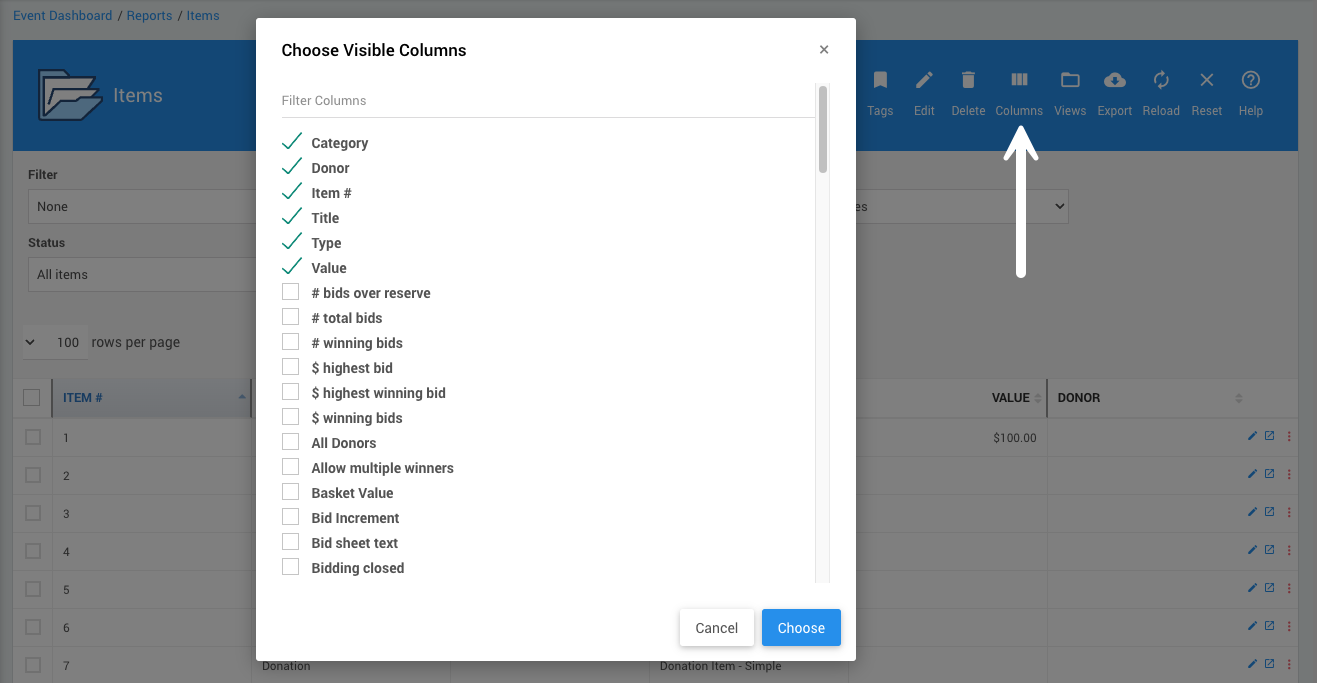
An example from a demonstration event.
See Choosing Columns for more information.
Views
Folder () -- this pops open the View options for the current report. See How To Change Report Views for more information.
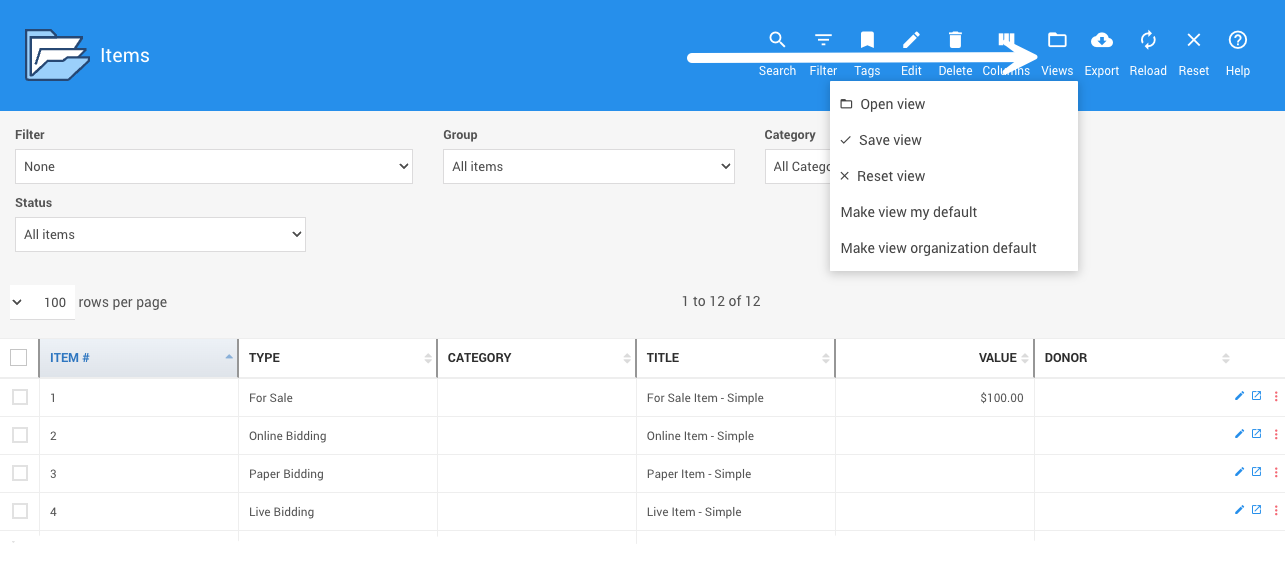
An example from a demonstration event.
Export
Cloud Download () -- this pops open the Export options for the current report. Selecting one of these options will trigger the export process and start the "download" operation in your browser.
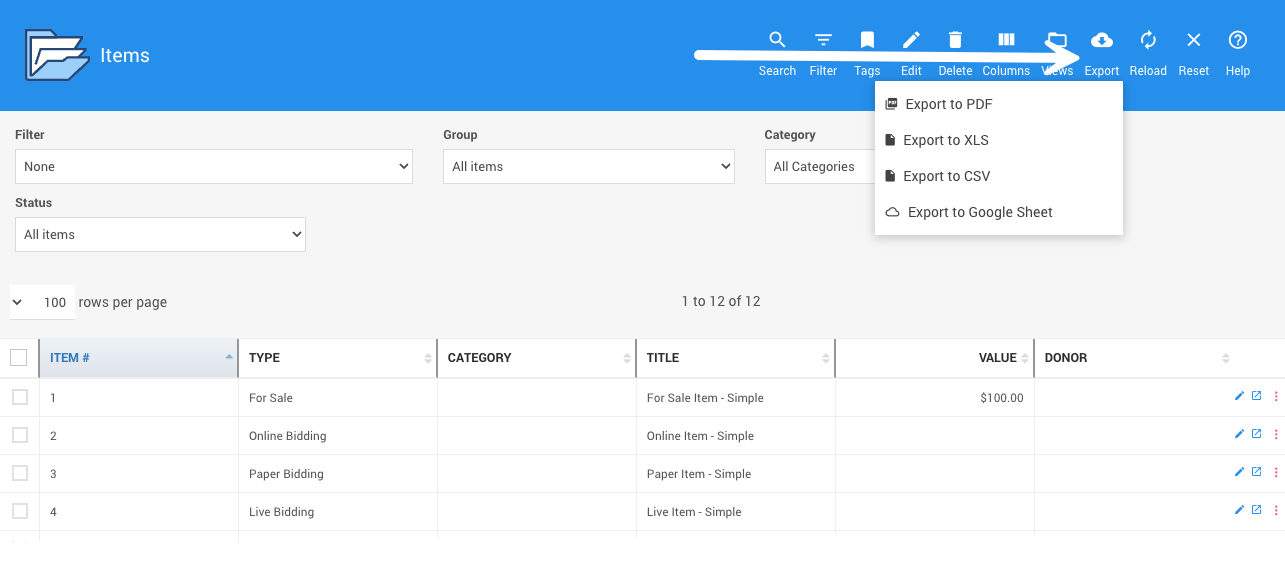
An example from a demonstration event.
The exported data will reflect the columns and sorting options selected at the time of export. The exported data will include the complete report, not just the current page of a multi-page report being viewed on the screen.
Reload
Refresh () -- this triggers the report to be reloaded using the current properties.
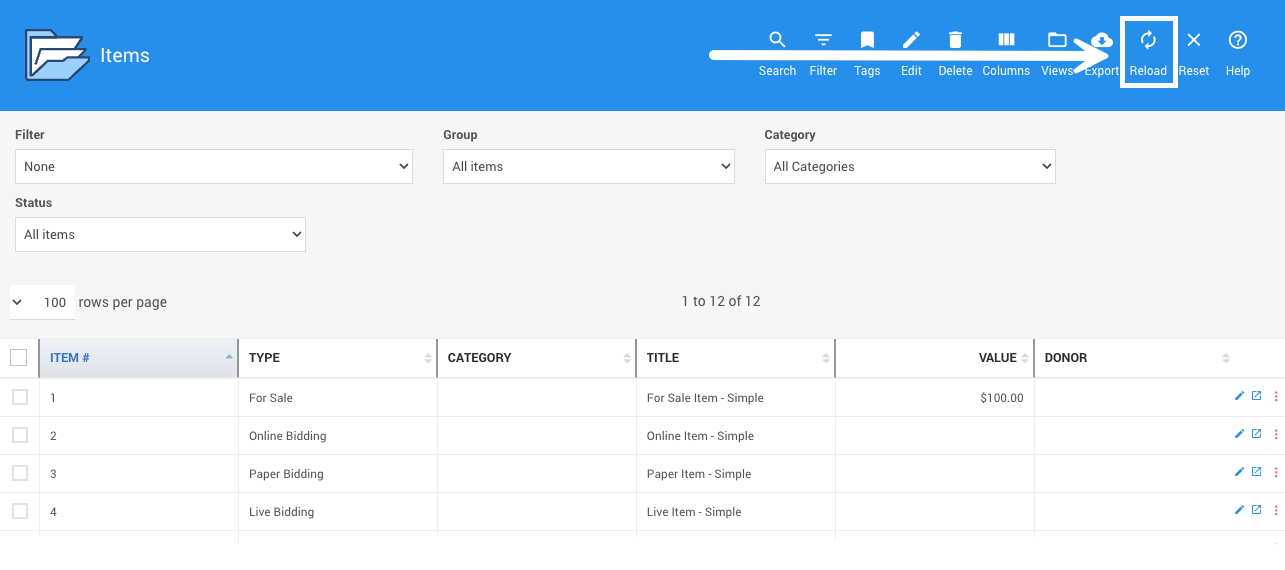
An example from a demonstration event.
Reset
Reset () -- this will refresh the report using the system default properties.
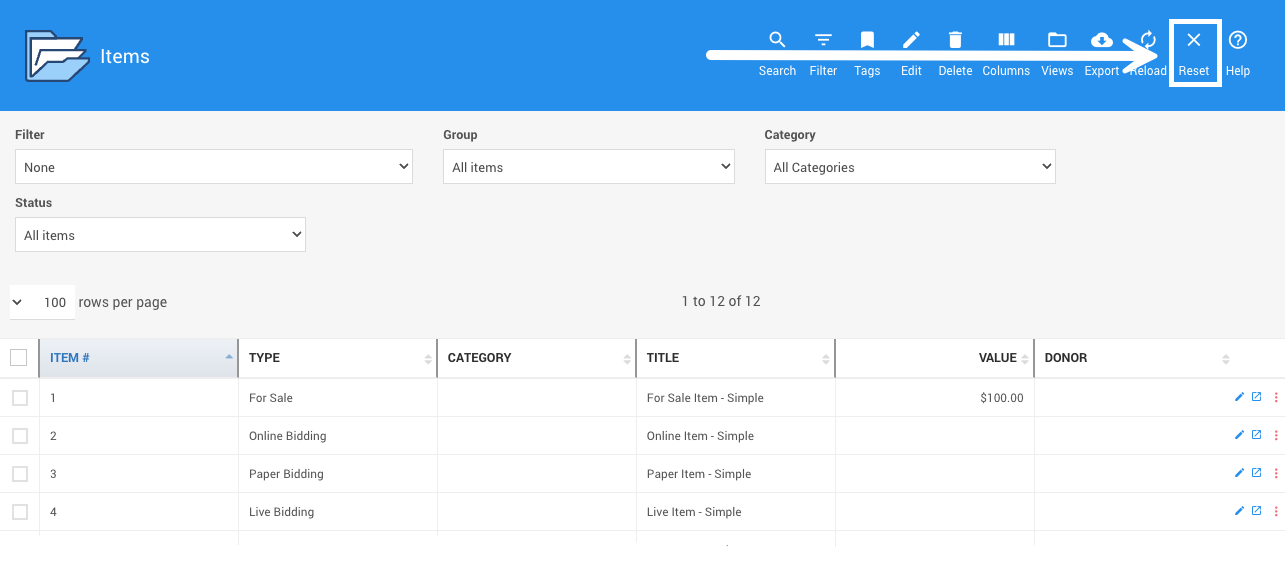
An example from a demonstration event.
Help
Circled Question Mark () -- this open a new tab/window in your browser and takes you directly to the Reports collection of the User Guide.
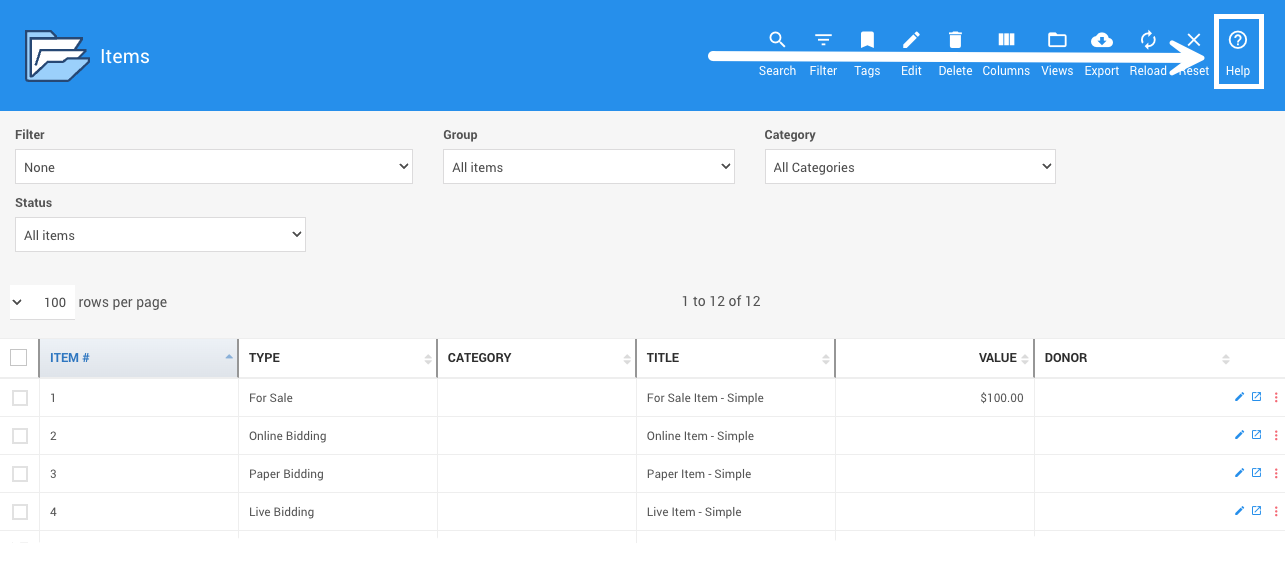
An example from a demonstration event.