
Learn how to move from standard texting to advanced texting with a paid Auctria license.
With Advanced Texting, you choose your own dedicated phone number for your event and can send custom text messages to your participants. Setting it up has three parts: submit your texting profile, enable the profile once it has been approved, and then assign your phone number.
Before You Begin
- The Text Messages feature set requires a paid license. See Auctria pricing for more information on our licenses.
- To set up Advanced Texting, you must be logged in with a User Account whose permission level is set to Admin.
Step 1: Submit Your Advanced Texting Profile
Before you can assign a phone number, you need to submit your Advanced Texting Profile.
- From the main Default Dashboard, click Communication.
- In the sidebar on the left, click Advanced Texting Profile.
- Complete each section of the profile. See Advanced Texting Profile for details on what to enter in each section.
- Click Update Profile.
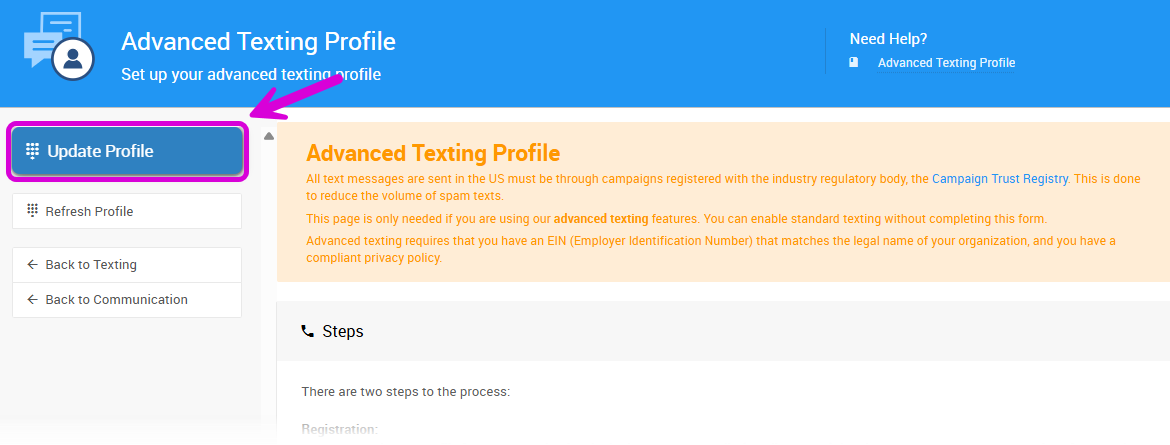
The Update Profile button in the Actions sidebar of the Advanced Texting Profile page.
Enter Accurate Information
The information in your profile must match your registered EIN profile. Complete the form with the most accurate information you have so that your profile doesn't need to be resubmitted.
If You Already Have a Texting Profile
If you have previously registered a texting profile with Auctria, you can check its status in the Advanced Texting Profile page under Communication. Profiles registered in the last few months should be valid. Older profiles may need to be updated with the organization's EIN.
Step 2: Enable Your Profile
Auctria doesn't send a notification when your Advanced Texting Profile is approved. About a week after you submit your profile, go back to the Advanced Texting Profile page and click Update Profile again to enable it.
Set a Reminder
Add a reminder to your calendar for a week after you submit your profile, so you don't forget to enable it.
Step 3: Open Text Settings
Once Advanced Texting is enabled, the Select New Phone# button appears on the Text Settings page.
- From the main Default Dashboard, click Communication → Texting.
- Click Select New Phone# to open the wizard that assigns your phone number.
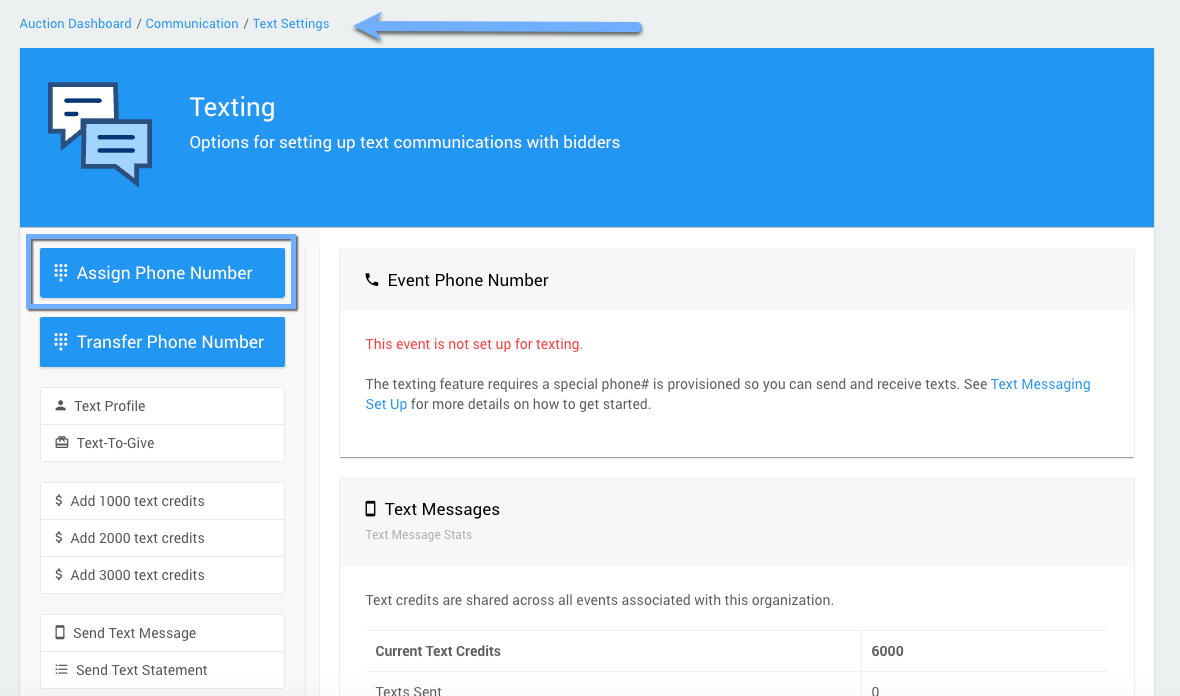
The button for assigning a phone number on the Text Settings page, from a Diamond license.
Phone Number Requirements
Auctria provides a list of available phone numbers to choose from for your area. The Advanced Texting feature set cannot be set up using an external mobile phone number.
Already Have a Texting Number?
If you have used Text Messages with your Auctria organization before, you can transfer your phone number to your current event instead. See How To Transfer Your Texting Number.
Step 4: Start the Texting Wizard
The wizard guides you through selecting an area code and a phone number. You can currently choose numbers in the US and Canada.
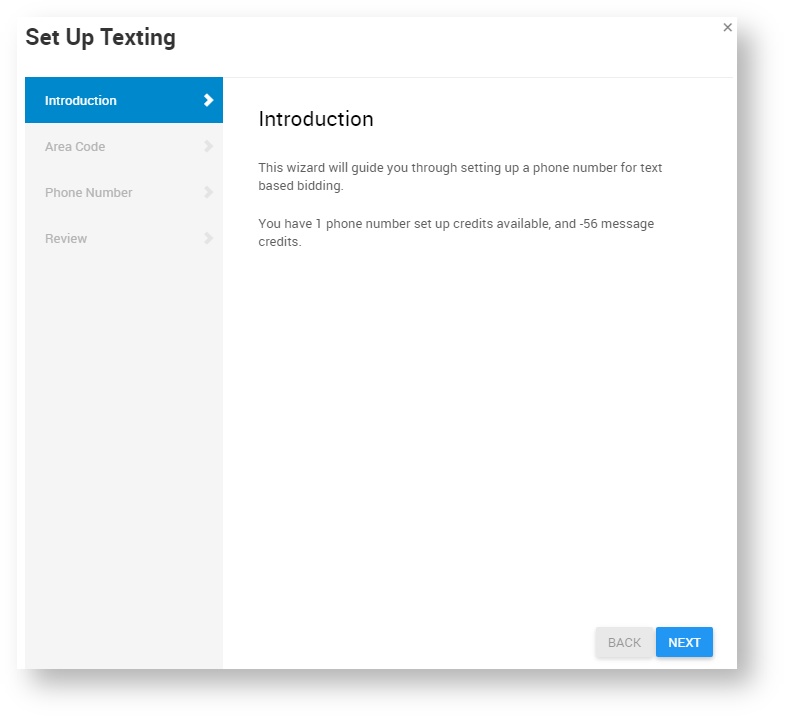
The first page of the texting setup wizard.
Step 5: Set the Area Code
Enter the area code you would like for your phone number. Numbers are available in most US and Canadian area codes.
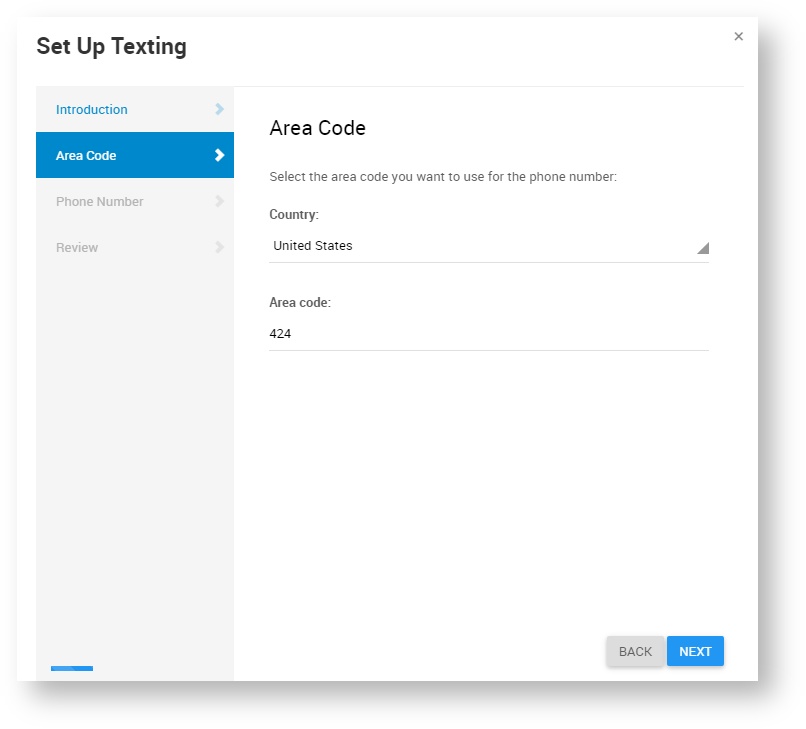
Entering an area code in the texting setup wizard.
No Numbers Available?
Some heavily subscribed area codes may not return any available numbers. If that happens, choose a neighboring area code.
Step 6: Choose a Phone Number
After you enter an area code, choose a phone number from the list of available numbers.
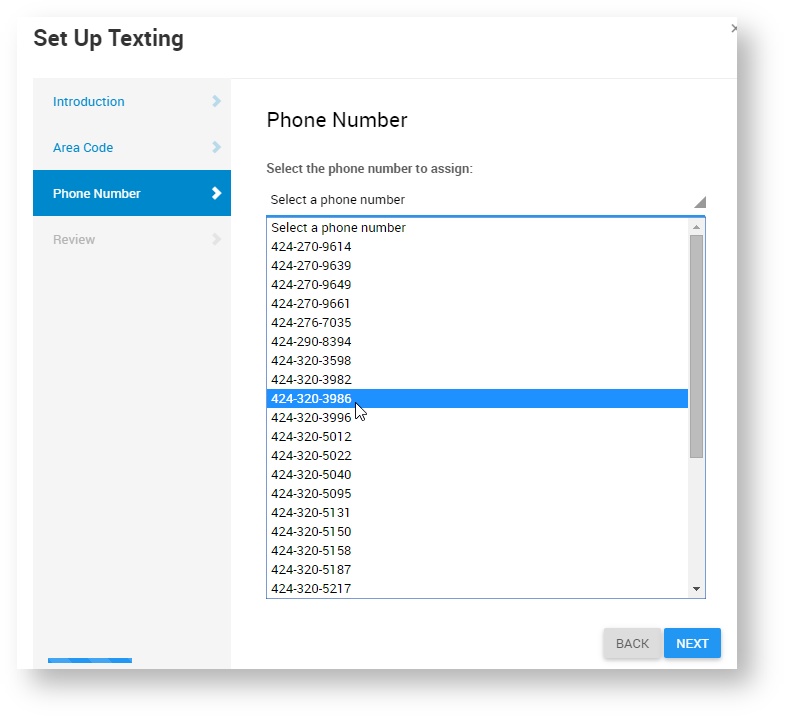
The list of available phone numbers in the texting setup wizard.
Step 7: Review
After you complete the wizard, your auction phone number is shown on the Text Settings page. Your auction phone number is now ready to use.
Test Your Number
Try texting hello to the number to make sure it's working.