
Learn how to upload or select an image using the Choose Image window.
The Choose Image window opens when you click the preview icon beside an image field, double-click a default image placeholder, or click the pencil icon on a selected image element.
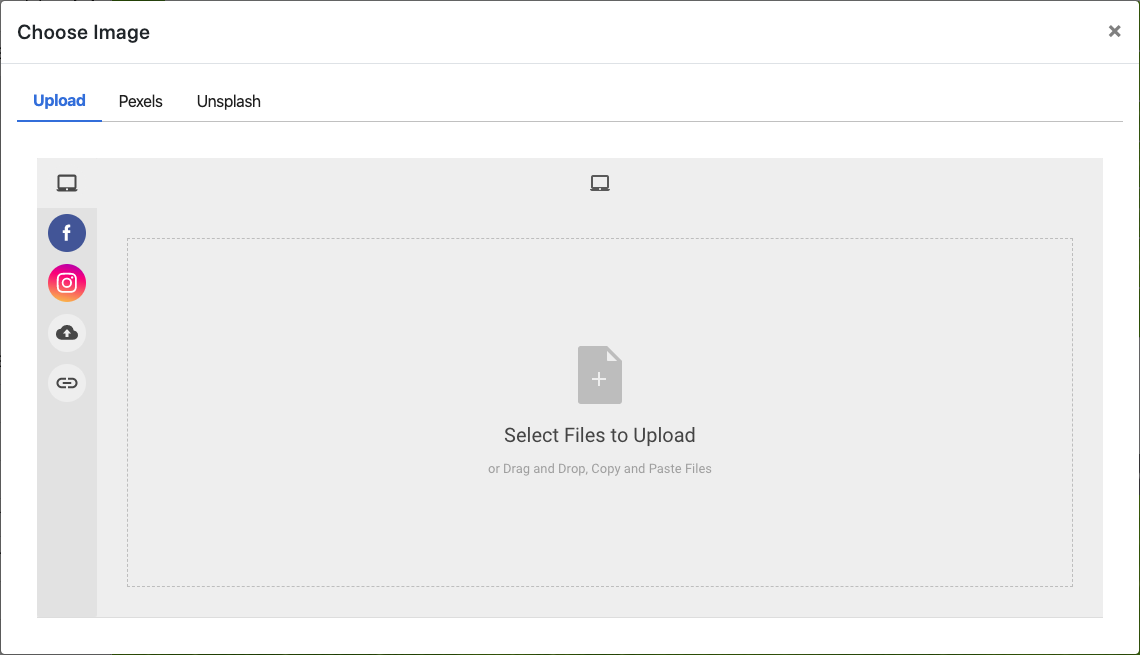
An example of the Choose Image window from a demonstration event.
Upload
The Upload tab lets you bring in an image from your device or a connected account.
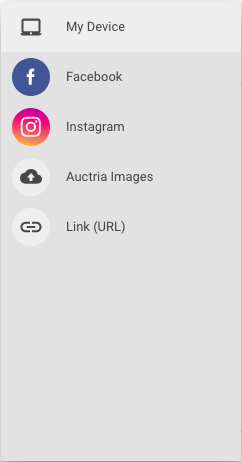
| Source | Description |
|---|---|
| My Device | Upload an image directly from your computer by selecting it or dragging it into the upload area. |
| Connect to your Facebook account to select an image from there. | |
| Connect to your Instagram account to select an image from there. | |
| Auctria Images | Choose from a curated selection of images provided by Auctria. |
| Link (URL) | Link directly to an image hosted online by entering its URL. |
After selecting an image, an editor opens where you can crop, circle, or rotate the image before uploading.
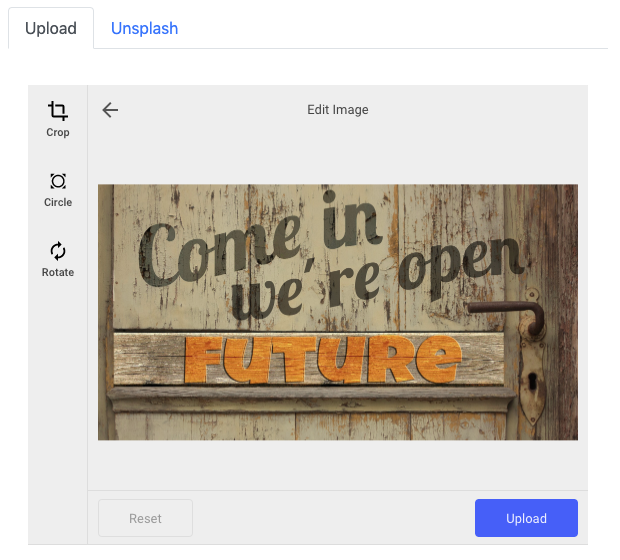
Click Upload then Save to apply the image.
Recommended image dimensions
The precise dimension isn't critical since screen sizes vary, but these ranges work well in most cases:
- Full-width images: around 1200px wide
- Half-width images: around 600px wide
- Page background images: up to 1600px wide
Online Image Sources
Pexels
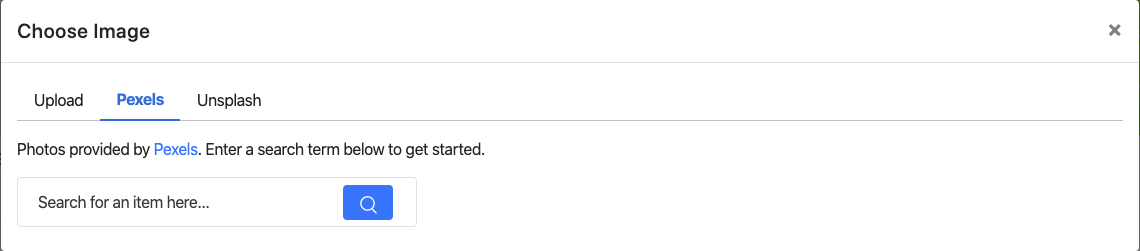
The Pexels tab opens a search box connected to Pexels. Enter a search term to browse free stock photos. Click any image to select and apply it directly.
Unsplash
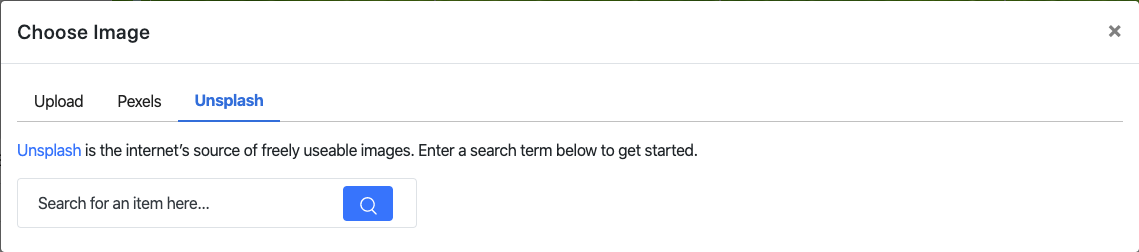
The Unsplash tab opens a search box connected to Unsplash. Enter a search term to browse free high-resolution photos. Click any image to select and apply it directly.