
Remove a won item or purchase that has already been paid for, then remove or refund the payment.
Deleting a paid purchase takes two steps, both on the Activity tab of the Participant Details page:
- Delete the winning bid or purchase.
- Remove or refund the payment.
Payments aren't attached to specific items, so deleting the purchase doesn't change the payment. Until you do Step 2, the participant shows a credit balance.
Step 1: Delete The Winning Bid Or Purchase
On the participant's Activity tab, click the red X beside the line under Items Won or Purchases.
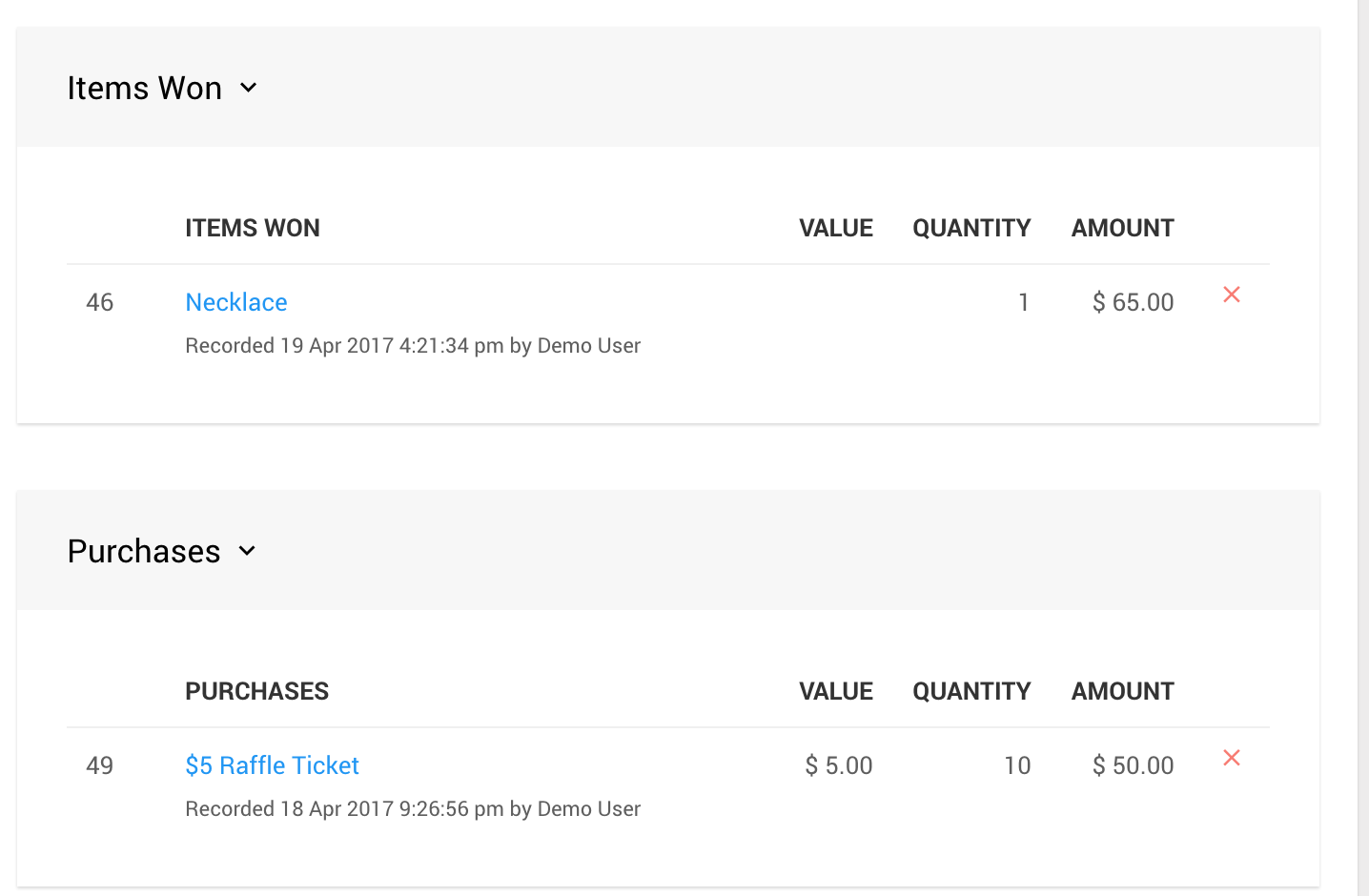
An example from a demonstration event.
| Item Type | What Happens |
|---|---|
| Won item, single quantity | The next-highest bid, if there is one, becomes the winning bid. If bidding is still open, it shows as an in-progress winning bid. If bidding is closed, it's added to that participant's Items Won. |
| Ticket | The ticket assignment is removed. |
Step 2: Remove Or Refund The Payment
You can also record a new bid, purchase, or donation to use the credit instead.
Credit Card Payment
Click Refund beside the payment. See Credit Card Refunds.
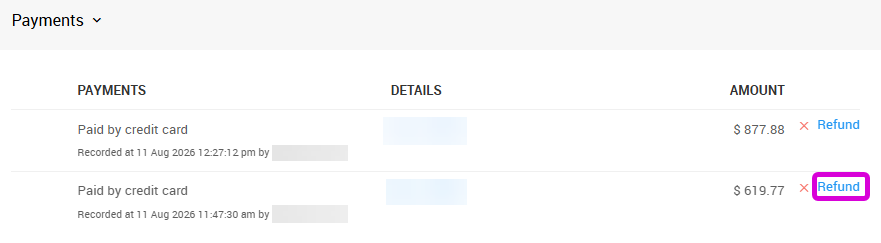
An example from a demonstration event.
Cash, Check, Or Other Payment
Click the red X beside the payment to remove it. See Delete Or Edit A Non Card Payment.
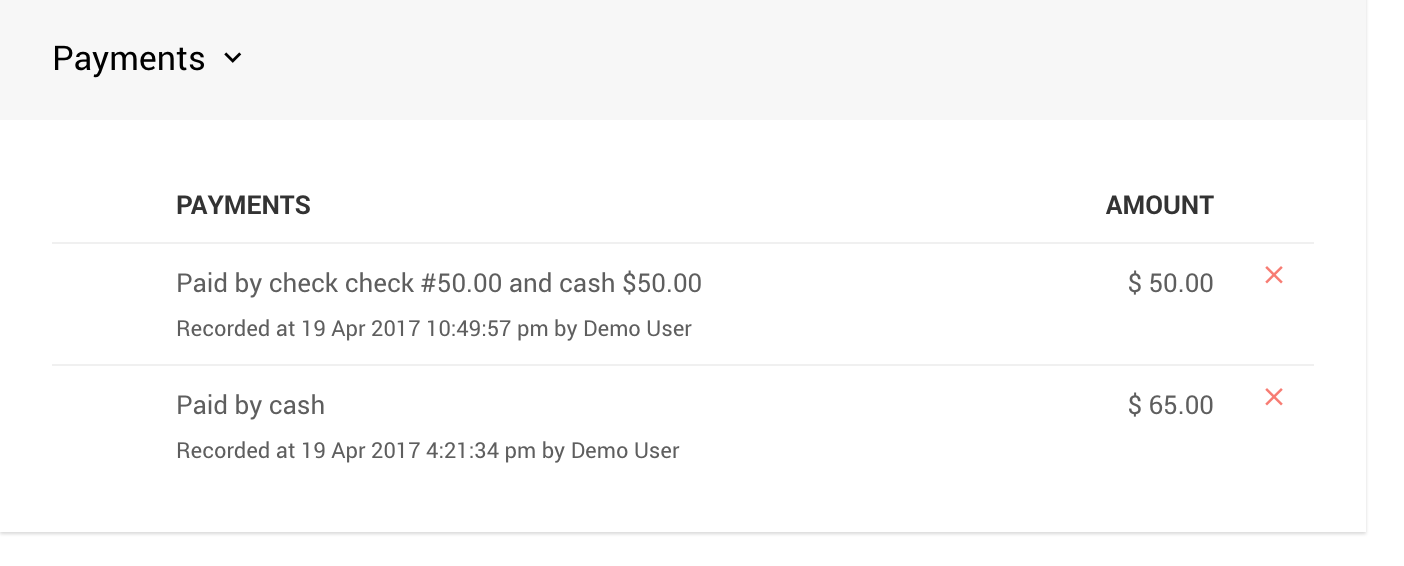
An example from a demonstration event.