
Learn how to save time by adding pre-built blocks, like access buttons, QR codes, and contact details, to your System Emails and Custom Emails.
Pre-built blocks save you the time and effort of building out elements and writing any custom code in your System Emails or Custom Emails.
To add a block, drag the Add Block element from the Email Editor Sidebar into the space where you want it. The Choose Block window opens, where you can click a card to add that block to your email.
Available Blocks Vary by Email
The blocks in the Add Block list change depending on the email you're editing. This page covers the blocks available for Custom Emails.
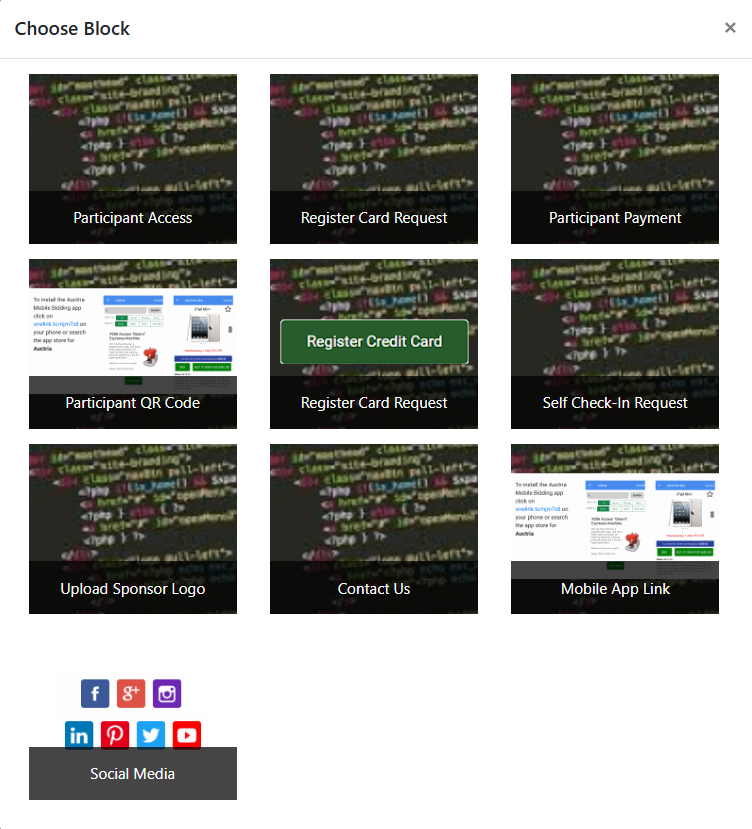
An example of the blocks available for Custom Emails in the Choose Block window.
Blocks at a Glance
| Block | What It Adds |
|---|---|
| Participant Access | A button to access the Event Website, descriptive text, and the participant's access code. |
| Register Card Request | A button to register a credit card, descriptive text, and the participant's access code. |
| Participant Payment | Descriptive text, the guest's current balance, and a button to their account page. |
| Participant QR Code | A large QR code with simple instructions for scanning to access the event's auction website. |
| Self Check-In Request | A button that takes guests to the self check-in page on the event website. |
| Upload Sponsor Logo | A button that lets sponsors upload their logo to your event website. |
| Contact Us | Your organization's name and email address, so guests know how to reach you. |
| Mobile App Link | Information about downloading the Auctria mobile app, with a link to the right app store for each guest's device. |
| Social Media | Links to your organization's social media accounts. |
Participant Access
The Participant Access block inserts a button that takes guests to your Event Website, some descriptive text, and a bold reference to the Access Code. The access code is added using a placeholder.
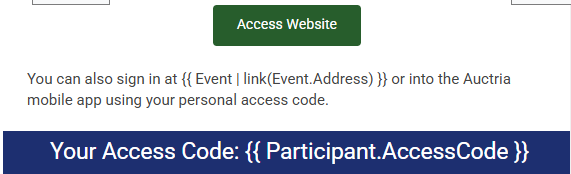
The Participant Access block from a demonstration event.
Register Card Request
The Register Card Request block inserts a button that lets recipients register a credit card, some descriptive text, and the participant's access code. The access code is added using a placeholder.
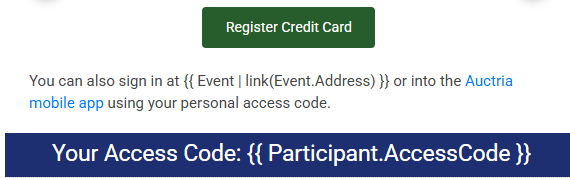
The Register Card Request block from a demonstration event.
Participant Payment
The Participant Payment block inserts some descriptive text, a placeholder for the guest's balance at the time the email was sent, and a button linking to the guest's My Account page.

The Participant Payment block from a demonstration event.
Participant QR Code
The Participant QR Code block inserts a large QR code with simple instructions for guests to scan it and access the event's auction website.
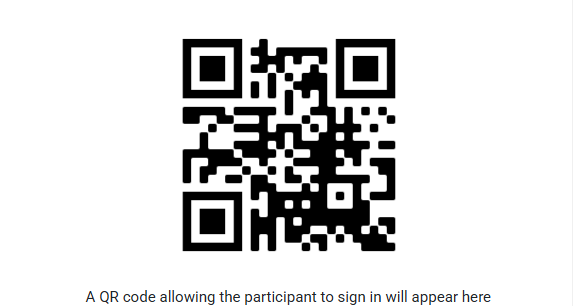
The Participant QR Code block from a demonstration event.
Self Check-In Request
The Self Check-In Request block adds a button that takes guests to the Participant Self Check-In page on the event website.
The Self Check-In Request block from a demonstration event.
Upload Sponsor Logo
The Upload Sponsor Logo block adds a button that sponsors can click to open a page on your event website. There, they can upload an image to use as their logo in your event website's Sponsors Catalog.

The Upload Sponsor Logo block from a demonstration event.
Contact Us
The Contact Us block inserts details on how to contact the event organizers, using placeholders for your organization's Name and Email address.
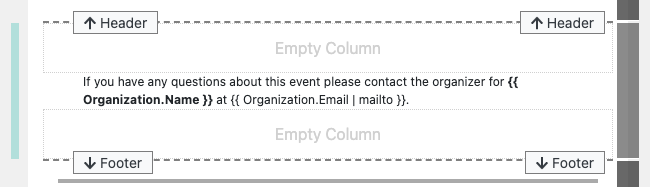
The Contact Us block from a demonstration event.
Mobile App Link
The Mobile App Link block inserts information about downloading and installing the Auctria Bidder Mobile App. It includes a dynamic link to the most appropriate app store for the device each guest uses to view the email.
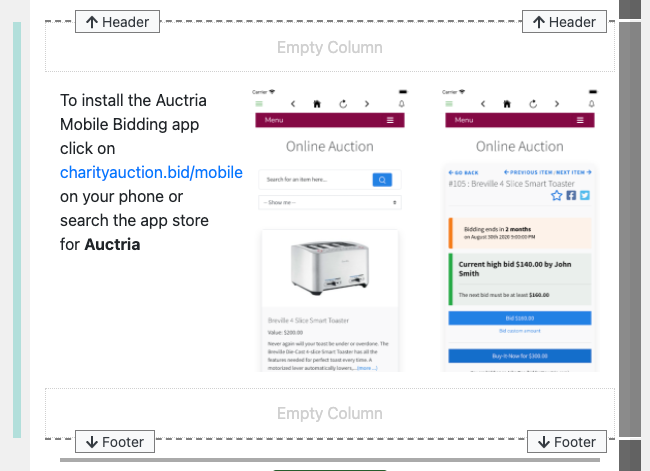
The Mobile App Link block from a demonstration event.
Social Media
The Social Media block inserts a pre-configured element that displays all of the social media links currently saved in your Introduction To Organizations details.
The Social Media block from a demonstration event.
Editing Blocks
Advanced: Edit With Care
Editing the contents of a block is an advanced task. Changes can affect how your email displays, so preview your email before you send it.
Most of the elements inside email blocks are built from the same elements you use when Editing Emails or when working in the Introduction to Website Editor. Some blocks are more involved than others, so take your time when changing them.