
A dedicated catalog element for displaying raffles on your event website.
The Raffle Catalog row element displays your event's raffles on the website, giving raffles the same flexible, card-based treatment as auction items. It's a purpose-built shortcut for raffles — rather than configuring a general Item Catalog to show raffle items, this element pulls your raffles in directly and gives you raffle-specific display and ticket controls.
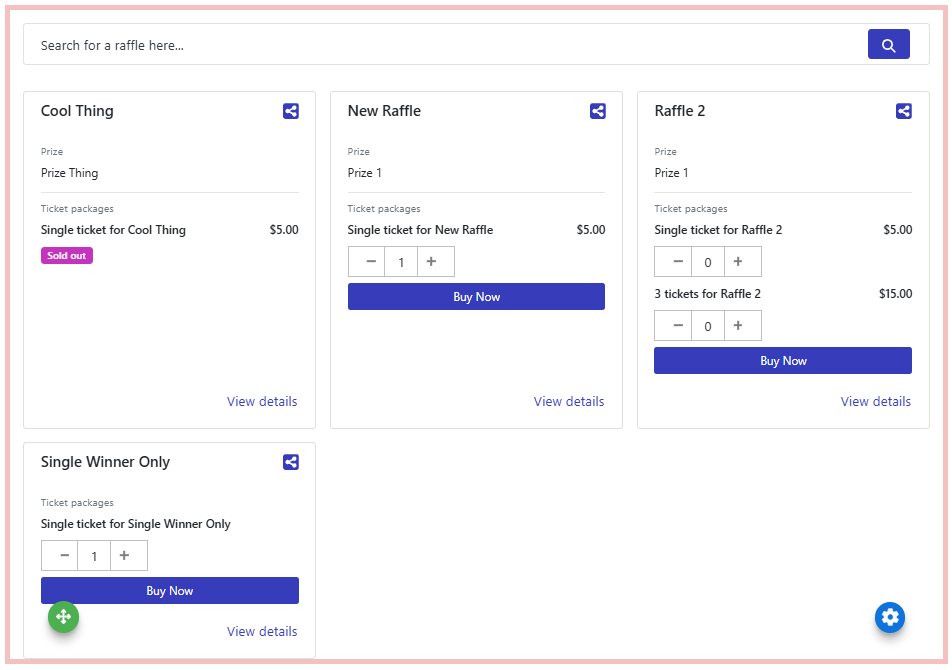
An example Raffle Catalog on an event website.
By default, the Raffle Catalog includes:
- A Search field for guests to find raffles by keyword.
- Page navigation bars to move through the catalog across multiple pages.
- Raffle cards displaying the configured raffles.
Adding the Raffle Catalog to a page
Drag the Raffle Catalog element from the Website Editor Sidebar into a row on the page. To browse all row content options first, drag More Row Content onto the page to open the Choose Row window.
Selecting the Raffle Catalog element opens its settings panel in the Editor sidebar, covering catalog-wide options as well as how each raffle card and its details view are displayed.
Catalog Settings
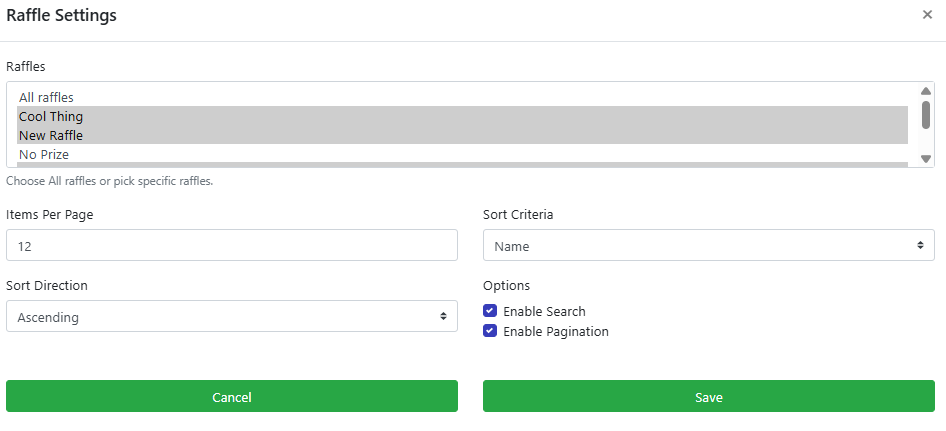
The Raffle Settings window.
Clicking Configure next to Catalog Settings opens the Raffle Settings window, which contains the following options:
| Setting | Description |
|---|---|
| Raffle(s) Displayed | Choose which raffle to display in the catalog, or select All Raffles to display every raffle in your event. |
| Items Per Page | Controls the number of raffle cards displayed on a single page of the catalog. |
| Sort Criteria | Sets the order in which raffles are displayed in the catalog, such as by item name. |
| Sort Direction | Sets whether raffles are sorted Ascending or Descending. |
| Enable Search | Toggles the Search field at the top of the Raffle Catalog. |
| Enable Pagination | Toggles the page navigation bars at the top and bottom of the catalog. |
Raffle Card
Each raffle card's display settings appear directly in the Editor sidebar when the Raffle Catalog element is selected.
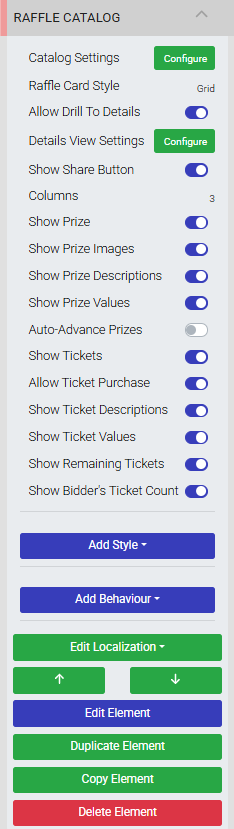
The Raffle Card settings panel.
| Setting | Description |
|---|---|
| Columns | Controls how many raffle cards appear across a row on desktop screens (Grid style only). |
| Show Prize | Master toggle for the prize section of the card. Enabling it reveals Show Prize Images and Show Prize Descriptions in the sidebar; disabling it hides them and removes the prize from the card — useful if you just want a quick place for guests to buy tickets. |
| Show Prize Images | Toggles the prize image. Only shown when Show Prize is on. |
| Show Prize Descriptions | Toggles the prize description. Only shown when Show Prize is on. |
| Auto-Advance Prizes | For raffles with multiple prizes (Grid style), toggles automatic cycling through them on the card. |
| Prize Advance Delay (seconds) | Sets how long each prize displays before advancing to the next (Grid style only). |
| Show Tickets | Master toggle for the ticket section of the card. Enabling it reveals Show Ticket Value, Show Remaining Tickets, and Show Bidder's Ticket Count in the sidebar; disabling it hides them. |
| Allow Ticket Purchase | Toggles whether guests can buy tickets directly from the catalog. Independent of Show Tickets — turn this off to list ticket bundles and pricing without selling online, for example if online sales haven't opened yet. |
| Show Ticket Value | Toggles the display of ticket price/value. Only shown when Show Tickets is on. |
| Show Remaining Tickets | Toggles the display of how many tickets remain for a given ticket package. Only shown when Show Tickets is on. |
| Show Bidder's Ticket Count | Lets guests see how many tickets they already hold for the raffle, right on the card — a nice nudge for them to buy more. Only shown when Show Tickets is on. |
How ticket purchases work
Purchase buttons follow your event's existing online purchase settings, so tickets are added to a guest's account or cart the same way as other purchases. If a raffle has more than one ticket option, each option gets its own clearly grouped price and button — sold-out or off-sale options are shown as unavailable rather than something guests can click.
Raffle Card Style
The Raffle Card Style setting controls the layout of raffle cards in the catalog. There are three styles to choose from:
| Style | Description |
|---|---|
| Horizontal | Displays each raffle listed in a row, with a click-through to the full raffle page. |
| Grid | Displays raffle cards in a multi-column grid, also with a click-through to the full raffle page. Card count per row is controlled by Columns (see Raffle Card below). For raffles with multiple prizes, also includes Auto-Advance Prizes and Prize Advance Delay (seconds) — see Raffle Card below. |
| Detail-inline | Displays the raffle's full page directly in the catalog, front and center — including ticket buying — rather than requiring guests to drill in. |
Grid column minimums
Raffle cards have a minimum width so they don't become too cramped. If Columns is set higher than the available row width can support at that minimum, fewer columns may display than the number selected.
For Horizontal and Grid styles, the settings panel also includes:
| Setting | Description |
|---|---|
| Allow Drill To Details | Toggles the ability to click a raffle card to open its full details. |
| Details View Settings | Appears beneath Allow Drill To Details. Clicking Configure opens a separate settings panel controlling what's shown on that details page — see Raffle Details below. |
Advanced Styling
Clicking Add Style opens the styling hooks for every component of the raffle card, making it easier to add advanced styles or target specific elements on the card.
See Add Style for more information on adding advanced styling to an element.
Add Behavior
Clicking Add Behavior lets you attach interactive behaviors to the raffle card.
See Add Behavior for more information on adding behaviors to an element.
Edit Localization
Clicking Edit Localization works similarly to Add Style and Add Behavior: it shows a list of the available components for the selected element — such as the button that buys the selected ticket. Selecting a component opens the Edit Localization window, where you can change the text that appears for that component (for example, changing a button's label from Buy Now to Purchase Raffle Ticket). The window also shows the component's key and its default system label.
See Edit Localization for more information on editing localization text for an element.
Raffle Details
Clicking a raffle card (Horizontal or Grid style, with Allow Drill To Details enabled) opens the raffle's full details, including prize information and available ticket packages.
Details View Settings
For Horizontal and Grid styles, Details View Settings appears beneath Allow Drill To Details in the Raffle Card Style settings. Clicking Configure opens its own settings panel, separate from the Raffle Card. It matches the Raffle Card settings by default, but each option below can be toggled independently.
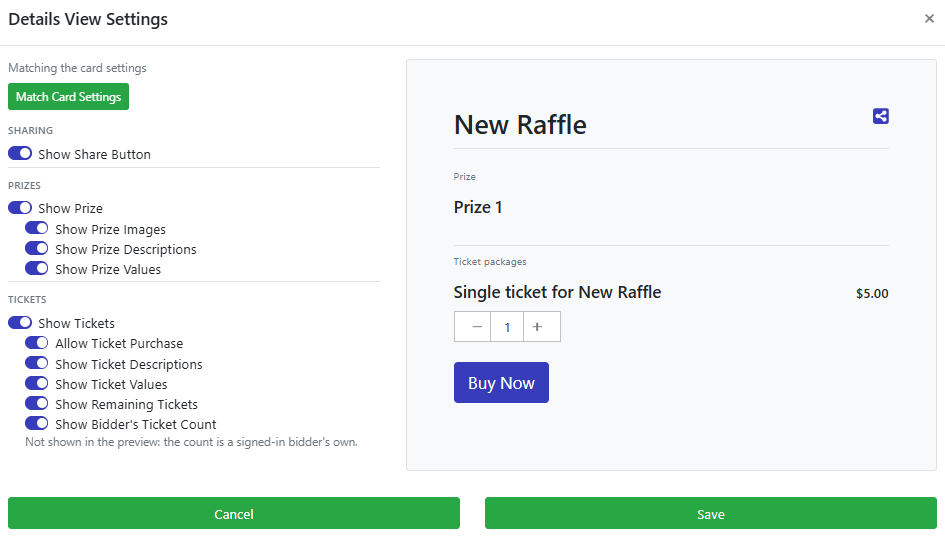
The Details View Settings panel.
Sharing
| Setting | Description |
|---|---|
| Show Share Button | Toggles a button guests can use to share the raffle. |
Prizes
| Setting | Description |
|---|---|
| Show Prize | Master toggle for the prize section of the details view. |
| Show Prize Images | Toggles the prize image. Only shown when Show Prize is on. |
| Show Prize Descriptions | Toggles the prize description. Only shown when Show Prize is on. |
| Show Prize Values | Toggles the display of the prize's value. Only shown when Show Prize is on. |
Tickets
| Setting | Description |
|---|---|
| Show Tickets | Master toggle for the ticket section of the details view. |
| Allow Ticket Purchase | Toggles whether guests can buy tickets directly from the details view. Independent of Show Tickets — turn this off to list ticket bundles and pricing without selling online. |
| Show Ticket Descriptions | Toggles ticket package descriptions. Only shown when Show Tickets is on. |
| Show Ticket Values | Toggles the display of ticket price/value. Only shown when Show Tickets is on. |
| Show Remaining Tickets | Toggles the display of how many tickets remain for a given ticket package. Only shown when Show Tickets is on. |
| Show Bidder's Ticket Count | Lets a signed-in guest see how many tickets they already hold for the raffle. Only shown when Show Tickets is on. |
Tip
Show Bidder's Ticket Count reflects a signed-in guest's own ticket count, so it won't appear in the editor preview.
See Common Element Actions for more details on managing the Raffle Catalog element.