
For Sale Items represent items that are sold for a fixed price, typically to multiple people — such as event tickets, raffle tickets, or any item a guest thinks of buying rather than winning.
Specific For Sale Item Pages
- See Tickets for more details about creating admission tickets for your event.
- See Introduction to Raffles for more information about setting up raffle ticket items.
- See Sponsorships for details about creating and selling Sponsorships that may include tickets.
For Sale Items Do Not Automatically Display In Catalog
For Sale Items are not displayed by default in the Item Catalog element. See Configure Items Displayed for more information on how to add them to an existing Item Catalog.
For Sale Items purchases appear in the Other purchases section of the Participant Statements.
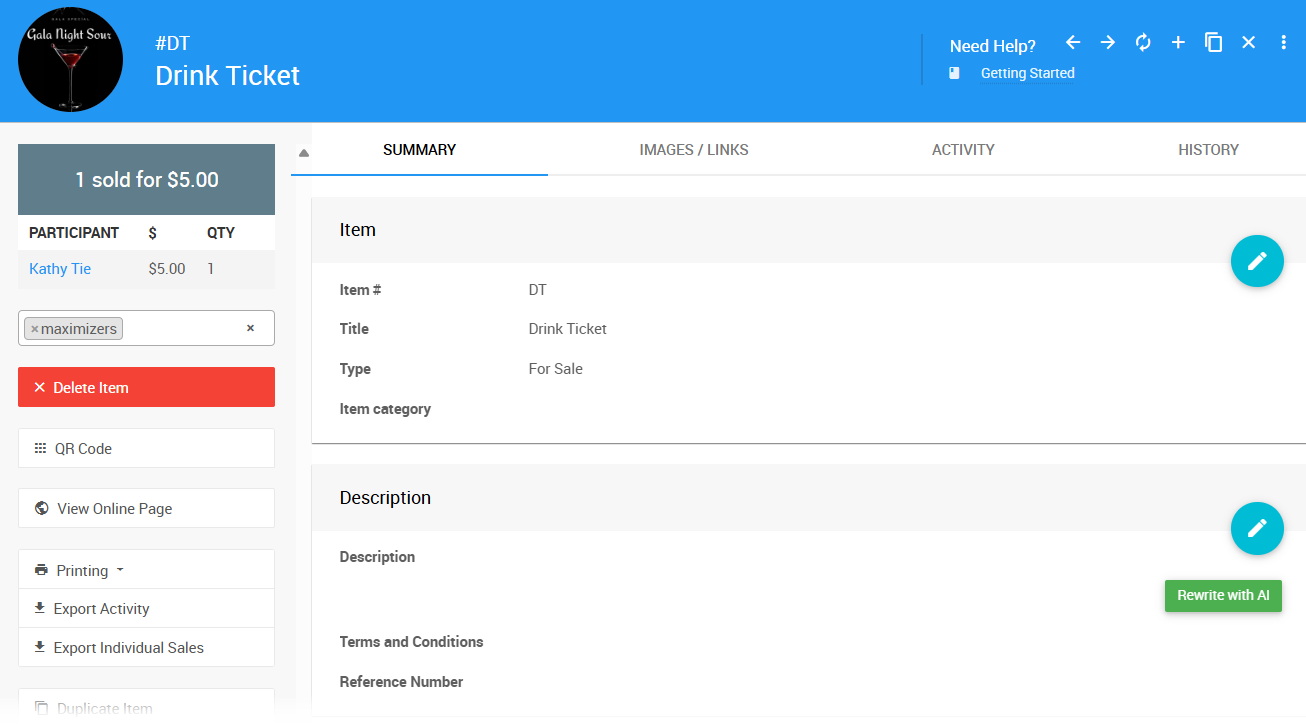
An example taken from a demonstration event.
Item Fields
| Field | Description |
|---|---|
| Item # | Auctria assigns one automatically, or you can enter your own. Item numbers can include letters and numbers, but must be unique across all items in your event. |
| Title | A short, descriptive name for the item. This appears on bid sheets, participant statements, and the event catalog. |
| Type | Controls how the item behaves. For For Sale Items, this should be set to For Sale. |
| Item Category | An optional category to help organize items in your event. See Item Categories for more information. |
Description
| Field | Description |
|---|---|
| Description | A detailed description of the item. Use the Rewrite with AI option for assistance drafting this text. |
| Terms & Conditions | Any specific terms and conditions participants should be aware of for this item. |
| Reference Number | An optional field for any external reference number associated with the item. |
Pricing
| Field | Description |
|---|---|
| Value | The selling price of the item. See Pricing for more information. |
| Taxable Value | If the item's taxable value differs from its stated value, enter it here. See Taxable Value for more information. |
| Shipping Cost | Amount to charge for shipping to winners of this item. See Shipping for more details. |
| Sales Tax Category | Sales tax category for this item. See Sales Tax Categories for more details. |
For Sale Options
Ticket Type
Changing the Ticket Type from the default opens additional options relevant to each type. The available types are:
| Ticket Type | Description |
|---|---|
| None | The default when manually creating a For Sale item. No additional ticket options are applied. |
| Admission | Used for Tickets items. Opens an additional Admission Tickets panel on the item's details page. |
| Raffle | Used for Introduction to Raffles. Opens an additional Raffle Tickets panel on the item's details page. The raffle must be selected from the drop-down selector, or will be set automatically if the item was created via Creating Raffles. |
| Other | Available for items that should be treated as tickets without fitting the Admission or Raffle types — for example, drink tickets. |
Is Sponsorship
Enabling this checkbox makes the item a sponsorship and designates the buyer as a Sponsor. See Introduction To Sponsorships for more details.
Admission Tickets Panel
When Ticket Type is set to Admission, the following option becomes available:
| Field | Description |
|---|---|
| Tickets Per Sale | The number of admission tickets included in the purchase of this item. The Ticket Type field controls the kind of tickets generated. |
| Create a table when sold | When this item is sold, automatically creates a table based on the number of Tickets Included and seats the guests at it. Default is No. |
Raffle Tickets Panel
When Ticket Type is set to Raffle, the following options appear:
| Field | Description |
|---|---|
| Tickets Per Sale | The number of raffle tickets included in the purchase of this item. The Ticket Type field controls the kind of tickets generated. |
| Raffle | Use this drop-down to choose which Raffle this item is associated with. |
Availability
For Sale Items can have a Quantity set to limit the number available. Setting the value to 0 (or leaving it blank) makes the supply unlimited. Setting a value greater than zero sets a hard cap on the number that can be sold.
For Sale vs Buy It Now Only
If a guest adds a For Sale Item to their cart but doesn't complete checkout for several days, someone else may have purchased the item in the meantime — resulting in an error at checkout.
With a Buy It Now Only item, the participant commits to the item immediately. See Buy It Now Only Items for more details.
| Field | Description |
|---|---|
| Quantity | The number available. Leave blank or enter 0 for unlimited. Enter a value greater than zero to set a hard cap. |
| Max per participant | The maximum number a single participant can purchase (applies to multiples only). |
| Show in default web purchase element | Shows this item in the default purchase element in the standard website templates. See Items Marked Show In Default Web Purchase Element for more information. |
| Online Purchase Behaviour | Controls how this item is handled at checkout. See Online Purchase Behaviour below for details. |
Online Purchase Behaviour
| Option | Description |
|---|---|
| Immediate Payment Only (default) | Takes the purchaser directly through checkout to complete the purchase immediately. |
| Add To Account Only | Adds the item to the participant's account for payment at a later time. |
| Account For Bidders, Otherwise Immediate | Dynamically processes the purchase based on whether the participant is logged in: logged-in bidders see the Add To Account method; others see Immediate Payment. |
See Online Purchase Behavior for additional details.
Online Availability
| Field | Description |
|---|---|
| Override online visibility start | Sets a specific time for when this item becomes visible on the auction website, overriding the event default. |
| Override online visibility end | Sets a specific time for when this item stops being visible on the auction website, overriding the event default. |
| Override online bidding/sales start | Sets a specific start time for online sales for this item, overriding the event default. |
| Override online bidding/sales end | Sets a specific end time for online sales for this item, overriding the event default. |
Donor
| Field | Description |
|---|---|
| Donated by | The person or organization that donated the item. See Item Donors Dashboard for more information. |
| Solicited by | The name of the person who approached the donor about this donation. This is an internal field only. |
| Receiptable Value | The value to show on the donor receipt, if different from the item value. Leave blank if they are the same. |
| Receipt Required | An informational checkbox only — no functionality is attached. Can be used as a reminder that the item donor requested a receipt. |
Options
| Field | Description |
|---|---|
| Is basket/lot package? | Marks this item as a basket or package containing partial or for sale items. Once saved with this enabled, a Contents tab will be added to the item. |
| Is gift certificate | Allows gift certificates to be printed for this item from Auctria. |
| Is event | Marks this item as a scheduled event (e.g., a concert or dinner party). Enabling this opens the Scheduled Event panel for additional details. |
| Highlight item | Allows this item to be displayed in an Item Catalog configured to show highlighted items. |
| Exclude from website & catalog | Always excludes this item from all printed and online catalogs. |
Scheduled Event
This section appears when Is event is enabled, and is used for items that represent a scheduled event at a specific date and time.
| Field | Description |
|---|---|
| Event Start Time | The start time of the scheduled event. |
| Event Location | The location where the scheduled event will take place. |
Other
| Field | Description |
|---|---|
| Location | An informational field for noting the physical location of the item, such as a table number at an in-person event. |
| Bidsheet Closing Time | An informational field for Paper Bidding type items, used to note the time when bidding on this item will close. |
Consignment
| Field | Description |
|---|---|
| Consignment category | Specify rules for creating expenses when this item is sold. See Consignment Categories for more details. |
| Consignment Minimum | The minimum cost of the expense generated when this item is sold. See Consignments for more details. |
| Consignment Maximum | The maximum cost of the expense generated when this item is sold. See Consignments for more details. |
Form Wording
These fields allow you to override the item description with custom text on specific forms and pages. If left blank, the item description is used by default.
| Field | Description |
|---|---|
| Display page text | Shown on the item's display page instead of the description. |
| Bid sheet text | Shown on the bid sheet instead of the description. |
| Certificate text | Shown on the certificate instead of the description. |
| Catalog text | Shown in the event catalog instead of the description. |
| Statement text | Shown on participant statements. |
| Ticket title | Shown in place of the item title wherever participants see their purchased tickets, such as the Ticket Hub and on e-Tickets. |
Advanced Tagging
When enabled, Advanced Tagging causes the tags assigned to this item to pass through to the purchaser or winner of the item. For Admission Ticket items, tags can also be passed through to the guests admitted by the ticket. See Where Tags Can Be Used In Auctria for more information.
Notes
A free-form internal notes field. This information is not displayed anywhere publicly and is intended for organizer use only.
Export Individual Sales
For Sale items have an additional export option under Exporting & Printing in the sidebar, allowing you to download a list of individual sales for the item as an XLS file.
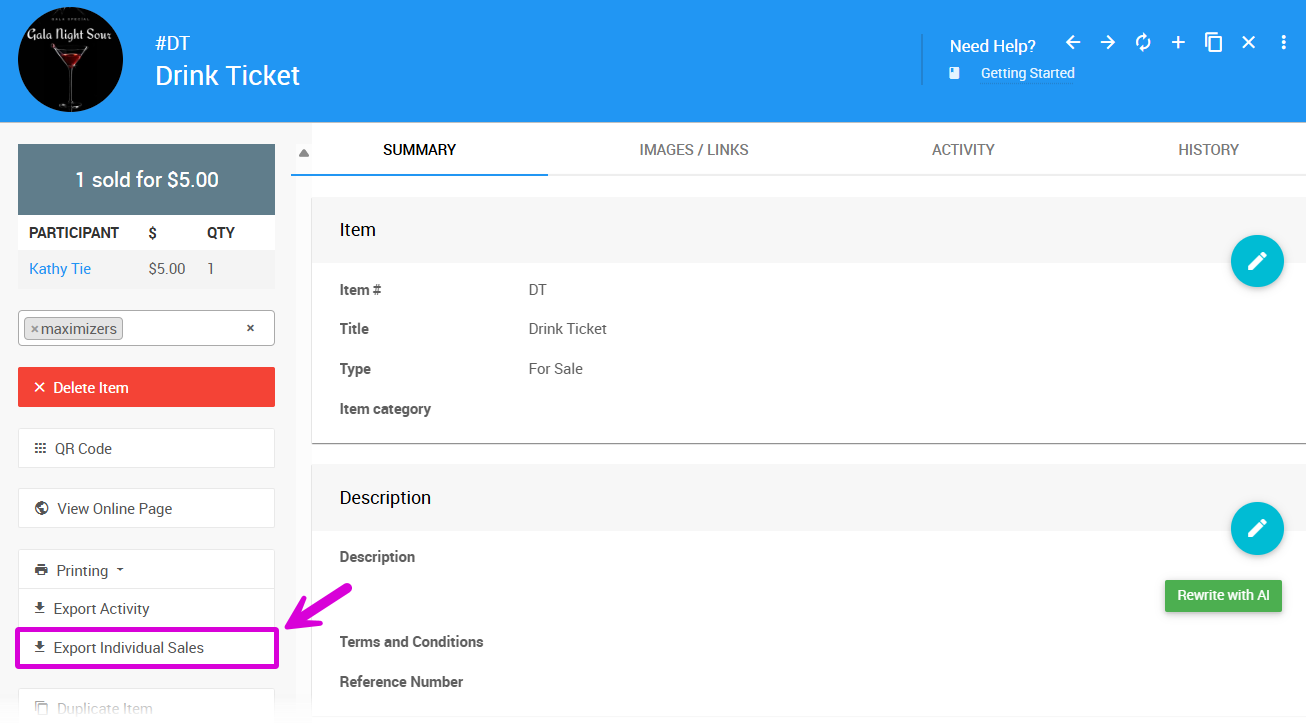
An example taken from a demonstration event.
Clicking the button immediately downloads the XLS file to your browser's default download location.
Use With Your Raffle Tickets
Export Individual Sales provides a list of buyers for a specific Raffle Ticket item, which can be used with an external random draw mechanism.