
Learn how each item type closes at the end of your event, and how to close For Sale and Donation items when you're ready.
How an item closes depends on its type and its Online Bidding Closing Mode:
| Item Type | How It Closes |
|---|---|
| Online | Automatically, when its bidding end time passes |
| Paper | When you record its winning bid with Close bidding for this item ticked. With the Timed closing mode, automatically at the end time. |
| Live | When you record its winner, if its online bidding is over. With the Timed closing mode, automatically at the end time. |
| For Sale and Donation | They stay open until you close them, or until you archive the event |
For the closing modes, see How Items Close At The End Time.
Item Won Notifications
Auctria emails the winner when an item closes, if these settings are on:
| Setting | Where | Needed For |
|---|---|---|
| Send won item emails/texts | Settings → Notifications Settings | Every item type |
| Send Item Won Notifications | Sidebar of the Record Paper Bids, Record Live Bids, and Record Online Bids pages. Off until you turn it on, then remembered for later visits. | Items you close by recording a winning bid |
To include a Pay Online link in the notification, you also need:
- Include payment link in won item notifications turned on in Settings → Notifications Settings.
- Online credit card payments set up. See Introduction To Credit Cards.
- An amount owing of more than $0.
Online Items
Online items close automatically when the event's Online Bidding Period ends, or when the item's own override end time passes.
Some items can stay open after the end time:
- Items with an active bid extension stay open until the extension ends.
- Items with the Manual closing mode stay open until you close them. See Open/Close Bidding.
To close an Online item early, record a bid on Bidding → Record Online Bids with Close bidding for this item ticked, or use Open/Close Bidding in the Bidding Dashboard sidebar.
See Online Bidding Settings, Online Bidding Times, and System Emails: Online Bidding - Item Won (time).
Paper Items
When the Online Bidding Period ends, Paper items stop taking online bids. With the default closing mode, they stay open until you record their winning bids.
- Collect your Bid Sheets at the end of the event.
- Click Bidding in the left sidebar, then click Record Paper Bids on the Bidding Dashboard. See Bidding Dashboard.
- To email winners, tick Send Item Won Notifications in the sidebar.
- Enter the Paddle#, the item, and the winning amount.
- Check that Close bidding for this item is ticked.
- Click Record Bid at the top of the sidebar, or press Ctrl+S.
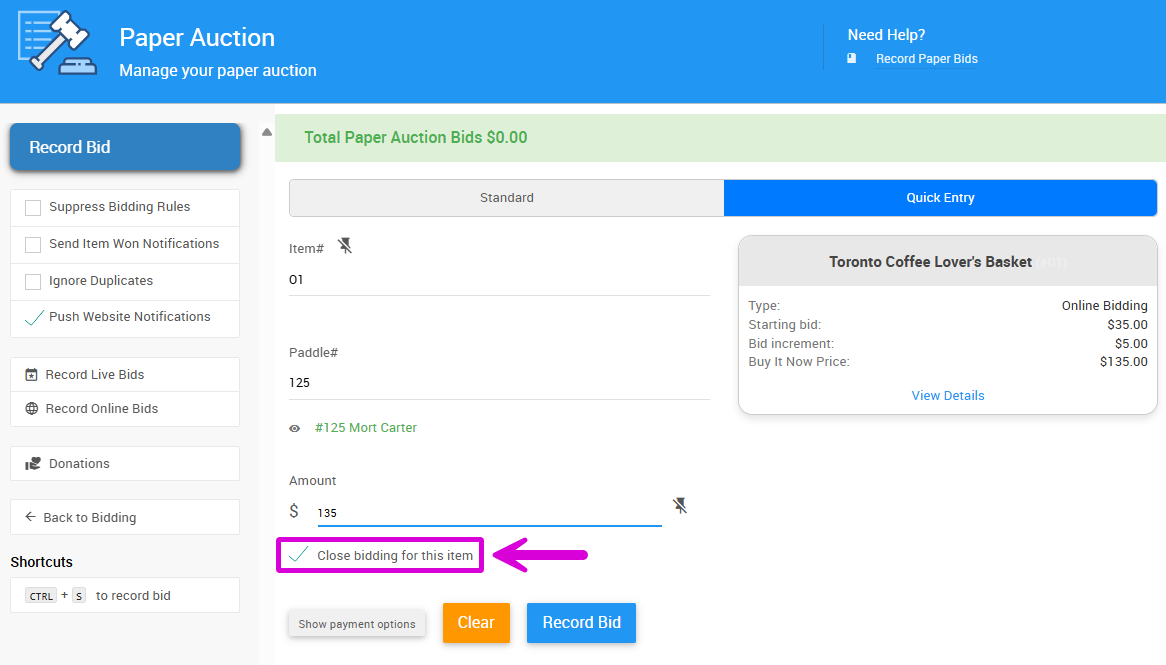
The Close bidding for this item checkbox on the Record Paper Bids page.
Close bidding for this item is ticked automatically once the item's online bidding is over, so it's usually already ticked after pre-bidding ends.
You can also record a payment on the same form. See Paper Bidding Type.
Timed Paper items
Paper items with Participate in online bidding on and the Timed closing mode close automatically at the end time, like Online items. You don't need to record their winning bids to close them.
Live Items
Record each Live item's winner as the auctioneer sells it, or after the event.
- Click Bidding in the left sidebar, then click Record Live Bids on the Bidding Dashboard.
- To email winners, tick Send Item Won Notifications in the sidebar.
- Click Record Winner next to the item.
- Enter the Paddle# and Bid Amount, then click Record Bid.
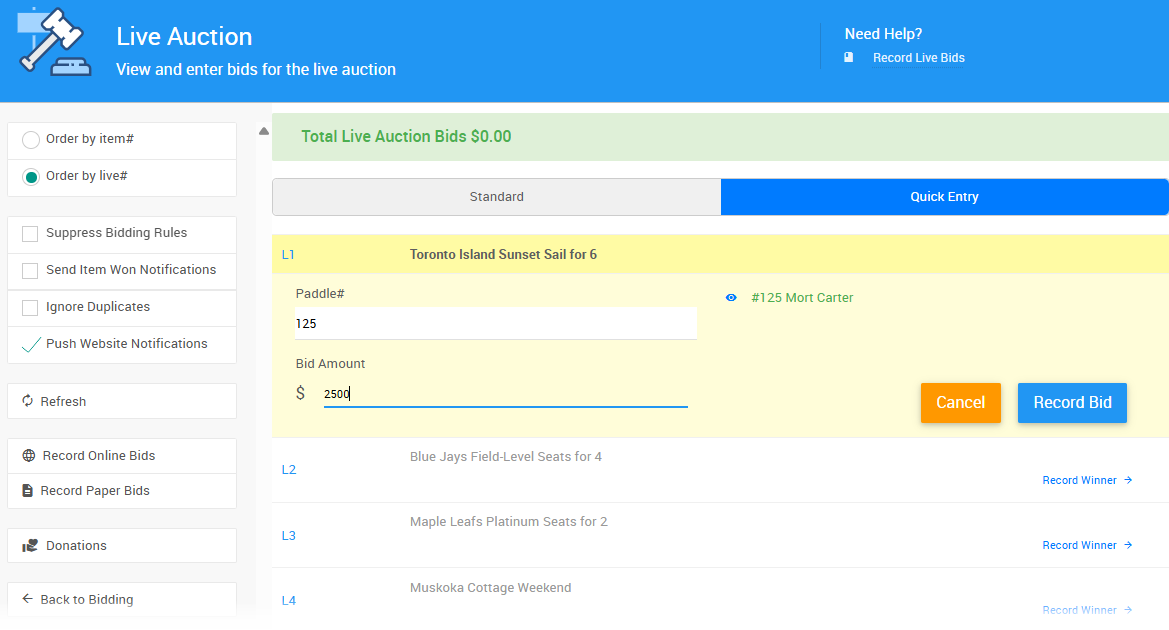
The Record Winner form on the Record Live Bids page.
There's no close checkbox for Live items. Recording the winner closes the item automatically, as long as its online bidding is over. Once a winner is recorded, the link changes to Record Another Winner.
End pre-bidding before your live auction
If a Live item's online pre-bidding is still open, recording its winner doesn't close it. End pre-bidding before the live auction starts, or close the item afterward with Open/Close Bidding.
The sidebar can sort the list by Item# or Live#, and switch between Standard and Quick Entry.
Tracking Live bids on paper
Use a printable Live Reporting Sheet to note winning bids during the event, then record them in Auctria afterward.
See Live Bidding Type.
For Sale and Donation Items
For Sale and Donation items don't use the Online Bidding Period, so they stay open after your event ends. Leaving them open is usually fine. Guests can keep buying or giving.
Hiding an item doesn't close it
Excluding an item from the catalog, hiding it, or hiding its website page makes it harder to find, but it's still open. Anyone with a direct link can still buy or donate. See Exclude From Catalog, Configure Items Displayed, and How To Hide Website Pages.
To close all For Sale or Donation items at once, set purchase or donation end times on Online Availability. To close individual items, use the options below.
An item without its own end time uses the event's Online purchases end at (For Sale items) or Online donations end at (Donation items). Tickets check Admission ticket sales end on the Ticket Settings page first. See How Ticket Sale Times Work.
Close a Donation Item
In the item's Online Availability section, set Override online bidding/sales end to a time in the past. Auctria stops accepting donations for it.
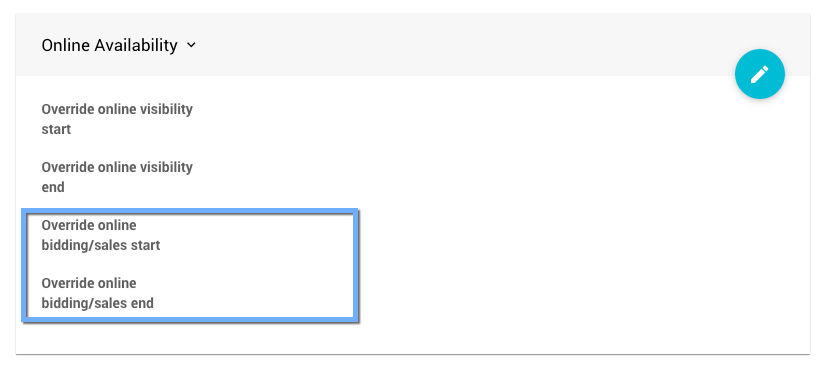
The override times in a Donation item's Online Availability section.
See Donation Items.
Close a For Sale Item
| Option | Result |
|---|---|
| In the Availability section, set Quantity to the number already sold | The item stays visible with a Sold out! banner, and no one can buy more. |
| In the Online Availability section, set Override online bidding/sales end to a time in the past | The item closes, the same way as a Donation item. |
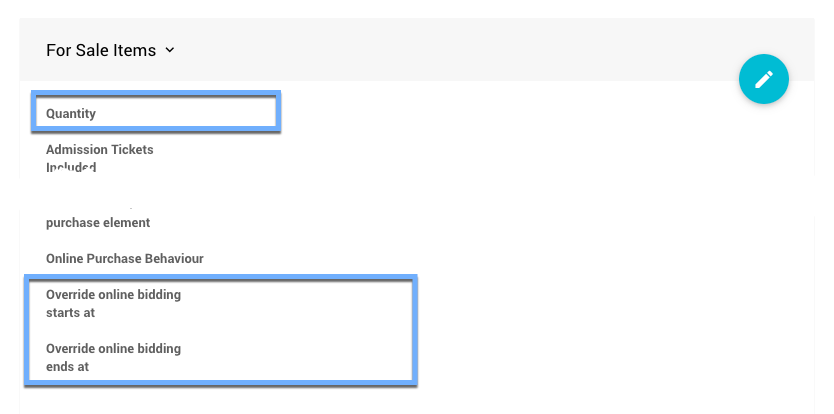
The Quantity and override times in a For Sale item's details.
See For Sale Items.
Archiving Your Event
When you archive an event, your event website goes offline for guests, so they can no longer bid, buy, or donate. See Archive Event.