
Learn how to remove a user from your organization.
Remove a user when someone leaves your organization, no longer needs access, or when you're cleaning up old accounts. Removing a user takes away their access to every event in your organization.
Only Admins Can Remove Users
Removing a user is Admin-only. You can't delete your own account from the User Details page. To remove your own account, ask another Admin.
Remove a User From the Users List
- Click Organization in the left sidebar.
- Click Users in the organization sidebar.
- Find the user you want to remove and click the X at the far right of their row.
- Confirm in the Delete User box, which asks: "Are you sure you want to delete this user - email address?"
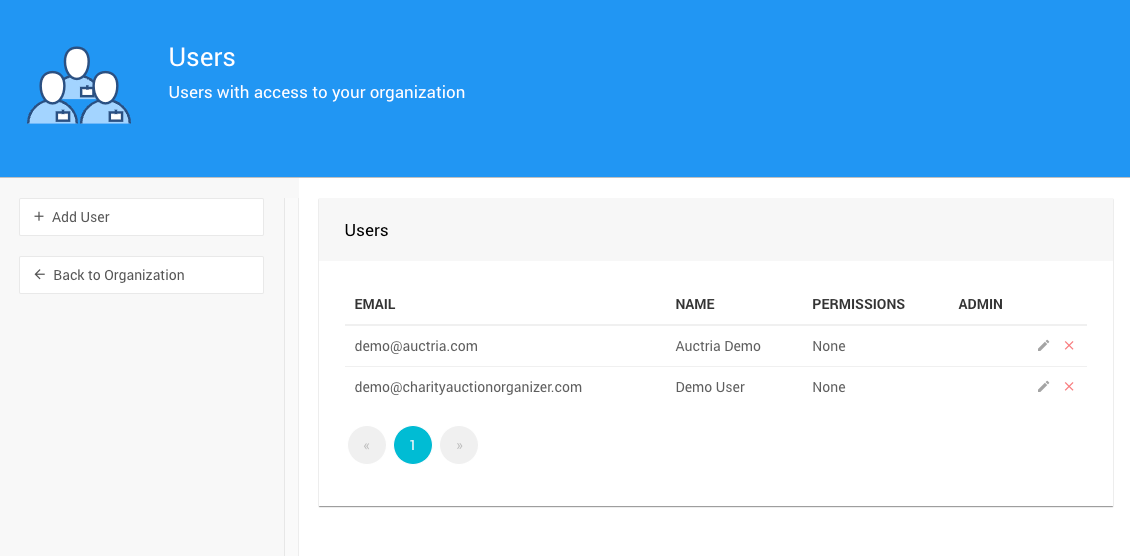
The Users list from a demonstration event.
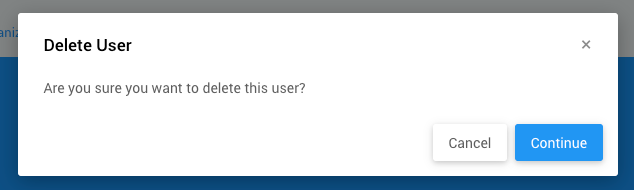
The Delete User confirmation box.
Remove a User From User Details
- Click Organization → Users.
- Double-click the user's row, or click the pencil icon, to open User Details.
- Click Delete User in the sidebar.
- Confirm in the Delete User box.
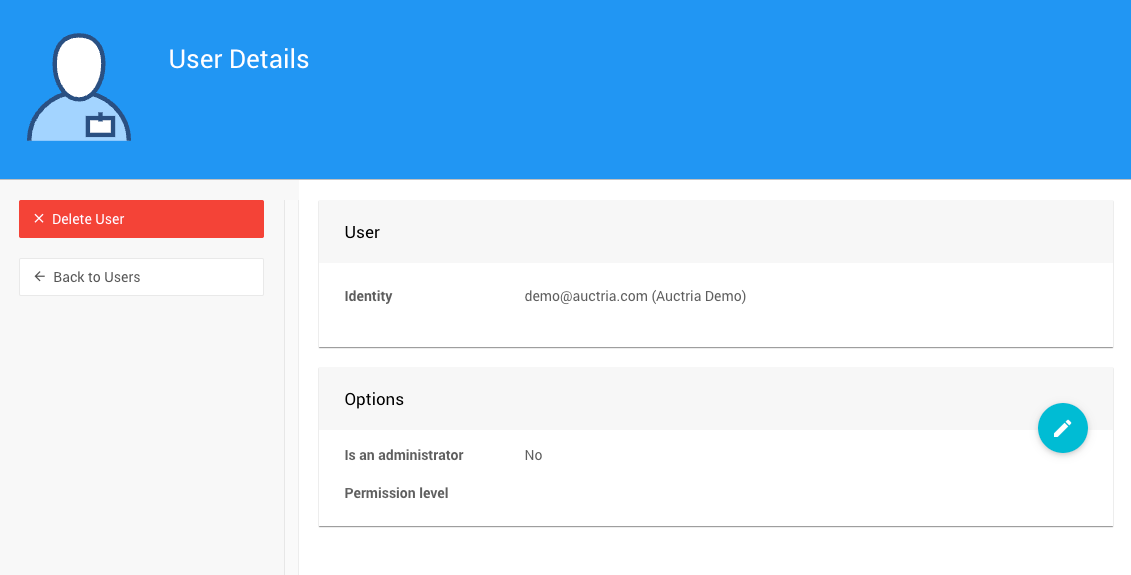
The Delete User button on the User Details page.
What Happens When You Remove a User
- They lose access to every event in the organization.
- They can no longer sign in to the organization.
- Their past activity, such as who recorded a bid or processed a checkout, stays in your records.
- They aren't notified that they've been removed.
If someone is leaving and a new person is taking over their role, see Replace A User.
Troubleshooting
I can't delete a user
Make sure you're an Admin. If you see "You can not delete your own user account", you're trying to delete yourself from the User Details page. Ask another Admin to remove your account.
I deleted a user by mistake
Add them again with the same email address and set their permissions again. See Adding Users.
The user still has access after deletion
Their browser may still be signed in. They lose access once they sign out or their session expires.