
Learn how to use the Item description format setting on a printed form's Advanced tab to list basket contents, terms and conditions, and quantities.
Advanced feature
This is considered an advanced use case, and support may be limited.
The Item description format setting controls the description printed for each item. It uses Liquid template placeholders, such as {{Description}}, that Auctria replaces with each item's details.
Bid Sheets, Display Pages, Gift Certificates, and the Catalog each have their own Advanced tab. The steps are the same for each form. The examples on this page use Bid Sheets.
Edit the Item Description Format
From the main event dashboard, click Printing → Bid Sheets, then click the Advanced tab.
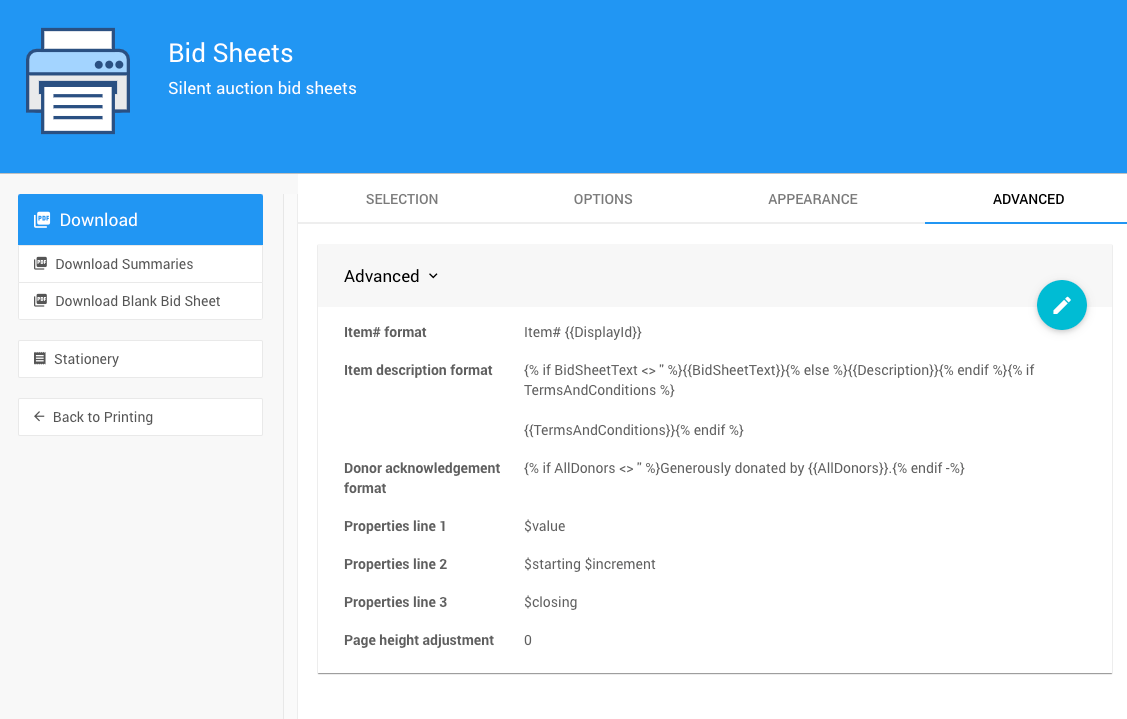
An example Advanced tab from a demonstration event.
Click the pencil icon to edit the Item description format.

The default Item description format.
Change the template, or replace it with one of the examples on this page.
Click the checkmark to save.
Default Format
The default format shows the item's bid sheet text from its Form Wording (or its description, if that's blank), followed by its terms and conditions, if it has any:
{% if BidSheetText <> '' %}{{BidSheetText}}{% else %}{{Description}}{% endif %}
{% if TermsAndConditions %}{{TermsAndConditions}}{% endif %}
For the item fields you can use, see Item References.
List Basket Contents
By default, a basket only prints the basket's own description. To list the items in the basket, add a for loop over its Contents.
This format numbers each item in the basket and shows its title, value, and description:
{% if BidSheetText <> '' %}{{BidSheetText}}{% else %}{{Description}}{% endif %}
{% if TermsAndConditions %}{{TermsAndConditions}}{% endif %}

{% for item in Contents -%}
{{item.Index}} : {{item.Title}} (worth {{item.Value | value}}). {{item.Description}}
{% endfor -%}
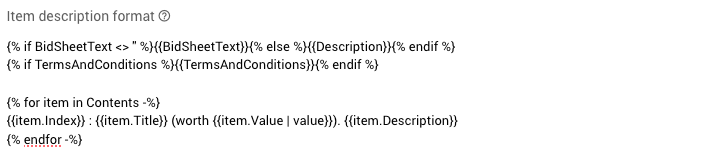
The format above in the Item description format setting.
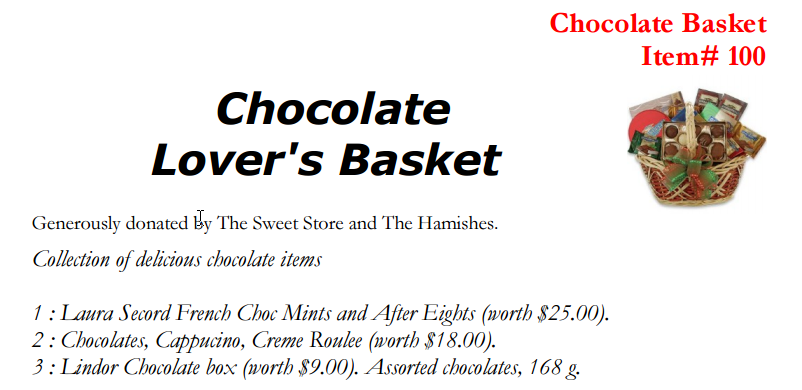
A basket bid sheet using the format above.
For a simpler list, with the basket's description and the title of each item in it:
{{ Description }}

{% for item in Contents -%}
{{item.Title}}
{% endfor -%}
List Terms and Conditions
The default format already prints the item's terms and conditions with this line:
{% if TermsAndConditions %}{{TermsAndConditions}}{% endif %}
Terms and Conditions for Basket Contents
To print the terms and conditions of each item in a basket, add {{ item.TermsAndConditions }} inside the for loop. This example shows each item's number, title, description, and terms and conditions:
{% for item in Contents -%}
{{ item.Index }} : {{ item.Title }}
{{ item.Description }} {{ item.TermsAndConditions }}
{% endfor -%}
To also print the basket's own terms and conditions, put the TermsAndConditions line outside the for loop:
{% for item in Contents -%}
{{ item.Index }} : {{ item.Title }}
{{ item.Description }} {{ item.TermsAndConditions }}
{% endfor -%}

{% if TermsAndConditions %}{{TermsAndConditions}}{% endif %}
Show Quantity Available
For items with a quantity greater than 1, you can print the quantity available. Add this line to the format:
{% if Quantity > 0 %}Quantity Available: {{Quantity}}{% endif %}
For example, the default format with the quantity added:
{% if BidSheetText <> '' %}{{BidSheetText}}{% else %}{{Description}}{% endif %}
{% if TermsAndConditions %}{{TermsAndConditions}}{% endif %}
{% if Quantity > 0 %}Quantity Available: {{Quantity}}{% endif %}
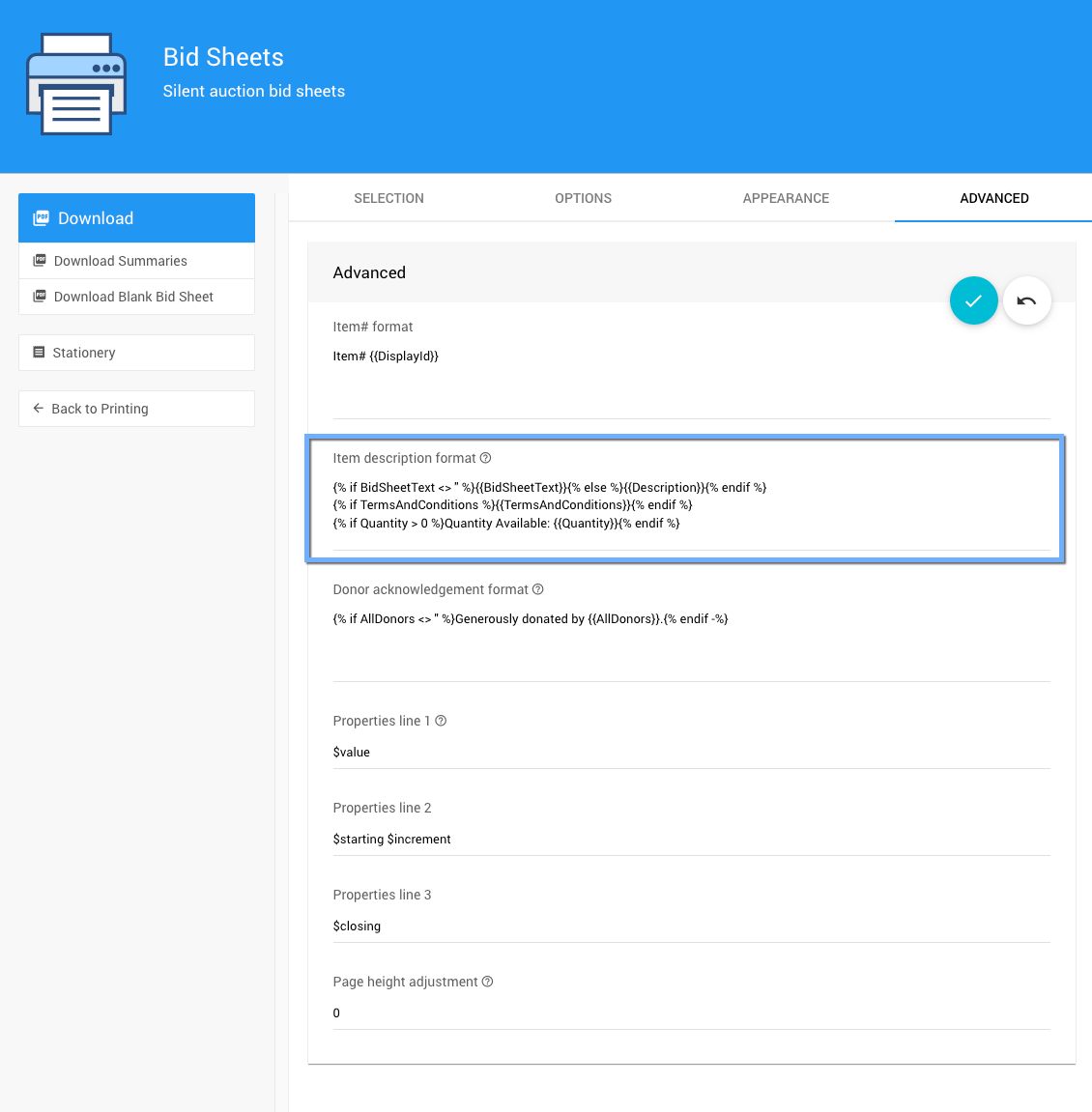
The format above in the Item description format setting.