
Build all your baskets on one screen. Drag bidding items in to make baskets, drop partial items into them, then number and finish each basket ready for bidding.
Baskets let you sell several donated items together as one lot. The Arrange Baskets page shows your baskets, bidding items, and partial items side by side, so you can build every basket by dragging and dropping.
The process has three steps:
- Make a basket.
- Fill it with partial items.
- Finish it.
Baskets and Partial Items
A basket is the item people bid on. Partial items are the individual items that go inside it. Partial items aren't sold on their own, but each keeps its own donor and value. See Baskets And Packages and Partial Items.
Who Can Use This Feature
You need Power User access or higher to open the Arrange Baskets page. See User Accounts for permission levels.
Open the Arrange Baskets Page
From Items (left sidebar under Details), click Baskets & Packages in the actions sidebar to open the Baskets Dashboard, then click Arrange Baskets.
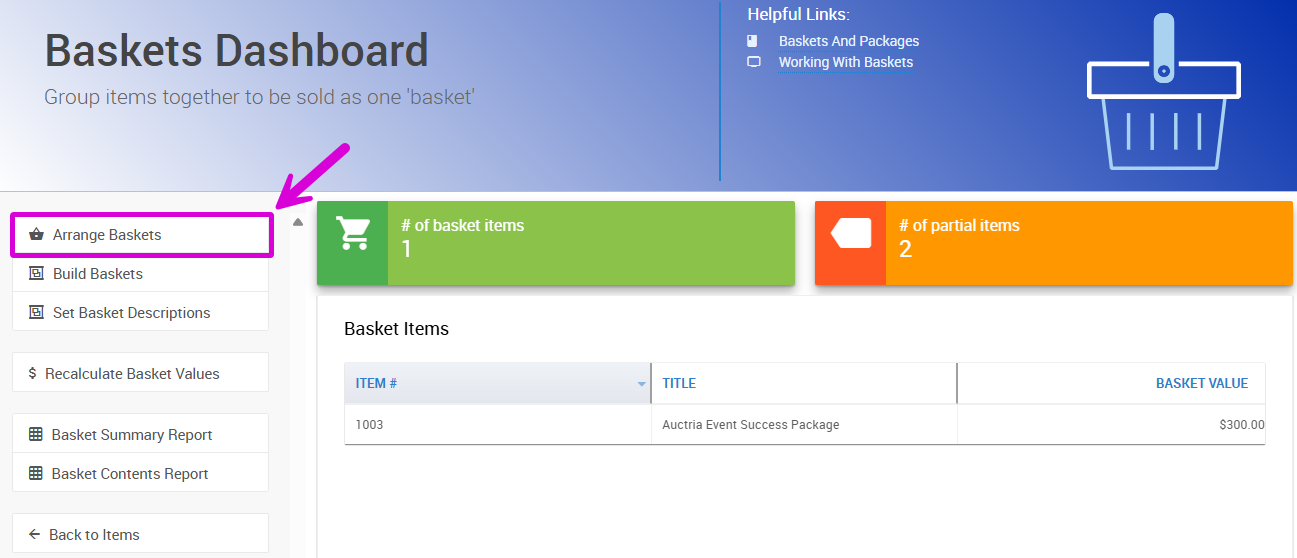
The Arrange Baskets action on the Baskets Dashboard.
Arrange Baskets Page
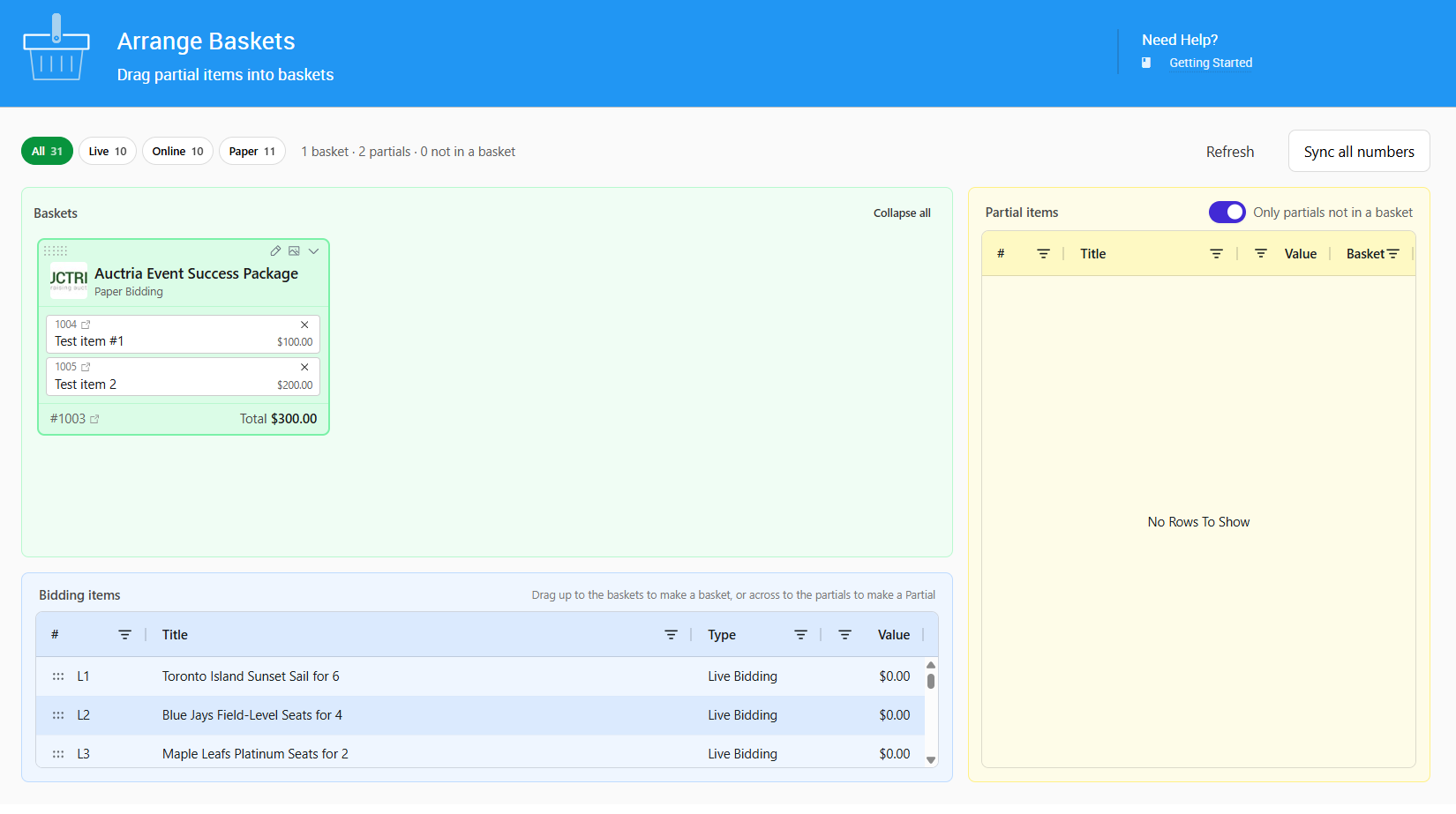
The Arrange Baskets page.
The page has three areas:
| Area | Description |
|---|---|
| Baskets (green, top left) | A card for each basket, listing its partial items and its Total value. |
| Bidding items (blue, bottom left) | Bidding items that aren't baskets yet. Columns: #, Title, Type, and Value. |
| Partial items (yellow, right) | Every partial item, with the Basket it's in. Columns: #, Title, Value, and Basket. |
| Control | Description |
|---|---|
| All / Live / Online / Paper | Shows only baskets and bidding items of that type. The number on each button counts both. All also shows baskets of other types, such as For Sale. |
| Summary | For example 12 baskets · 48 partials · 3 not in a basket. |
| Refresh | Reloads the page from the server. |
| Sync all numbers | Numbers each partial item after its basket. See Number Partial Items After Their Basket. |
| Collapse all / Expand all | Hides or shows the contents of every basket card. Use the arrow on a card to collapse just that one. |
| Only partials not in a basket | Shows only the partial items that still need a basket. |
Hover over an item's number or title to see more about it.
Step 1: Make a Basket
Drag a bidding item from Bidding items up into Baskets. It becomes a new basket card.
To make several baskets at once, Ctrl-click or Shift-click to select the bidding items first, then drag them together.
Step 2: Fill the Basket
Drag partial items from Partial items onto a basket card. Each drop saves immediately, and the basket's Total is calculated from the partial items inside it. See Basket Value.
To move several partial items at once, Ctrl-click or Shift-click to select them, then drag them onto the card. To move a partial item to a different basket, drag its chip from one card to the other.
Add a Bidding Item to a Basket
If you drop a bidding item onto a basket card, Auctria asks what you meant:
| Choice | What It Does |
|---|---|
| Add to basket | Changes the item to a partial item and adds it to this basket. The button shows the basket's number, for example Add to basket 100. |
| Make it a basket | Makes the item a basket of its own. |
| Cancel | Leaves the item as it is. |
You can also drag a bidding item across to Partial items to make it a partial item without adding it to a basket.
Take Items Out of a Basket
To take a partial item out of a basket, click the × on its chip, or drag the chip back to Partial items. The item stays a partial item.
Change a Basket Back
Drag a basket card by the handle at its top left and drop it:
| Drop Onto | What It Does |
|---|---|
| Bidding items | Makes the basket an ordinary bidding item again. |
| Partial items | Makes the basket a partial item. |
The basket must be empty first. If it isn't, Auctria offers to Empty the basket for you.
Items Shown in Red
If an item in a basket isn't a partial item, its chip is shown in red with its type. It isn't counted in the basket's value. Drag it to Partial items to make it a partial, or take it out of the basket.
Step 3: Finish the Basket
Number Partial Items After Their Basket
Many auctions number each partial item after its basket, such as 100.1, 100.2, and 100.3 for basket 100, so items are easy to match on event night.
- Click Sync all numbers.
- Check the preview. It lists each partial item that will change, with its Basket, Item, From, and To numbers.
- Click Renumber.
Partial items already numbered after their basket keep their numbers, since they may already be printed on bid sheets. Baskets with no item number are skipped. See Item Numbering for more about item numbers.
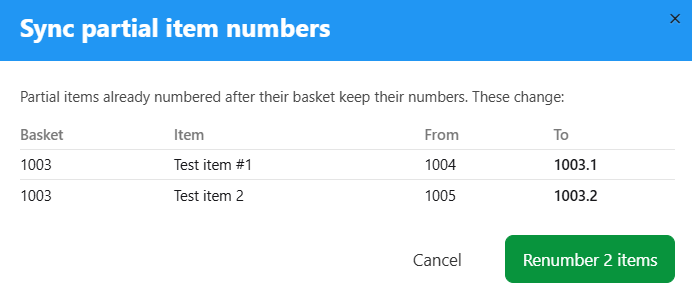
The Sync partial item numbers preview.
Write the Description
Click the pencil on a basket card to edit its Title, Description, and Terms and Conditions.
To have AI write the description:
- Under Write with AI, choose a Mood and Length.
- Click Suggest.
- Click Use this to copy the suggestion into the Description, or Discard it.
- Edit the description if needed, then click Save.
AI uses the basket's partial items to write its suggestion. See Rewrite Item Descriptions with AI for more about the styles and lengths. Suggest is only available with an active license.
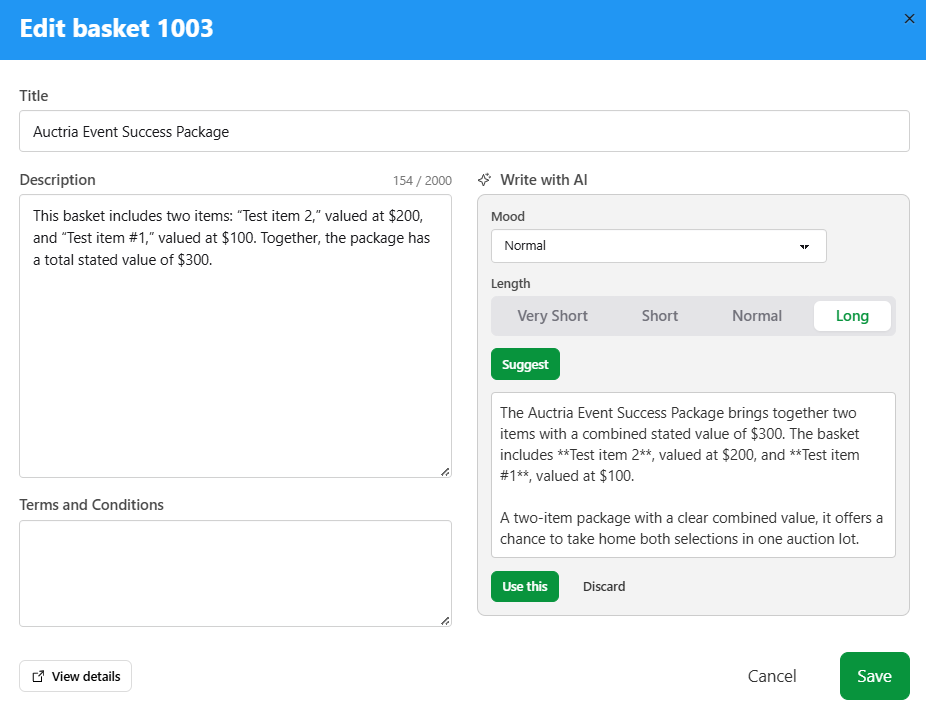
Editing a basket, with Write with AI beside the Description.
To change anything else about the basket, click View details to open its Item Details page.
Review Before You Save
AI only knows what's already on the basket and its partial items. Check that the suggestion is accurate and add any details it can't know, such as dates, expiry, or restrictions.
Pick the Image
Click the picture icon on a basket card to see the images for the basket and each of its partial items.
- Drag an image from a partial item onto the basket to make it the basket's main image.
- To add a new image, click Upload or drop an image file onto a card.
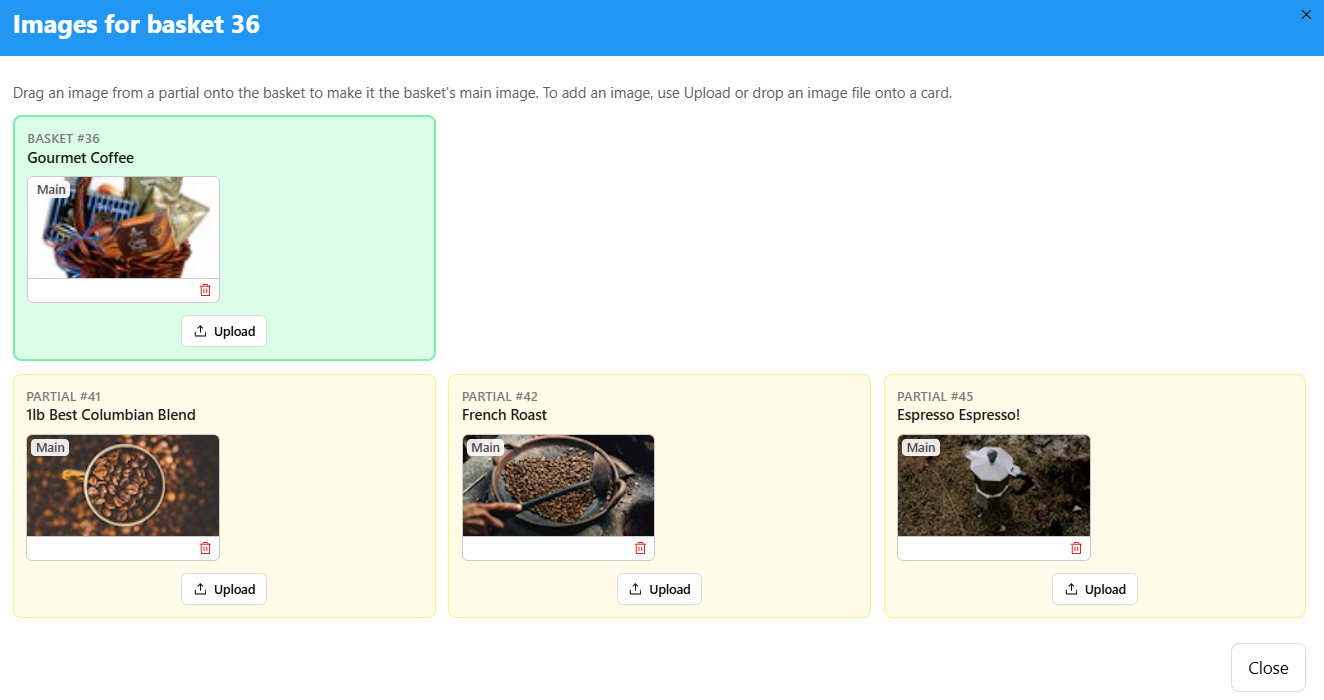
Choosing a basket's main image from its partial items.
Once a basket is made, filled, and finished, it's ready for bidding.