
Learn how to view, renew, upgrade, and apply your organization's Auctria license.
License Belongs to Your Organization
The license applies to the organization, not to a specific user or email address.
Opening the License Page
- Click Organization in the left sidebar.
- Click License in the organization sidebar.
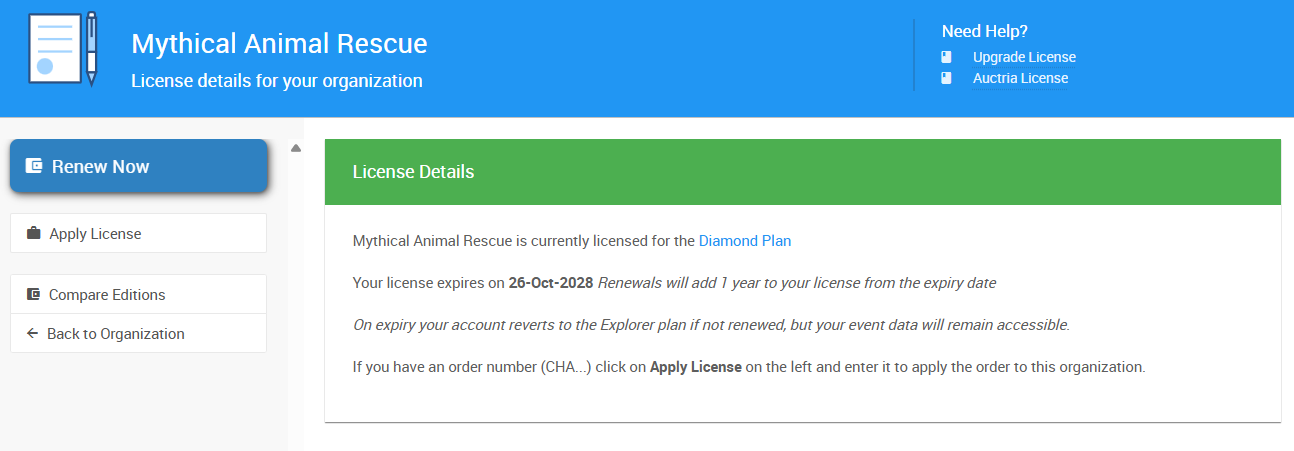
An example License page from a demonstration event.
The License Details box shows your current license and its expiry date.
Organizations on a license from before 2020 also see a Summer 2020 Plan Changes box, which explains that the older license can't be renewed and a new one must be chosen.
How Your License Works
Your license is tied to your organization, which means:
- One license covers every event your organization runs.
- The license stays with the organization when team members change.
- If your license expires, the organization returns to the Explorer (free) license. Your event data stays available.
To compare what each license includes, click Compare Editions. This opens the Auctria pricing page.
License Page Sidebar
| Action | Description |
|---|---|
| Upgrade Now | Appears on the Explorer license only. Opens the Auctria online store, where you choose a license. |
| Renew Now | Appears on paid licenses. Opens the Auctria online store with your current license in the cart. |
| Apply License | Applies a purchased license to your organization using its order number. |
| Compare Editions | Opens the Auctria pricing page. |
Renewing Your License
Click Renew Now on the License page. This opens the Auctria online store with your current license already in the cart.
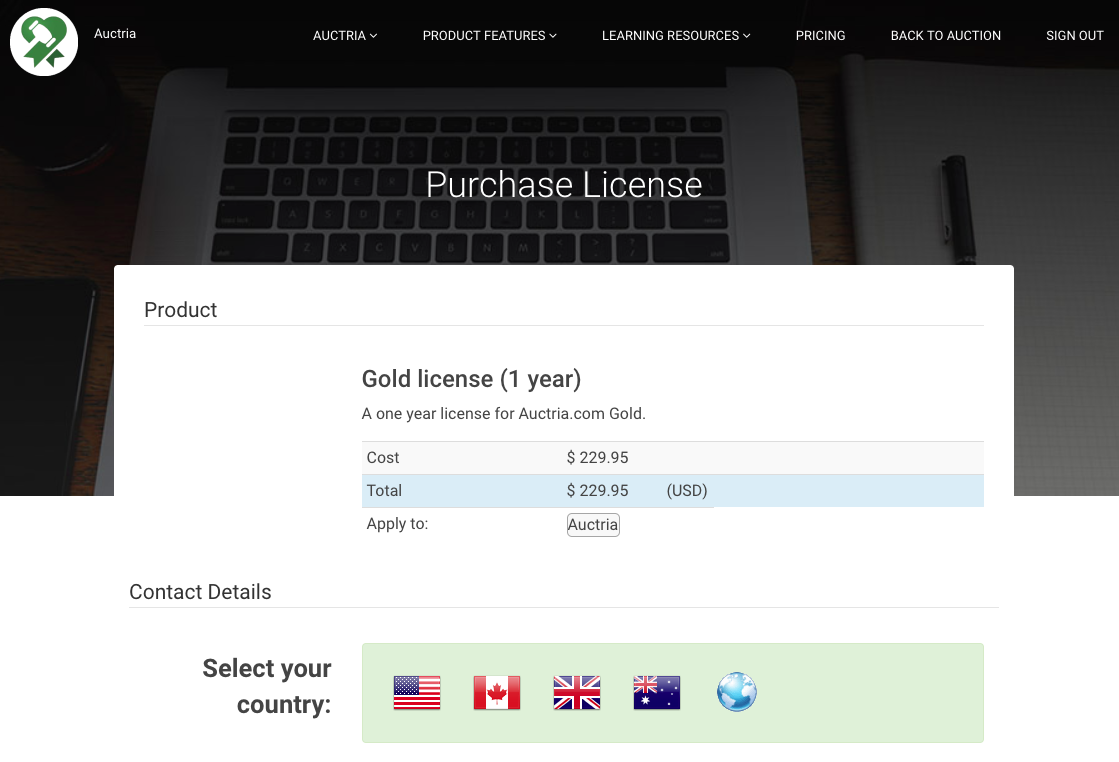
The Renew Now button on a paid license.
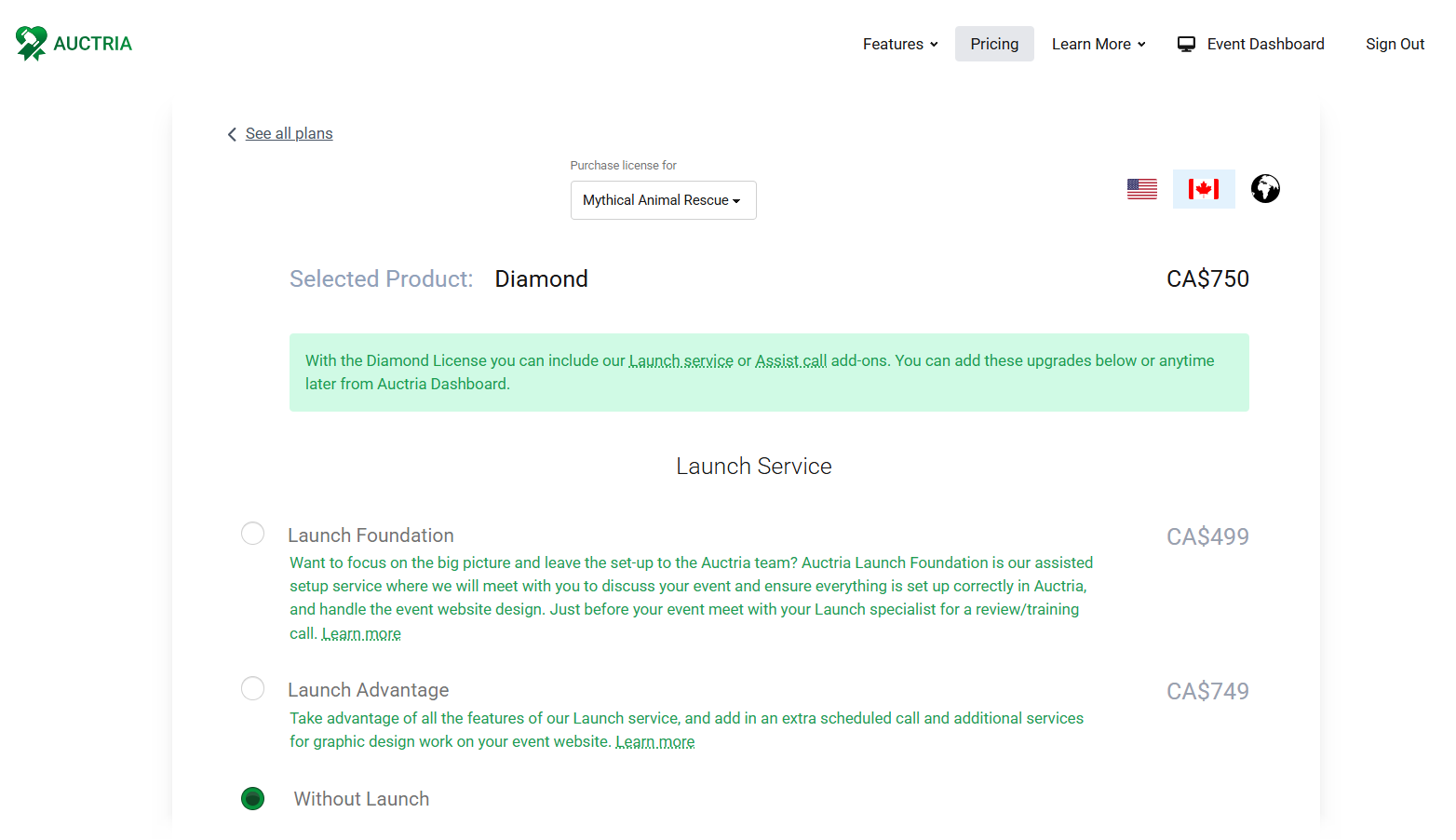
The online store checkout with a renewal in the cart.
Renewals Extend From the Expiry Date
"Renewals will add 1 year to your license from the expiry date." Renewing early doesn't shorten your current license year.
Upgrading Your License
You can upgrade to a higher license at any time. How you upgrade depends on your current license.
From the Explorer License
- Click Organization → License.
- Click Upgrade Now.
- Choose your license in the Auctria online store and complete checkout.
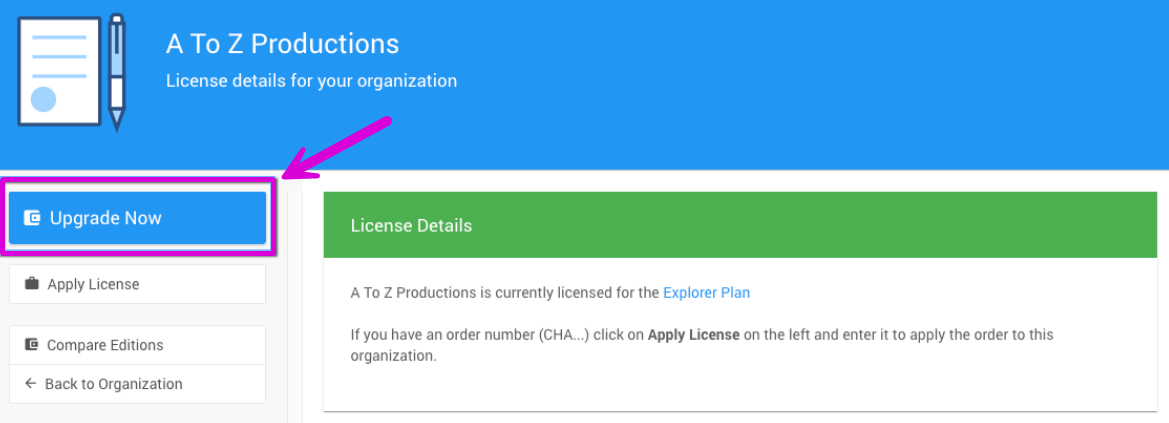
The Upgrade Now button on an Explorer license.
From a Paid License
- Click Organization → License.
- In the Upgrade Options box, click the Upgrade to link for the license you want.
- Complete checkout in the Auctria online store.
Your Expiry Date Stays the Same
Upgrading a license doesn't change the license expiry date. You pay the difference between your current license and the new one, and the new features are available for the rest of your license year.
Once your payment is processed, your license updates automatically. If it doesn't, apply it manually (see below).
Applying a License Manually
If you have an order number from a license purchase, you can apply it to your organization yourself. Order numbers start with CHA.
Use this if your license didn't update automatically after purchase, or if you bought a license separately from the online store.
- Click Apply License on the License page.
- Enter your order number in the Order Id field.
- Submit to update your license.
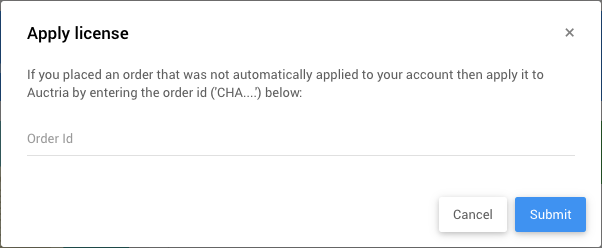
The Apply License window.
Finding Your Receipt
After you buy or renew a license, you receive two emails:
| What It Contains | |
|---|---|
| Auctria Receipt | Your order number, which you need to apply a license manually. It doesn't include the purchase amount. |
| Payment receipt from Stripe | Sent separately by Stripe.com, Auctria's payment processor. It includes the full payment details. Check your spam or junk folder if you don't see it. |
Viewing Your Auctria Receipt
- Click your email address (top left of the event website) or the ⋮ menu (top right of the dashboard).
- Select My Profile.
- Click View Email History in the sidebar, under Email.
- Find Auctria.com Receipt in the list.
- Click the eye icon on the right to view the email.

An Auctria.com Receipt in the email history.
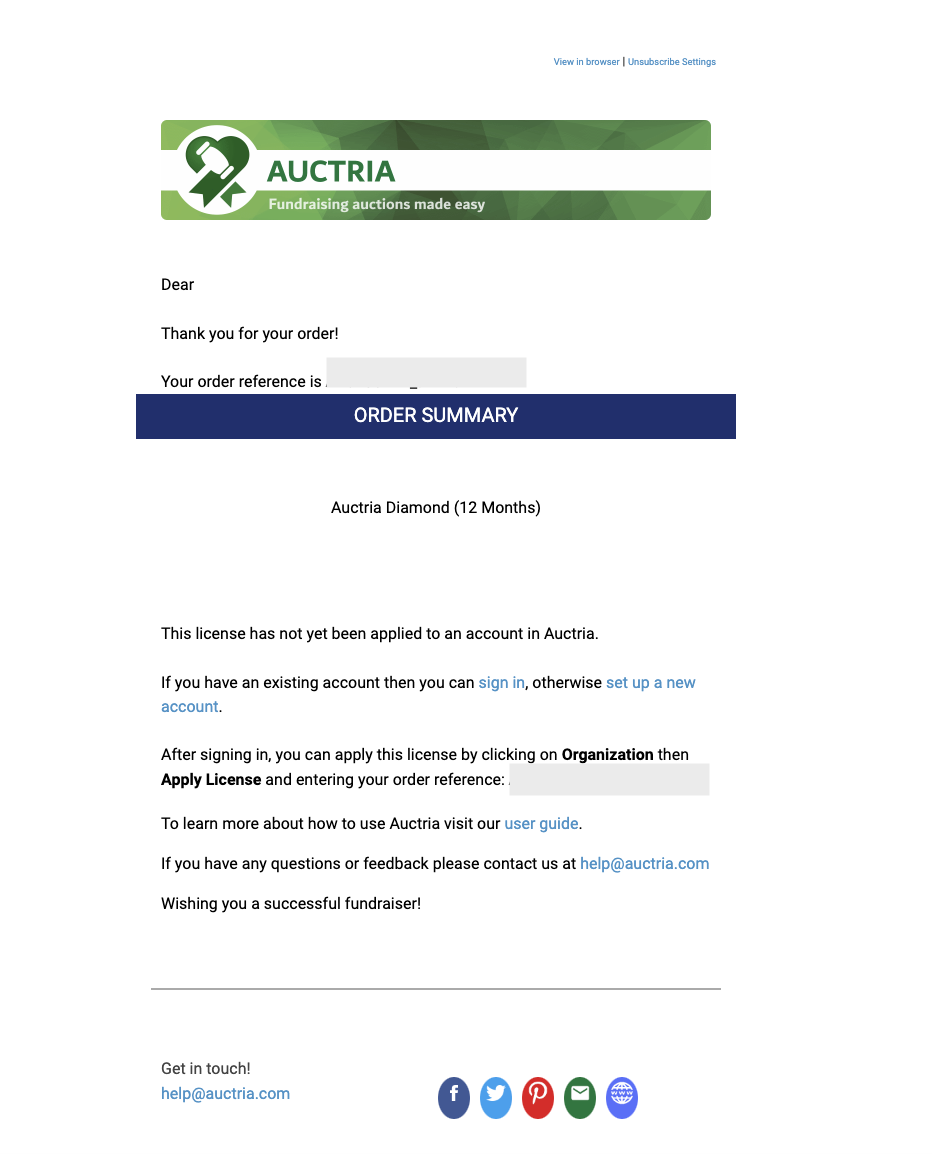
An example Auctria Receipt email.
Use the Purchasing Email Address
You must be signed in with the email address used to buy the license to see the receipt in your email history.