
Learn how to add a fundraising progress display to your event website using the Progress Tracker element.
The Progress Tracker element shows your event's fundraising progress in one of two styles: a Thermometer (default) that fills as donations come in, or a simpler Funds Raised display.
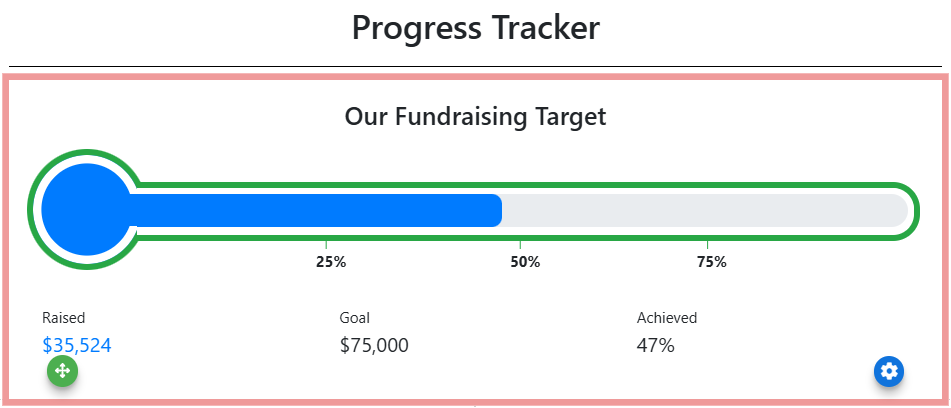
An example of the Progress Tracker element (Thermometer style) on the event website in Edit mode.
Adding a Progress Tracker to a page
Drag the More Column Content element from the Website Editor Sidebar into a column space, then choose Progress Tracker.
Clicking the Progress Tracker element opens the Progress Tracker settings panel in the Website Editor sidebar.
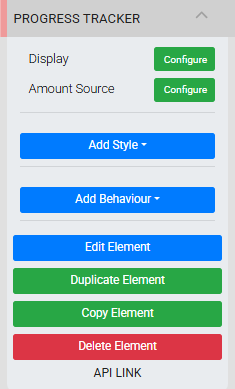
The Progress Tracker settings panel in the Editor sidebar.
Display Settings
Clicking Configure next to Display opens the Configure Tracker window. Use the Type dropdown to switch between Thermometer and Funds Raised.
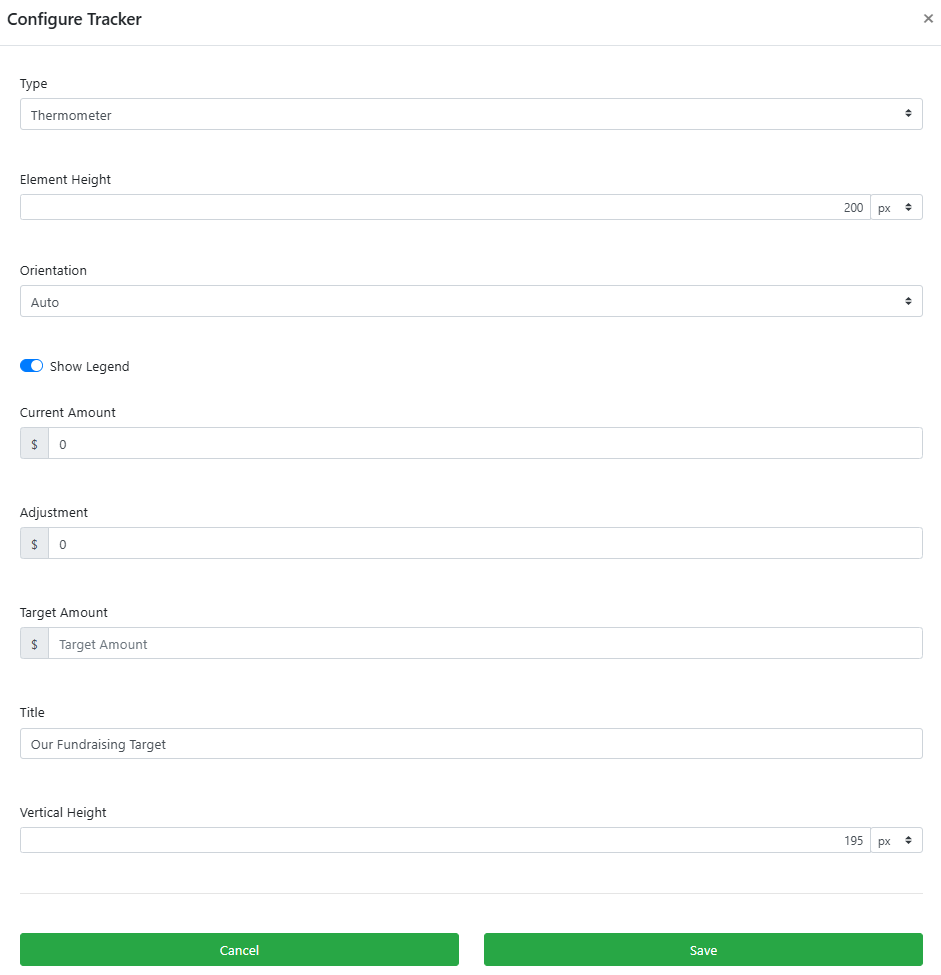
An example from a demonstration event.
Thermometer
The Thermometer style shows a visual fill that progresses toward a target amount.
| Setting | Description |
|---|---|
| Image Height | Sets the height of the element on the website. Default is 200px. |
| Orientation | Controls the layout direction. Auto (default) displays horizontally on desktop and vertically on mobile. Set to Vertical to always display vertically regardless of screen size. |
| Show Legend | Toggles the display of the "Raised", "Goal", and "Achieved" values. |
| Current Amount | The current value displayed when Amount Source is set to Manual update. Default is 0. |
| Adjustment | Adds a fixed amount to the tracker's displayed total. Use this to account for offline donations or other income not recorded in Auctria. |
| Target Amount | The fundraising goal the tracker counts toward. |
| Title | The label displayed above the tracker. Default is "Our Fundraising Target". |
| Vertical Height | Sets the height of the tracker when in Vertical orientation. |
Target Amount default
If Target Amount is not set, the Progress Tracker uses the event's Fundraising Target amount. See Event Details for more information.
Funds Raised
The Funds Raised style displays a simpler total raised readout, with an optional image.
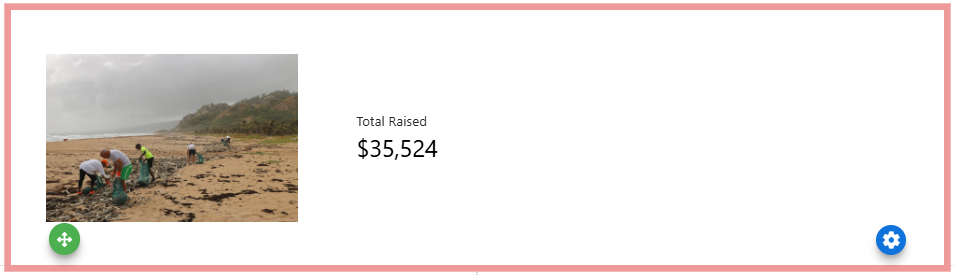
An example of the Funds Raised style of the Progress Tracker element.
| Setting | Description |
|---|---|
| Image Height | Sets the height of the element on the website. Default is 200px. |
| Select Image | Opens the Choose Image selector to display an image alongside the funds raised total. |
Amount Source
Clicking Configure next to Amount Source opens the Select Source window, where you choose what income the tracker counts toward its total.

An example from a demonstration event.
| Source | Description |
|---|---|
| Total event income | Includes Payments, Balance Due, Donations, and In Progress Bids. Default. |
| Total event income (Net) | Total event income less Expenses. See Income Summary. |
| Manual update | The amount must be manually updated by adjusting Current Amount in the Display settings. |
| Total bidder donations | Total donations made by bidders through Donation Items. |
| Total "cash" donations | Total cash donations made through the Donation Element. |
| Total sponsorships | Total income from items configured as sponsorships. |
| Income from specific items | Total income from selected items. Click Add Condition to filter by item criteria. |
Total event income includes In Progress Bids
The Total event income source includes the In Progress Bids total as part of its calculation.
Income from Specific Items
Selecting Income from specific items lets you filter which items contribute to the tracker total using conditions.
One condition at a time
The Progress Tracker can only be configured to display one condition at a time.
| Condition | Description |
|---|---|
| All Items | Includes all items in the event. Default. |
| Items with types | Includes items with one or more selected item types. |
| Items matching tags | Includes items tagged with the specified tag. |
| Items without tags | Includes items not tagged with the specified tag. |
| Item categories | Includes items in one or more selected categories. Hold Ctrl to select multiple. |
| Items in Raffle | Includes items belonging to one or more selected Raffles. Hold Ctrl to select multiple. |
| Items matching search term | Includes items matching the specified search term. |
| Items open for bidding | Includes items currently open for bidding. |
| Items closed for bidding | Includes items currently closed for bidding. |
| Items marked 'Show in default web purchase element' | Includes items marked as shown in the default web purchase element. |
| Items marked 'Highlight' | Includes items marked to highlight. |
| Ticket Items | Includes items with the Ticket type. |
| Raffle Items | Includes items across all Raffles. Use Items in Raffle to target specific Raffles. |
| For Sale Items that are not tickets | Includes all For Sale items that are not the Ticket type. |
| Sponsorship Items | Includes all For Sale items with the Is Sponsorship field enabled. |
| For Sale Items that are not sponsorships | Includes all For Sale items without the Is Sponsorship field enabled. |
| Scheduled Events | Includes all items with the Is event option enabled. |
| Choose specific items | Lets you select specific items from a list. |
Force Updates
The Progress Tracker automatically updates when activity occurs on the event website. To ensure that transactions recorded from the Event Dashboard — such as manually entered bids, purchases, or donations — also update the tracker, enable the Push website notification option when recording those transactions.
See Common Element Actions for more details on managing the Progress Tracker element.