
Learn how to add a parallax-effect image to your event website using the Parallax Image element.
The Parallax Image element pins a full-size image in place so that as a guest scrolls the page, the image appears to move at a different rate than the surrounding content, revealing more of the image vertically.
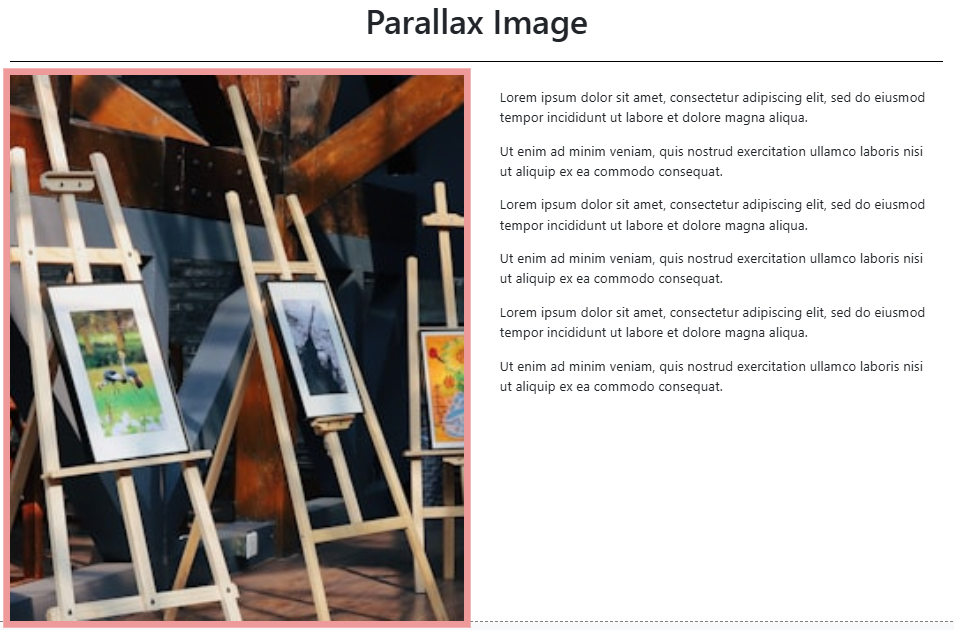
An example of the Parallax Image element on the event website in Edit mode.
Adding a Parallax Image to a page
Drag the Parallax Image element from the Website Editor Sidebar into a column space. No default image is selected when the element is first added — add an image to activate the effect.
Not supported on iOS
The parallax scrolling effect is not supported on iOS devices. The image will still display, but without the parallax motion.
Parallax Image Settings
Clicking a Parallax Image element opens its settings panel in the Website Editor Sidebar.
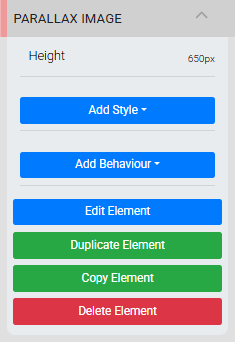
The Parallax Image settings panel in the Editor sidebar.
Click the pencil icon or double-click the element to open the Choose Image window and select or change the image.
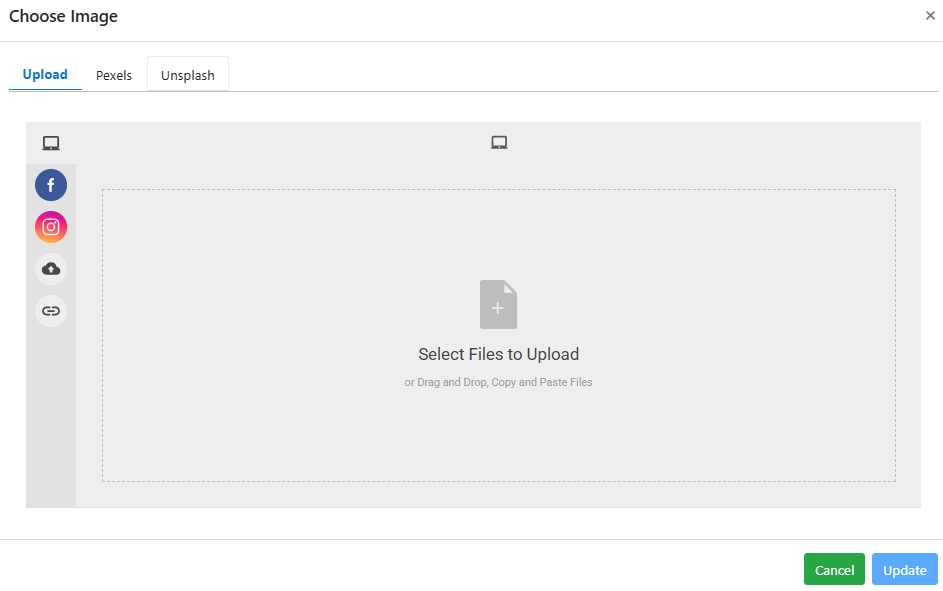
An example from a demonstration event.
Height
The Height property controls how much vertical space the element occupies. By default it is measured as a percentage of the browser's viewport height, which helps maintain an appropriate display size across both desktop and mobile devices.
Parallax scrolls vertically only
The Parallax Image element only supports vertical scrolling for its effect.
Recommended image dimensions
The precise pixel size is not critical since screen sizes vary, but these ranges work well in most cases:
- Full-width images: around 1200px wide
- Half-width images: around 600px wide
- Page background images: up to 1600px wide
See Common Element Actions for more details on managing the Parallax Image element.