
Learn how to add For Sale items to a basket to sell them together as a package.
You can add For Sale Items to a basket to sell them together as a package. The Activity tab for each component item will report all sales activity for that item, both direct and through the basket.
As an example, consider selling a pack of four items together at a bundled price — such as a set of event programs or a collection of add-on items.
Step 1 — Create the Basket Item
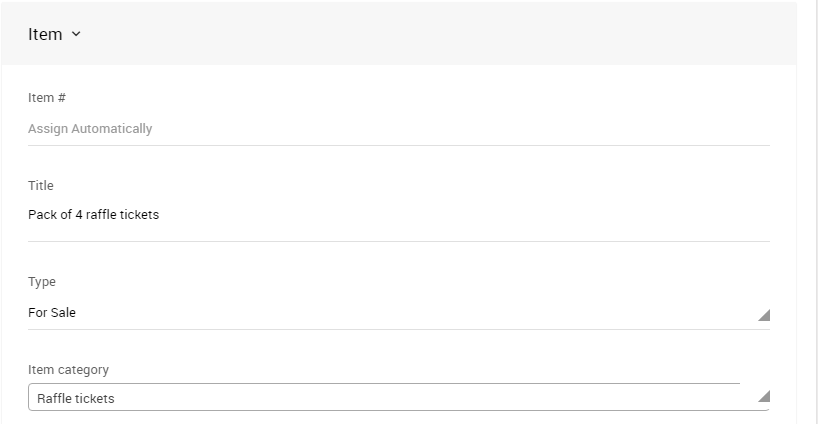
Add a new item with a type of For Sale and give it a title that makes it clear it's a package. Under Options, enable Is basket lot/package, then click Save Item.
Step 2 — Add For Sale Items to the Basket
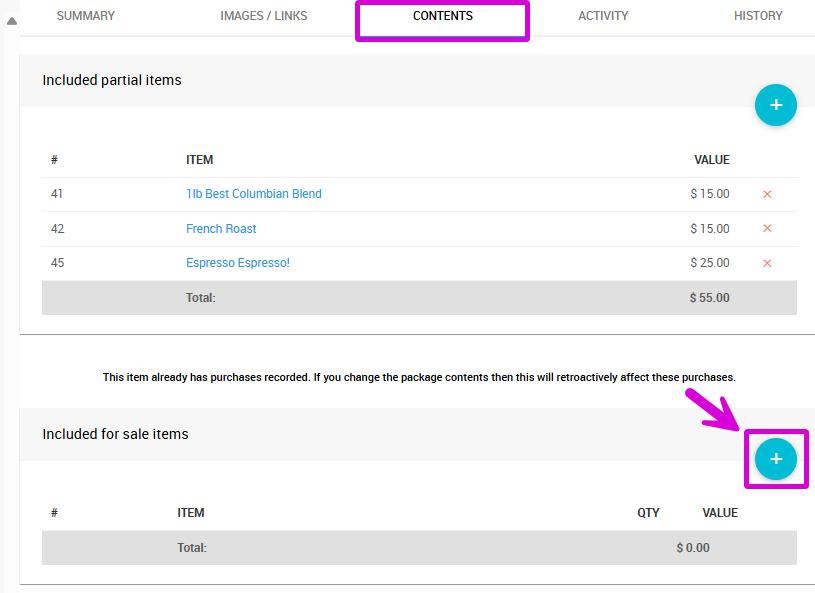
Open the basket item's Contents tab.
Contents Tab Not Visible?
If the Contents tab isn't showing, the Is basket lot/package option may not have been saved correctly. Go back to the Summary tab, confirm the option is enabled, and save the item again.
In the For Sale Items section, click the Add (+) icon.
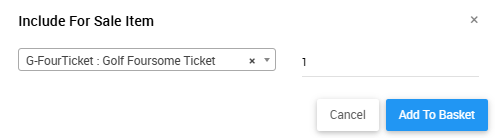
A pop-up window will appear. Select the For Sale item you want to include, enter the quantity, and click Add To Basket.
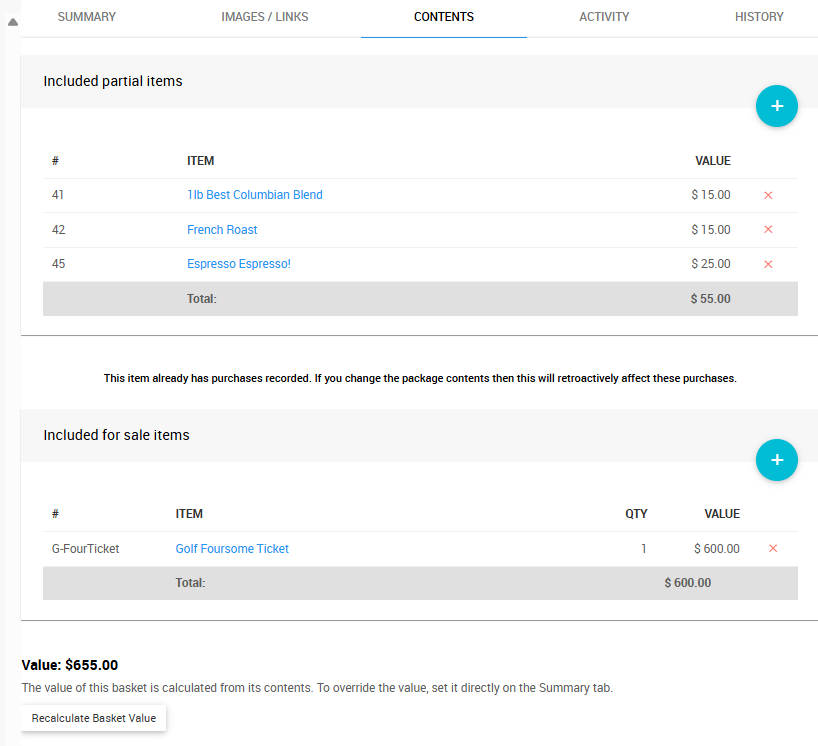
The Contents tab will update to show the items you've added and their combined total value.
Step 3 — Set the Basket Value
If you want to sell the basket at a different price than the calculated total — for example, at a bundled discount — open the Summary tab and enter the desired price in the Value field under Pricing.

See Basket Value for more information on how basket values are calculated and how overrides work.