
Auctria Academy
F.A.Q.
Getting Started
Popular Pages
Course
Auctria Dashboard
  • Getting Started
    • First Steps
    • Plan
    • Run
    • Close
    • Auctria Costs
    • Popular Pages
    • Glossary
    • Resources
  • Core Features
  • Event
    • Add A New Event
    • Change Events
    • Copy Event
    • Archive Event
    • Event Details
    • Event Permissions
    • Health Checks
    • Connectivity
    • Create An Online Store
    • Custom Questions
    • Event With Tickets
    • In-Person Events
    • Set Up A Donation Only Event
    • Set Up An In-Person Event
    • Set Up An Online Event
    • Terminology
  • Event Dashboards
    • Default Dashboard
    • Income Summary
    • Item Summary
    • Your Profile
      • Access My Profile
  • Credit Cards
    • Payment Processors
    • Credit Card Costs
    • Stripe
      • Connect Stripe Account
      • Change Test Mode
      • Export Stripe Data
      • Stripe Readiness Review
    • Authorize.Net
      • Configuration
      • Fraud Detection
      • Card Registration
      • Card Code Required
      • AVS Mismatch
      • Authorize.Net Readiness Review
    • Credit Card Settings
    • Credit Card Reports
    • Test & Live Modes
    • Participant Fee Coverage
    • Check Total Credit Card Fees
    • Registered Credit Cards
    • Remove All Registered Cards
    • Credit Card Full Refunds
    • Credit Card Partial Refunds
    • Readers And Swipers
      • Standalone Card Readers
    • Connect A Mobile Card Reader
    • Create Online Payment Link
    • Require ReCaptcha Validation
    • Make cc.fees Tax Deductible
  • Auctions
    • Online Auctions
      • Participants In Online Events
    • Paper Auctions
    • Live Auctions
    • Online Bidding Settings
    • Kiosk Mode Bidding Setup
      • Slide Shows
      • Mobile Device Locking
    • Monitor Auction
  • Participants
    • Participant Details
    • Add New Participant
    • Participant Numbering
    • Sharing Participant Numbers
    • Turn Off Participant Numbers
    • Link Participants
    • Unlink Participants
    • Merge Participants
    • Copy Participants
    • Duplicate Participant
    • Participant Maintenance
      • Duplicate Emails
      • Duplicate Names
      • Link Participants
      • Multiple Tickets
    • Catering
    • Registration/Checkout
    • Statements
      • Email Statements
      • Printed Statements
      • Text Statements
    • Choose Participants Filters
    • Correct Email Typos
  • Communication
    • Email
      • System Emails
        • System Emails Summary
        • System Email Options
      • Custom Emails
      • Send Custom Emails
      • Email Manager
      • Editing Emails
        • Email Element Visibility
        • Email Safe Fonts
      • Add Block
      • Add Table References
      • Use Conditional Content
      • Customize Email Header
      • Customize Email Footer
      • Email Edits For Online Auctions
      • Email Ticket Holders
      • Email Participants With A Balance
      • Email Text Link
      • Review Duplicate Emails
    • Text Messages
      • Text Settings
      • Text Options
      • Participants & Phone Numbers
      • Advanced Texting Profile
      • Set Up Advanced Texting
      • Send Custom Text
      • Text-To-Give
      • Transfer Text Number
      • A2P 10DLC
    • System Notifications
    • Mobile Notifications
    • Transactional vs Marketing Emails
    • Ticket Sales Communication
  • Items
    • Item Types
      • Paper Bidding Type
      • Live Bidding Type
      • Online Bidding Type
      • Partial Items
      • For Sale Items
      • Donation Items
      • Raffle Prize Items
      • Buy It Now Only Items
    • Item Details
      • Summary
      • Images and Links
      • Contents
      • Activity
      • History
      • Open Item Bidding
    • Item Numbering
      • Bulk Renumbering
      • Drag And Drop Ordering
      • Live Auction Ordering
      • Random Shuffle
      • Set Next Item Number
    • Add New Items
      Add Item Dashboard
      Item
      Common Property Sections
      Basket
      Biddable Property Sections
      For Sale Items
      Donations
      Save the Item
      More Ways To Add New Items
    • Item Maintenance
      • Copy Items
      • Delete Item
      • Hide Items
      • Duplicate Items
      • Export Items
      • Open/Close Bidding
      • Open Multiple Quantity Items
      • Re-Open Unsold Items
    • Baskets And Packages
      • Build Baskets
      • Set Basket Descriptions
      • Basket Value
      • Combine For Sale Items
      • Combine Partial Lot Items
    • Batch Image Upload
    • Add A Scheduled Event Item
    • Choose Items Filters
    • Choose Items Sort
    • Pricing Policy
    • Pricing Examples
    • Multiple Winners
      • Winning Multiples
    • Online Pre-Bidding
    • Coupon Codes
    • Shipping
    • After Event Sales
    • Fund-A-Need
    • Peer-to-Peer
    • Auctria Voting
    • Sales Tax
      • Sales Tax Mode
    • Taxable Value
    • Create A Gift Certificate
    • Change Donation Item
    • Track Paddle Raise Donations
  • Financials
    • Expenses
      • Add A New Expense
      • Edit Expenses
      • Add Expense Category
      • Add Category to Expense
    • Consignments
    • Reference Materials
  • Raffles
    • Creating Raffles
    • Running Raffles
    • How-To Guides
  • Tickets
    • Ticket Management
      • Add Or Edit Tickets
        • Add Early Bird Tickets
        • Add Multi-Day Tickets
      • Changing Tickets
      • Activate/Deactivate Tickets
      • Transfer Tickets
      • Repair/Reissue Tickets
      • Tables And Seating
        • Assign Seating
      • Meal Choices
      • E-Tickets
        • Preview E-Ticket
        • Ticket Styling
      • Ticket Claim
      • Ticket Statements
      • Ticket Details
      • Ticket Settings
    • Ticket Sales
      • Sell Tickets
      • Sell Free/Discount Tickets
      • Stop Selling Tickets
      • Managing Ticket Sales
      • Refund Tickets
    • How-To Guides
  • Sponsorships
    • Add & Sell Sponsorships
      • Sell Sponsorships
    • Displaying Sponsors
  • Reports
    • Report Configuration
      • Change Report Views
      • Selecting By Tags
      • Drop-Down Selectors
      • Choosing Columns
    • Bulk Editing/Mass Changes
      • Bulk Editing
      • Delete Multiple Records
      • Bulk Edit Tags
      • Change Sales Tax Categories
    • Reference Materials
      • Item Reports
      • Donor Reports
      • Participant Reports
      • Ticket And Sponsorships Reports
      • Financial Reports
      • Other Reports
      • Raffles Reports
  • Actions
  • Check-In
    • Check-In By Organizer
    • Check-In Settings
    • Self Check-In Request
    • Participant Access
  • Checkout
    • Checkout By Organizer
    • Batch Checkout
    • How-To Guides
      • Checkout And Payments
      • Delete Purchase With Payment
      • Add Shipping Costs Manually
      • Negative Payment Refund
      • Splitting Bids
      • Transfer Payments
    • Checkout Payment Options
    • Online Purchase Behavior
    • Record Payment
    • Transfer Payment
    • Delete Non-CC Payment
    • Give Event Credits
    • Handling Payments
    • Issuing Refunds
  • Bidding Dashboard
    • How-To Guides
      • Promote Or Demote Bids
      • Edit Bids
      • Remove In-Progress Bid
      • Remove Maximum Bid
    • Editing Transactions
    • Live Auction
    • Online Auction
    • Paper Auction
  • Donations Dashboard
    • Dessert Dash
    • Paddle Raise
    • Record Donation
  • Sales Dashboard
    • Add For Sale Item
    • Add New Sponsorship
    • Add New Ticket
  • Event Website
  • Online Experience
    • Event Website
      • Online Bidding
      • Buying Single Tickets
      • Buying Multiple Tickets
    • Participant Check In
    • My Account
      • Update Ticket Details
    • Placing Bids
      • Bid Extension For Bidders
      • Kiosk Mode Bidding
      • Multiple Winners
      • Text Bidding
    • Mobile Bidding
      • Bidder Mobile App
      • How Bidders Sign In
      • Sign Into A Different Event
    • Text Commands
    • Change Maximum Bid
    • Max Bidding Examples
    • Max Bidding Rules
    • Maximum Bidding
  • Website
    • How-To Guides
      • Create New Event Website
      • Set The Website Address
      • Configure Menu Entries
      • Fix Page Content
      • Get QR Code
      • Copy Website With Import/Export
      • Track Visitors
    • Customization How-Tos
      • Set Home Page
      • Website Page Layout
      • Hide Website Pages
      • Edit Columns
      • Add New Page
      • Add New Row
      • Add Section
      • Add A Donation Page
      • Add A Sponsor Page
      • Create Coming Soon Page
      • Save The Date Page
    • Element How-Tos
      • Move Elements
      • Configure Item Catalog Style
      • Change Catalog Button Colors
      • Configure Items Displayed
      • Item Catalog Custom Cards
      • Display Donation Items
      • Add Button
      • Clickable Images
      • Modify Bidder Registration Form
      • Customize Shopping Cart
      • Add Cash Donations
      • Track Bidder Donations
      • Add A Pop-Up Video
    • Reference Materials
      • Website Dashboard
      • Header Links
      • Add Behavior
      • Add Style
        • Background
        • Fonts
        • Height
        • Margin And Padding
        • Text Align
        • Border
        • Thermometer
        • Custom Style
      • Choose File
      • Choose Image
      • Color Picker
      • Import Website
      • Export Website
      • Website History
  • Videos
  • Editor
    • Opening The Editor
    • Website Locked
    • Website Editor Sidebar
    • Website Editor Mode Effects
    • Manage Website Pages
      • System Pages
      • Special Pages
    • Current Page Settings
    • Theme Settings
      • Theme
      • Add Theme Color
      • Add Custom Variable
      • Add Font
    • Site Settings
    • Page Properties
      • Edit Current Section
      • Current Row
    • Preview Website Pages
    • Common Element Actions
    • Website Element Visibility
      • Date And Time View
  • Content
    • Row Content
      • Donation Element
      • Donor Catalog
      • Footer
      • Header
      • Item Catalog
      • Item Details
      • Leaderboard
      • Donate An Item
      • Sponsors Catalog
      • Sponsors Row
    • Column Content
      • Button
      • Callout
      • Content Cards
      • Countdown
      • Divider
      • Document Preview
      • Heading
      • Hero Element
      • Image
      • Image Carousel
      • Item Image Carousel
      • Map
      • Parallax Image
      • Profile Bar
      • Profile Cards
      • Progress Tracker
      • Quote
      • Share Event
      • Text Element
      • Video
      • YouTube Live Chat
    • Headers And Footers
  • Templates
  • Advanced Styling
    • Styling By Target
    • Styling by Code
  • Mobile Apps
  • Auctria Mobile Apps
  • Auctria Admin App
    • Admin App Bids & Donations
    • Admin App Check-In
    • Admin App Checkout
    • Admin App Sales
    • Charging A Credit Card
    • Mobile Card Readers
    • Pairing A Phone
    • Registering Credit Cards
    • Scan QR Codes
  • More Features
  • Settings
  • Online Settings
    • Online Availability
    • Online Bidding Times
    • How-To Guides
      • Online Pay Later
      • Reopen Online Bidding
      • Set Limited Ticket Times
      • Closing Online Bidding
      • Pause An Online Event
      • Set Up Online Pre-Bidding
      • Tracking Online Donations
    • Online Visibility
    • Timezones
  • Organizations
    • Auctria License
    • Auctria Balance
    • Upgrade License
    • User Accounts
    • Adding Users
    • Edit Users
    • Removing Users
    • Replace User
    • Tag Maintenance
    • Filters
    • Change Contact Email
    • New Organization By Participant
    • Create Test Event
    • Standalone Card Readers
  • Categories
    • Item Categories
      • Grouping Items By Category
      • Add New Category
    • Expense Categories
    • Sales Tax Categories
    • Consignment Categories
      • Add Consignment Categories
    • Edit Categories
    • Ordering Categories
  • Item Donors
    • Add In-Kind Donation
    • Add Item Donor
    • Item Donors Dashboard
      • Item Donor Details
      • Donor Receipts
      • Donor Maintenance
    • Solicited Items
    • Solicited Items Settings
  • Printing
    • How-To Guides
      • Pre-Populate Bid Sheet Values
      • Print Quantity On Bid Sheets
      • Defining Bid Sheet Columns
      • Customize Bid Sheets
      • Generate Thank You Letters
      • Fix Blank Pages
      • Word Documents
      • Print Participant Paddles
      • Print Bid Sheets 2 Up
      • Print Catalog Booklet
      • List Terms and Conditions
    • Reference Materials
      • Bid Sheets
      • Event Catalog
      • Display Pages
      • Gift Certificates
      • Live Reporting Sheet
      • Stationery
    • Attach Stationery
    • Baskets & Forms
    • Bid Sheets Examples
    • Create Stationery
    • Word Templates
    • Labels
      • Item Labels
      • Donor Mailing Labels
    • Upload Stationery
  • Images
    • Adding And Modifying Images
      • Select a Default Image
      • Edit Images
      • Delete Images
    • Dimensions And Sizes
  • Advanced
  • Advanced Features
    • Advanced Tagging
      • Using Advanced Tagging
    • Adding Custom CSS
      • Site Custom CSS
      • Current Element Custom CSS
        • Checkout Form Stylings
        • Item Catalog Stylings
        • Item Details Stylings
        • Sponsor Catalog Stylings
        • Video Element Stylings
    • Advanced Mode
    • Custom Website Variables
    • Advanced How To Guides
      • Convert To Online Only
    • Filter Reference
      • Event
      • Participant
      • Bid History
      • Credit Card Charge
      • Donation
      • Donor
      • Expense
      • Item
      • Item Category
      • Organization
      • Payment
      • Raffle
      • Raffle Ticket
      • Solicited Item
      • Ticket
      • Item Donors
    • Item Catalog Template
    • Using Tags In Auctria
  • Import/Export
    • Map Fields for Import
    • Export Settings
    • LGL Export
On This Page
Add Item Dashboard
Item
Common Property Sections
Basket
Biddable Property Sections
For Sale Items
Donations
Save the Item
More Ways To Add New Items

Add New Items to Auctria

Auctria allows you to add or edit items at any time before, after, or during your event activities, including auctions. This is an overview of the process.

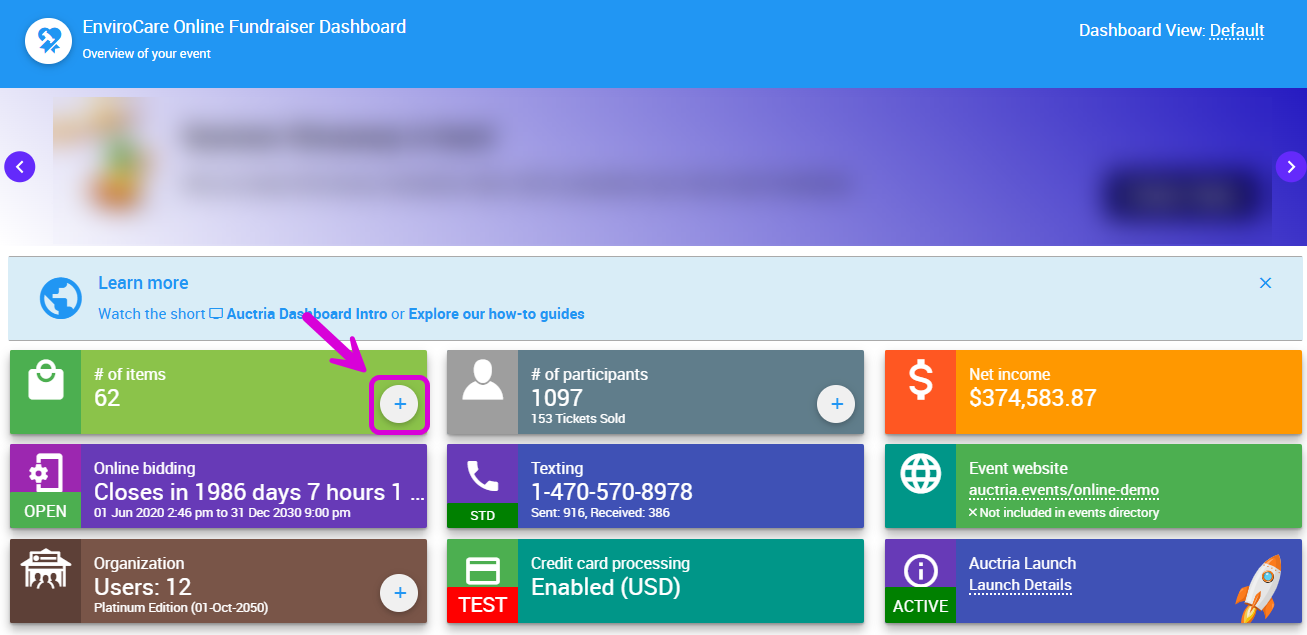
To add a new item, the fastest way is to click the + icon in the Items block on the main Event Dashboard. This will open the Add Item dashboard.
img

You can also find additional ways to add items in More Ways To Add New Items at the bottom of this page.

Before adding items, it's worth familiarizing yourself with the available Item Types and how they work.

See Introduction To Items for a full overview.

Add Item Dashboard
img

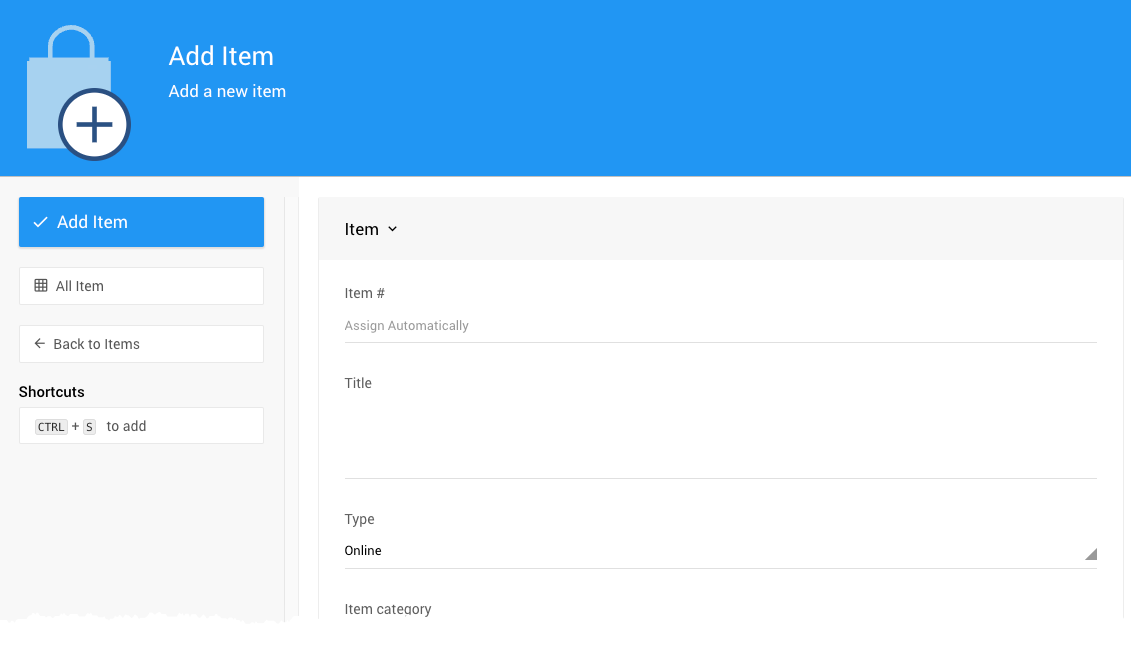
An example showing the default Online type — one of the most commonly used Item Types.
FieldDescription
Item #Assigned automatically by Auctria, or set manually.
TitleThe short name or description of the item.
TypeSelect from the pre-set item types. See Item Types for an overview, or jump directly to a specific type: Paper Bidding Type, Live Bidding Type, Online Bidding Type, Partial Items, For Sale Items, Donation Items, Raffle Prize Items.
Item CategoryA category you define to help organize items in your event. An item can only be in one category. See Item Categories.
TagsTags help filter items in searches and reports. An item can have multiple tags. See Where Tags Can Be Used In Auctria.
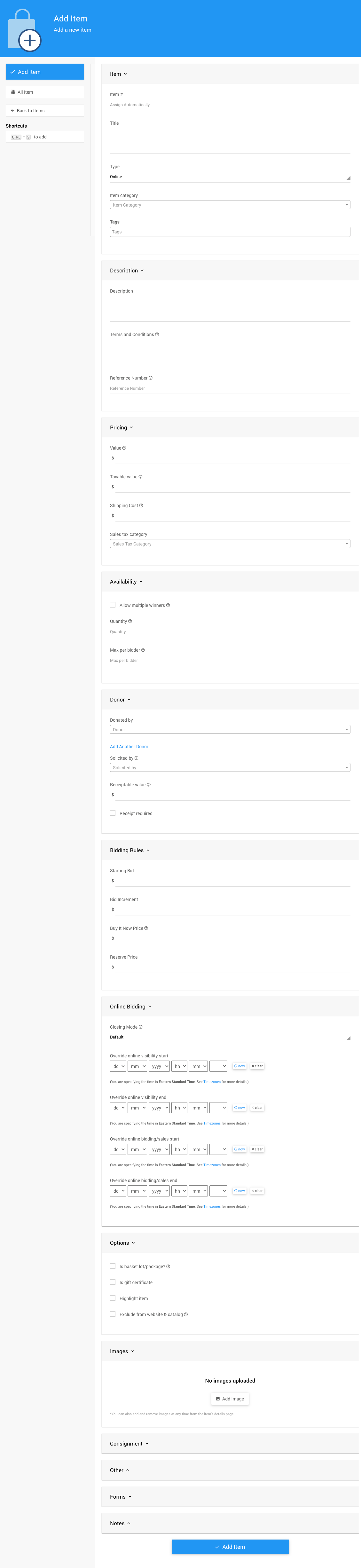
A complete view of the Add Item dashboard.
img

The full Add Item page for an Online type item.

Item

The Item section is where the Item #, Title, Type, Item Category, and Tags are initially set. All of these can be edited afterward — see Item Details for more information.

Required Fields

Every item in Auctria is required to have an Item Number, Title, and Type set during item creation.

Item Number

Auctria can assign an Item # automatically, or you can enter your own. Item numbers can include both letters and numbers, but must be unique across all items in your event.

Item Numbering

If you manually enter a numeric-only value when creating a new item, the Next assigned item# value in the main Item Dashboard will also be updated. See How To Set The Next Item Number for more information. You can also renumber items later if needed.

Title

Every item must have a Title — typically a short, one-line descriptive name. The title is used to identify the item on Bid Sheets, in Participant Statements, and in the Item Catalog and Item Details elements.


Common Property Sections

The following sections are available for all item types and are all optional. They can be filled in when creating the item or updated at any time afterward.

Description

FieldDescription
DescriptionAdditional detail about the item. Any URLs entered here will become clickable links when shown online.
Terms and ConditionsAny terms and conditions to be included on bid sheets or other forms for this item.
Reference NumberAn optional field for any external reference associated with the item.

Pricing

The Pricing section is where you set the item's value and any related costs.

FieldDescription
ValueThe monetary value of the item, shown in the catalog or on a bid sheet. Leave blank or enter 0.00 to omit it. Enter -1 to mark the item as Priceless.
Taxable ValueUse this if the item's taxable value is less than its stated value — for example, a $200 ticket where only $75 is considered taxable. See Taxable Value for more information.
Shipping CostThe amount charged for shipping to the winner of this item. See Shipping for more details.
Sales Tax CategoryUser-defined categories for organizing items that need to be taxed. See Sales Tax for more information.

Donor

If an item was donated, you can record the relevant donor information here. See Item Donors Dashboard for more information.

FieldDescription
Donated byThe person or organization that provided the donated item.
Add Another DonorUse this link when an item has multiple donors.
Solicited byThe name of the person who approached the donor. This is an internal field only.
Receiptable ValueThe value to show on the donor receipt, if different from the item value.
Receipt RequiredAn informational checkbox only — can be used as a reminder that the donor requested a receipt.

Options

FieldDescription
Is basket/lot package?If enabled, a Contents tab will be added to the item, allowing you to define the items in the basket or package. See Baskets And Packages for more information.
Is gift certificateIf enabled, Auctria can generate a simple gift certificate for this item.
Is eventMarks this item as a scheduled event (e.g., a concert or dinner party) happening at a specific time.
Highlight itemIf enabled, this item will appear when an Item Catalog is configured to display highlighted items. See Configure Items Displayed for more information.
Exclude from catalogIf enabled, this item will not appear in online or printed catalogs.

Images

Items can have images associated with them, added either when creating the item in the Images section, or afterward from the Item Details page on the Images tab.

Images can be uploaded from your computer or added by providing a URL. Uploaded images are resized as needed, but the aspect ratio is never changed.

Image Recommendations

For the best results, use approximately square images. Narrow or rectangular images may not display well in the space available on catalog and item pages.

See Images and Links for more information.

Consignment

The Consignment section is used when managing consignment items.

FieldDescription
Consignment CategoryUser-defined categories to help organize consigned items.
Consignment MinimumThe minimum cost for this consignment item.
Consignment MaximumThe maximum cost for this consignment item.

Other

FieldDescription
LocationThe physical location of the item at the event — often a table number. This can be shown on some forms.
Closing TimeFor Paper type items, the time when bidding will close. This can be printed on the item's bid sheet.

Forms

The Forms section lets you override the item description with custom text on specific forms and pages. If left blank, the item description is used by default.

FieldDescription
Display Page TextShown on the item's display page instead of the description.
Bid Sheet TextShown on the bid sheet instead of the description.
Certificate TextShown on the certificate instead of the description.
Catalog TextShown in the item catalog instead of the description.
Statement TextShown on participant statements.

Notes

The Notes section provides a free-form text field for internal notes about the item. Notes are not displayed publicly anywhere.


Basket

The Basket section is only available for Partial item types. If you have existing Baskets And Packages, you can assign Partial Items to them while adding the item.


Biddable Property Sections

The three biddable item types — Online Bidding Type, Paper Bidding Type, and Live Bidding Type — each have the following additional property sections.

Online Bidding

The Online Bidding section sets the closing mode and allows you to override the default online bidding start and end times for the item.

FieldDescription
Closing ModeControls how the item closes during online bidding. Intended for use with the virtual live auction controller.
Override online visibility startSets a visibility start time for this item, overriding the event default. Leave blank to use the event default.
Override online visibility endSets a visibility end time for this item, overriding the event default. Leave blank to use the event default.
Override online bidding/sales startSets a bidding start time for this item, overriding the event default. Leave blank to use the event default.
Override online bidding/sales endSets a bidding end time for this item, overriding the event default. Leave blank to use the event default.

Online Bidding Settings

The following pages have more information on how these settings affect your items:

  • Online Visibility
  • Online Availability
  • Online Bidding Times

Availability

The Availability section sets the quantity available and whether multiple winners are allowed.

FieldDescription
QuantityThe number of this item available. Defaults to 1. For Auctria to manage multiple items individually, Allow multiple winners must be enabled.
Allow multiple winnersIf enabled, more than one bidder can win the item.
Max per bidderThe maximum number a single participant can win (applies to multiples only).

Multiple Winners

See Multiple Winners for more information on how this setting affects your event.


For Sale Items

The For Sale section provides availability settings and ticket configuration for For Sale Items. The Quantity value is optional — you can generally leave all other fields as-is when creating a For Sale item.

Creating Ticket Items

It is not recommended to create a Tickets item using the Add New Item routine. Please use the Adding And Editing Tickets function instead.

Ticket Items

The default Ticket Type is None, meaning the For Sale item will be a simple purchasable item. You can change this using the drop-down selector.

Admission Tickets

When Ticket Type is set to Admission, the Admission Ticket Items panel is added to the page. This is configured automatically when using the Adding And Editing Tickets function.

Raffle Tickets

When Ticket Type is set to Raffle, the Raffle Ticket Items panel is added to the page. This is configured automatically when using the Creating Raffles function.

Other Tickets

The Other ticket type is available for items that should be treated as tickets without fitting the Admission or Raffle categories — for example, drink tickets. Aside from being recognized as a ticket item, there is no functional difference between the None and Other options.

For Sale Availability

The Availability section for For Sale items works differently from the Biddable item version. The Quantity and Max per participant values limit the total number available and the number any single participant can purchase.

For Sale Availability Settings

Most For Sale Availability settings are configured automatically when creating admission tickets or raffle tickets. See the following for more details:

  • Adding And Editing Tickets
  • Creating Raffles
  • Online Purchase Behavior
  • Online Visibility
  • Online Bidding Times

Donations

The Donations section manages settings specific to Donation Items.

Fundraising Target

Setting a Fundraising Target applies only to the specific item and will trigger a Progress Tracker element on the item's details page.

See the following for more information on Donation item options:

  • Donation Levels
  • Online Purchase Behavior

Save the Item

Once you've filled in the necessary information, click the Add Item button on the left side of the page. A confirmation message will appear at the top of the screen along with a link to the newly created item's details page.

More Ways To Add New Items

Beyond adding items manually from the dashboard, you can also:

  • Duplicate an existing similar item.
  • Copy items from a previous event.
  • Import items from an Excel file.
  • Allow donors to submit item donations online and then promote them to items.

See also:

  • Introduction To Items
  • Item Types
  • How To Add A New Item Category

Last reviewed: April 2026
guide.auctria.com/redirect?id=AddNewItems
AddNewItems
/items/add_item/
items
add_item
Add New Items to Auctria
Auctria allows you to add or edit items at any time before, after, or during your event activities, including auctions. This is an overview of the process.
Set Next Item Number
Item Maintenance