
Learn how to use the Email Editor to customize your Custom Emails and System Emails.
Click Edit on any Custom Emails or System Emails to open the Email Editor with that email loaded. You can find them under Communication → Custom Emails or Communication → System Emails.
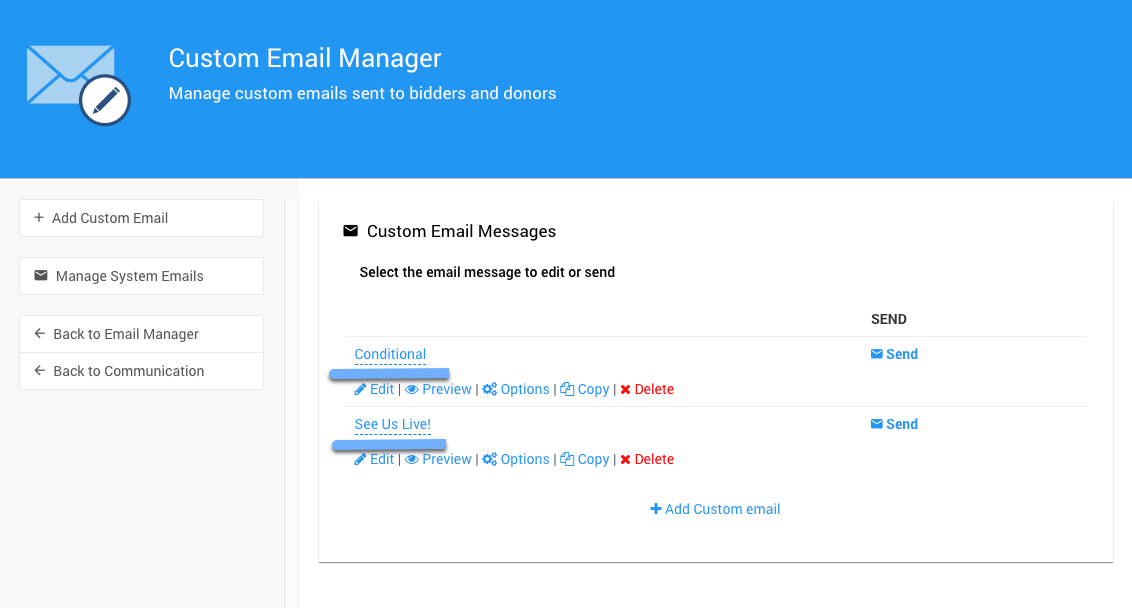
The Custom Email Manager page from a demonstration event.
Similar to the Website Editor
The Email Editor and Introduction to Website Editor share many of the same elements. For more editing tips, see Editing Website Content in the User Guide.
Email Editor Layout
The Email Editor page shows a preview of your email with placeholders instead of the actual event details. For example, this line uses placeholders for your organization's name and email address:
If you have any questions about this event please contact the event
organizer for {{ Organization.Name }} at {{ Organization.Email | mailto }}.
The main editor controls are on the left side of the page. The email's Title is at the top of the sidebar, with its save status directly beneath. The Title is a reference name for the email, and it's how the email is listed under Custom Emails.
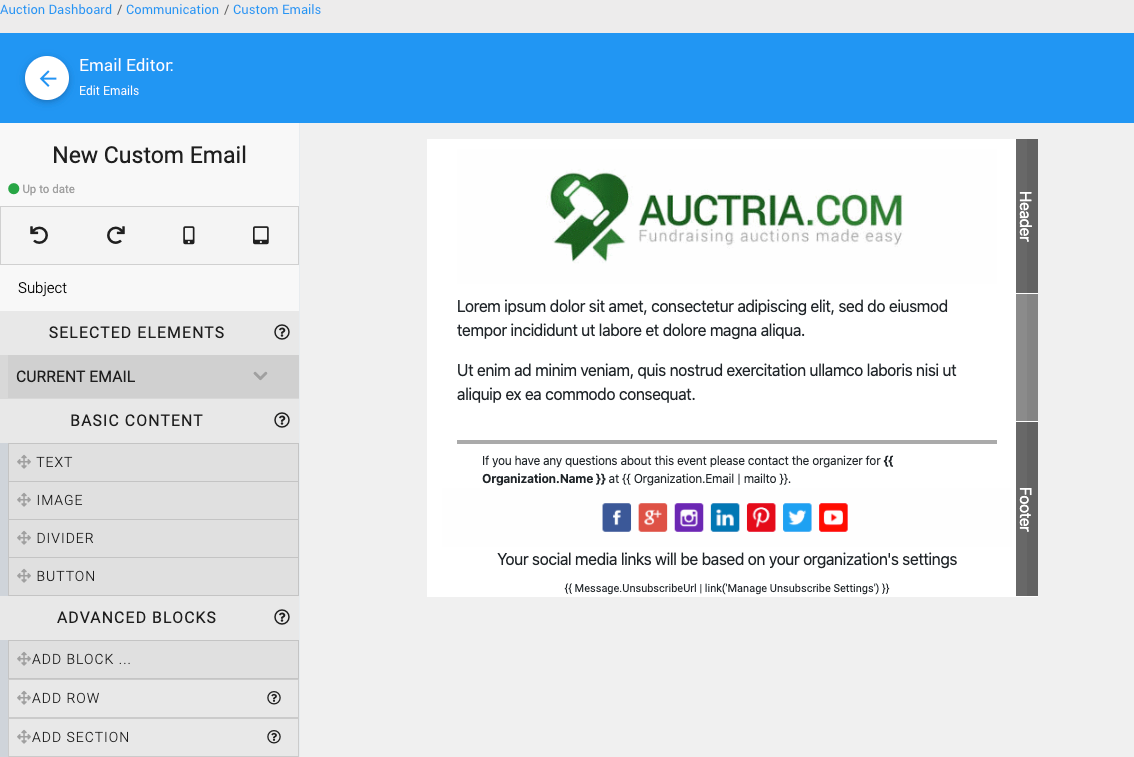
An example Email Editor page from a demonstration event.
Preview Bar
The Preview Bar lets you undo and redo changes. It also opens pop-up previews of how your email will look on a mobile device or a tablet.

The Preview Bar from a demonstration event.
Subject Line
Enter the email's subject line directly in the Subject field.
The Subject line from a demonstration event.
Selected Elements
Use the Current Email panel to change a number of Defaults for the email. Any change you make is updated automatically wherever the same option is available elsewhere.
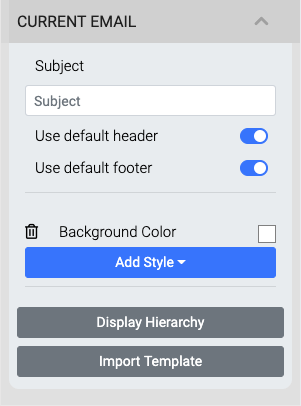
The Current Email panel from a demonstration event.
Default Header Logo
If there is no Organization Logo or Auction/Event Logo, a default Auctria logo image is used in the email header space.
Basic Content
You add and edit Basic Content in emails the same way you do in the Introduction to Website Editor.
| Element | Learn More |
|---|---|
| Text | See Text Element. |
| Image | See Image. |
| Divider | See Divider. |
| Button | See Button. |
Advanced Blocks
You add Advanced Blocks, rows, and sections to an email the same way you add them to a website page. See Website Page Properties for more general information.
Add Block: Drag this option into the email to open the Choose Block window. Then click a card to add that block to your email.
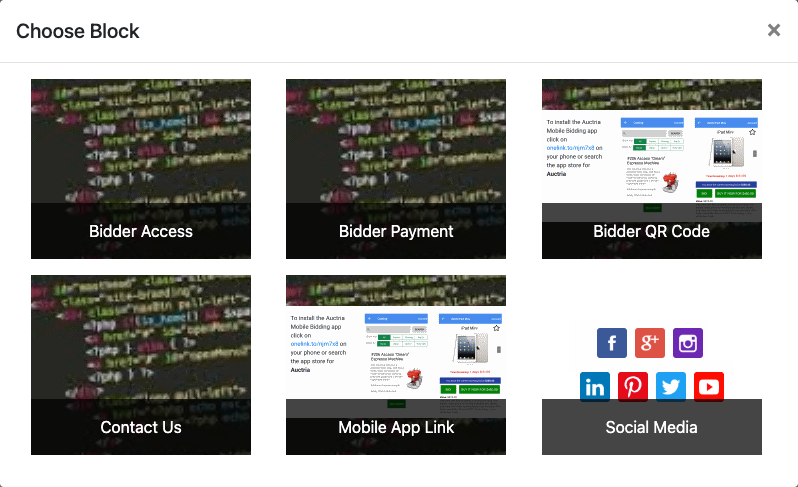
The Choose Block window from a demonstration event.
Add Row
See Adding A Row for more details.
Add Section
See Adding A Section for more details.