
Learn how to set the next automatically generated numeric item number.
When adding new items, Auctria automatically assigns the next available item number. There may be cases where you want to set or reset this starting value — for example, to keep item numbers within a specific range for a new event or category. You can do this from the main Items Dashboard.
Automatic Updates When Adding Items
If you manually enter a numeric-only value when adding a new item, the Next assigned item# will automatically update to that value +1. This does not apply to item numbers that include letters.
Setting the Next Item Number
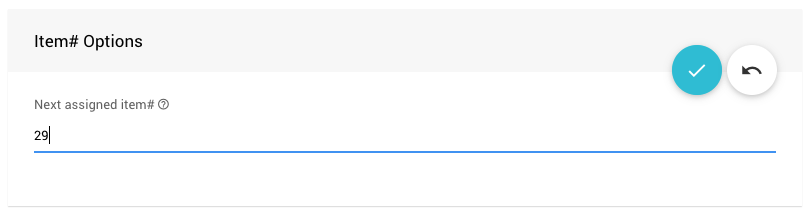
In the Items Dashboard, locate the Next assigned item# field and enter the value you want Auctria to use as the next automatically generated item number.
Already in Use?
If the value entered for Next assigned item# is already assigned to an existing item, Auctria will automatically use the next available free number instead.