
During the Check-In process, you can scan a QR code from an e-ticket presented by a guest to quickly check them in.
When running check-in from a laptop, using the webcam on the computer is inconvenient, but you can use a mobile device. Run the Auctria Admin App paired to your dashboard session to scan the code.
Before working through this, you must be signed into the Auctria Admin app on your phone and have paired it with your browser open on the dashboard.
See How To Pair A Phone And Laptop for details on this process.
Click Participants Check-In to open the Check-In page view.
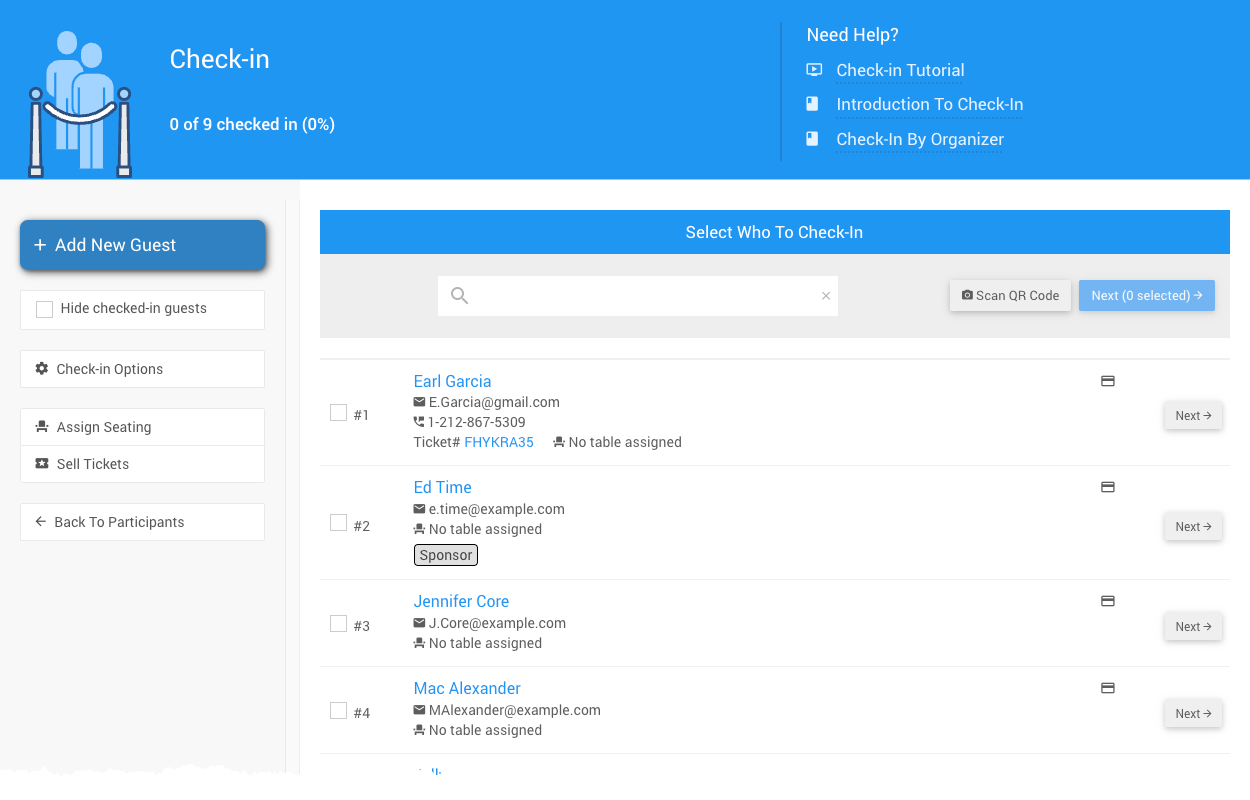
An example from a demonstration event.
Click the Scan QR Code button to do the QR Code scanning process on the phone.
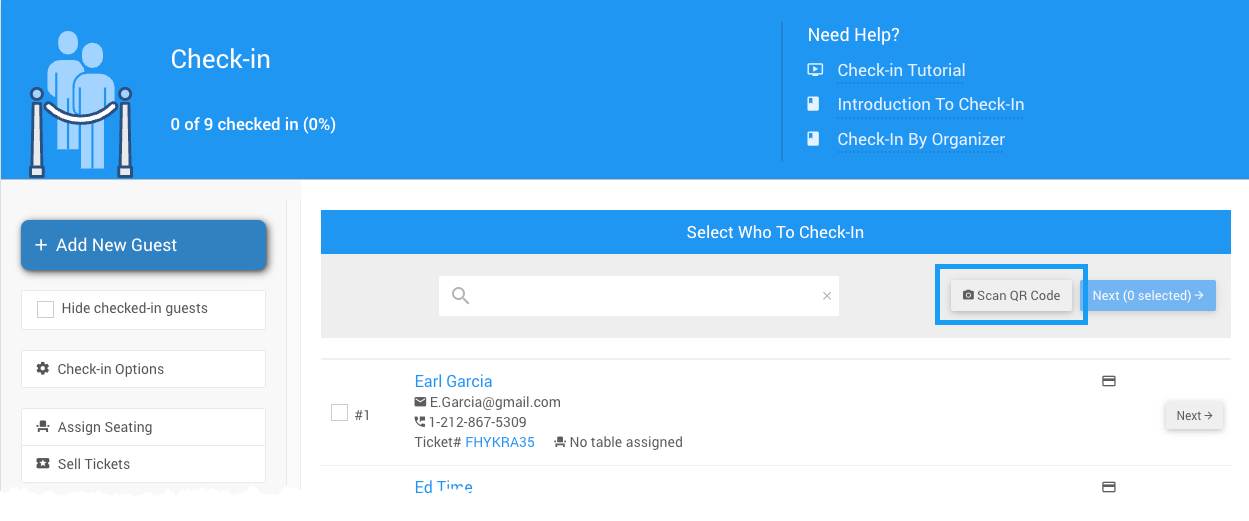
An example from a demonstration event.
When you trigger the scanning process, the dashboard will show:
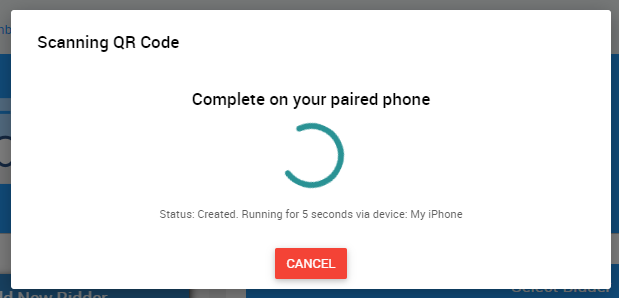
An example from a demonstration event.
The phone will switch to a camera view, and you can use this to scan the QR code on the guest's e-ticket view in the bidder application.
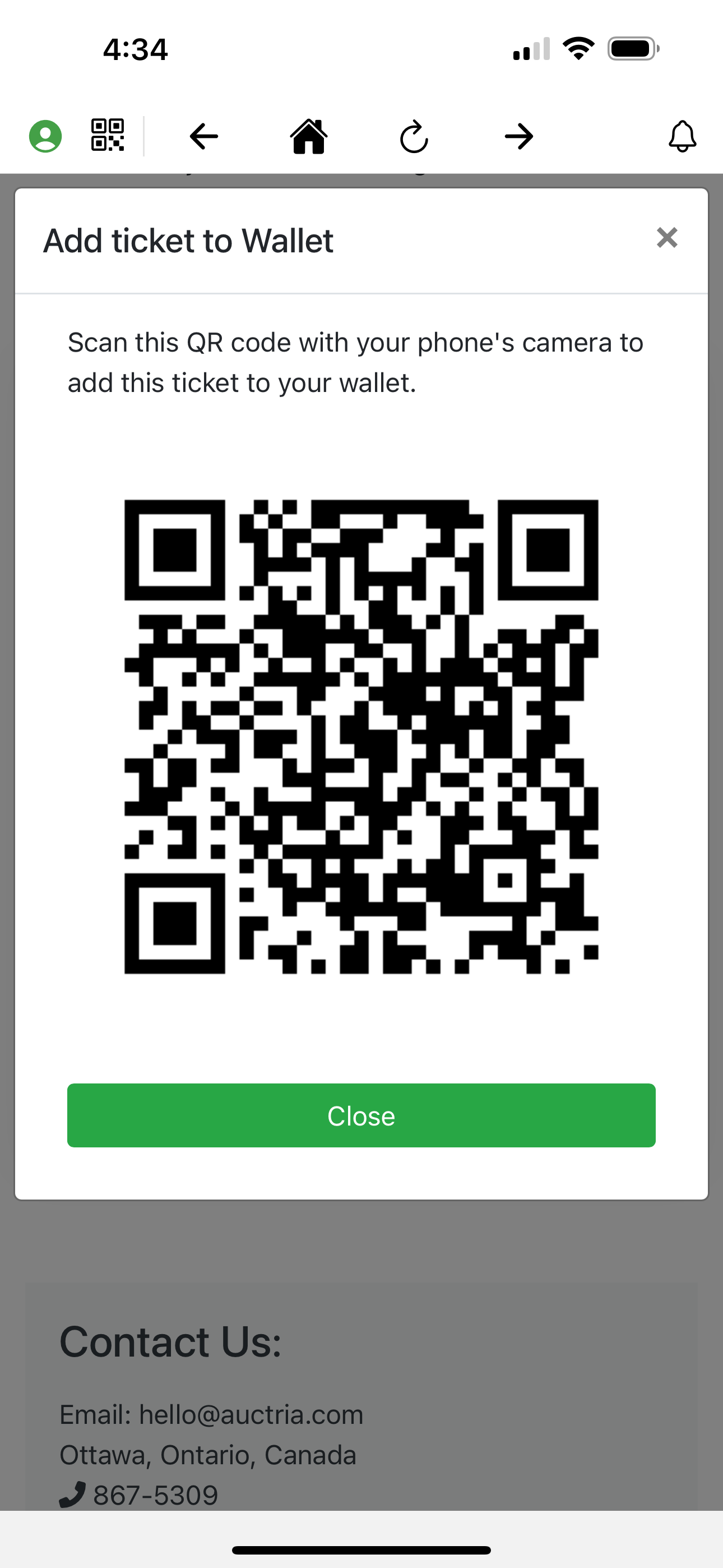
An example from a demonstration event.
You can also use this to scan the QR code from a "printed" ticket.
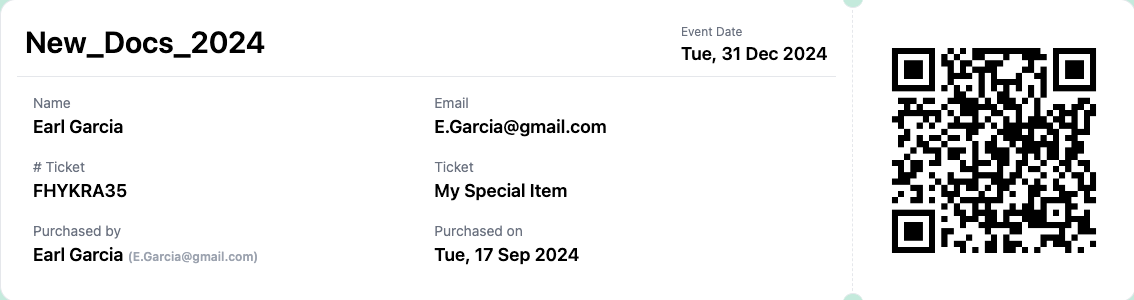
An example from a demonstration event.
After successfully scanning the code, the guest will be selected for check-in:
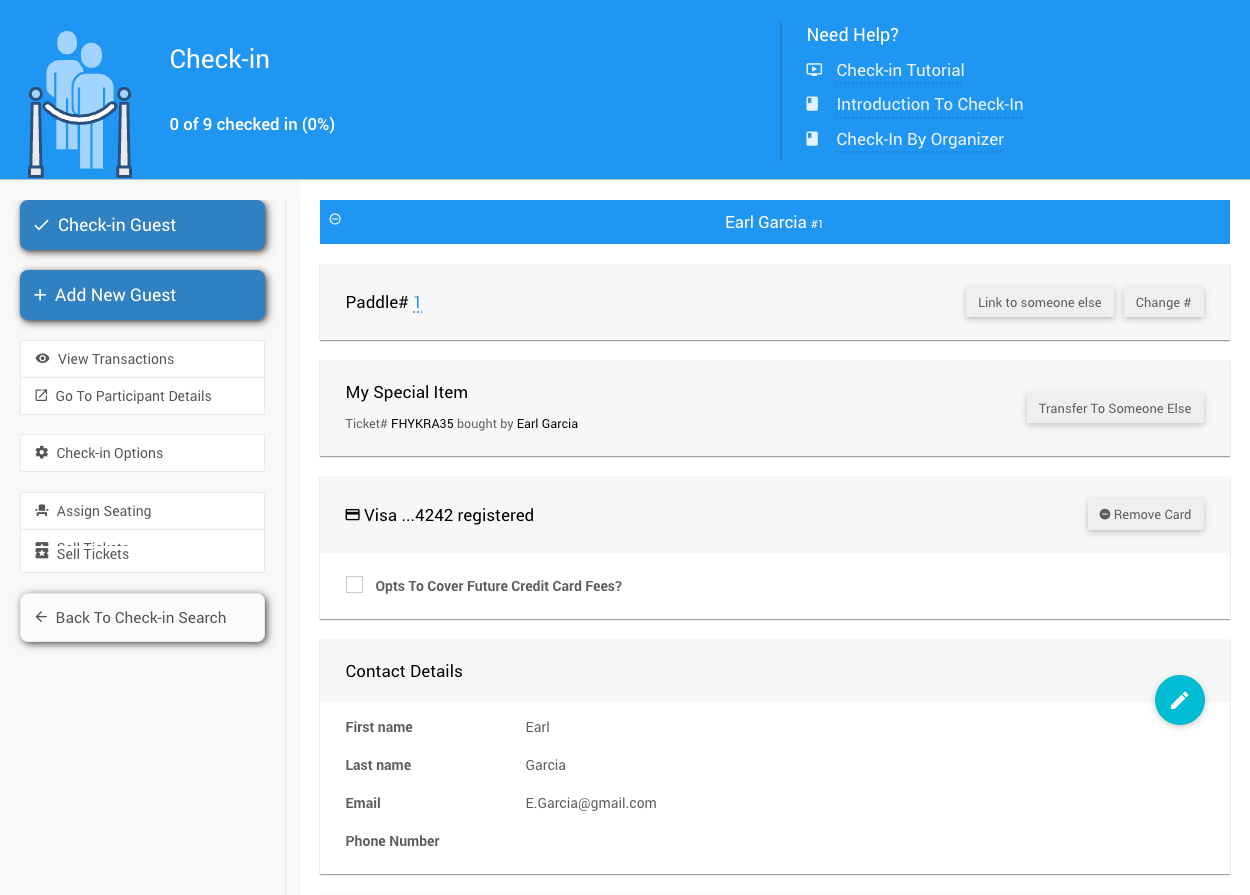
An example from a demonstration event.