
Learn how to select and manage various website pages in the Website Editor.
To manage your website pages, click the Manage Pages button near the top of the Website Editor Sidebar. This will open the Website Pages window displaying the current custom pages for your event website.
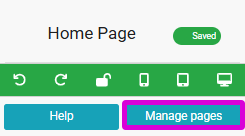
An example from a demonstration event.
Custom Pages
The Custom Pages tab is displayed by default when the Website Pages window is opened. This tab lists all current custom pages for the event website. Each page has an Actions button and an Open Page button at the far right of its row.
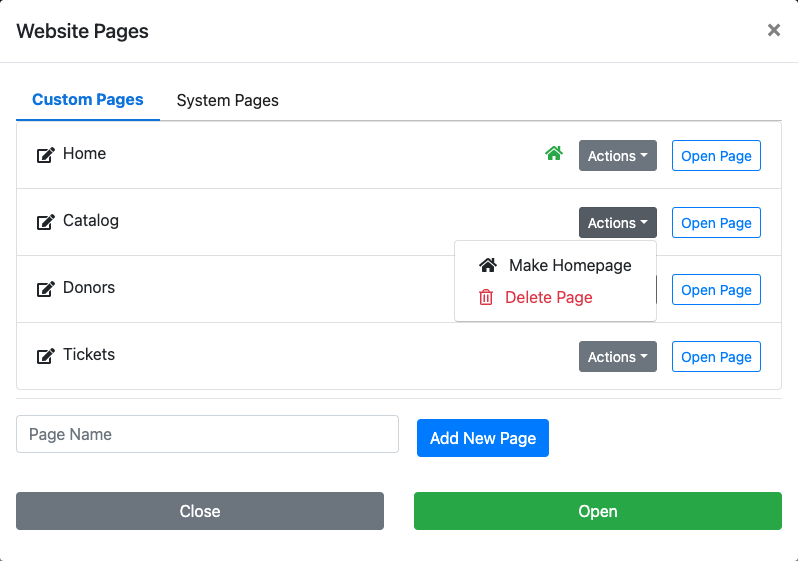
An example from a demonstration event.
Home page indicator
The current homepage is marked with a house icon beside its Actions button.
See Custom Pages for a list of the pre-built custom pages included with your event website.
Rename Page
To rename a custom page, click on its name in the Website Pages window to enable editing. Enter the new name and click outside of the text box to save the change.
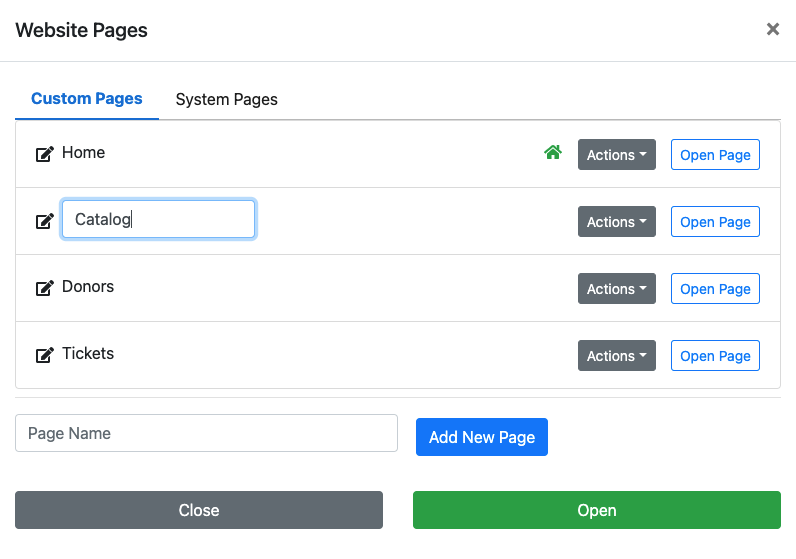
An example from a demonstration event.
Actions Button
The Actions button for each custom page offers the following options:
Make Homepage — By default, the Home custom page is used as the homepage for the event website (this is created automatically when using a website template). Use Make Homepage to designate a different page as the homepage.
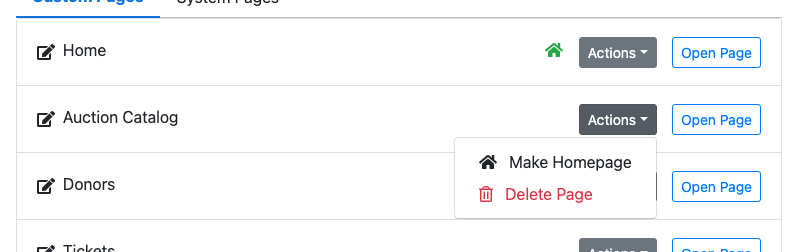
An example from a demonstration event.
The house icon will appear beside the Actions button of the page set as the homepage.
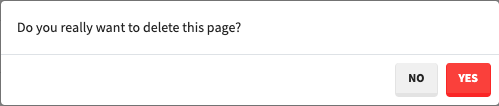
Delete Page — Clicking Delete Page will open a confirmation window before removing the page. Click Yes to confirm and delete the page.
An example from a demonstration event.
Open Page Button
Clicking Open Page opens the page in the editor so you can continue editing it. This is particularly useful for pages that are not currently visible with the selected visibility mode.
Add New Page
To add a new custom page, type its title into the Page Name field and click Add New Page. The new page will be added to the list and appended to the end of the navigation menu. The editor will switch to that page so you can begin editing it.

An example from a demonstration event.
See Add New Page for more details.
System Pages
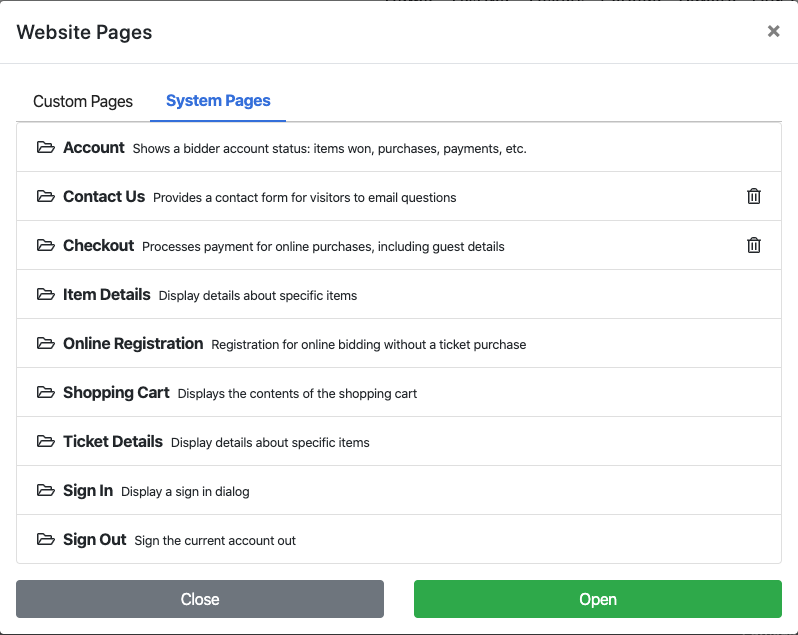
System Pages are required for specific features and functions on your event website. They can be hidden from your navigation but cannot be deleted.
An example from a demonstration event.
See System Pages for more details.