
Learn how to set up your event catalog at Statement size and print it as a folded booklet from Adobe Acrobat Reader.
To print a catalog booklet, you change a few catalog settings, download the PDF, and then print it with the booklet option.
Step 1: Open the Catalog Options
From the main event dashboard, click Printing, then click the Catalog block. Click the Options tab.
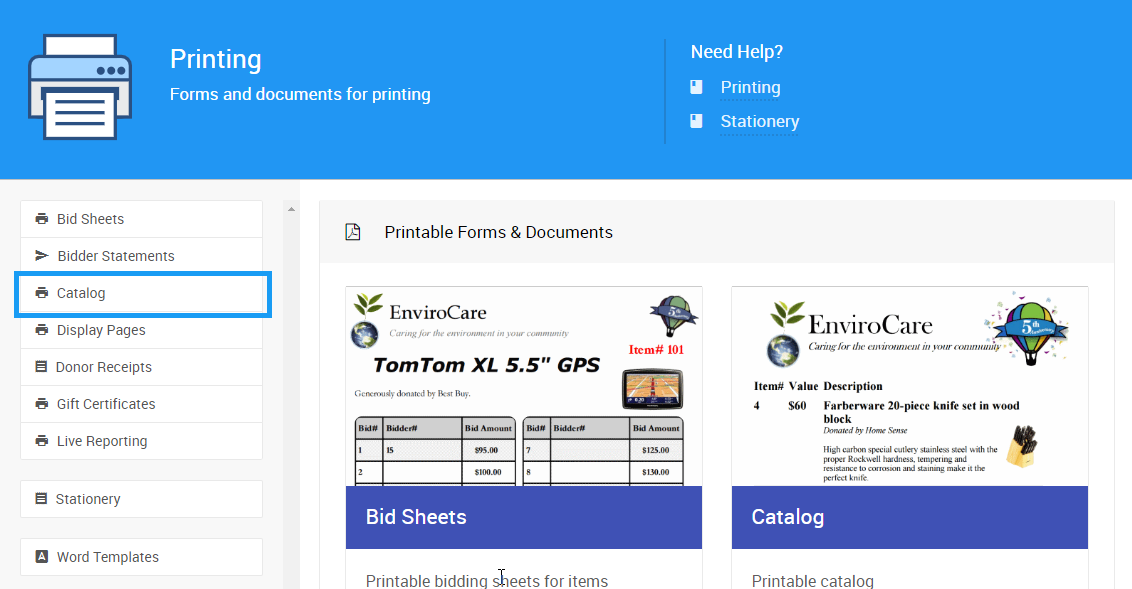
An example from a demonstration event.
Step 2: Set the Page Size to Statement
In the Page panel, set Page size to Statement (5.5x8.5). Each catalog page now takes up half of a letter-size sheet.
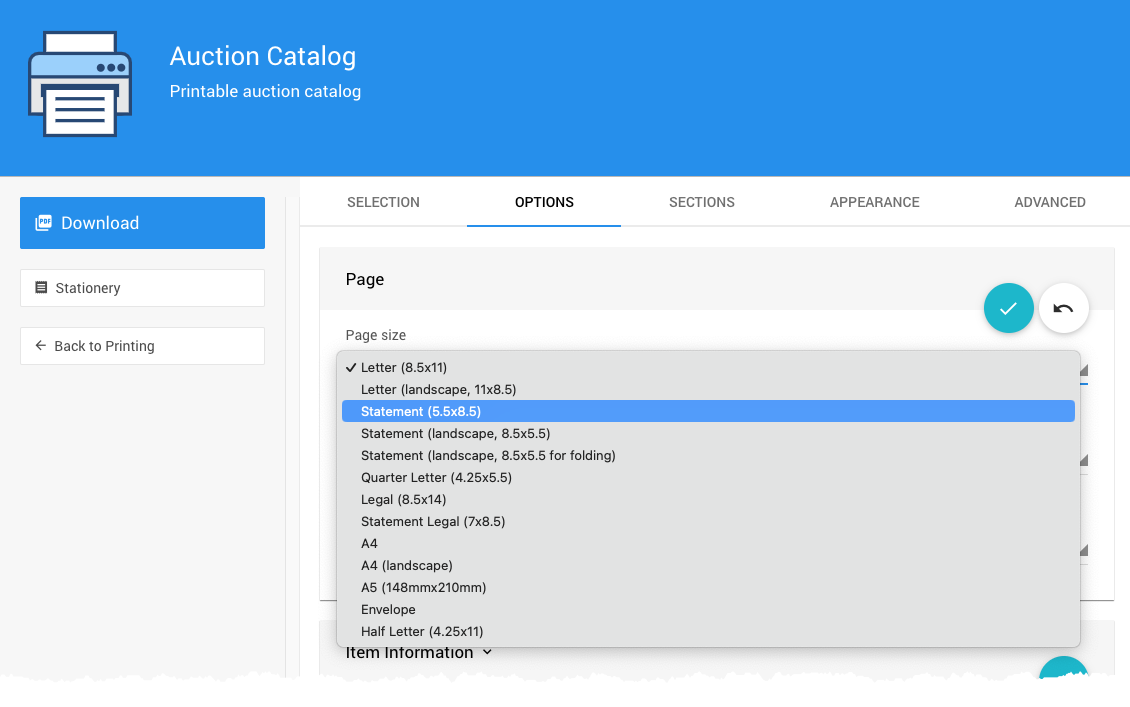
An example from a demonstration event.
Using Stationery?
Your catalog stationery and coversheet must also be Statement size. See Stationery File Guidelines.
Step 3: Turn Off Item Images (Optional)
In the Item Information panel, set Include images to No. This keeps the booklet shorter and lowers printing costs.
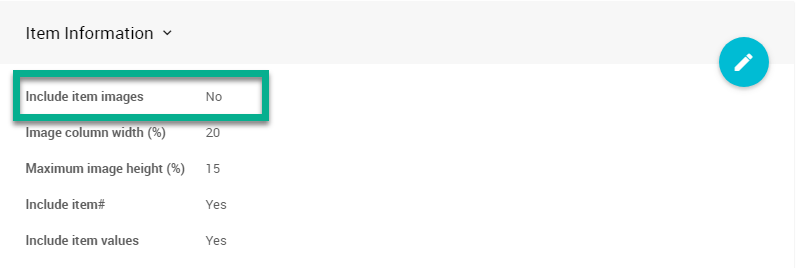
An example from a demonstration event.
Step 4: Allow Items to Span Pages
If some items have long descriptions, check Allow items to span multiple pages in the Layout panel. Otherwise, some pages can end with a lot of white space.
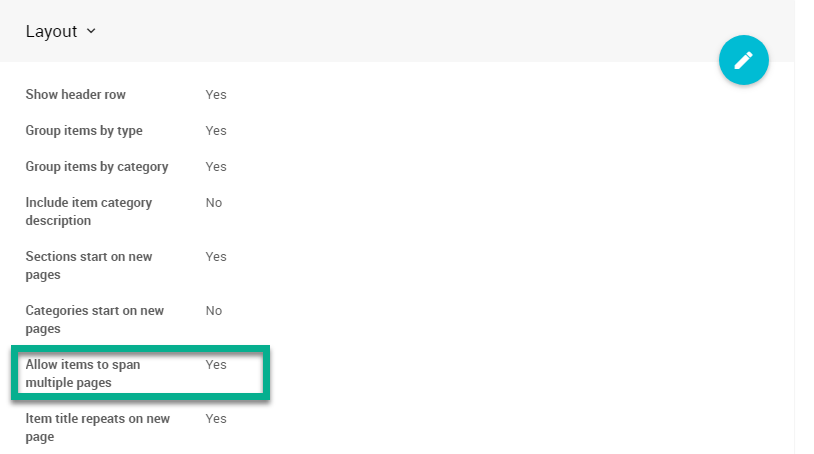
An example from a demonstration event.
Step 5: Download the PDF
Click Download in the sidebar and save the PDF.
An example from a demonstration event.
Step 6: Check the PDF Page Size
Open the PDF in Adobe Acrobat Reader.
Optional: to see pages side by side, click View → Page Display → Two-page scrolling.
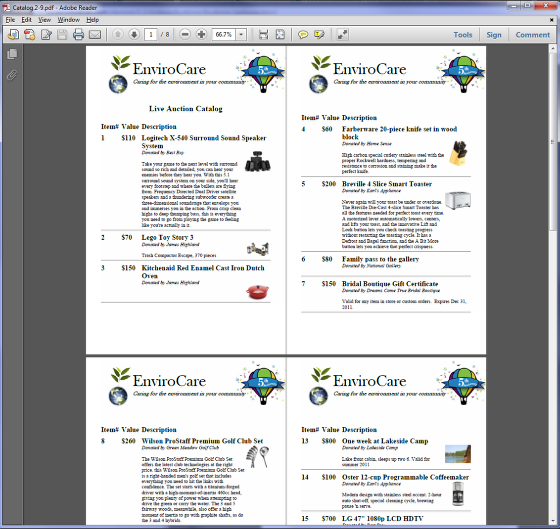
The catalog PDF in two-page view.
Click File → Properties and confirm the page size is 5.5 x 8.5 in.
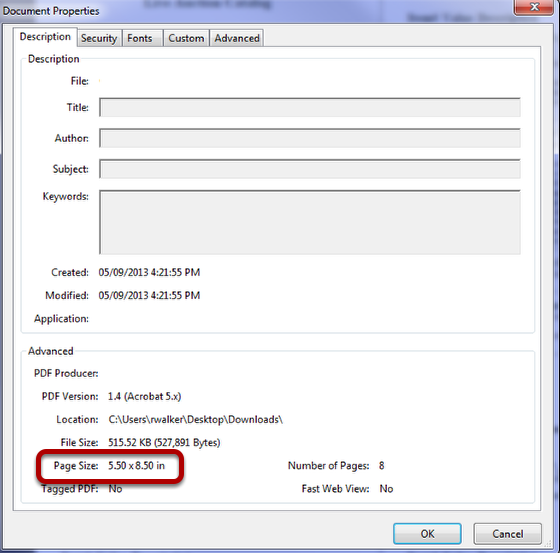
The Document Properties dialog in Adobe Acrobat Reader.
Step 7: Print as a Booklet
Click File → Print.
Under Page Sizing & Handling, click Booklet. This prints two catalog pages on each side of the paper.
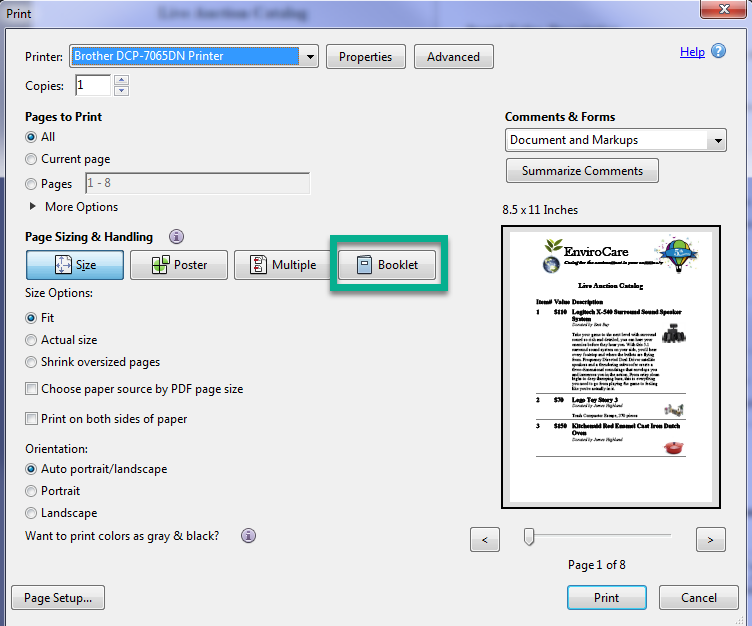
The Print dialog in Adobe Acrobat Reader.
Double-Sided Printers
If your printer prints on both sides, leave Booklet subset set to Both sides and click Print.
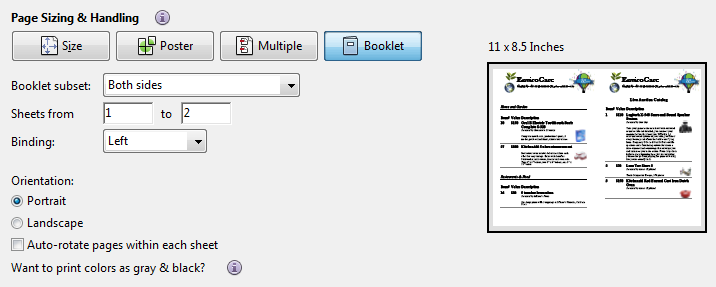
The Booklet subset setting in Adobe Acrobat Reader.
Single-Sided Printers
If your printer can't print on both sides:
Set Booklet subset to Front side only, and click Print.
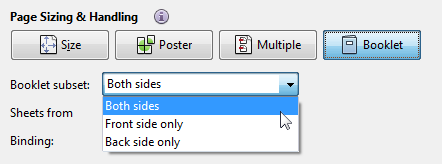
The Booklet subset setting in Adobe Acrobat Reader.
Put the printed pages back in the printer, following your printer's instructions for printing on the back.
Set Booklet subset to Back side only, and click Print.