
Learn how to print two bid sheets on each letter-size sheet of paper by using the Statement page size.
To print two bid sheets per page, you set a smaller page size in Auctria, download the PDF, and then print it 2 pages per sheet.
Step 1: Set the Page Size
From the main event dashboard, click Printing → Bid Sheets, then click the Options tab.
Click the pencil icon on the Layout panel.
Set Page size to Statement (5.5x8.5). Each bid sheet now takes up half of a letter-size page.
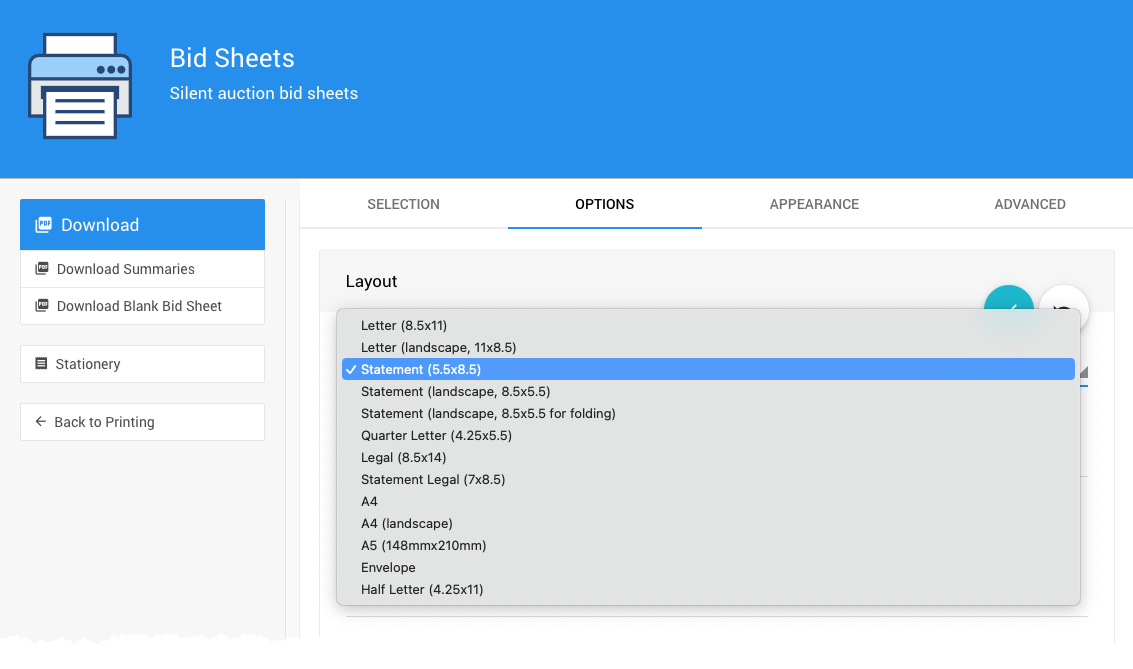
An example from a demonstration event.
Click the checkmark to save.
Using Stationery?
Your stationery must also be Statement size. See Stationery File Guidelines.
Step 2: Download the Bid Sheets
Click Download in the Bid Sheets sidebar and save the PDF. See Actions.
Step 3: Print 2 Pages Per Sheet
Open the PDF in Adobe Acrobat Reader, and click File → Print.
Under Page Sizing & Handling, click Multiple.
Set Pages per sheet to 2.
Set Page order to Horizontal.
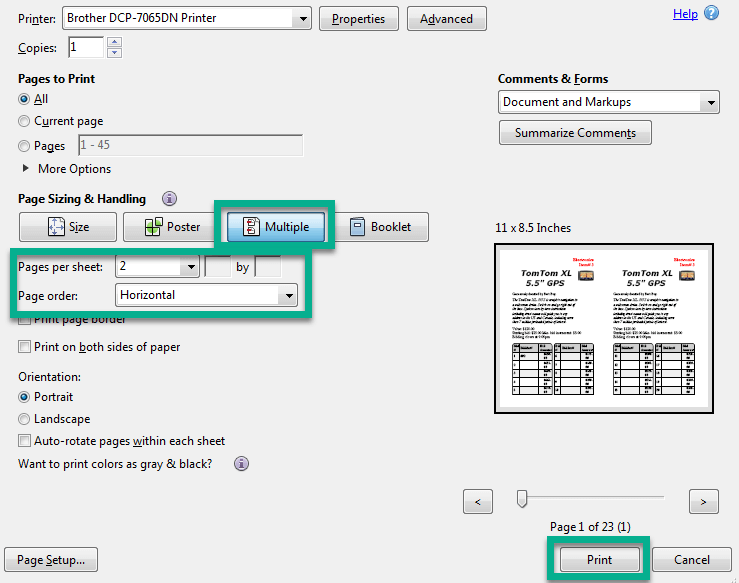
The Print dialog in Adobe Acrobat Reader.
Click Print.