
Learn how to set up registration and checkout for your event, including Paddle# assignment, payment options, pay later, and the contact details you collect.
Participant or bidder?
Labels on this page that say "participant" change to "bidder" if your event uses auction terminology.
Open the Registration/Checkout Page
Click Settings in the left sidebar, then click Registration/Checkout. You can also click Registration/Checkout under Online Features on the Website Dashboard.
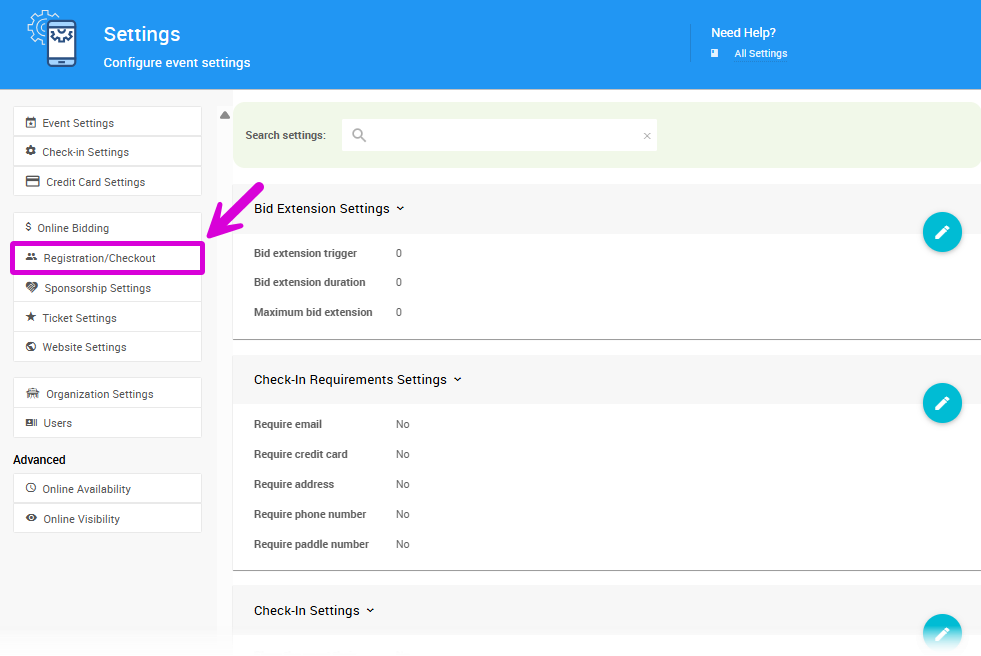
The Registration/Checkout link on the Settings page from a demonstration event.
Paddle# Assignment
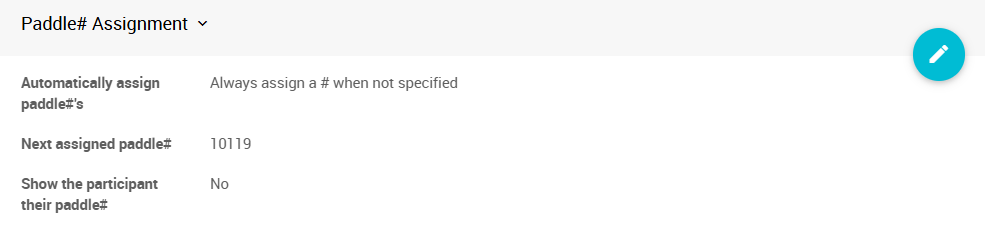
The Paddle# Assignment section from a demonstration event.
| Setting | Description |
|---|---|
| Automatically assign paddle#'s | Controls when Paddle#'s are assigned automatically. See the options below. |
| Next assigned paddle# | The next Paddle# Auctria uses when assigning automatically. |
| Show the participant their paddle# | Shows participants their Paddle# on the My Account page and in their registration email. Participants usually don't need their Paddle# for online-only events. |
| Automatic Assignment Option | What It Does |
|---|---|
| Always assign a # when not specified | Assigns a Paddle# to every new participant who doesn't have one. |
| Never automatically assign a # | You assign every Paddle# yourself. |
| Only automatically assign # on ticket sales | Assigns a Paddle# only when a participant buys a ticket. |

The Automatically assign paddle#'s options.
Online Registration
Participants can always register and buy tickets online. These settings control what they're asked along the way.
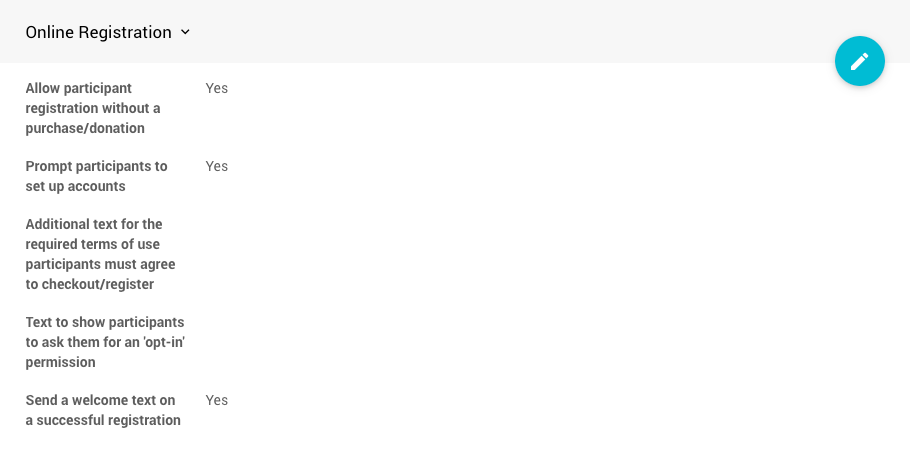
The Online Registration section from a demonstration event.
| Setting | Description |
|---|---|
| Allow participant registration without a purchase/donation | Lets participants register without buying a ticket or making a donation. Also controls whether the Register link shows in the event website menu. The link is always hidden from participants who are already registered, and in Kiosk Mode. See Header. |
| Prompt participants to set up accounts | Prompts participants to create an account when they register or check out. |
| Additional text for the required terms of use participants must agree to checkout/register | Text shown with the standard terms of use that guests must agree to at checkout or registration. |
| Text to show participants to ask them for an 'opt-in' permission | If set, guests see this text during checkout or registration and can opt in to email updates. |
| Send a welcome text on a successful registration | Sends a welcome text to the registrant if Text Messages are turned on. On by default. Requires a paid license. See the pricing page. |
Online Payment Options
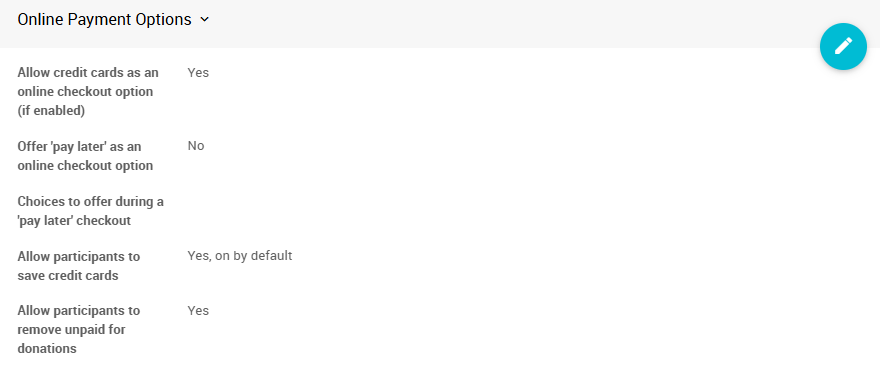
The Online Payment Options section from a demonstration event.
| Setting | Description |
|---|---|
| Allow credit cards as an online checkout option (if enabled) | Lets participants pay by credit card during online checkout. Requires credit card processing. See Introduction To Credit Cards. |
| Require card to be registered during registration | Participants must add a credit card when they register on your event website. Only shows for Advanced users, or when it's already turned on. |
| Allow participants to save credit cards | Yes, on by default saves cards automatically. Yes, off by default lets participants opt in by checking a box. No removes the option. To change the text shown next to this option, use Text to show for saving cards in Settings → Online Payments Settings. |
| Offer 'pay later' as an online checkout option | Lets participants check out without paying, adding the amount to their balance. See Pay Later. |
| Choices to offer during a 'pay later' checkout | A comma-separated list of other payment methods, shown as buttons when a participant chooses pay later. |
| Allow participants to remove unpaid for donations | Lets participants remove an unpaid donation from their My Account page. |
Pay Later
Offer 'pay later' as an online checkout option lets participants check out on your event website and pay what they owe later, for example by cheque or cash.
The Choices to offer during a 'pay later' checkout are for reference only. They show participants which payment methods you accept, but no payment is recorded when they choose one. If you don't set any choices, participants can still click Pay later to check out. Either way, they can still choose shipping and add a donation, and their statement shows the balance they owe.
The choice a participant clicks is saved on their record as their Pay Later Choice. You can see it in the Accounts report.
Pay later doesn't replace a registered credit card
Pay later only changes which payment methods checkout accepts. If Require a registered credit card to bid is on in Settings → Online Bidding, participants still need a card on file to bid. To let participants register without a card, make sure Require card to be registered during registration is off. If you don't see that setting, it's already off.
When a participant pays after the event, record the payment on the Checkout page. Until you do, they keep a balance owing. If credit card processing is set up, their emails still include a link to pay online.
Add payment instructions to your emails
Update your Item Won Notification and Statement emails to tell participants how to pay. See Email Edits For Online Auctions.
Registration Options
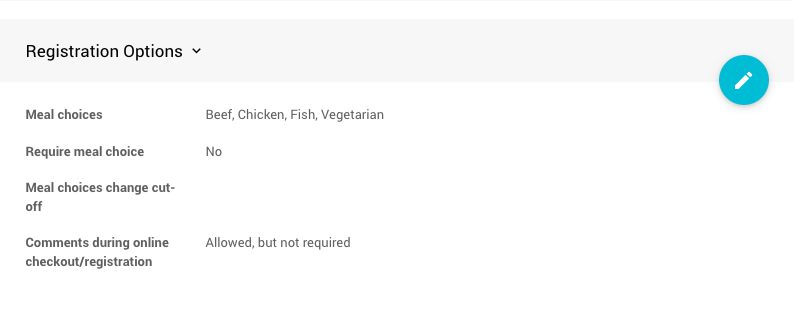
An example Registration Options section with sample meal choices.
| Setting | Description |
|---|---|
| Meal choices | A comma-separated list of meal options offered at registration, such as Beef, Chicken, Fish, Vegetarian. If you rename a choice after participants have picked it, reports treat the old and new names as separate options. |
| Require meal choice | If meal choices are set, each guest must pick one. |
| Allow participants to specify dietary restrictions | Lets participants enter dietary restrictions at registration. |
| Meal change cut-off | The date after which participants can no longer change their meal choices and dietary restrictions on the My Account page. Leave enough time for your caterer. |
| Comments during online checkout/registration | Whether participants can leave comments when they check out or register: Required, Allowed, but not required, or Not Allowed. The comment box appears on the right side of the checkout form. To change the prompt text, double-click it to open its Edit Content window. See Text Element. |
Viewing Registration Comments
To view comments left by guests, go to Reports → Registration / Checkout → Registration Comments.

The Registration Comments report from a demonstration event.
Custom Questions
You can add custom questions to the registration and checkout contact form from this page. Answers are saved on each participant's record. See Custom Questions and Fields.
Registration Contact Options
These settings control which contact fields participants see, or must fill in, when they register.
| Setting | Description |
|---|---|
| Ask for participant's address | Shows the address field. |
| Require participant's address | Makes the address field required. |
| Ask for participant's phone# | Shows the phone number field. |
| Require participant's phone# | Makes the phone number field required. |
| Ask for participant's website | Shows the website field. |
| Ask for participant's company | Shows the company field. |
| Ask for reference number from participant | Shows the reference number field. |
| Ask for participant's seating preference | Shows the seating preference field. |
Registration Guest Contact Options
These settings control what you collect about guests: people attending with someone who bought admission tickets.
Leave these off for tables and sponsorships
If you sell tables or sponsorships that include several tickets, leave these options off. Purchasers asked for many guests' details often enter their own details repeatedly, or enter made-up details to get through checkout. Either is worse than collecting no guest information.
| Setting | Description |
|---|---|
| Require guests' name | Makes the name field required for each guest. |
| Require guests' email | Makes the email field required for each guest. |
| Ask for guests' address | Shows the address field for each guest. |
| Require guests' address | Makes the address field required for each guest. |
| Require guests' phone# | Makes the phone number field required for each guest. |
Who Can Register
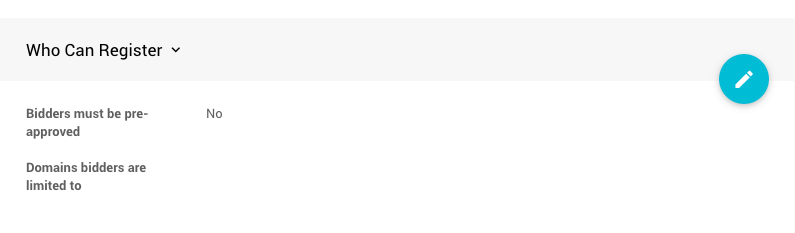
The Who Can Register section from a demonstration event.
| Setting | Description |
|---|---|
| Participants must be pre-approved | When set to Yes, participants can only register if a participant record with the same email address already exists. The default is No, which lets anyone register. |
| Domains participants are limited to | Limits registration to email addresses from specific domains. Enter them as a comma-separated list, such as mycompany.com,relatedcompany.com. Leave it empty to allow any email address. |
Ticket Checkout Options
These settings affect what participants see when they check out with admission tickets.
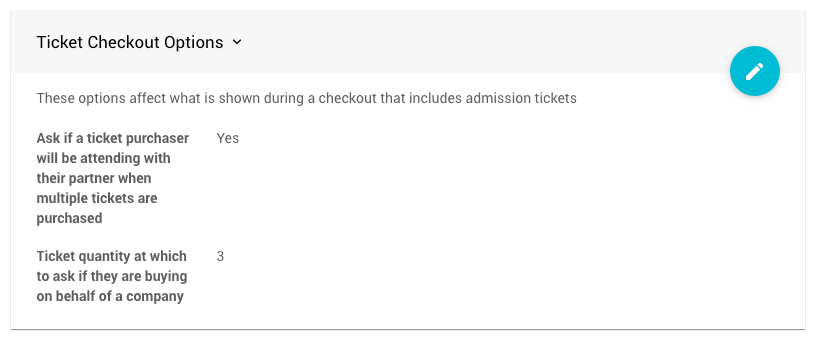
The default settings for a new event.
| Setting | Description |
|---|---|
| Ask if a ticket purchaser will be attending with their partner when multiple tickets are purchased | On by default. Makes buying tickets for couples and small groups simpler. Works with the company threshold below. |
| Ticket quantity at which to ask if they are buying on behalf of a company | The number of tickets at which Auctria asks whether the purchase is for a company. The default is 3. To stop the question appearing, set a very high number. |
Notifications

The Notifications section from a demonstration event.
| Setting | Description |
|---|---|
| Notify organization of participant activity | Sends your organization a notification for each participant registration and purchase. When set to No, no notification is sent. Your organization's contact email is still shown on the event website and used as the reply-to address on outgoing emails. |
Your Bcc email still sees participant emails
Turning off notifications also stops them going to your organization's Bcc email. But the Bcc email still gets a copy of every email sent to participants, such as receipts and confirmations. See Introduction To Organizations.