
Set item numbers on groups of items automatically based on sorting criteria.
If you've been assigning item numbers as items arrive, or letting the system assign them automatically, you may want to renumber items to follow a more organized scheme. The Bulk Renumbering function lets you do this quickly across a group of items at once.
To get started, click Items (left sidebar, Details) Numbering.
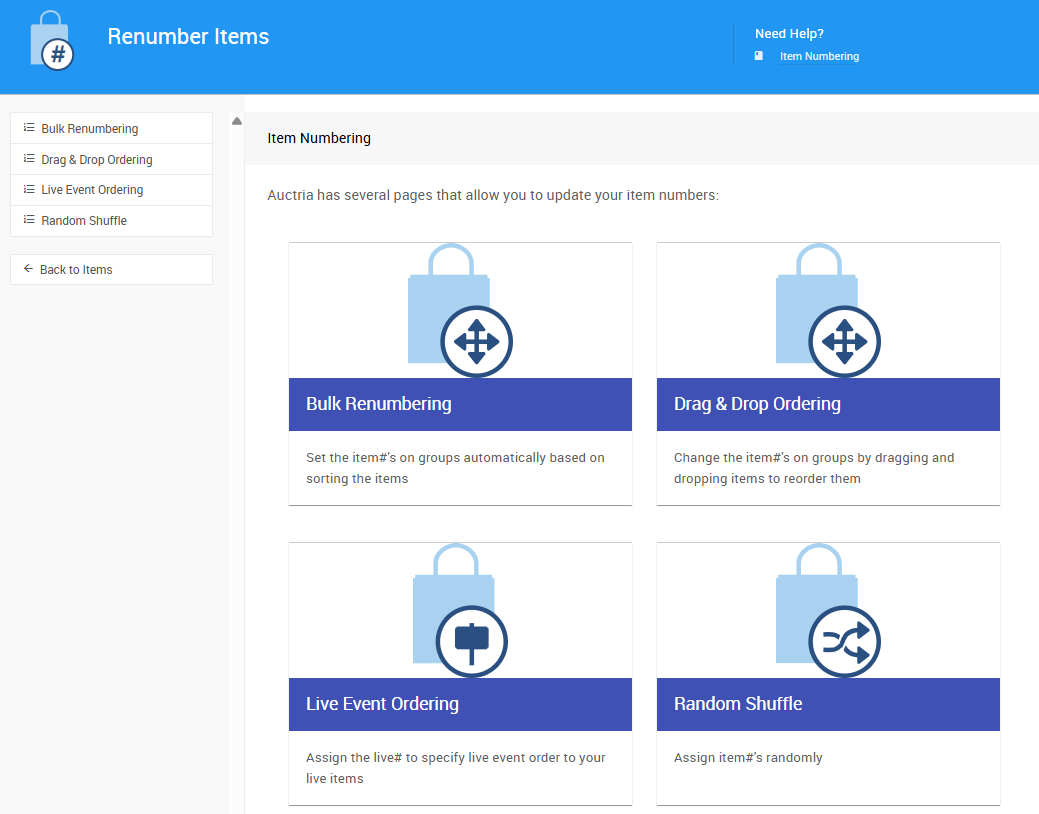
Click on the Bulk Renumbering block or sidebar entry to open the page.
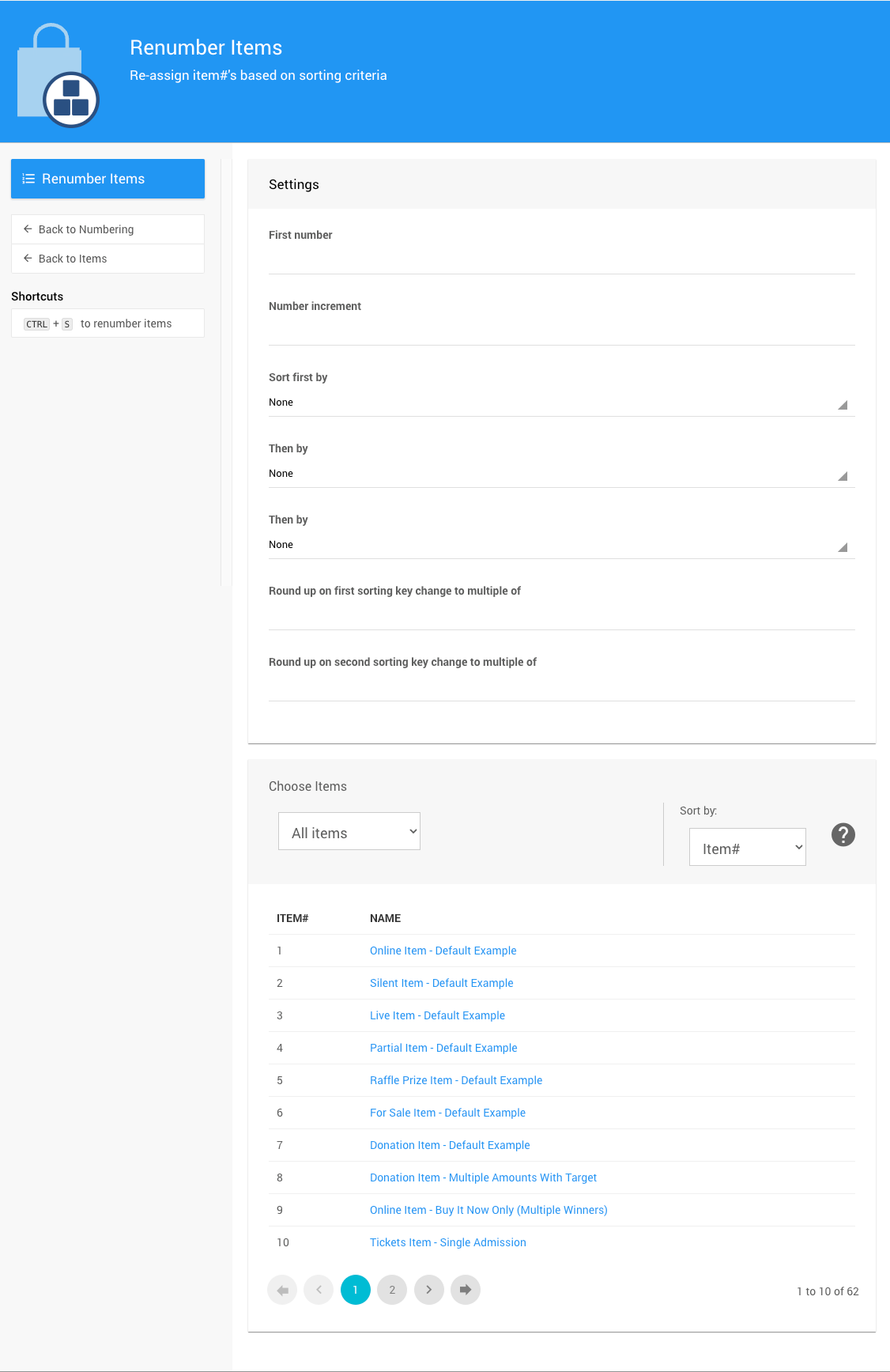
An example from a demonstration event.
Renumbering Criteria
Enter the First Number and Increment to use for renumbering. For example, a first number of 100 with an increment of 1 will produce item numbers 100, 101, 102, and so on.
You can then specify up to three sorting levels using the drop-down selectors.
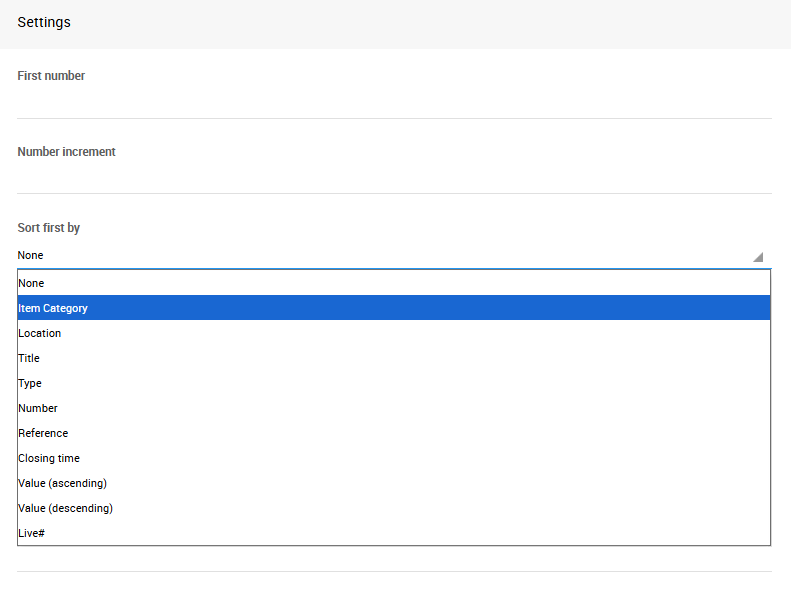
Sorting levels are applied in order. For example, sorting first by Item Type and then by Title will group all items by type, and within each type sort them alphabetically by title.
Rounding Rules
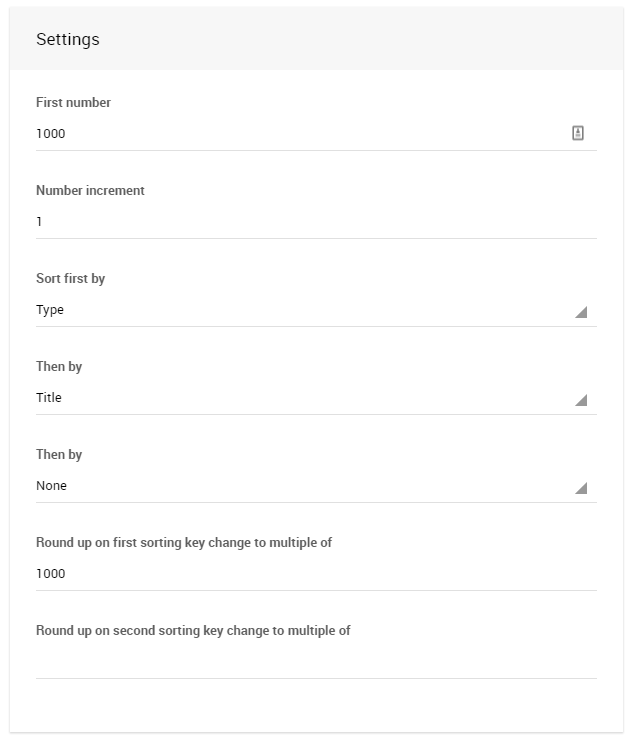
Rounding rules let you create structured numbering schemes where each group of items starts at a round number. For example, you might want all Live Bidding items numbered from 1000 and all Paper Bidding items numbered from 2000.
To set this up, set Sort first by to Type and set Round up on first sorting key to 1000. Items of the same type will be numbered sequentially, and when the type changes the numbering will round up to the next multiple of 1000.
Choosing Items
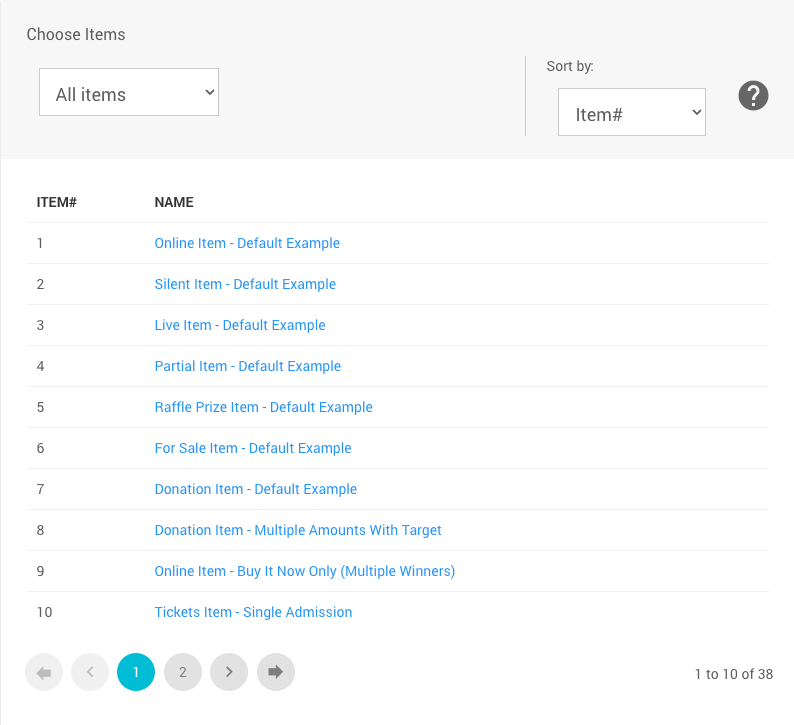
Use the Choose Items Filters and Choose Items Sort features to select the items you want to renumber.
Renumber Items
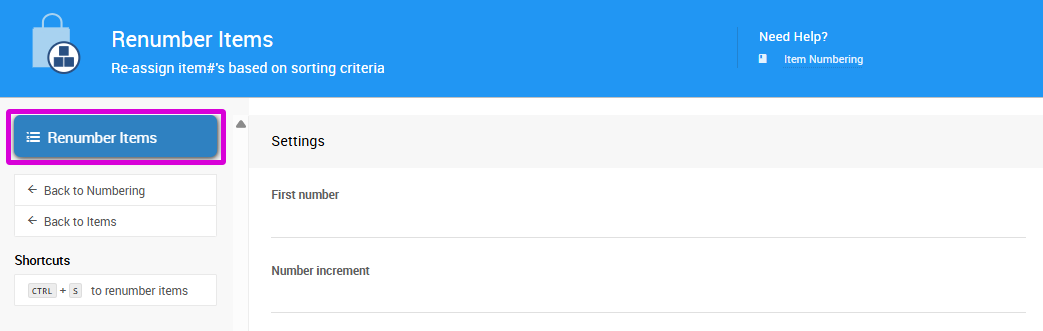
Once you have the correct items and criteria set, click Renumber Items to apply the renumbering.
Renumbering Cannot Be Undone
This action is permanent and cannot be reversed. Make sure you have the correct items selected and the right criteria set before proceeding.
A confirmation message will appear and the renumbered items will be listed.
Adding Letters to Item Numbers
Bulk Renumbering only supports numeric item numbers. If you want item numbers that include letters — for example, 100b — these will need to be set individually on each item's Item Details page.
Examples
Setting up renumbering criteria to handle everything in one operation isn't always possible. In those cases, you can run multiple renumbering operations in sequence to achieve your goal. The order generally doesn't matter — if an item number collision occurs during one operation, the conflicting item will automatically be moved to the next available number and can be renumbered correctly in the following operation.
For example, if you want to number Live Bidding items starting from 1, 2, 3 sorted by value, but want Paper items grouped by category, you would run two separate operations: one selecting only Live Bidding items, and a second selecting only Paper items.
Paper Items by Category
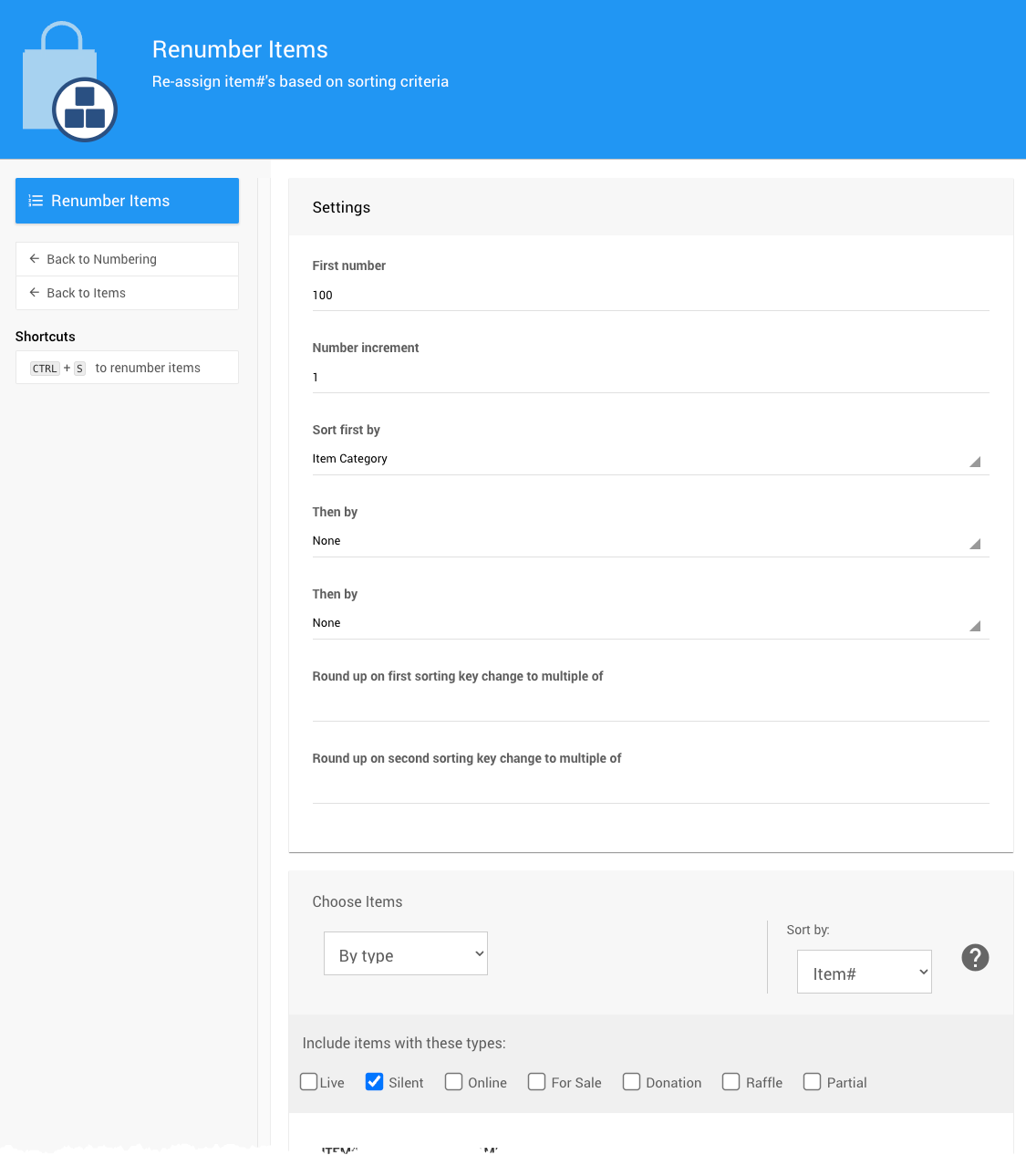
The settings below will renumber Paper items by category, producing numbers like 100, 101, 102, 200, 201, 202, and so on.
Controlling Category Order
Item categories are sorted alphabetically by default. If you need a specific category order, use the Sort Index field on the item category. See Ordering Categories for more details.
Moving Partial Items Out of the Way
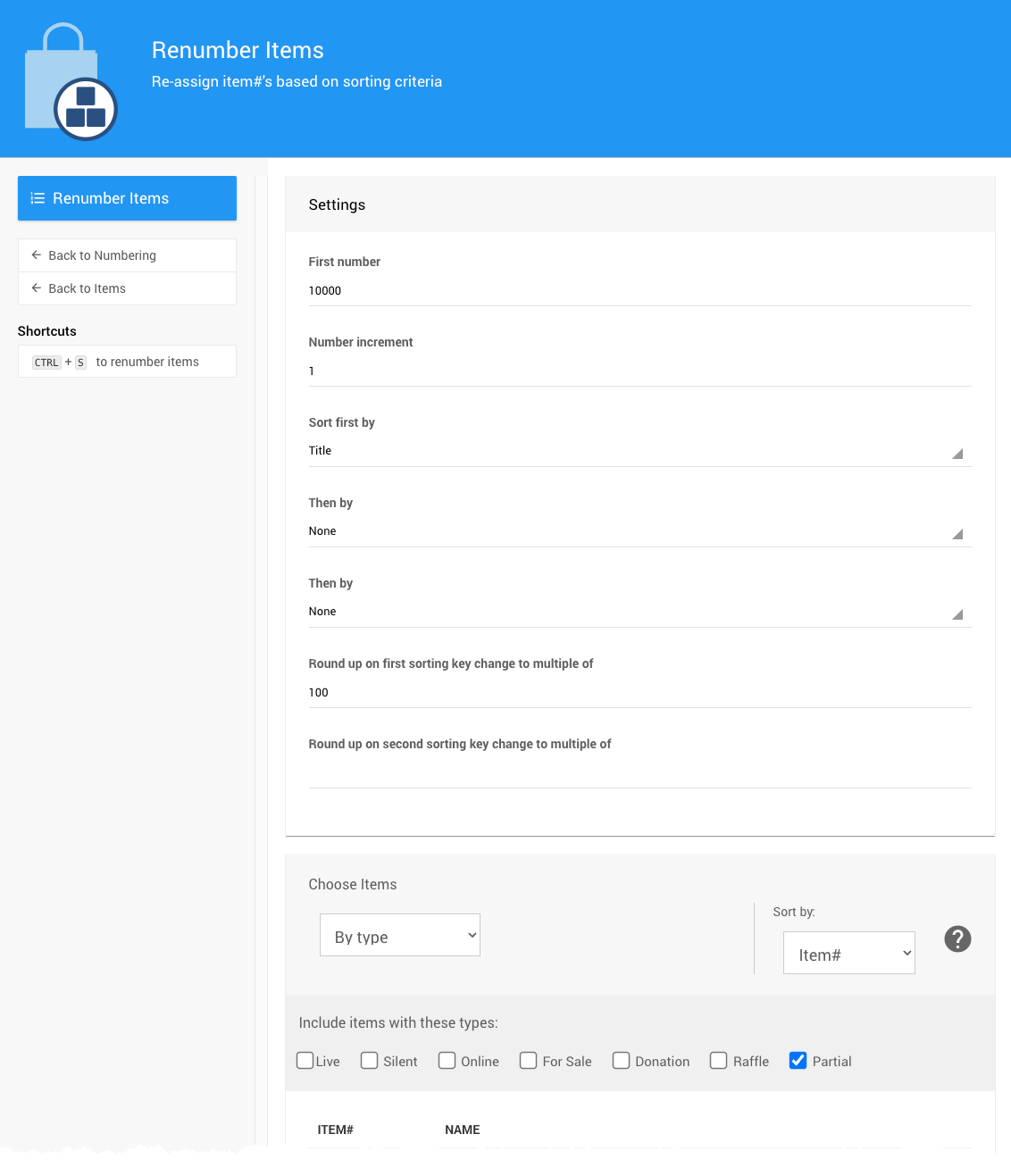
If you have Partial items mixed in with your other items, you may want to renumber them to a high number range so they don't appear alongside your main auction items.
Partial Items Stay in Their Baskets
Renumbering Partial items does not affect their basket assignments — after renumbering, all items will remain in the same basket as before.