
Learn how to record and track paddle raise donations in Auctria.
Paddle raise donations can be recorded two ways in Auctria — through the dedicated Paddle Raise dashboard, or as a general cash donation on the Record Donation page.
Getting to the Donations Dashboard
From the event dashboard, click Actions → Donations to open the Donations Dashboard. From there you can open either the Paddle Raise dashboard or the Record Donation page, depending on how you want to record the donation.
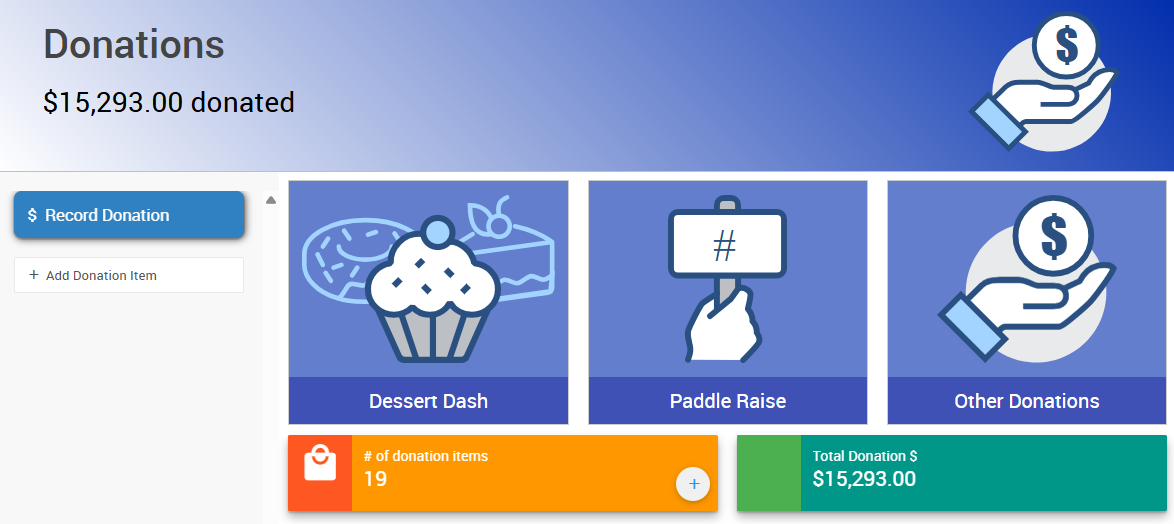
An example Donations Dashboard from a demonstration event.
Paddle Raise Dashboard
Use the Paddle Raise dashboard if you want to track pledges against preset giving levels. Click the Paddle Raise block on the Donations Dashboard to open it.
Steps
- Click Add Level to create a new giving level for your paddle raise.
- Enter the amount for the level, then click Add Level again to save it. Repeat for each level you want to offer.
- To record a pledge, click the level block for the amount given.
- Enter the guest's Paddle# in the field that appears.
- Click +Record or Record Donation to save the pledge. You can also press
Tab, thenEnter.
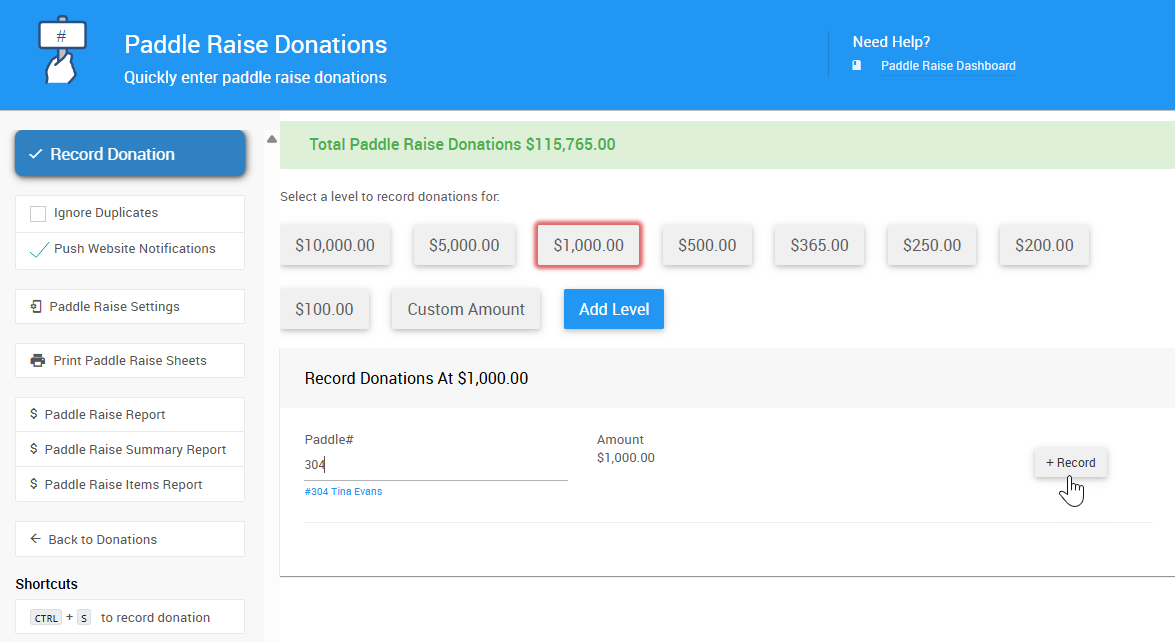
An example of recording a Paddle Raise donation from a demonstration event.
Managing levels and settings
You can also view and edit levels from Paddle Raise Settings in the left sidebar, where you can toggle a custom amount field and set a fundraising target for the paddle raise.
Custom Amount
If the custom amount field is enabled, click the Custom Amount level and enter both the Paddle# and the Amount for the donation.
Using Donation Items for paddle raise levels instead
Some events set up levels manually as Donation Items (e.g. PADDLE50, PADDLE100) rather than using the Paddle Raise dashboard's built-in Levels feature.
Record Donation Page
Use the Record Donation page for straight cash donations, or for donations tied to a specific Donation Item outside the paddle raise levels above. From the event dashboard, click the Record Donation block on the Donations Dashboard.
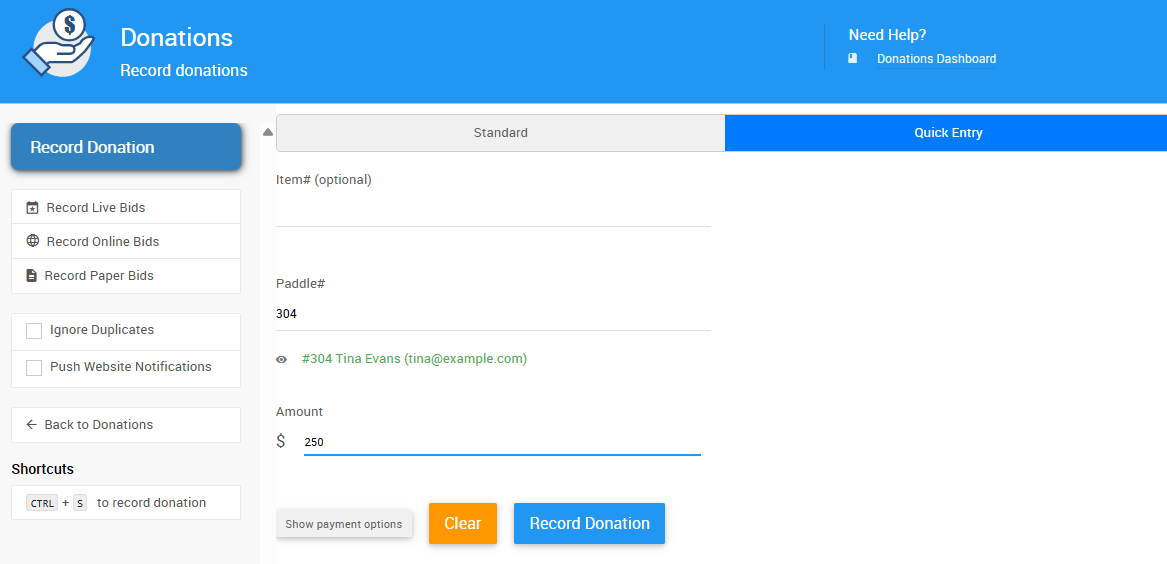
An example Record Donation page from a demonstration event.
Steps
- Choose an entry mode:
| Mode | Use For |
|---|---|
| Quick Entry | Recording a batch of cash donations quickly. Enter the guest's Paddle# and the Amount, and leave Item# blank. |
| Standard Mode | Recording a donation against a specific Donation Item already set up in your event. Use the dropdown menus to select the item and donor. |
- Optionally, click Show payment options to select a payment method for the donation.
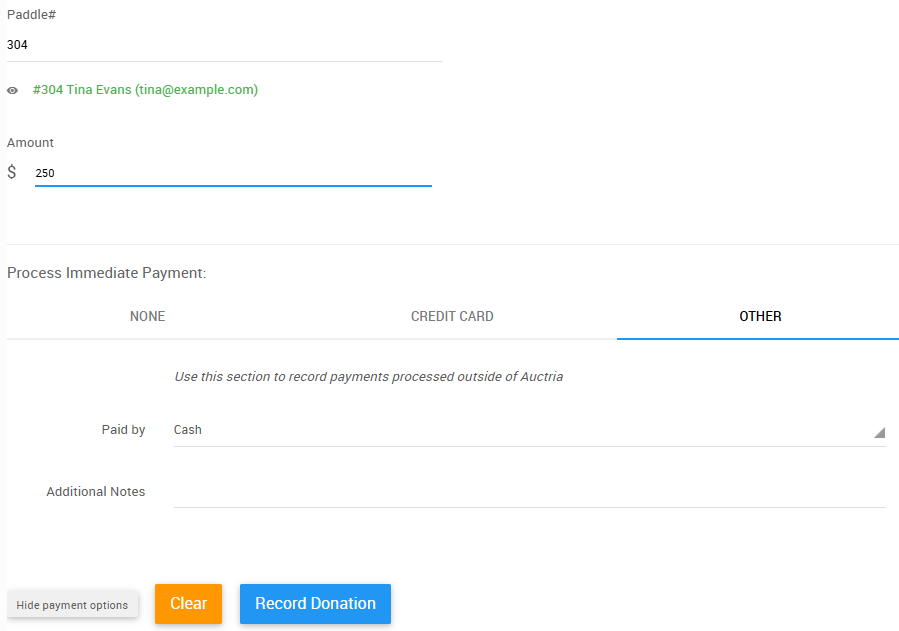
An example of the Payment options from a demonstration event.
Payment is optional
You can add a donation directly to a guest's account by clicking Record Donation without selecting a payment method.