
Learn how guests sign in to the Auctria mobile bidding app using their email, access code, or a QR code.
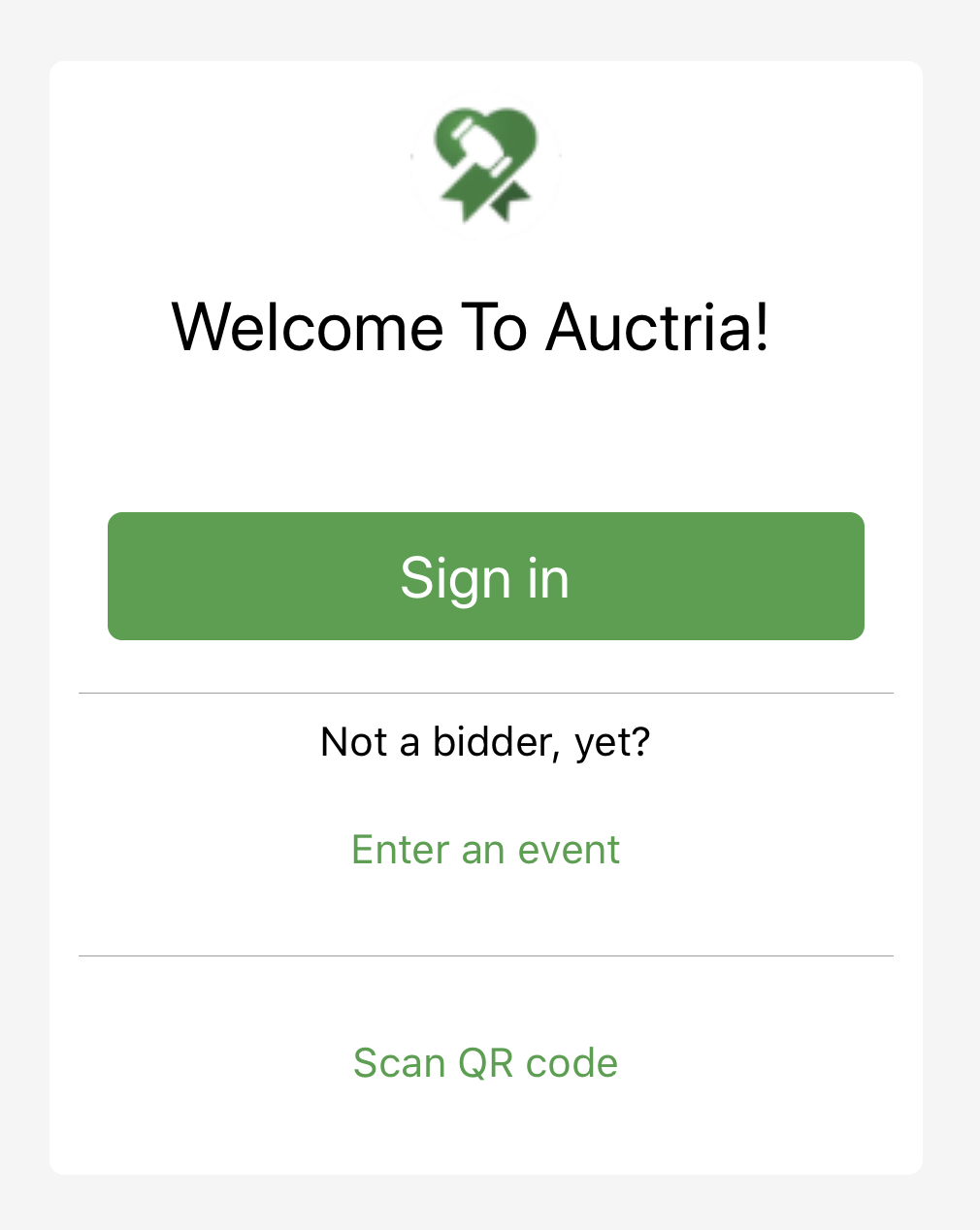
When you first open the app, you'll see the Welcome To Auctria! screen.
Already used the app before?
If the guest has used the Mobile Bidding App for a previous event, they may need to sign out and switch events. See Sign Into A Different Event for details.
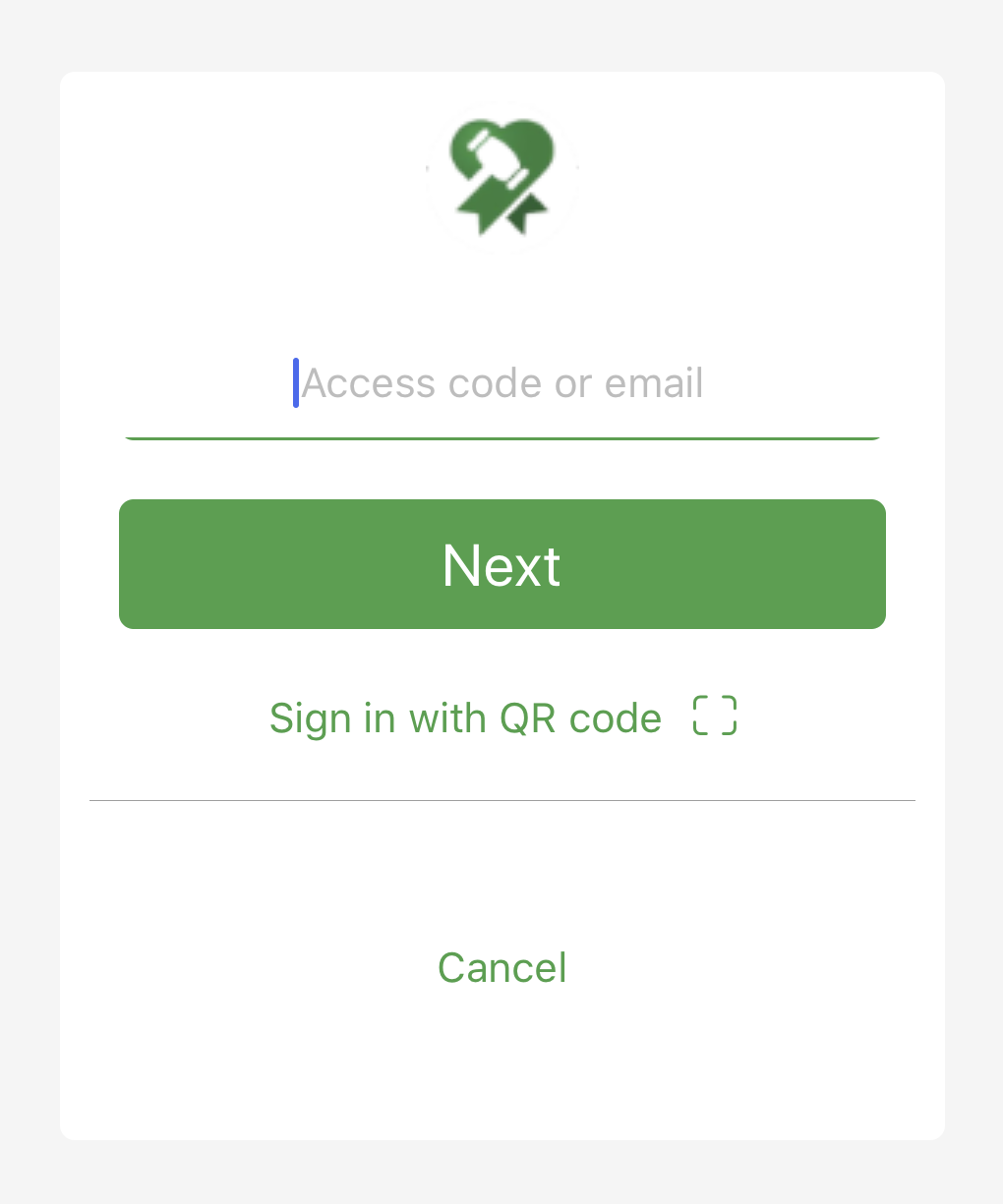
If you're already registered for the event, tap Sign In to log in with your Access Code or the email address you registered with. You can also sign in using a QR code if one has been provided to you.
Sign In Options
Guests can sign in using their email and password, or with a bidder access code.
Email and Password
Passwords are set up by the bidder themselves — event organizers cannot assign or change a guest's password. If a guest is registered for multiple events, the same password applies to all of them.
If the password requirement is disabled for your event, guests can sign in with just their email address. See Who Can Bid for details on this setting.
Access Code
Bidder Access Codes are short alphanumeric codes that Auctria automatically assigns to each bidder. Guests enter only the code to access the auction — no email address needed. Access codes cannot be changed by the organizer or the bidder.
Registering For An Event
If a guest hasn't registered yet, they can tap Enter an event and enter the event address to get started.
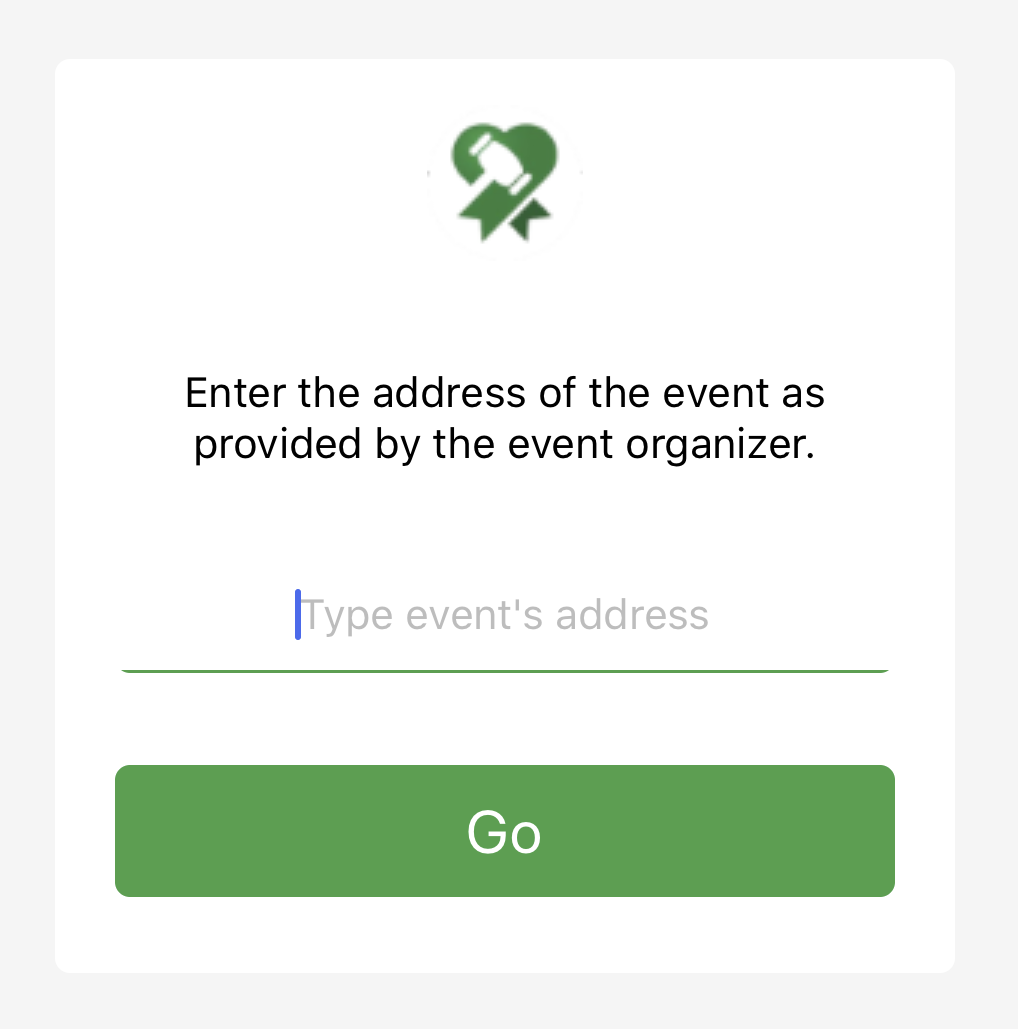
The event address is the unique portion of your auction website URL — your event organizer will provide this.
Sign In With QR Code
Guests can also sign in by scanning a QR code. You can include QR codes on printed Participant Labels/Paddles so guests can access the auction without typing anything.
Tapping Scan QR code opens the camera to scan the code.
Allow camera access
The app may ask for permission to access the device's camera. Guests should allow this for QR code sign-in to work.