
Learn how to add a new event to your organization.
Step 1: Open the Add New Event Page
Click Event in the left sidebar → Add New Event.
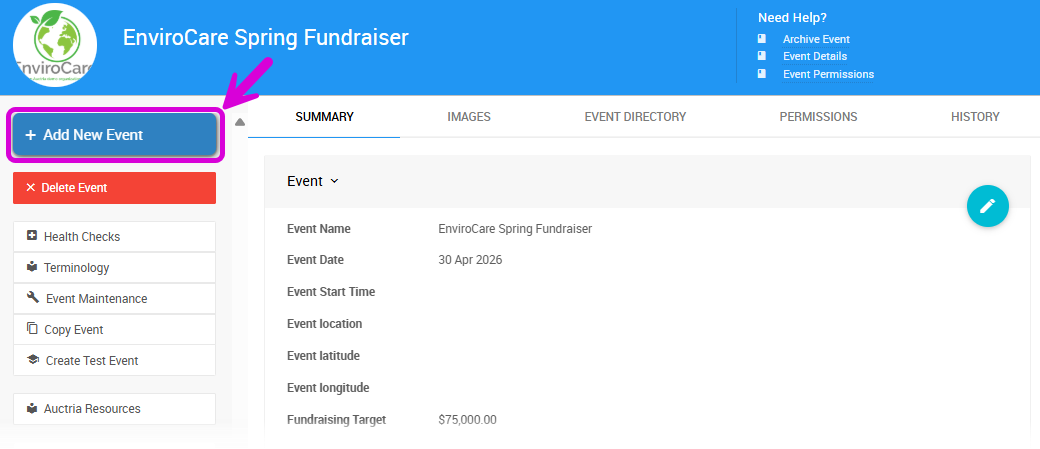
The Add New Event option from a demonstration event.
Step 2: Enter the Event Details
Enter a name for your new event and select the event date.
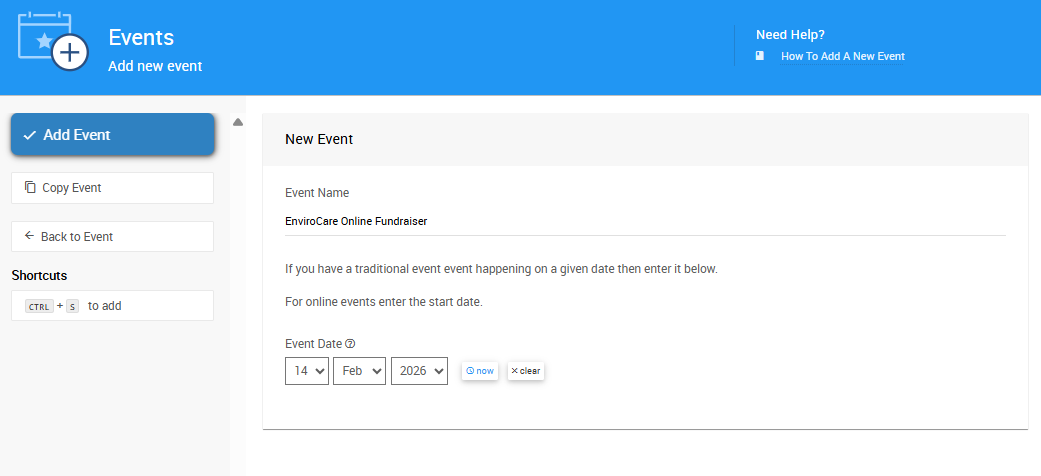
An example of entering new Event Details from a demonstration event.
Good to know
You can change your event's name and date later from the Event Details page.
Step 3: Save the Event
Click Add Event to save your new event. Auctria opens the dashboard for your new event.
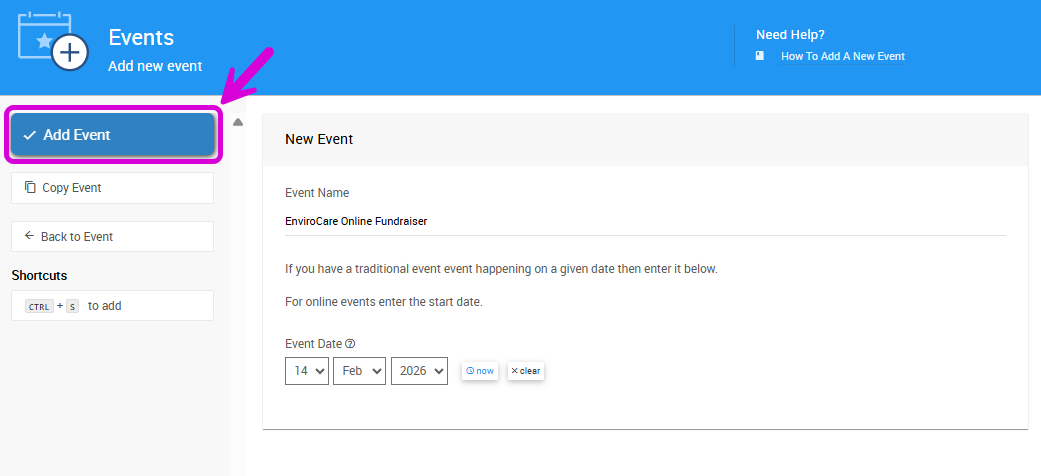
The Add Event button from a demonstration event.
Switching Between Events
To switch to a different event at any time, click the drop-down arrow next to the event name in the page header.
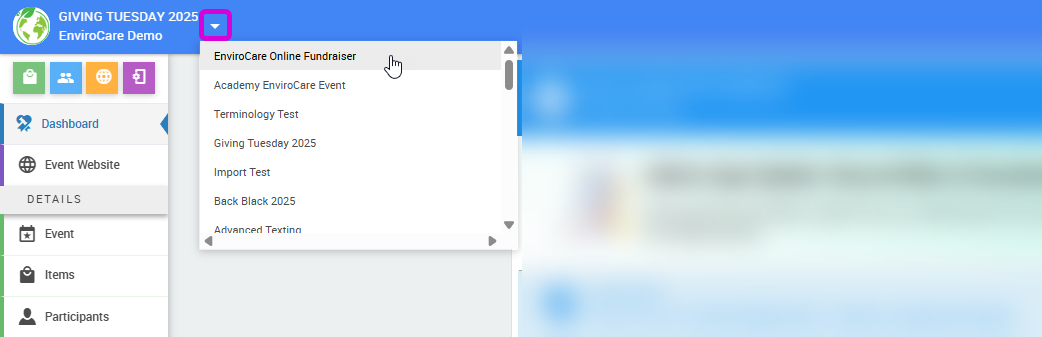
The event selector in the page header from a demonstration event.
See Change Events for more details.