
Sort out duplicate and leftover participant records on one page. Group the matches, choose whether to merge, link, or delete them, and nothing changes until you review and apply.
Participant lists pick up duplicates and leftover guest records over time: the same person registered twice, guests who should share a paddle, and Guest of placeholders that were never filled in. The Participant Clean Up page shows every participant in one grid so you can sort them all out together.
The process has three steps:
- Find the matches.
- Choose what happens to each one.
- Review and apply.
Who Can Use This Feature
You need Power User access or higher to open the Participant Clean Up page. See User Accounts for permission levels.
Merge, Link, or Delete
Each group of participants is merged or linked, and single participants can be marked for deletion:
| Action | What It Does |
|---|---|
| Merge | Joins two or more records for the same person into one. The record at the top of the group is kept, and the others are permanently deleted after their activity is moved across. See How To Merge Participants. |
| Link | Lets different people share a paddle number. Everyone in the group keeps their own record and takes the paddle number of the record at the top. See How To Link Participants. |
| Delete | Removes a participant record you don't need, such as a test record or an unused placeholder. |
Merges and Deletes Cannot Be Undone
Linked participants can be unlinked later, but merged and deleted participants cannot be restored. Check every group before you apply.
Open the Participant Clean Up Page
From Participants (left sidebar under Details), click Clean Up Participants in the actions sidebar to open the Participant Clean Up page.
You can also reach it from the Participant Clean Up action on the Participant Maintenance page.
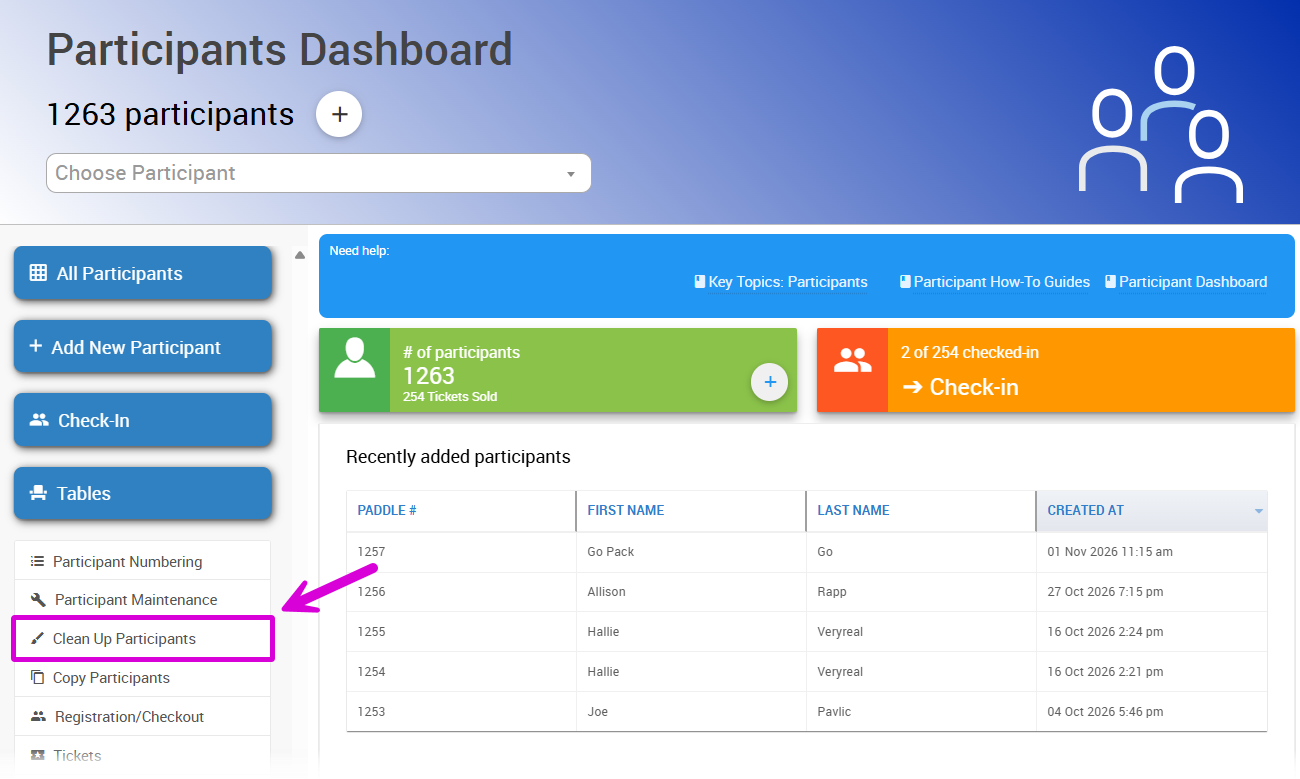
The Clean Up Participants action on the Participants Dashboard.
Participant Clean Up Page
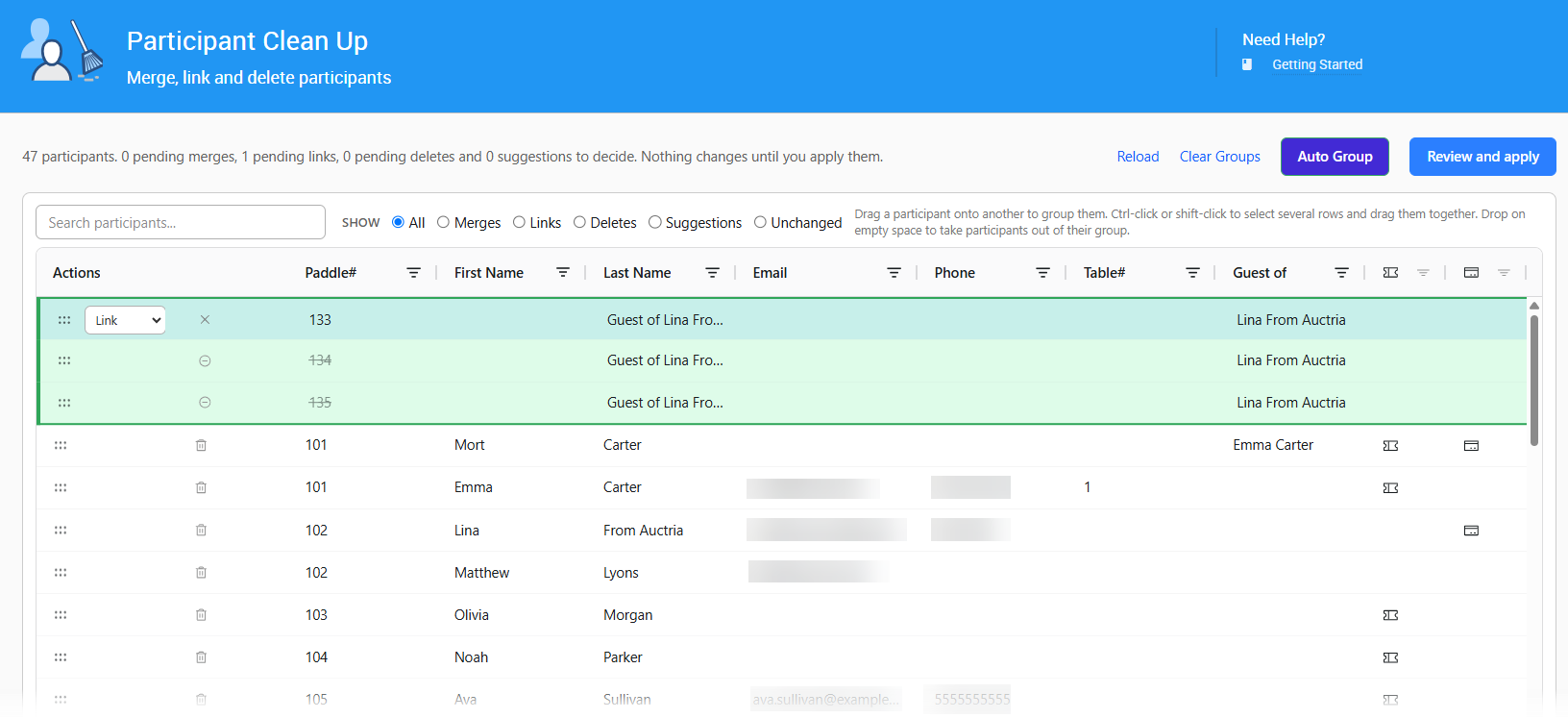
The Participant Clean Up page with pending groups shown in color.
| Control | Description |
|---|---|
| Summary | Shown at the top left, for example 120 participants. 3 pending merges, 2 pending links, 4 pending deletes and 1 suggestions to decide. |
| Reload | Reloads the participant list from the server. |
| Clear Groups | Discards every pending group. Nothing has been applied, so nothing on your participants changes. |
| Auto Group | Opens the rules that suggest groups for you. See Use Auto Group. |
| Review and apply | Opens the review before anything is saved. See Step 3: Review and Apply. |
| Search participants... | Narrows the grid to matching participants. |
| Show | Shows only one kind of row: All, Merges, Links, Deletes, Suggestions, or Unchanged. |
| Actions | The drag handle, plus the Merge / Link choice on the top row of each group. |
| Grid columns | Paddle#, First Name, Last Name, Email, Phone, Table#, Guest of, Has ticket, and Has card. Click a column heading to sort, or use its filter. |
Large Participant Lists
If your event has more participants than the page can show at once, a notice at the top says how many are shown. Auto Group and the counts only cover the participants shown.
Step 1: Find the Matches
Use Auto Group
Auto Group suggests groups from simple rules.
- Click Auto Group.
- Tick the kinds of suggestion you want.
- Click Auto Group in the dialog.
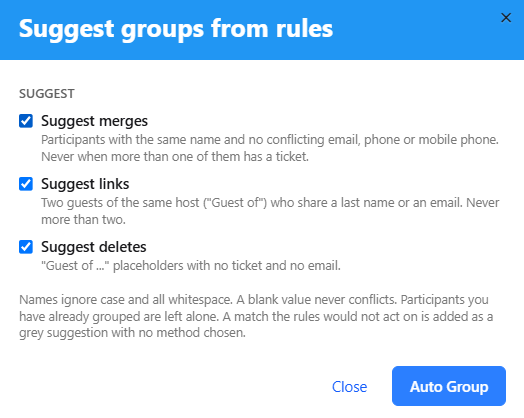
The Suggest groups from rules dialog.
| Option | Suggests |
|---|---|
| Suggest merges | Participants with the same name and no conflicting email, phone, or mobile phone. Never suggested when more than one of them has a ticket. |
| Suggest links | Two guests of the same host (Guest of) who share a last name or an email. Never more than two. |
| Suggest deletes | Guest of … placeholders with no ticket and no email. |
Names are matched ignoring upper and lower case and spaces, and a blank value never counts as a conflict. Participants you've already grouped are left alone.
When a match doesn't quite meet the rules, Auto Group adds it as a gray suggestion with no action chosen, so you can decide.
Group Participants Yourself
Auto Group only finds exact name matches, so it misses nicknames and spelling differences, such as Bob and Robert. To group them yourself:
- Drag one participant by the handle in the Actions column.
- Drop it onto the other participant.
- Choose Merge or Link on the group's top row.
To drag several participants at once, Ctrl-click or Shift-click to select them first. To take participants out of their group, drop them on empty space in the grid.
Which Record Is Kept
The top row of a group is shown in bold. In a merge, it is the record that's kept. In a link, its paddle number is the one everyone shares. To make a different participant the top row, drag it onto the group's current top row.
Mark Records for Deletion
To remove a record you don't need, such as a test participant, click its trash icon.
Step 2: Choose What Happens
Each group appears as a colored block in the grid. Nothing changes on your participants until you apply.
Pending Groups Are Not Saved
Pending groups are discarded when you leave the page. Apply them before you go.
For each group, check the action on its top row:
| Action | Use For |
|---|---|
| Merge | Records that belong to the same person. |
| Link | Different people who should share a paddle number. Only available when the top row has a paddle number. |
| Choose... | Shown on a gray suggestion. The group isn't applied until you pick Merge or Link. |
In a merge, values that will be lost are shown faded or struck through, so you can see what the kept record will hold.
Row Buttons
| Button | Shown On | What It Does |
|---|---|---|
| Trash | A participant not in a group | Marks the participant for deletion. |
| Undo arrow | A participant marked for deletion | Keeps the participant. |
| × | The top row of a group | Discards the whole group. |
| Minus | Any other row in a group | Takes that participant out of the group. |
Step 3: Review and Apply
- Click Review and apply.
- Check the totals and any warnings.
- Click Apply.
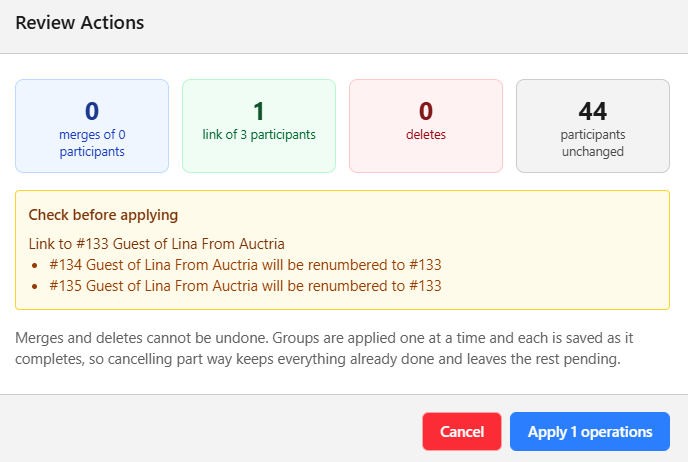
The Review Actions dialog.
The Review Actions dialog shows how many merges, links, and deletes will run, and how many participants are unchanged. Groups that still need a choice can't be applied and are left pending.
Check Before Applying
Some groups show warnings to check first:
| Warning | Meaning |
|---|---|
| Members have different email values (or phone, mobile phone) | The participants in the group have different contact details. Make sure they really are the same person before you merge. |
| … is linked to other participants; merging removes it from that family | The participant is already linked to others, and merging takes it out of that link. |
| … will be renumbered to #… | Linking gives the participant a new paddle number. |
| Has an assigned ticket / Has a registered card | A participant marked for deletion has a ticket or a saved card. |
While It Runs
Groups are applied one at a time, and each is saved as it finishes. If you click Cancel part way through, everything already done stays done and the rest stays pending.
When it finishes, the dialog shows how many groups were done, skipped, failed, or not run, with details for any that didn't complete. Click Close to see your updated list.