
There are many ways and reasons to edit a bid. This will help you go through the steps for many common reasons.
Key Topic
Editing TransactionsYou can edit the amount or quantity of an existing bid, but do it very carefully.
Bidding Rules Aren't Rechecked
Changes made this way don't recheck any of the Bidding Rules or validate the quantity available for the item.
Online Items Details Bidding Details (example)
Item Activity
The best place to edit a bid is the Activity tab of the item's Item Details page. Click the options icon (three vertical dots) at the far right of the bid's row.
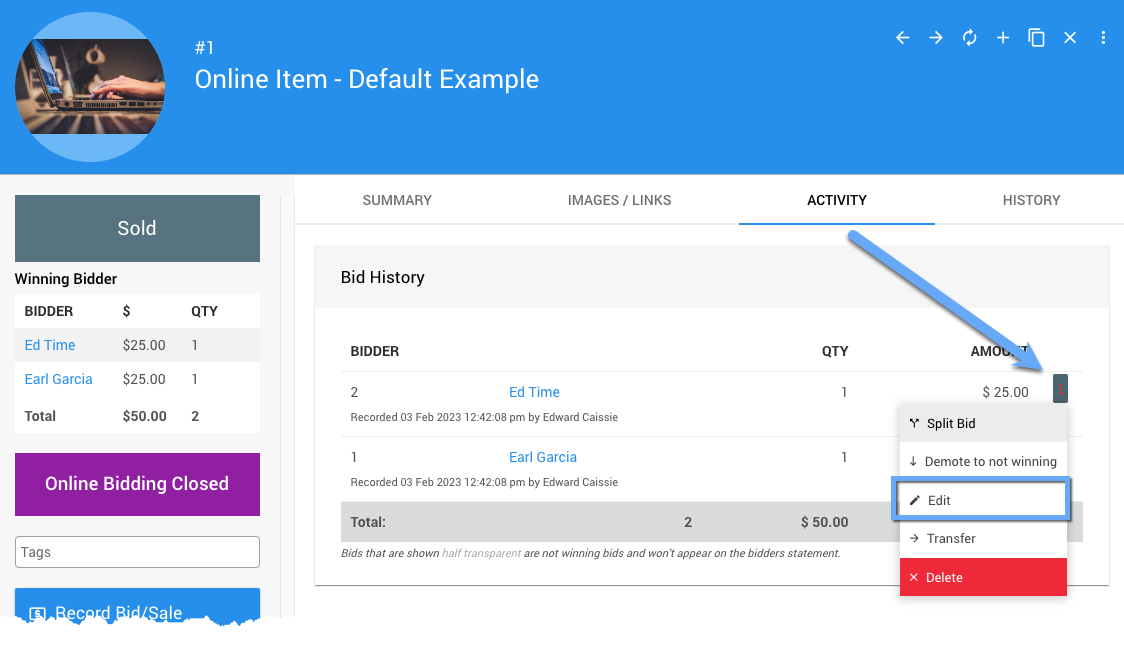
An example from a demonstration event.
Click Edit in the menu to open the Bid Details page.
You can also open the Bid Details page from the participant's Activity tab. Click the pencil (Edit bid) icon beside the bid in the In-progress Winning Bids list.
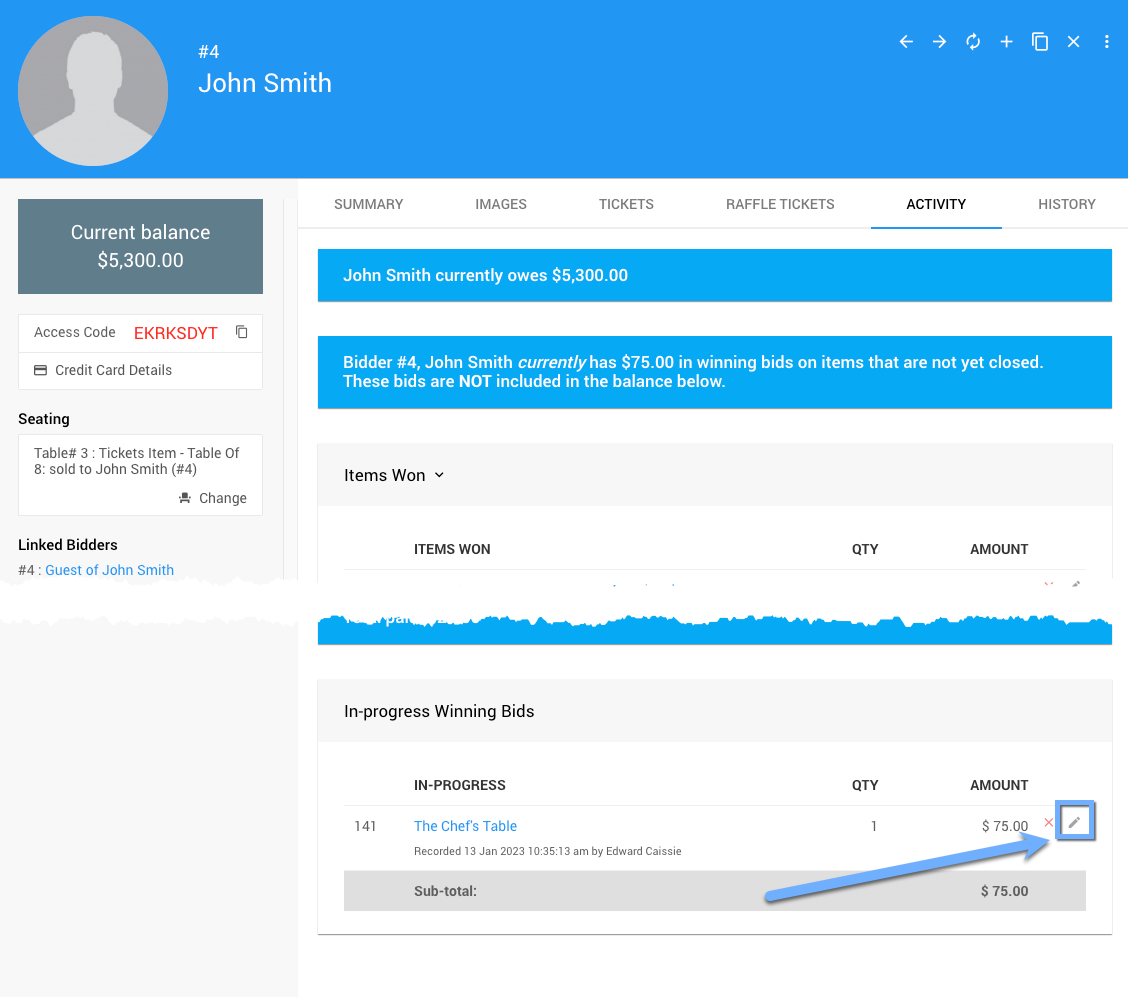
An example of the participant Activity tab.
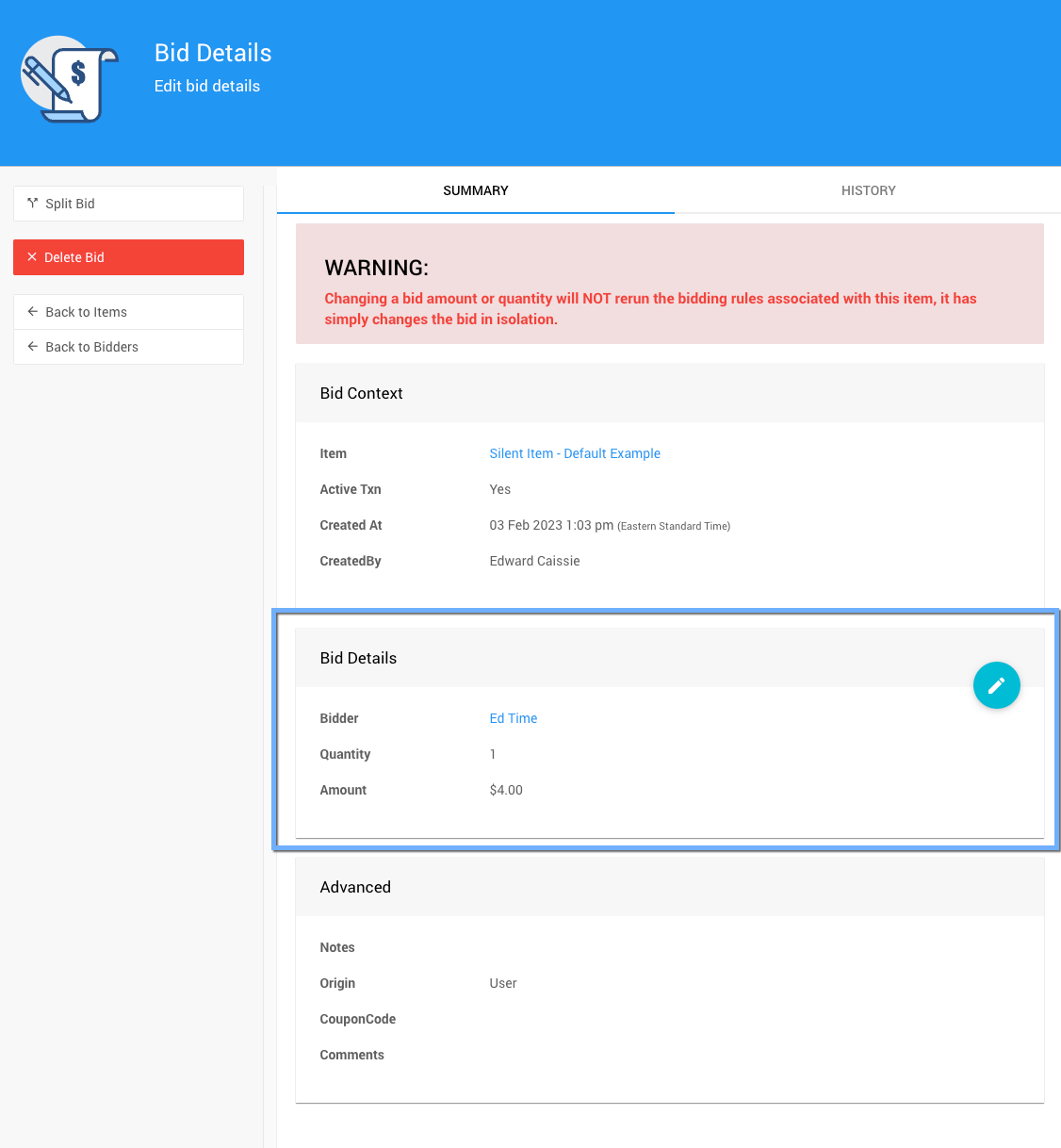
The Bid Details page for the example bid above.
How To Edit Dashboard Panel Settings
You can edit panel settings by clicking on the pencil icon to open the panel for editing.

Panel in "saved" mode.
Once you have made your changes, click the checkmark icon to save these changes. If you have opened multiple panels in a dashboard, you must click each checkmark to keep their settings.

Panel in "edit" mode.
You can click the return arrow icon if you do not want to save your changes.
Bid Details
The Bid Details page shows the Bid Context and Advanced sections for reference. To edit the Bid Details section, click the pencil icon at the far right of the section.
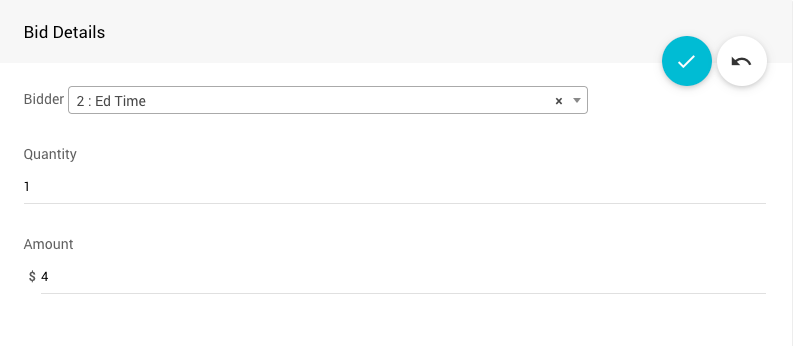
The Bid Details section open for editing.
| Field | How To Change It |
|---|---|
| Participant (or Bidder in auction-style events) | Choose a different participant from the drop-down. |
| Quantity | Enter the new quantity. |
| Amount | Enter the new amount. |
No Calculations Are Done On This Page
If you change the quantity in the example above to 2, the amount stays at $250. If needed, change the amount as well.
Editing Tickets And Donations
For more specific changes, these pages may help:
- See Changing Ticket Items for changes to Tickets items.
- See How to Change A Donation Item for changes to a donation made with Donation Items.