
Learn the different ways guests can sign in and participate in your online event, from website registration to access codes and Kiosk Mode.
Enabling guests to participate in your event is vital to a successful fundraiser. Guests can participate in an online event in several ways, so you can choose what works best for your event.
1. Register via the Event Website
The Event Website templates let participants register with their email address and create a password to identify themselves for online bidding. This is the usual way guests participate in a long-running event.
For an in-person event with online bidding, this can take time and effort, since each participant must go through the process on their phone or tablet.
Email Confirmation
By default, participants who register online must confirm their email address before they can bid. This makes sure the address is valid and the participant didn't make a typing mistake. If an email address can't be confirmed, you may not be able to contact that participant later.
During an in-person event, this requirement can be onerous. If you accept the slight risk of someone entering an incorrect email address, go to Event Website → Online Bidding and turn on Allow unconfirmed participants in the Who Can Bid panel. This is less of an issue when people pick up items and pay at the event than in a purely online event.
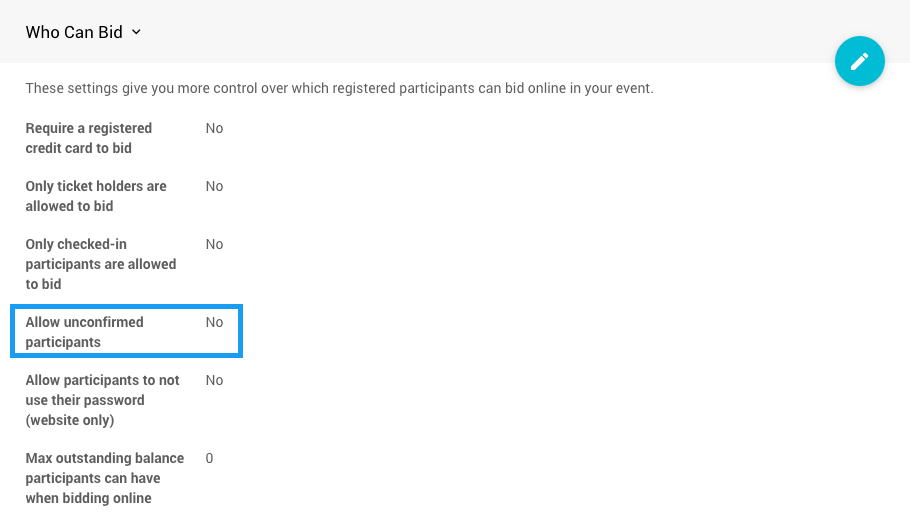
The Who Can Bid panel from a demonstration event.
2. Use Access Codes
Participant Online Access And Tokens is a unique personalized link (often sent in an email) that lets participants access the Event Website and bid without signing in or setting up a password.
Access Codes can make getting your participants online much smoother. You can register the participant at check-in, enter their email address, and send them an Access Code. They click the link to start bidding.
Sending Access Tokens
Participants can receive their Online Access information when you check them in. This is controlled by Send email on check-in and Send text on check-in, in the Check-in Actions panel of the Participant Check-in Options page. Both are on by default.
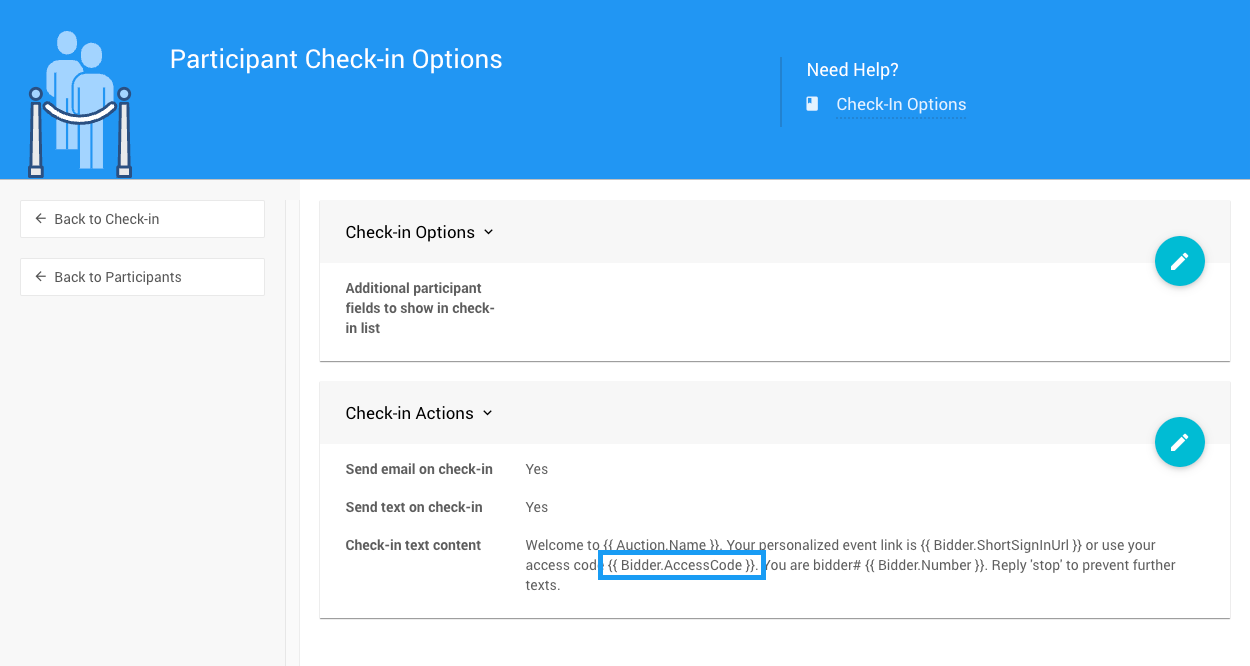
The Check-in Actions panel from a demonstration event.
See Check-In Settings for more information. The email or text is sent as soon as the participant is checked in, without a confirmation step.
Access Tokens Via Text
If you have enabled the optional Text Messages feature set under Communication, a participant can text the word web (or code) to the event's Text Messages phone number. The system replies with a personalized link that signs them in to the website, along with their access code.
3. Using Access Codes
An access code is a short alphanumeric code the system automatically assigns to each participant, which lets them sign in and participate without registering:
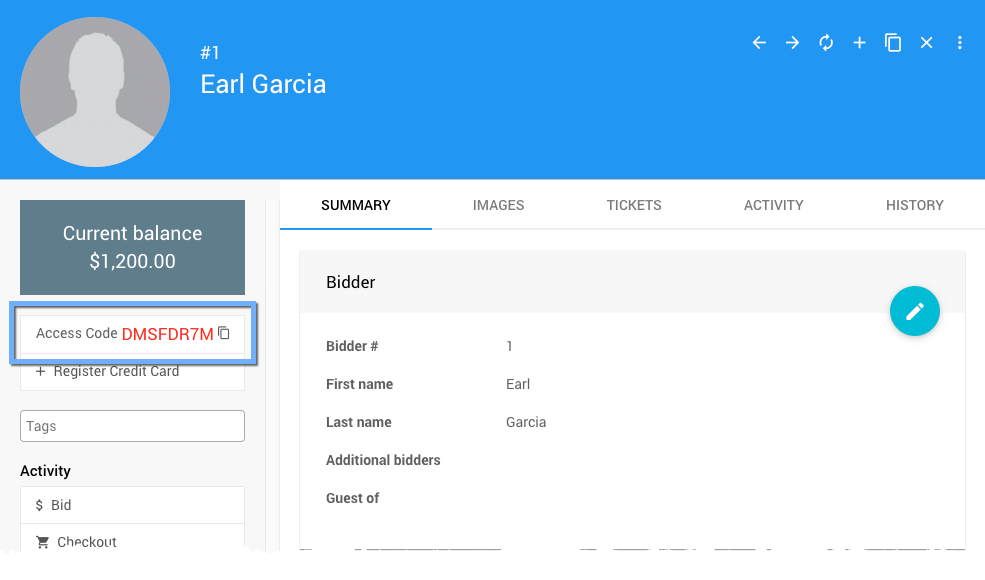
An example taken from a demonstration event.
In the website's sign-in window, the participant can type their Access Code in the Email address or access code field instead of an email address.
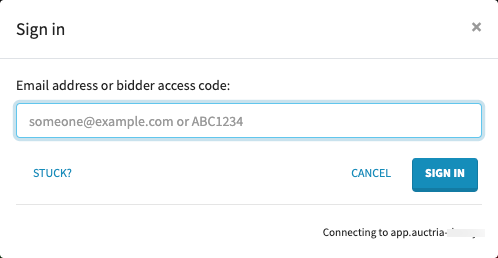
The website sign-in window from a demonstration event.
If you're printing participant paddles or labels, you can include the Access Code using the Word Templates feature under the Printing section of the Event Dashboard menu.
Access Code vs Access Token
Access Codes and Access Tokens are related, and you can use both.
| Method | Description |
|---|---|
| Access Code | A code the participant types into the web browser or the mobile app themselves to access the event. |
| Access Token | A unique link, usually in an email, that the participant clicks to access the website. The participant must receive the email on the device they want to bid from. |
4. Registering Via Text Message
If you're using the optional Text Messages feature set (under Communication in the main Event Dashboard menu), you can let participants register by text message as well. See Participants & Phone Numbers for more details.
A participant who registers by text message is associated with their cell phone number. They can also use the web text command to get a link to sign in to the website.
5. Bidding in Kiosk Mode
When using Kiosk Mode Bidding Setup, you can check in participants as usual, or they can register online. Participants then need their Paddle# to bid on a kiosk you've set up. The kiosk bid form accepts just a Paddle# and amount on the tablet or laptop you provide, with no email address or password needed.
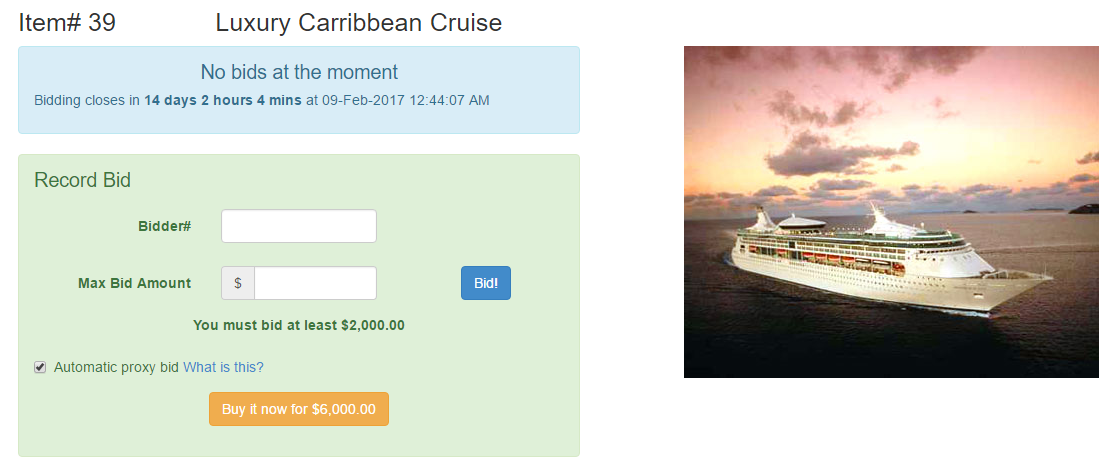
An example kiosk bid form from a demonstration event.