
Learn how to add door prizes and draw their winners at random from your event's participants.
What Are Door Prizes?
A door prize is a prize given to guests just for taking part in your event. Unlike a raffle, nobody buys a ticket. You choose who is eligible, for example everyone, or only participants who have checked in, and Auctria draws the winners at random.
| Raffle Prize | Door Prize | |
|---|---|---|
| Who can win | Participants who bought a ticket for that raffle | Any participant who matches the filter you choose |
| Belongs to a raffle | Yes | No |
| Chances of winning | One chance per ticket | One chance per participant |
| Where you draw winners | The raffle's Award Prizes page | The Door Prizes page |
Each winner is recorded with a $0 winning bid on the prize, so they aren't charged and the prize appears on their account like any other won item.
Add a Door Prize
- Click Raffles/Prizes in the left sidebar.
- Click Door Prizes in the sidebar of the Raffles dashboard.
- Click Add Door Prize.
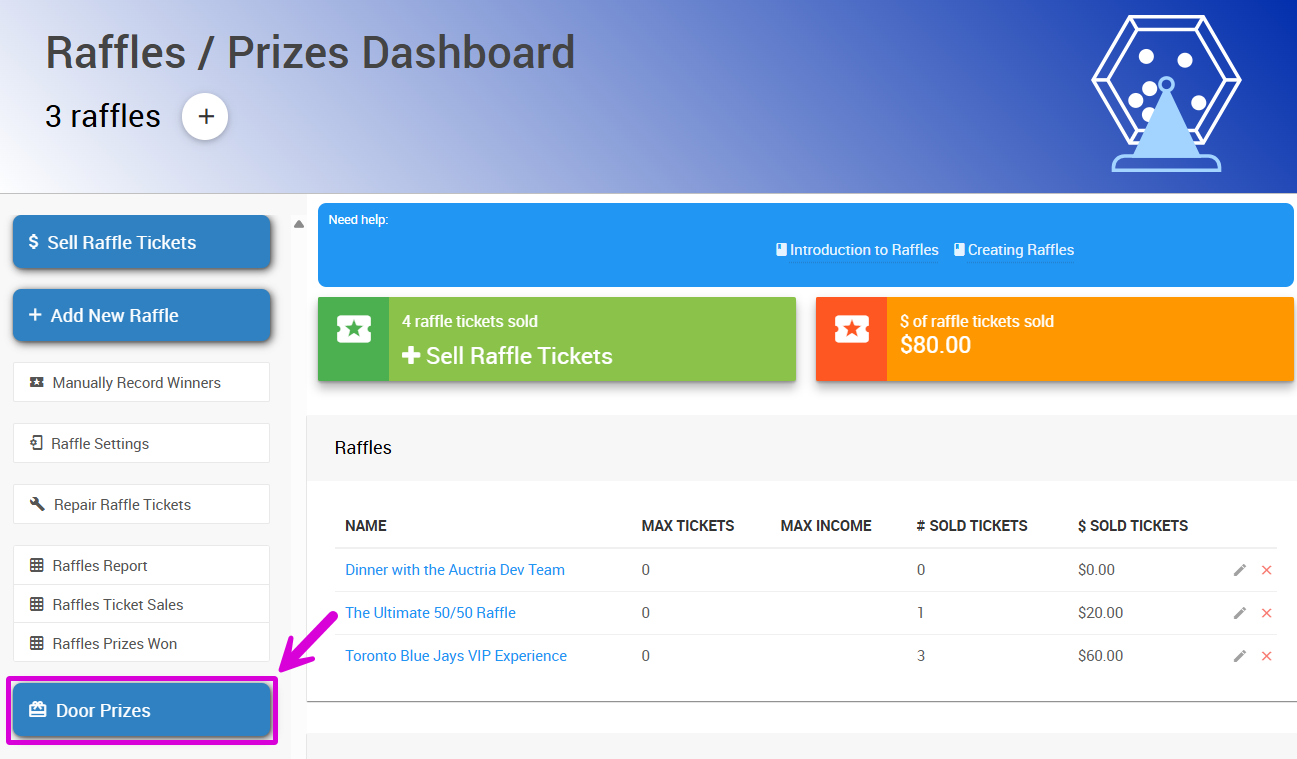
An example from a demonstration event.
- Enter the prize's details:
| Section | Field | Description |
|---|---|---|
| Door Prize | Item # | The prize's item number. |
| Title | The prize's name, as winners and your team will see it. | |
| Tags | Optional tags for organizing your items. | |
| Description | Description | A description of the prize. |
| Availability | Allow multiple winners | Turn this on if more than one participant can win this prize. |
| Quantity | How many winners the prize has. Only used when Allow multiple winners is on. | |
| Exclude from website & catalog | Hides the prize from your event website and printed catalog. | |
| Images | Add photos of the prize. | |
| Notes | Notes | Private notes for your team. |
- Click Add Door Prize.
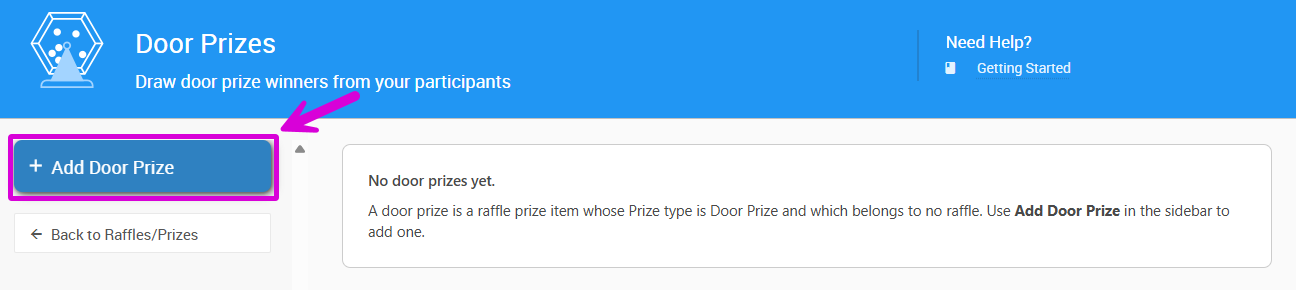
An example from a demonstration event.
Several of the same prize?
Setting Quantity alone doesn't add winners. A prize with Allow multiple winners off always has one winner, whatever its quantity. To give away 10 gift cards from one item, turn on Allow multiple winners and set Quantity to 10.
Turn an Existing Item into a Door Prize
You can also change an existing raffle prize into a door prize.
- Open the item's details page.
- Edit the Raffle Prize section.
- Set Prize type to Door Prize.
- Save your changes.
Saving removes the item from its raffle. The Raffle field is hidden while the item is a door prize.
Find Your Door Prizes
Door prizes don't belong to a raffle, so they aren't listed with your raffles. They have their own Door Prizes card on the Raffles dashboard, showing how many winners each prize has so far (for example, 1 of 3). From there you can draw winners for a prize or open its details.
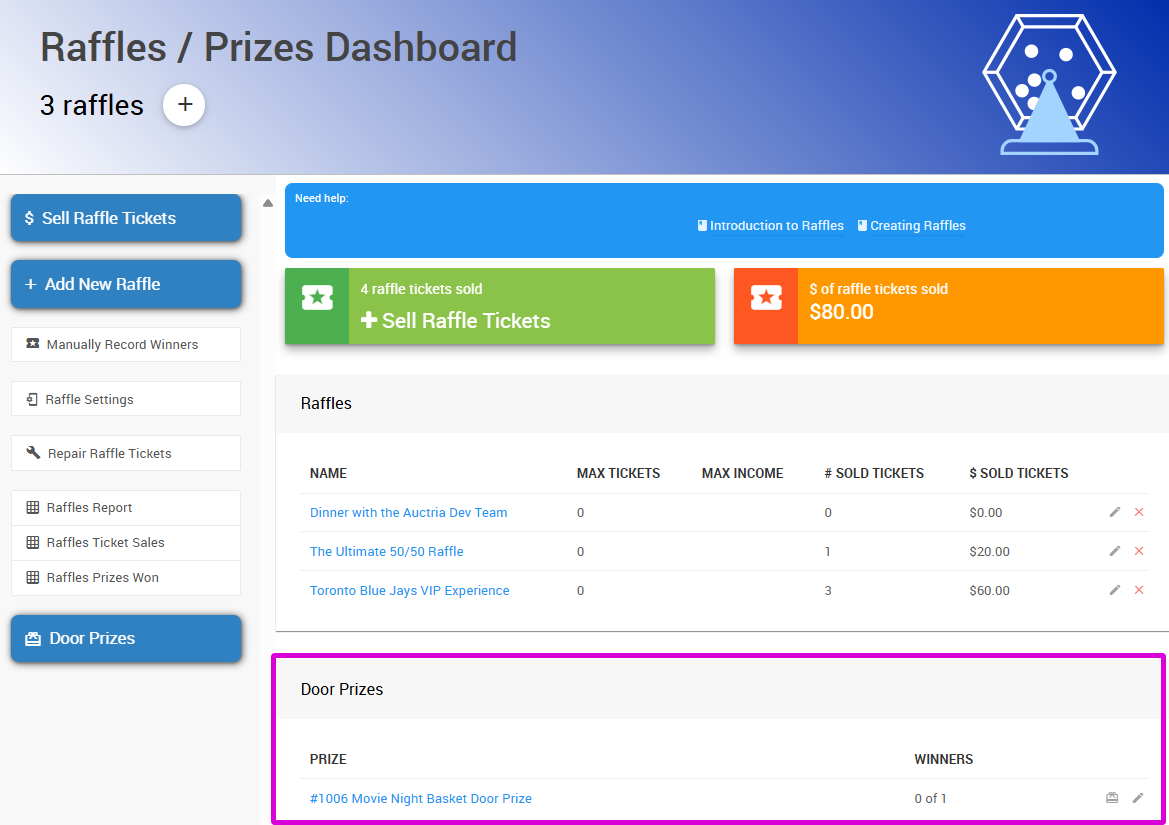
An example from a demonstration event.
Keep door prizes out of raffles
A door prize should never also belong to a raffle, or it could be awarded twice: once from raffle tickets and once from the door prize draw. The Auctria pages prevent this, but an import, bulk edit or copy can still set both. If that happens, your event's health checks flag it as an error. Remove the item from the raffle before drawing.
Draw Winners in the Dashboard
Open the Door Prizes page from the Raffles dashboard sidebar, or by clicking Door Prizes in the sidebar of a door prize's details page.
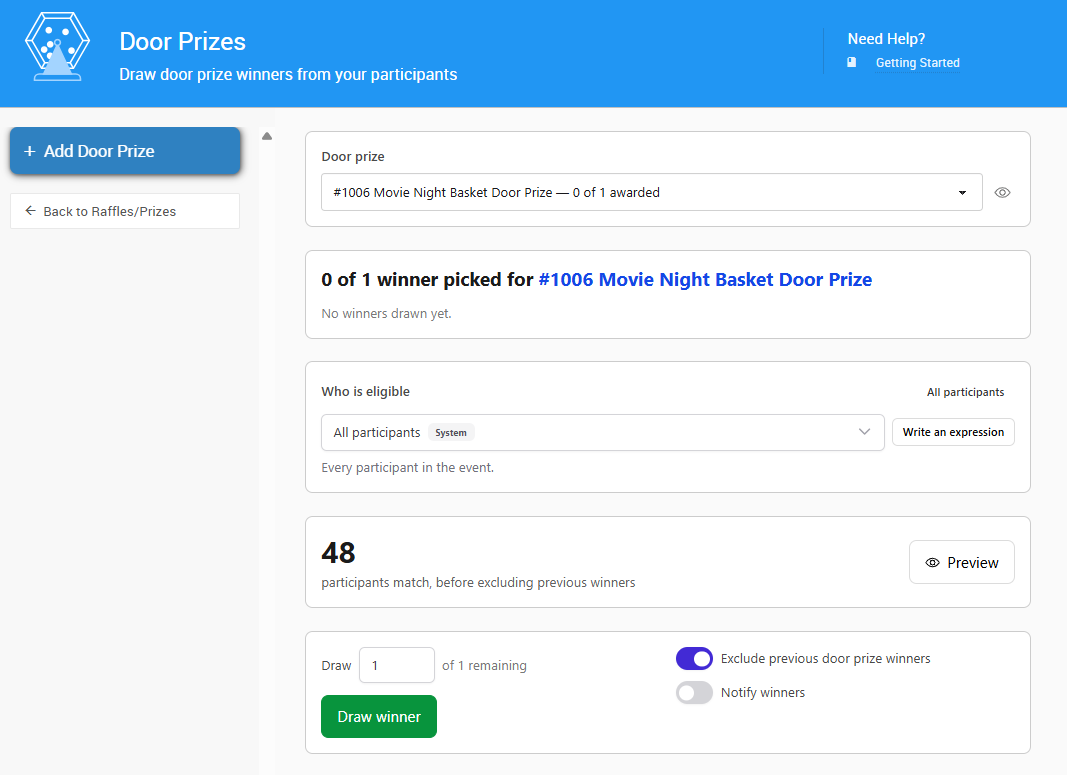
An example from a demonstration event.
1. Choose the Prize
Select the prize in the Door prize dropdown. Each prize shows how many winners have been drawn, for example #12 Gift Basket — 1 of 3 awarded. Click the eye icon to open the prize's details in a new tab.
The winners drawn so far for that prize are listed below it.
2. Choose Who Is Eligible
Use the filter builder under Who is eligible to choose which participants can win. Click All participants to include everyone in your event, or build a filter, for example participants who have checked in, or who have a particular tag. You can also choose one of your saved participant filters.
Auctria shows how many participants match your filter. This count is before excluding previous winners, so the number actually in the draw may be lower.
Click Preview to see the matching participants in a table. Participants who have already won a door prize are marked.
See Filter Reference for more about building and saving filters.
3. Set the Options
| Option | Description |
|---|---|
| Draw | How many winners to draw now. Defaults to all the winners the prize has left. |
| Exclude previous door prize winners | On by default. When on, anyone who has already won any door prize in your event is left out of this draw. Turn it off to let participants win more than one door prize. |
| Notify winners | Off by default. When on, each winner is sent a notification that they've won. |
A participant can never win the same prize twice, whatever these options are set to.
4. Draw
- Click Draw winner (or Draw winners).
- Check the summary of the prize, who is eligible, and your options.
- Click Draw.
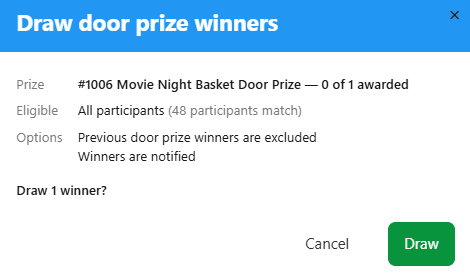
An example from a demonstration event.
When the draw finishes, the winners' names are shown, ready to announce. Click a name to open that participant's details in a new tab.
Draws are final
A draw records the winners straight away. To undo a draw, you have to remove each winner. See Remove a Winner.
Remove a Winner
If a winner can't accept the prize, for example they've already left, you can remove them and draw again.
- Open the Door Prizes page and select the prize.
- In the list of winners, click the X beside the winner.
- Confirm by clicking Remove.
The winner's $0 winning bid is deleted, which frees up a winner spot on the prize so you can draw again. Removing a winner can't be undone.
The removed participant isn't permanently excluded. They can be drawn again in a later draw, unless Exclude previous door prize winners is on and they've won another door prize.
How the Draw Works
- Fair and random. Winners are chosen using random numbers from random.org, the same service Auctria uses for raffle draws.
- One chance each. Every eligible participant has the same chance of winning, however many tickets or items they've bought.
- Recorded. Each draw is written to the prize's history: who was eligible, the options used, the random numbers drawn, and each winner. You can use this to show that a draw was fair.
- Safe to run from several places. If two people start a draw at the same time, Auctria runs them one after the other, so the same participant isn't picked twice when previous winners are excluded.
Door Prize Results
Door prize winners are included in the Raffles Prizes Won report on the Raffles dashboard. You can also see each prize's winners on its details page, and on the Door Prizes page.
Troubleshooting
| Message | What it means |
|---|---|
| No door prizes yet. | Your event has no door prizes. Add one with Add Door Prize. |
| Every winner for this prize has been drawn. | The prize has no winners left to draw. Remove a winner, or increase Quantity with Allow multiple winners on. |
| 0 eligible, nothing awarded | Nobody matched your filter after previous winners were excluded. Widen the filter, or turn off Exclude previous door prize winners. |
| Only N eligible … drawing N of the M requested | Fewer participants were eligible than the number you asked for. Everyone eligible won. |
| Choose who is eligible | The eligibility filter is empty or incomplete. Click All participants, choose a saved filter, or finish building your filter. |
| Could not notify the winner | The winner was drawn and recorded, but their notification couldn't be sent. Let them know another way. |
Running a ticketed raffle too? See Running Raffles to sell tickets and award raffle prizes.