
Learn how to choose what information guests must provide at check-in, which messages they receive, and whether they're told their Paddle# and table#.
Check-in settings apply to every check-in at your event, whether an organizer checks a guest in or the guest checks in themselves. You manage them on the Participant Check-in Settings page, which has four blocks:
| Block | What It Controls |
|---|---|
| Check-in Settings | Extra fields in the check-in list, and the information guests must provide |
| Paddle Number Requirement | Whether guests need a Paddle# to be checked in |
| Check-in Actions | The email and text sent when a guest checks in |
| Check-in Acknowledgement Settings | Whether those messages tell guests their Paddle# and table# |
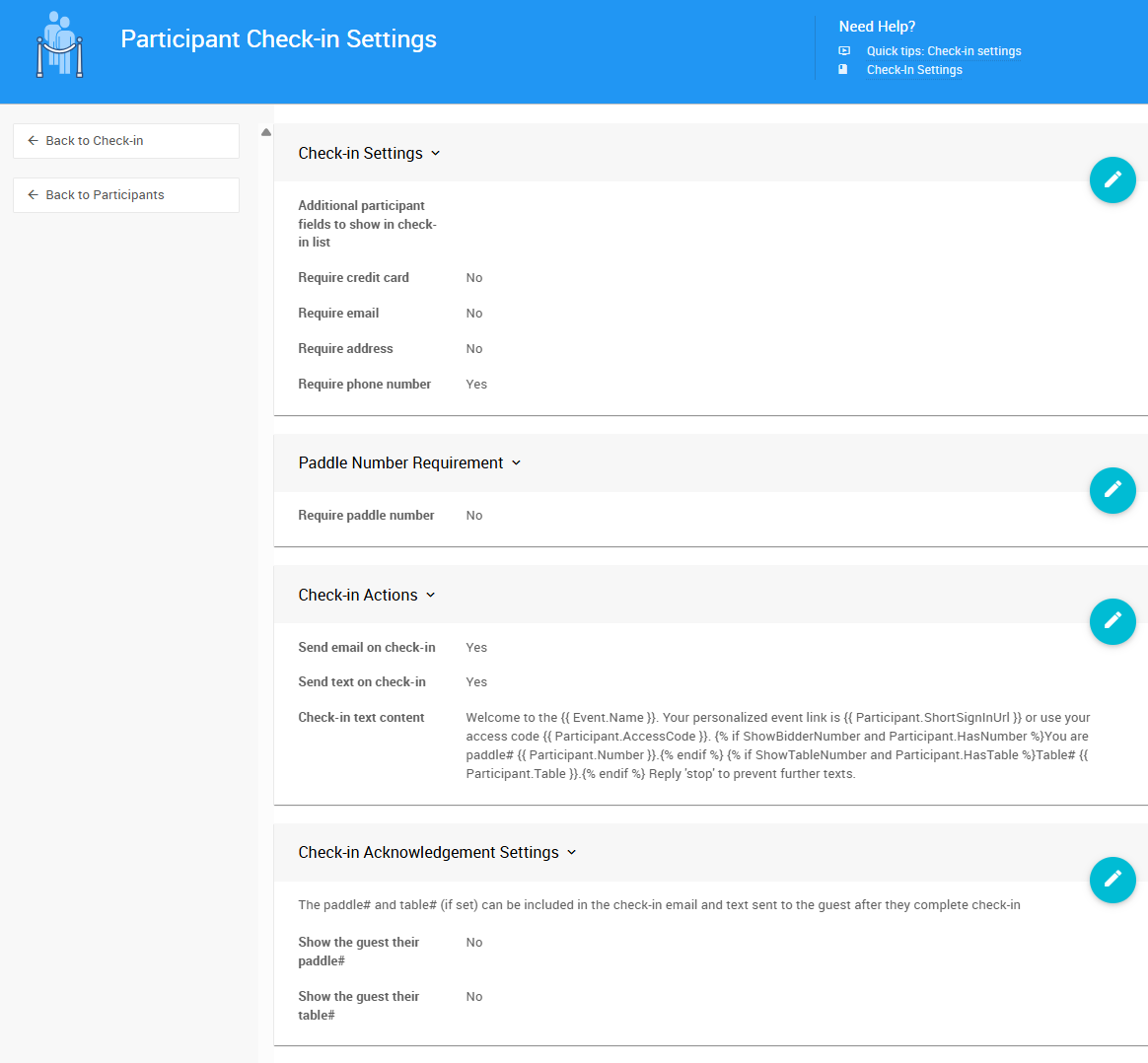
An example Participant Check-in Settings page from a demonstration event.
Video: Quick Tips - Check-In Settings
Open Check-In Settings
Click Settings → Check-in Settings in the left sidebar. This opens the Participant Check-in Settings page.
You can also get there from these places:
| From | How |
|---|---|
| Check-In page | Click Check-in Settings in the sidebar. |
| Self Check-In Request page | Click Check-in Settings in the sidebar. |
| Settings search | Click Settings and type check-in in the search bar. The settings are grouped under Check-In and Check-In Requirements. Click the pencil icon on a group to edit it. |
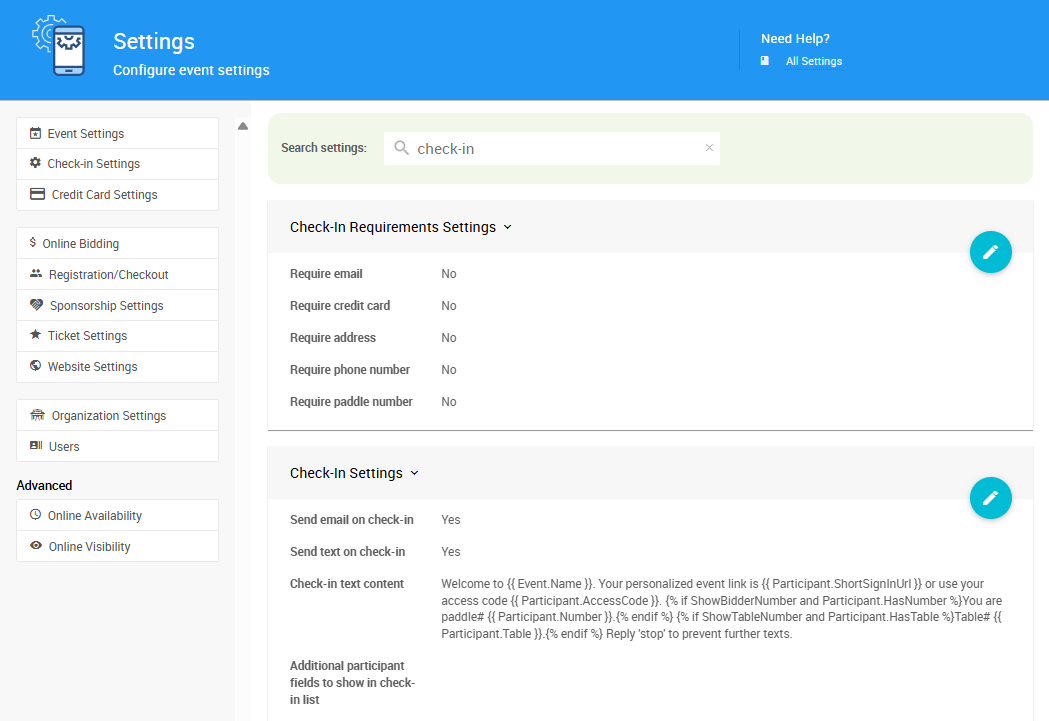
Check-in settings in the Settings search results from a demonstration event.
Check-in Settings
The first block sets which extra fields appear in the check-in list, and what information guests must provide before they can be checked in.
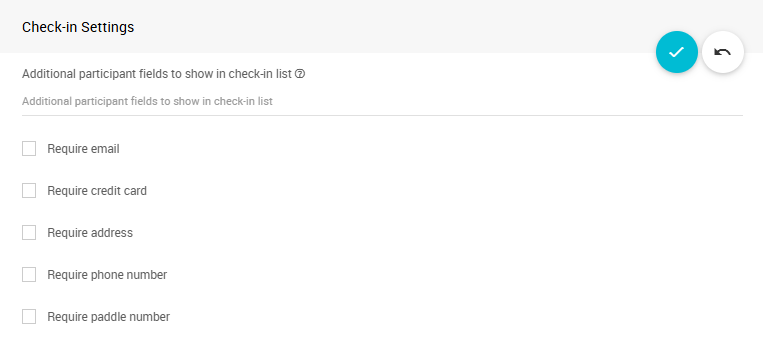
An example Check-in Settings block from a demonstration event.
Additional Participant Fields
| Setting | Description |
|---|---|
| Additional participant fields to show in check-in list | A comma-separated list of participant field names, such as Company or Notes. The fields appear in the check-in search list, alongside each guest. See Filter Reference for available field names. |
Added fields not showing?
Refresh your browser. It can take a few minutes for the change to appear.
Check-In Requirements
You can require guests to have an Email, Credit Card, Address, or Phone before they can be checked in. Each requirement has three options:
| Option | What It Does |
|---|---|
| Yes | Required for every check-in. |
| No | Not required. This is the default. |
| Only in self check-in | Required only when guests check themselves in. Organizers and volunteers can check in a guest without it. |
Requirements apply to linked families
If guests are linked, a requirement is met when anyone in the linked family meets it. For example, one registered credit card covers everyone in the family. See How To Link Participants.
Checking in a guest who doesn't meet a requirement
Organizers can bypass these requirements with Ignore Validation Rules on the guest card. See Check-In Requirements.
Paddle Number Requirement
This block has a single Yes / No setting that controls whether guests must have a Paddle# before they can be checked in.
This requirement only applies when an organizer or volunteer checks a guest in. It's never enforced during self check-in.
If your event doesn't use Paddle#s, see How To Turn Off Participant Numbers.

An example Paddle Number Requirement block from a demonstration event.
Check-in Actions
This block controls the messages guests receive when they're checked in.
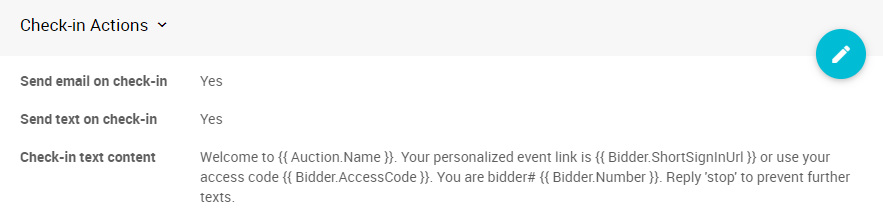
An example Check-in Actions block from a demonstration event.
| Setting | Description | Default |
|---|---|---|
| Send email on check-in | Sends the Participant Check-in system email. It's only sent if the guest has an email address. | Yes |
| Send text on check-in | Sends the check-in text message. It's only sent if texting is turned on for your event and the guest has a mobile number. This setting doesn't turn texting on — see Text Messages . | Yes |
| Check-in text content | The text message guests receive. See the default text below. | — |
Default Check-In Text Message
Welcome to the {{ Event.Name }}.
Your personalized event link is {{ Participant.ShortSignInUrl }} or use your access code {{ Participant.AccessCode }}.
{% if ShowBidderNumber and Participant.HasNumber %}You are paddle# {{ Participant.Number }}.{% endif %}
{% if ShowTableNumber and Participant.HasTable %}Table# {{ Participant.Table }}.{% endif %}
Reply 'stop' to prevent further texts.
Shown with line breaks for easier reading. The default message is a single paragraph.
The placeholders are replaced with each guest's details when the text is sent: your event name, the guest's personal sign-in link, and their access code.
The Paddle# and Table# lines are only included when the matching Check-in Acknowledgement Settings option is on, and the guest has a Paddle# or table assigned.
Check-in Acknowledgement Settings
These settings add the guest's Paddle# and table# to the messages they receive after check-in.
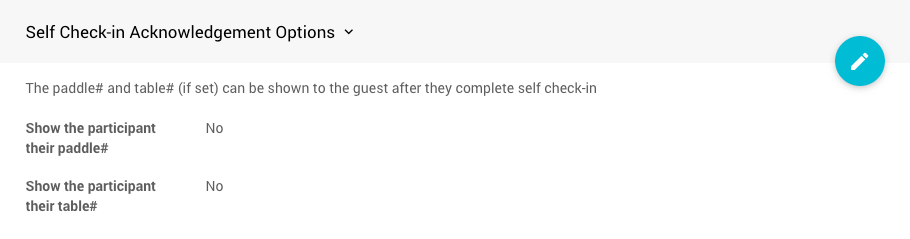
An example Check-in Acknowledgement Settings block from a demonstration event.
| Setting | Description | Default |
|---|---|---|
| Show the guest their paddle# | Adds the guest's Paddle# to the check-in email and text. | Off |
| Show the guest their table# | Adds the guest's table# to the check-in email and text. | Off |
These settings apply whether an organizer checks the guest in or the guest checks in themselves.
The Paddle# and table# are also passed to the self check-in page and the Self Check-In Request email. Whether they appear there depends on how that page and email are set up.