
How to change the connection type you are using with Stripe to Test Mode Only.
It is possible to connect a Stripe account that only supports test transactions.
This can happen if either:
- you check the 'test mode only' checkbox when connecting the account; or,
- you connect to a Stripe account that was not fully activated.
If you connect to a Stripe account that was not fully activated, activating that account later will not change the status on Auctria's side.
Step 1: View Current Stripe Mode
You can see if your account is in test mode only by clicking on Credit Cards from the auction dashboard, if you see:
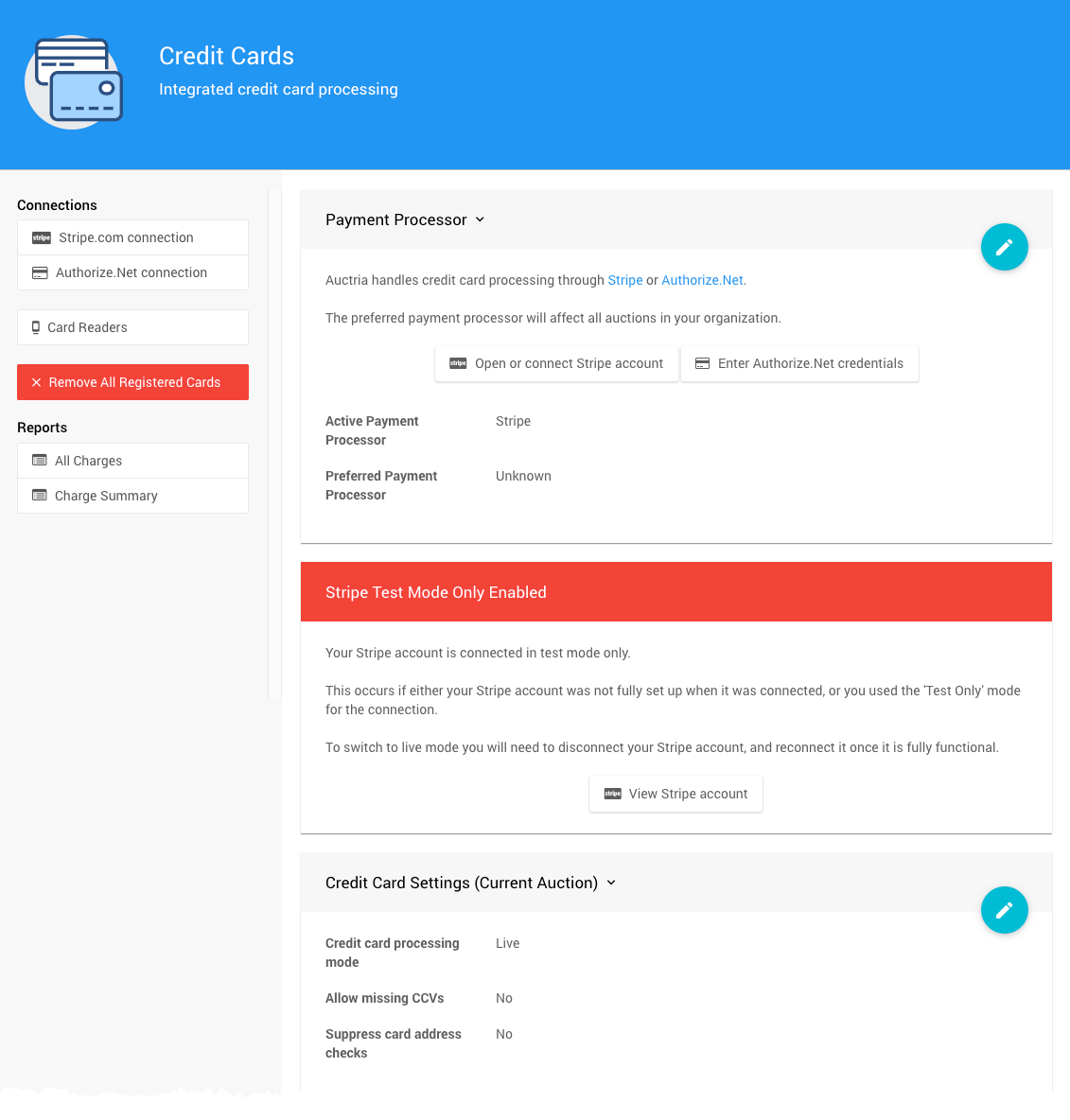
The Stripe Test Mode Only Enabled indicator from a demonstration event.
Test Mode and the Event Credit Card Settings
Stripe Test Mode Only Enabled overrides the Credit Card Settings of the event.
Then you will not be able to process live charges until the connection is replaced.
Step 2: Switch To Live Mode
To switch to a 'live' Stripe use the following steps:
Go to stripe.com/dashboard and sign in to your Stripe account
Using the same browser tab, sign into Auctria.
Click on Credit Cards → Stripe.com connection.
Click on Unlink Your Account
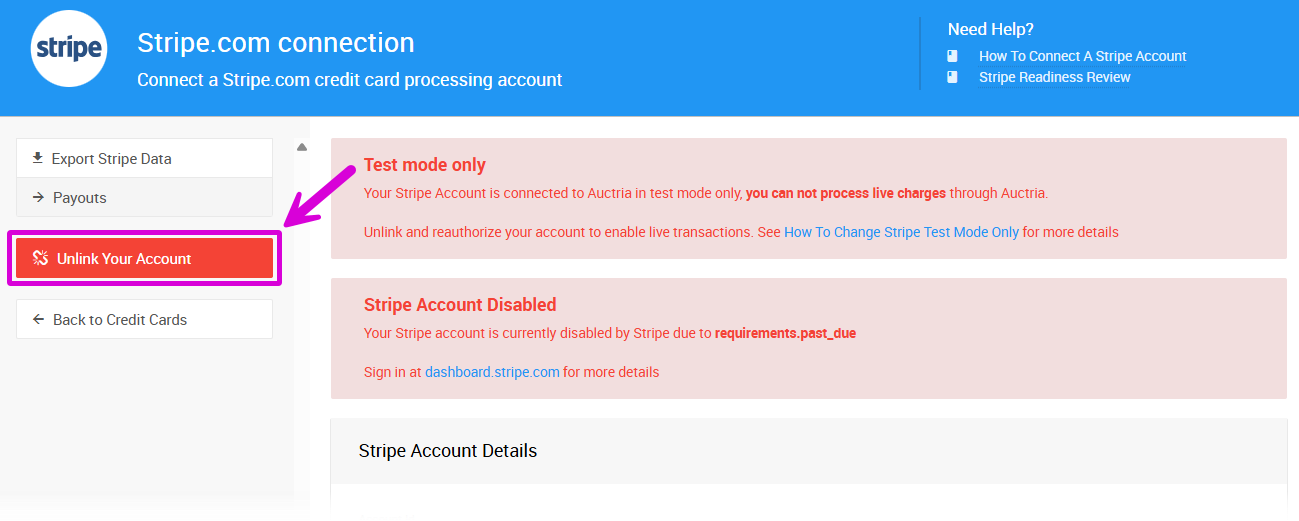
An example from a demonstration event.
Click Continue to remove the current Stripe connection.
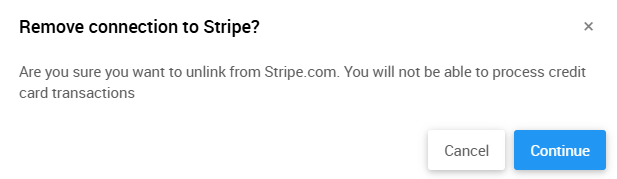
The Remove connection to Stripe? confirmation window.
Click on Connect Stripe Account
Check the I agree... checkbox.
Agree to the Stripe authorization page
Your Stripe account should now be connected.
→ See How To Connect A Stripe Account for more details.
Step 3: Verify Your Event Is Using Live Mode
To verify that your auction is using Live mode for credit card processing click on Credit Cards and check the Credit card processing mode setting
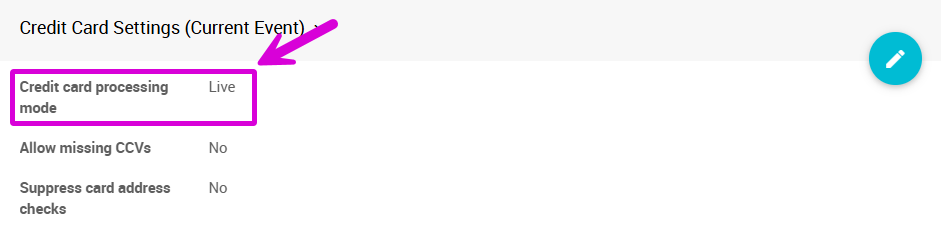
The Credit card processing mode setting from a demonstration event.
See Stripe testing (at Stripe.com) for information about testing your Stripe integration.