
Learn how to copy an event and choose which information to bring into the new one.
Copying an event is a quick way to set up a new event, such as next year's auction, using your existing settings, website, items, and participants.
Step 1: Open the Copy Event Page
Open the event you want to copy first
Auctria copies the event you currently have open. To switch events, click the drop-down arrow next to the event name in the page header. See Change Events for details.
Click Event in the left sidebar → Copy Event.
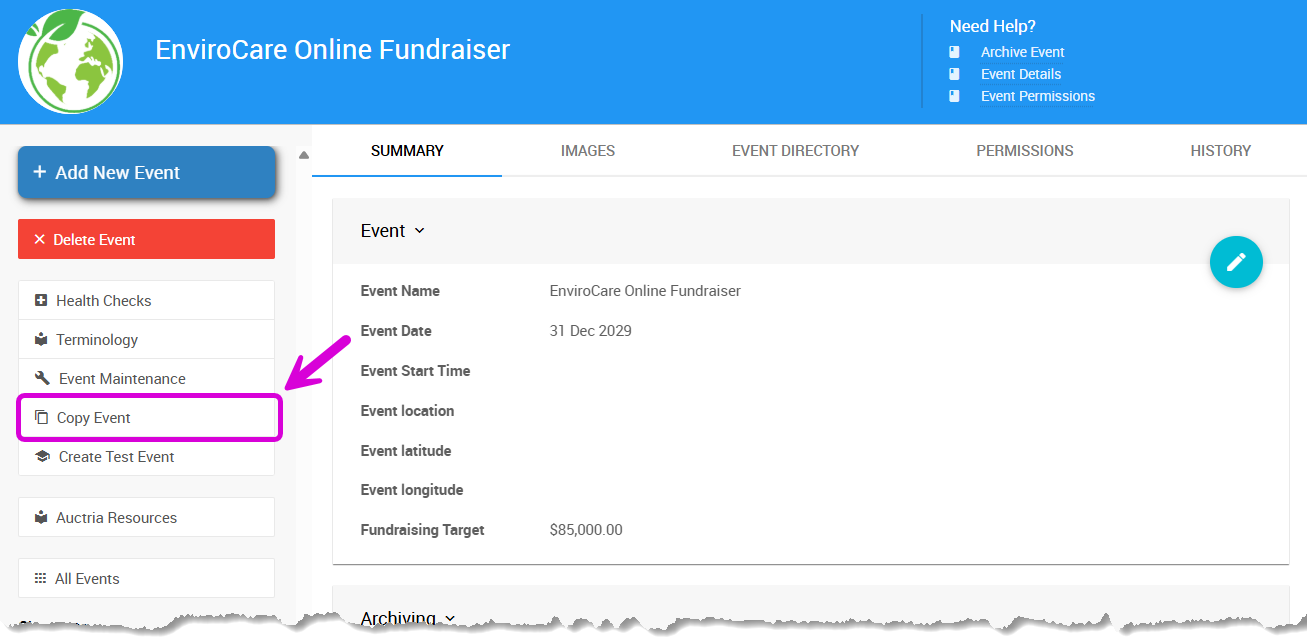
An example Event Details page from a demonstration event.
Step 2: Enter the Event Details and Choose What to Copy
On the Copy Event page, enter the new event's name and date, then select the information you want to copy.
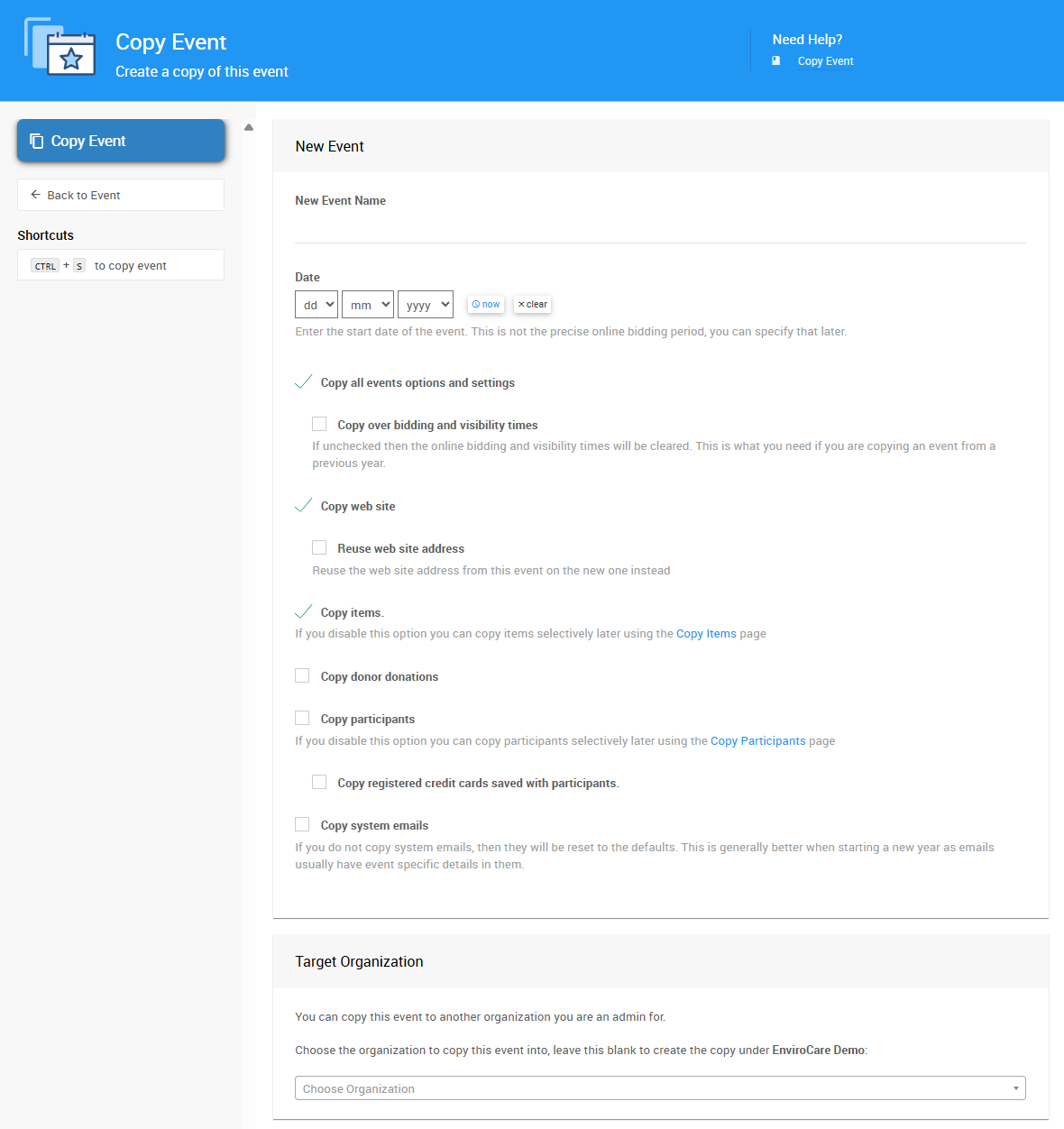
The Copy Event page with its default options.
| Option | Description |
|---|---|
| New Event Name | Enter a name for the new event. |
| Date | Enter the date of your in-person event. For an online-only auction, enter its start or end date. This is not the online bidding start or end time. |
| Copy all event options and settings | Copies all settings and options from the current event. |
| ↳ Copy over bidding and visibility times | Copies online bidding and visibility times. If unchecked, these times are cleared. Check this box when copying an event from a previous year. |
| Copy web site | Copies the current website's content. |
| ↳ Reuse web site address | Uses the original event's website address for the new event. If unchecked, you'll need to add an address to the new website. This is an Advanced feature, so proceed with caution. |
| Copy items | Copies all items. If unchecked, you can copy items later. See How To Copy Items. |
| Copy donor donations | Copies all donations listed under Donors → All Donations. This is usually only used to build a complete test event. |
| Copy participants | Copies all participants. If unchecked, you can copy participants later. See Copy Participants. |
| ↳ Copy registered credit cards saved with participants | Copies the payment tokens for participants' registered credit cards. Auctria doesn't store card numbers, so only the tokens are copied. |
| Copy system emails | Copies your customized system emails. If unchecked, system emails are reset to the defaults. |
Copied credit cards aren't re-validated
Copying registered credit cards does not validate the cards. The new event must use the same payment processor as the original event for the copied cards to work.
Review copied system emails
If you copy your System Emails, review them to make sure their content is still correct for the new event.
Copy to a Different Organization (Advanced)
To copy the event to another organization, use the Target Organization section. You must be an admin of that organization.
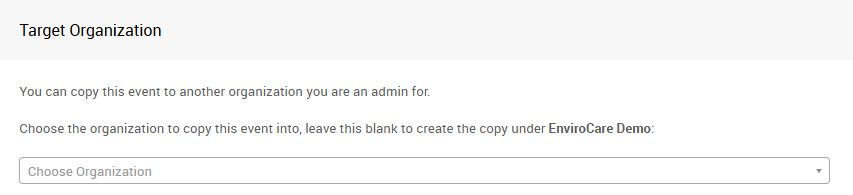
The Target Organization section of the Copy Event page.
Choose the organization from the drop-down. Leave it blank to copy the event within your current organization.
Step 3: Copy the Event
Click Copy Event in the Actions sidebar.
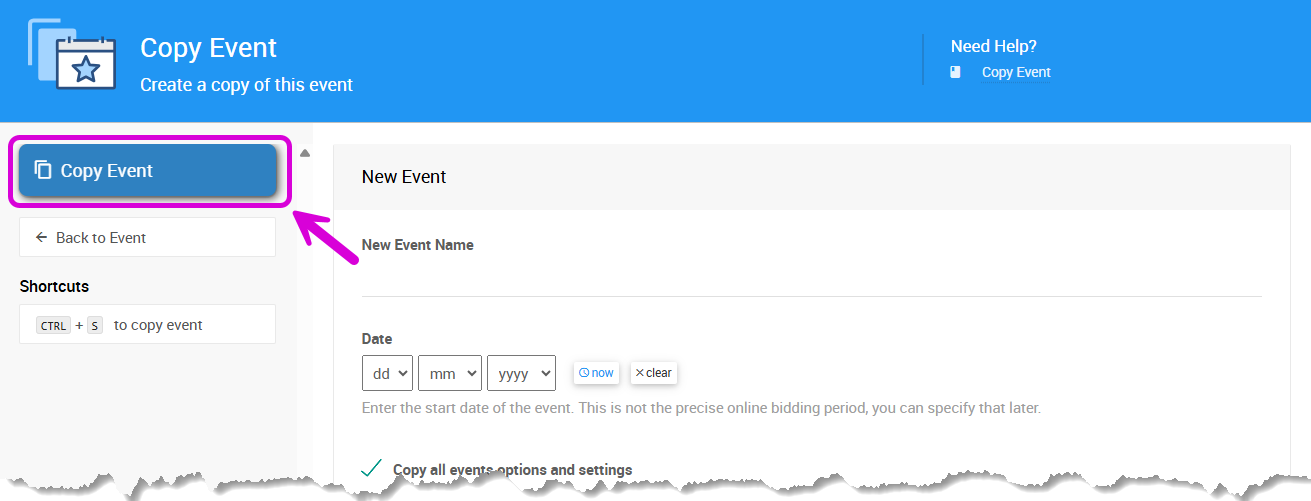
The Copy Event button from a demonstration event.
Auctria creates the new event and opens it on the Event Dashboard.
After You Copy an Event
Review these settings in your new event:
- Online bidding times: See Online Bidding Times.
- Website address: See Updating Your Website Address.
Using Text Messages?
To keep texting in the new event, transfer your existing number from the original event. See How To Transfer Your Texting Number.