
Change item numbers by dragging and dropping items into your preferred order.
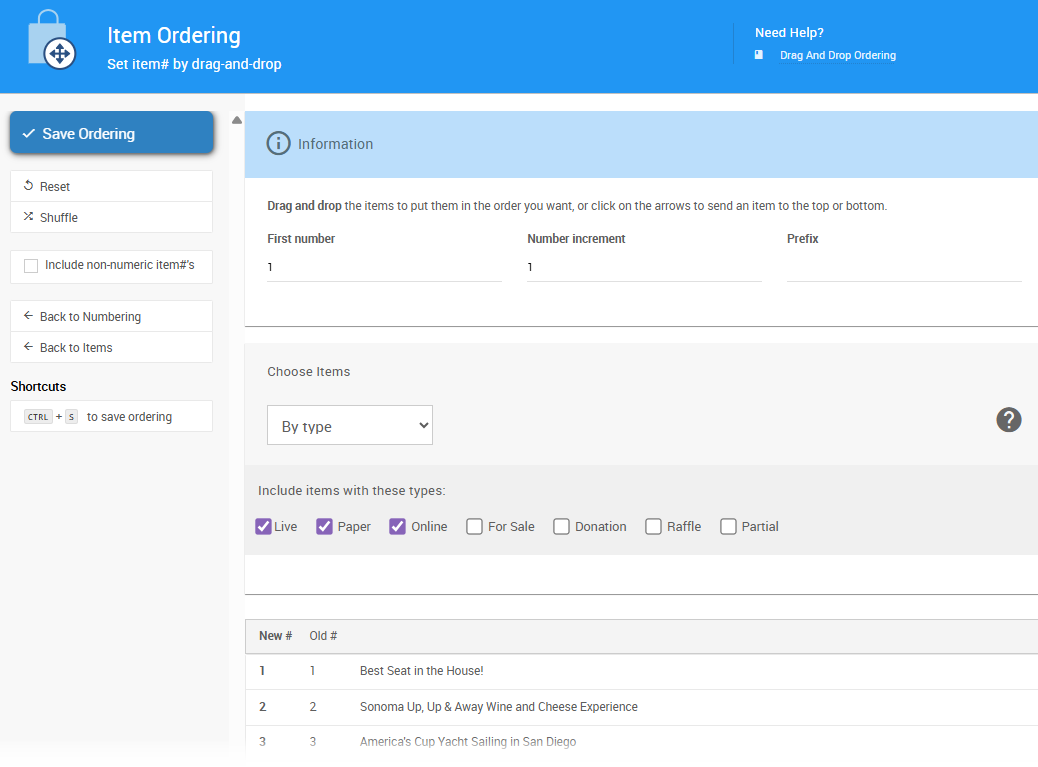
The Drag And Drop Ordering function presents your current biddable items in a list that you can reorder by dragging items into the sequence you want. Item numbers are then assigned based on that order.
To open the dashboard, click Items (left sidebar, Details) Numbering.
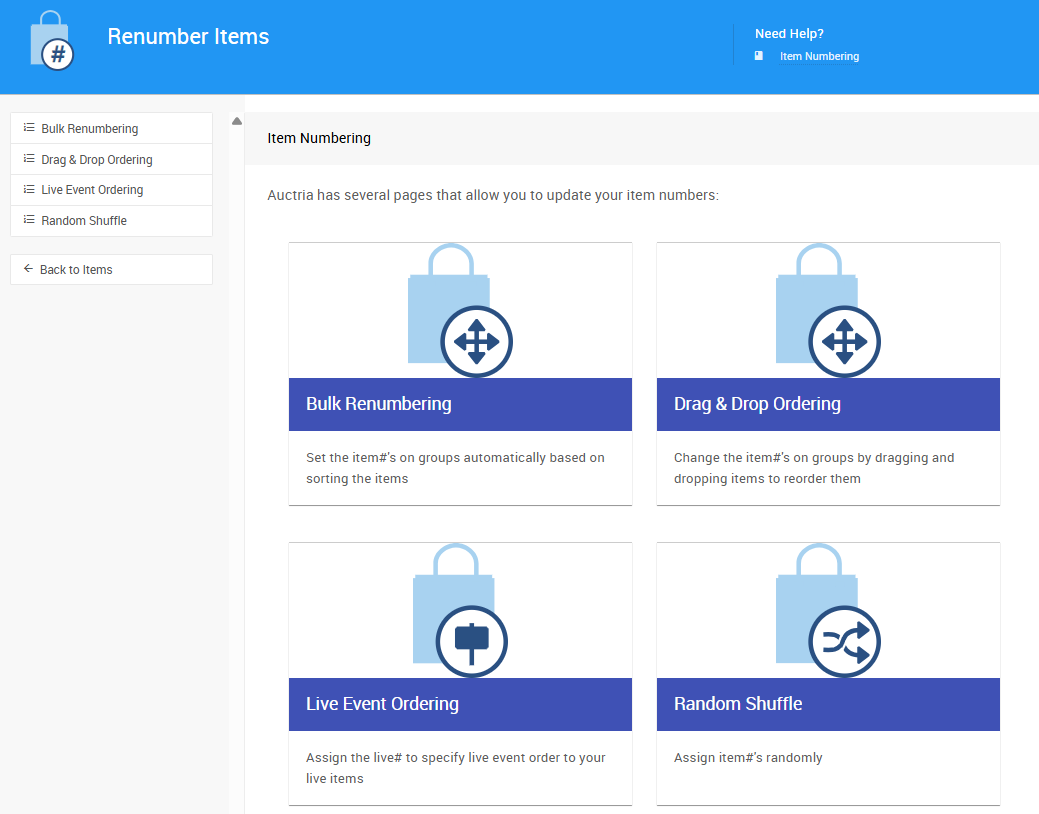
An example taken from a demonstration event.
Then, click the Drag & Drop Ordering tile or button.
Item Number Collisions
When renumbering items, the new number list takes precedence over any existing item numbers that were not included in the selection. Items with conflicting numbers will automatically be renumbered to the next available valid item number. There is no warning when this happens — review your selection carefully before saving.
Options
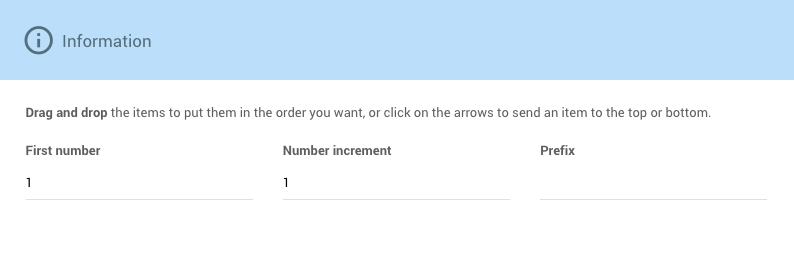
Set the starting item number and increment at the top of the page before finalizing your order.
| Option | Description |
|---|---|
| First Number | The starting value for the newly ordered items. |
| Number Increment | The difference in value between each consecutive item number. |
| Prefix | An experimental option currently restricted to simple numbers only. |
Choosing Items
By default, the item list includes all current biddable items for your event. The selection is shown at the bottom of the page and updates dynamically as you apply filters.
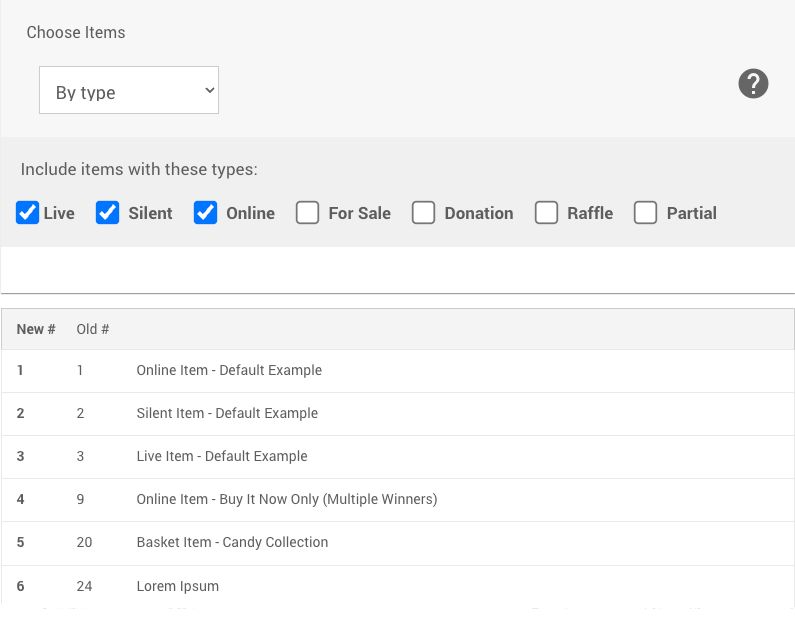
An example of an initial item list with the Choose Items filter displayed.
See Choose Items Filters for more details on filtering and refining your selection.
Sidebar Actions
| Action | Description |
|---|---|
| Save Ordering | Finalizes and applies the renumbering. |
| Reset | Refreshes the page and restores all settings to their defaults. A confirmation window will appear if there are unsaved changes. |
| Shuffle | Randomly shuffles the item list based on the current selection and options. |
| Include non-numeric item #'s | Adds items whose item numbers include non-numeric characters to the selection list. |
| Back to Numbering | Returns to the Item Numbering page. |
| Back to Items | Returns to the Items dashboard. |
Finalizing Your Order
Once you're happy with the item order, click Save Ordering in the Actions sidebar to apply the new item numbers. You can continue fine-tuning the order by dragging items in the list at any time before saving.