
Learn how to assign interactive behaviors to elements on your event website using the Add Behavior settings.
Clicking Add Behavior on a selected element opens a pop-up showing the behaviors available for that element type. The two available behaviors are Click and Visibility.
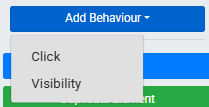
An example from a demonstration event.
Click Behavior
Clicking Click adds the property to the element. Click the property to open the Target Type dropdown and choose what happens when a guest clicks the element.
| Target Type | Description |
|---|---|
| None | No action when the element is clicked. Default. |
| Page | Links to a page on the event website. A dropdown lists all available pages — custom pages appear first, followed by system pages. |
| Web Address | Links to an external URL. A text field accepts the URL, and a checkbox lets you choose whether it opens in a new browser tab. |
| Show Video | Triggers a video when the element is clicked. Opens settings to configure the video feed. |
Visibility Behavior
Clicking Visibility adds the property to the element. Click the property to open the visibility configuration panel.
Visibility is not a security measure
Hiding an element is a display-only change — the underlying content is still accessible to guests who know where to look. Do not use visibility rules to protect sensitive information.
Hiding a page affects its menu entry
If you apply a visibility rule to an entire page, the page may no longer appear in your website's navigation menu for the affected guests. Review your menu after setting page-level visibility rules.
Show To / Hide From
Use the Show to / Hide from toggle to choose how the condition applies:
- Show to — the element is visible only to visitors who match the condition; everyone else sees nothing.
- Hide from — the element is hidden from visitors who match the condition; everyone else sees it.
Condition Categories
Visibility conditions are grouped into four categories:
| Category | Controls visibility based on… |
|---|---|
| Bidder Status | Whether the guest is signed in, registered as a bidder, has a balance, has a saved card, or holds a ticket. |
| Display Conditions | The type of device the guest is using, or whether the page is being viewed in the Website Editor. |
| Timing | A date and time window — see Date and Time View. |
| Event Configuration | Whether specific event features are enabled, or whether the event has items of a particular type. |
For the full list of conditions, see Website Element Visibility.
Display Element To All Visitors
To remove a visibility rule and make the element visible to everyone, open the condition dropdown and select Display Element To All Visitors.