
Learn how to choose what your donor receipts include, and how to email or print receipts for the items and in-kind donations your Item Donors gave to your event.
How Did I Get Here?
From the main event dashboard, click Items → Item Donors → Item Donor Receipts.
The Item Donor Receipts page holds the settings for your donor receipts. The same settings apply to emailed and printed receipts.
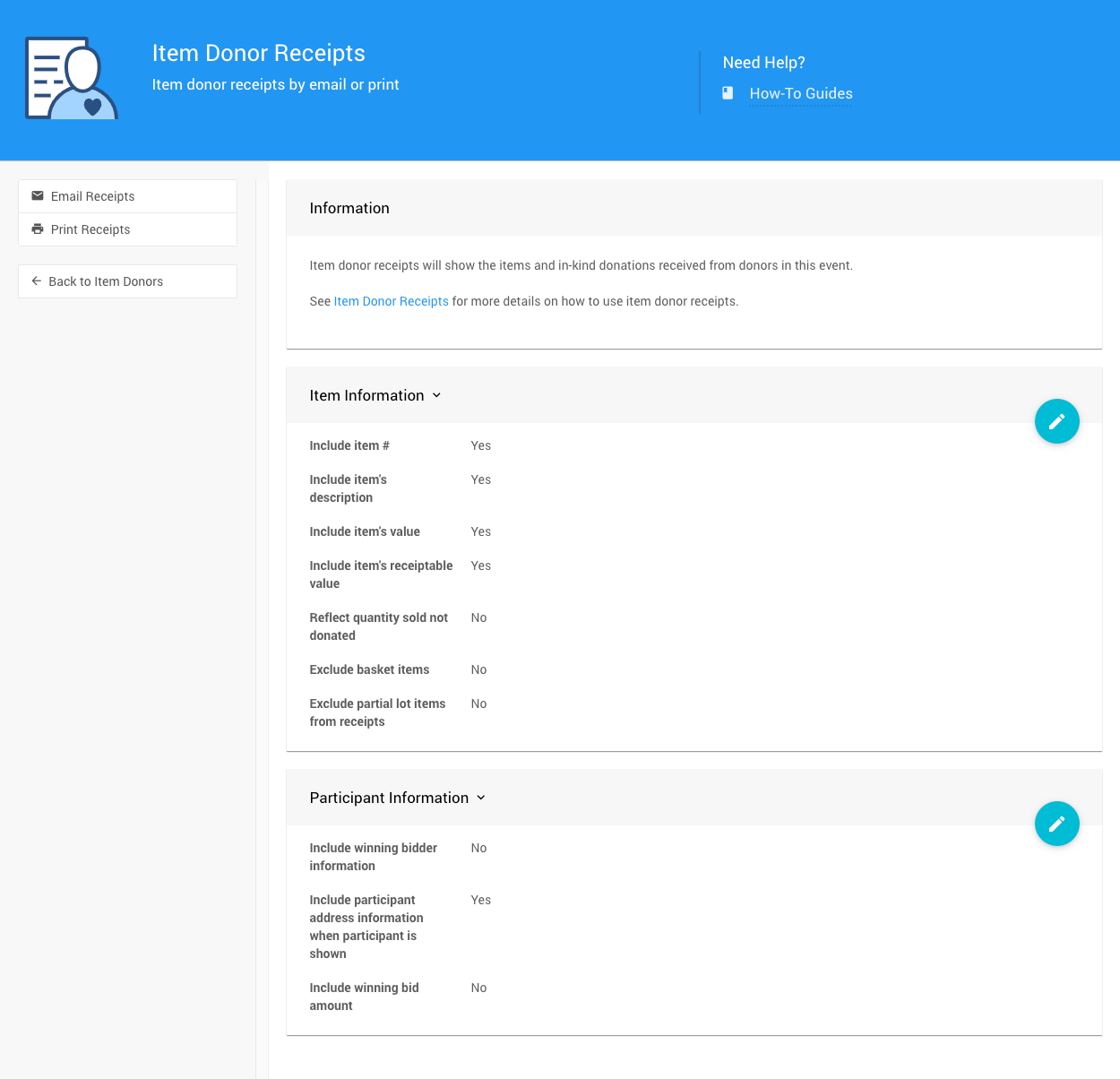
An example Item Donor Receipts page from a demonstration event.
How To Edit Dashboard Panel Settings
You can edit panel settings by clicking on the pencil icon to open the panel for editing.

Panel in "saved" mode.
Once you have made your changes, click the checkmark icon to save these changes. If you have opened multiple panels in a dashboard, you must click each checkmark to keep their settings.

Panel in "edit" mode.
You can click the return arrow icon if you do not want to save your changes.
Sending and Printing Receipts
Email Receipts
- In the Item Donor Receipts sidebar, click Email Receipts.
- Check the Recipients list. By default, it shows the Active item donors for the event. To send to a different group, choose an option from the drop-down (see the table below).
- Optional: click Edit Receipt Email, Preview Receipt Email, or Reset Receipt Email to work with the email itself. To preview one recipient's receipt, click the eye icon on their row.
- Click Send Receipts.
Each receipt is sent to the email address in the Item Donor's record.
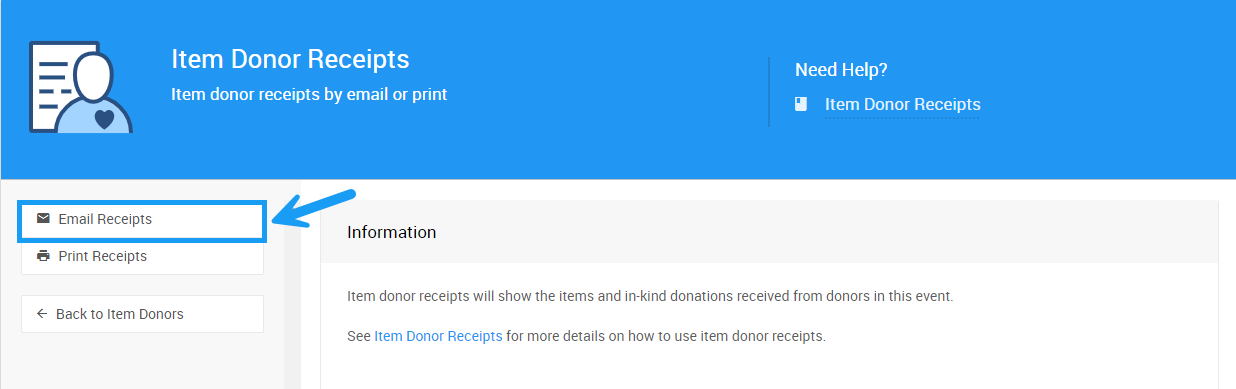
An example from a demonstration event.
| Recipients Option | Sends To |
|---|---|
| All item donors | All Item Donors. |
| Active item donors | Item Donors with items or in-kind donations in the current event. This is the default. |
| Inactive item donors | Item Donors with no items or in-kind donations in the current event. |
| By tags (All item donors) | All Item Donors with the tags you choose. |
| By tags (Active item donors only) | Active Item Donors with the tags you choose. |
| Specific item donors | Item Donors you pick from a list. |
| Search for item donors | Item Donors you find by searching. |
| Custom filter | Item Donors that match a filter you set up. |
| Sponsors | Your event's sponsors. |
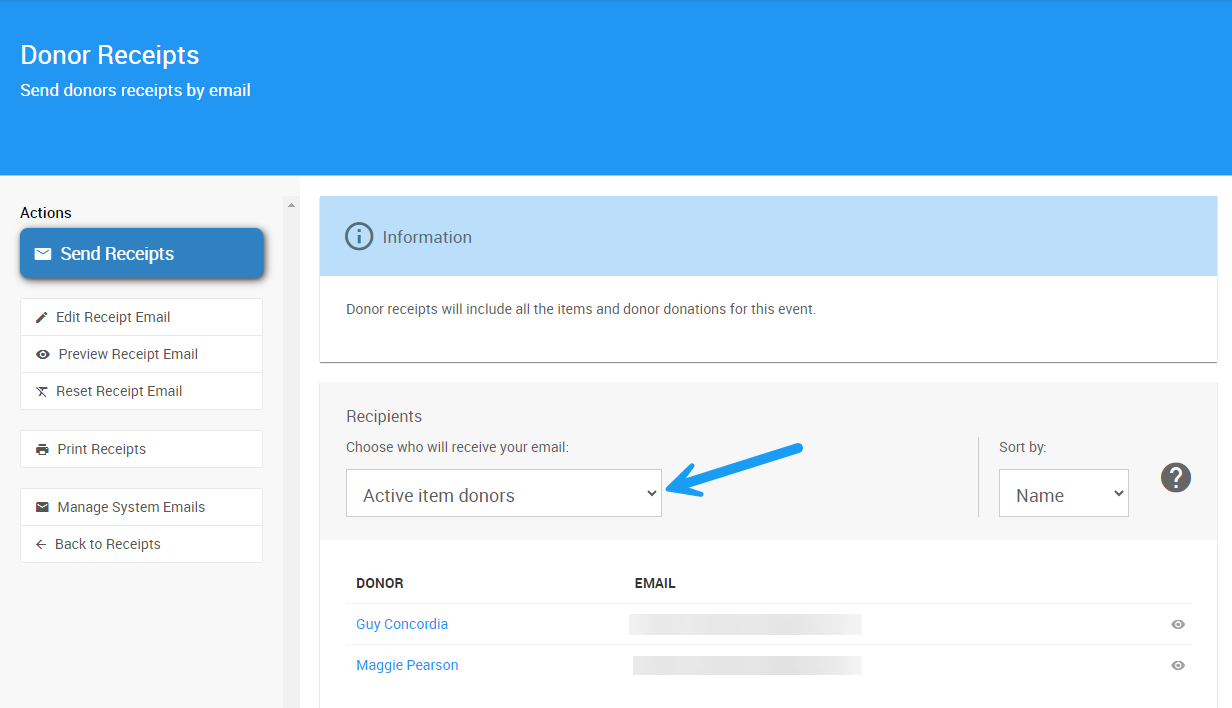
An example from a demonstration event.
Note
If your event doesn't use the advanced email editor, the email page is laid out differently, and its send button is labelled Send Emails.
Print Receipts
In the Item Donor Receipts sidebar, click Print Receipts to open a page where you can download the receipts as a PDF.
Item Information
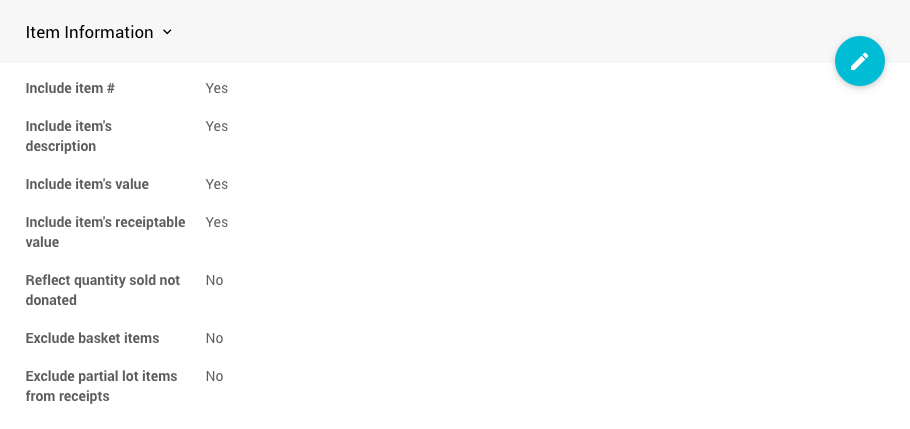
An example from a demonstration event.
| Setting | Default | Description |
|---|---|---|
| Include Item Number | Yes | Shows each item's number on the receipt. |
| Include Item's Description | Yes | Shows each item's description on the receipt. |
| Include Item's Value | Yes | Shows each item's value on the receipt. |
| Include the item's Receiptable Value | Yes | Shows each item's receiptable value on the receipt. |
| Reflect Quantity Sold Not Donated | No | By default, the receipt shows the quantity donated. When enabled, it shows the number of donated items sold instead. |
| Exclude Basket Items | No | When enabled, leaves basket items off the receipt. |
| Exclude Partial Lot Items From Receipts | No | When enabled, leaves Partial Items off the receipt. |
Participant Information
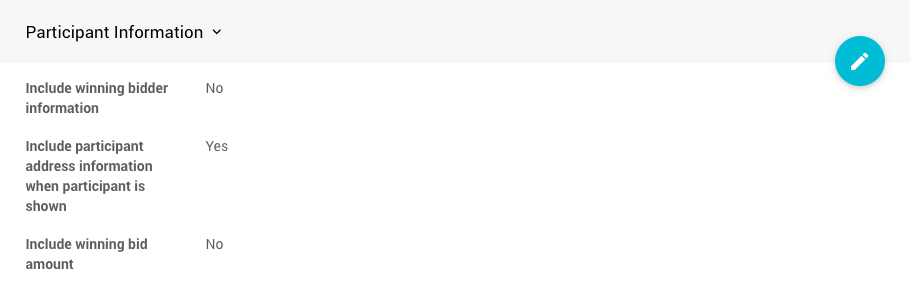
An example from a demonstration event.
| Setting | Default | Description |
|---|---|---|
| Include Winning Bidder Information | No | When enabled, the receipt includes the winning participant's details from the Participant panel of their Participant Details page. |
| Include Participant Address Information When Participant Is Shown | Yes | When Include Winning Bidder Information is enabled, also adds the winning participant's details from the Address panel of their Participant Details page. |
| Include Winning Bid Amount | No | When enabled, shows the winning bid amount for each donated item. |
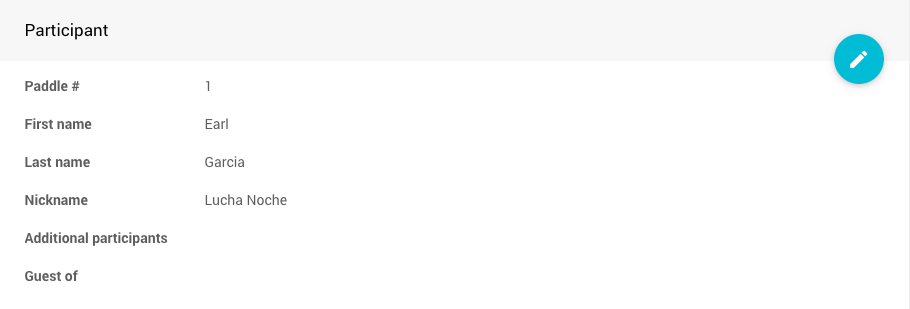
The Participant panel details included by Include Winning Bidder Information.
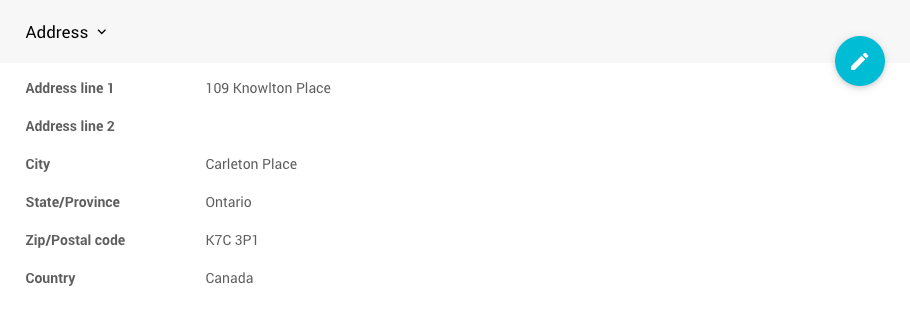
The Address panel details included by Include Participant Address Information When Participant Is Shown.