
Learn how to manage sales of Ticket items in Auctria.
You can manage sold tickets from the Tickets Sold report. From the Tickets dashboard (left sidebar), click the # of active tickets sold tile, or click Ticket Details under the Reports heading.
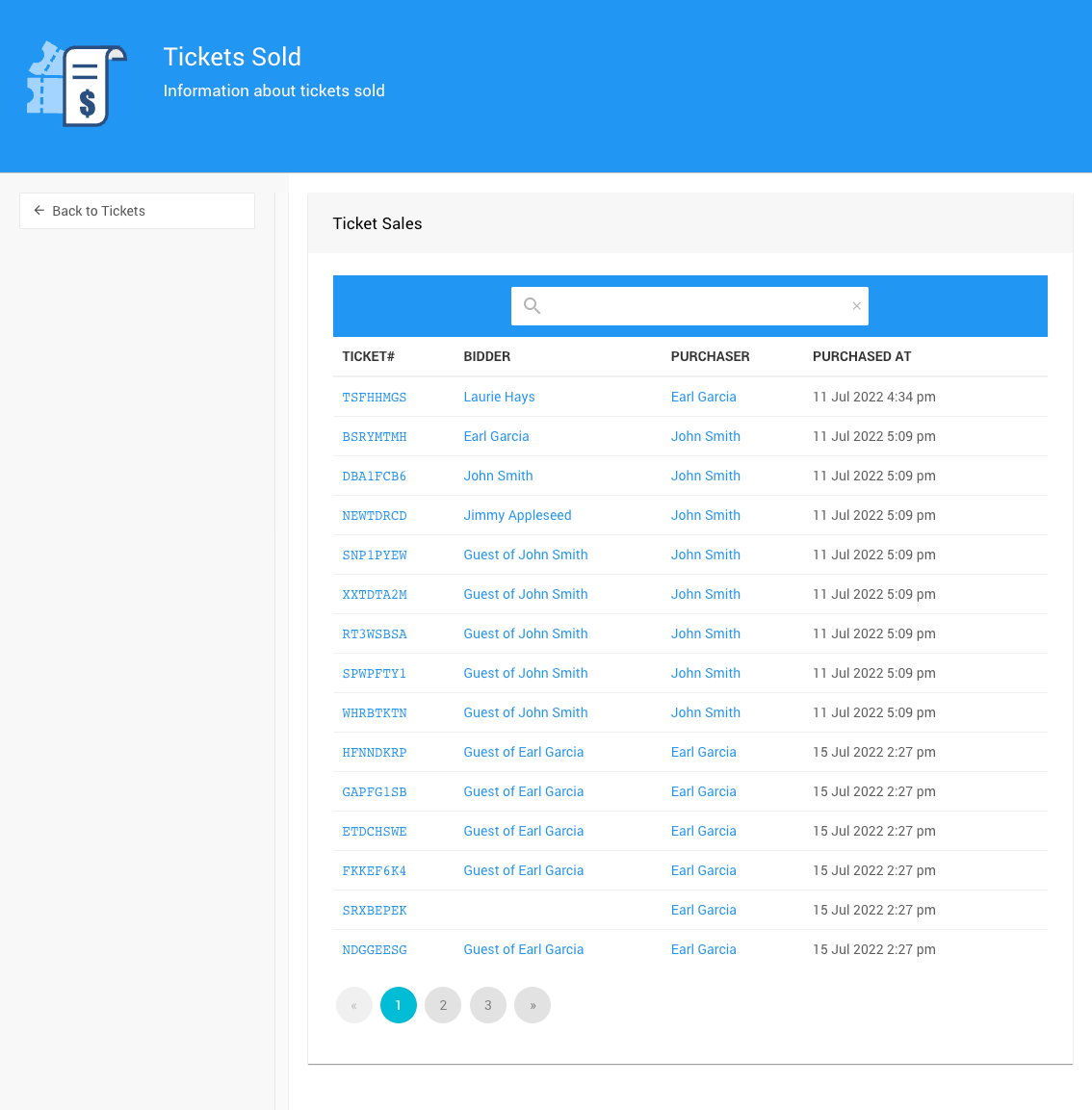
An example Tickets Sold report from a demonstration event.
The search box auto-filters the tickets displayed based on the characters entered. Search is performed on the Ticket#, Participant, and Purchaser columns.
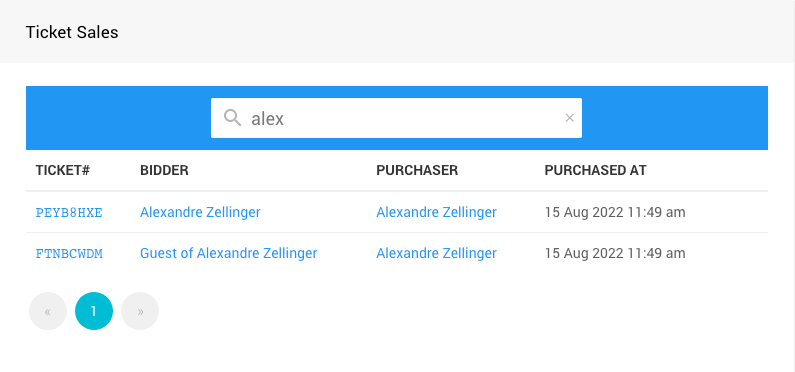
An example from a demonstration event.
Ticket Details
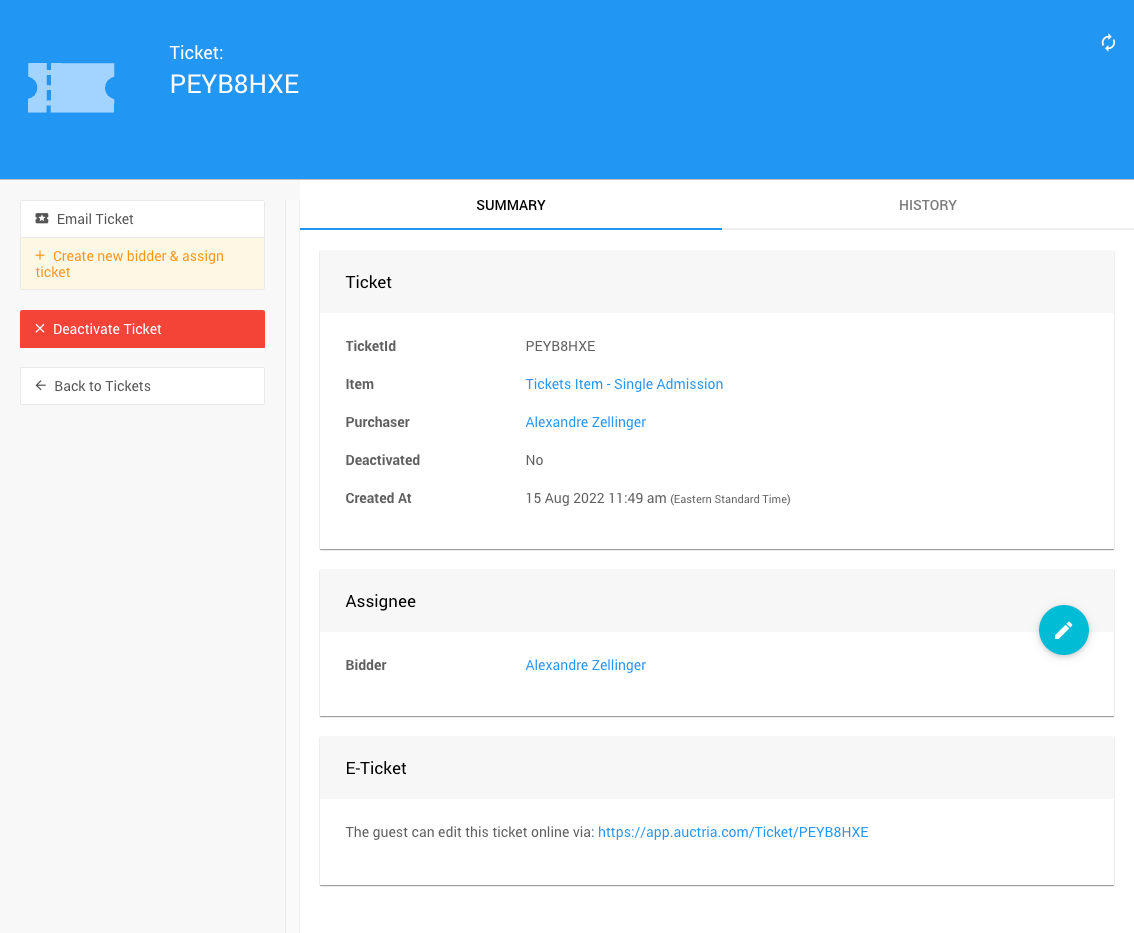
An example Ticket Details page from a demonstration event.
Summary
| Field | Description |
|---|---|
| TicketID | The individual ticket's Ticket#. |
| Item | Links to the ticket item's Item Details page. |
| Purchaser | Links to the Participant Details page for the purchaser. |
| Created At | A timestamp for when the ticket was created — generally when it was purchased. |
Assignee
This panel shows which participant is assigned to the ticket. To change the assigned participant:
- Click the pencil icon to edit the Assignee block.
- Select another participant from the drop-down selector.
- Click the checkmark icon to save the change.
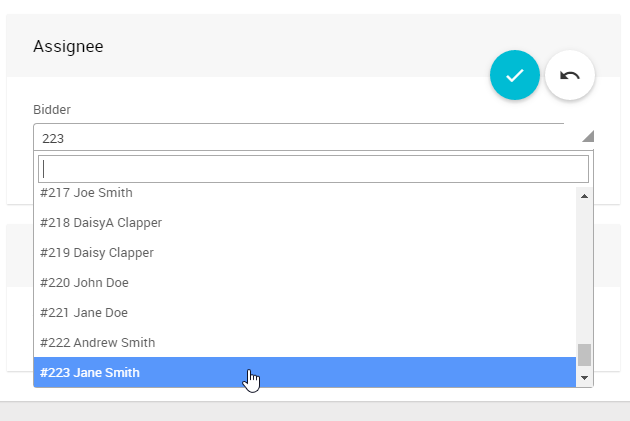
An example from a demonstration event.
E-Ticket
This block provides a link to the ticket's E-Ticket.

An example from a demonstration event.