
Configure your payment processor, security settings, and how credit card fees are handled for your event.
To access Credit Card Settings: From your event dashboard, click Credit Cards on the left sidebar (under Set Up).
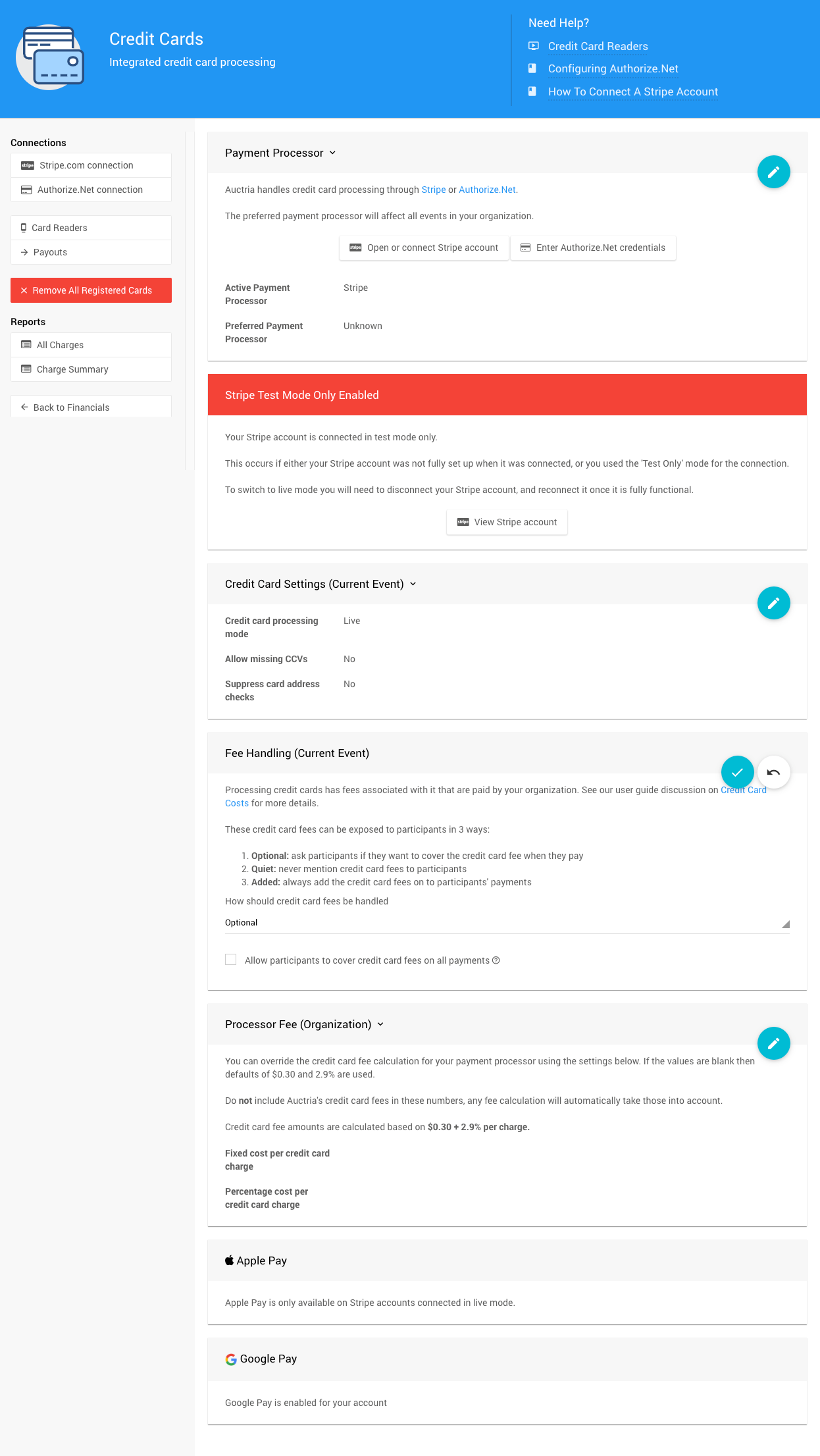
Payment Processor
This section shows which payment processor is currently connected to your event.
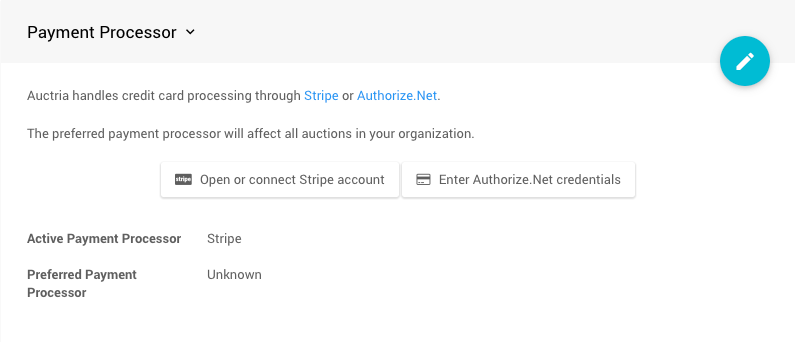
Example showing Stripe as the active payment processor
Connecting a Payment Processor
If you haven't connected a payment processor yet, click the button for the service you want to use:
- Stripe (recommended) - Connection guide
- Authorize.Net - Connection guide
Learn more: Payment Processor Accounts
Security Settings
Configure security options for credit card processing:
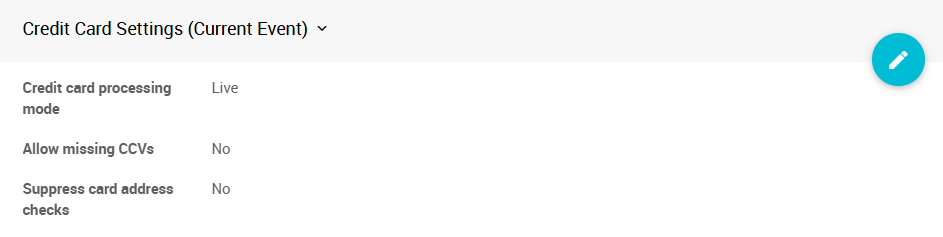
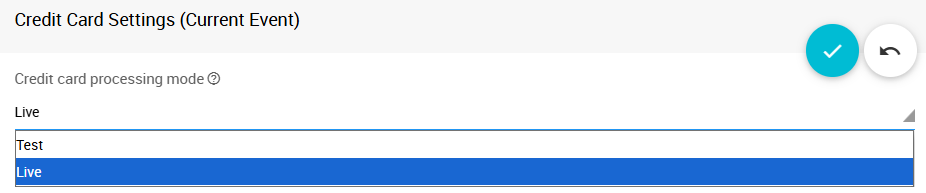
Credit Card Processing Mode
Switch between Live and Test modes:
- Live mode - Process real transactions
- Test mode - Test your setup without charging real cards
Note for Stripe users
If you originally connected Stripe in "force test mode only," you'll need to disconnect and reconnect to enable Live mode. See How to Connect Stripe.
Security Options
Default Security Settings
Credit cards require both a CCV (security code) and address verification by default. We recommend keeping these enabled for security.
Allow missing CCVs
- When enabled, you can process cards without a CCV code from the back-end (organizer side)
- Guests entering cards online will still need to provide the CCV
Suppress card address checks
- When enabled, skips address verification for transactions
Fee Handling
Control how credit card processing fees are handled for your event.
Understanding Credit Card Fees
Credit card processing involves two types of fees:
- Processor fees - Typically $0.30 + 2.9% per transaction in North America (Stripe users)
- Auctria integration fees - 0.25% to 1.0% based on your Auctria license
Total typical range: $0.30 + 3.15% to 3.9% per transaction
Fee Handling Options
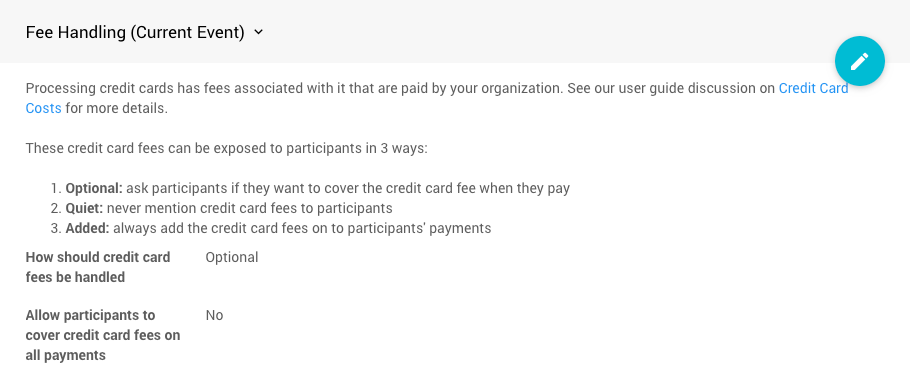
Choose how fees are presented to participants. Click the blue pencil icon to change this setting:
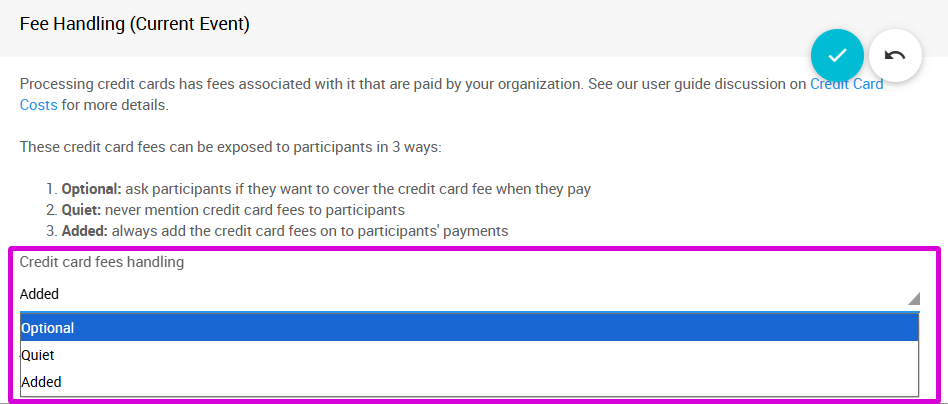
Quiet (Default)
Your organization absorbs all fees. Participants pay the exact amount of their purchase with no additional charges or fee information displayed.
Optional
Participants can choose whether to cover the processing fees:
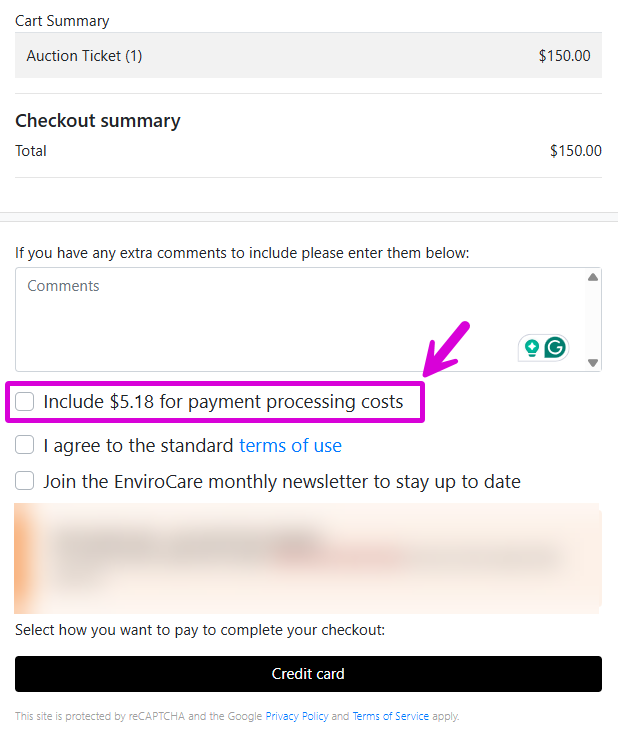
Example showing optional fee coverage for a $100 payment
- A checkbox appears during checkout
- Participants who check the box pay an additional amount to cover fees
- Great for giving supporters the choice to help your organization keep more funds
Learn more: Allow Participants to Cover Fees
Added
Processing fees are automatically added to every transaction:
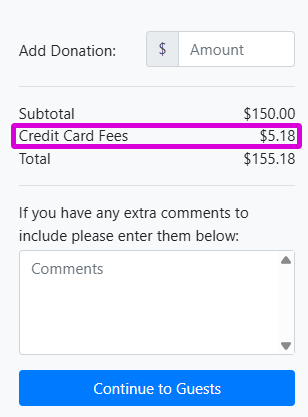
Example showing required fee coverage for a $100 payment
- Fees are automatically applied to all payments
- Participants see the additional fee amount but cannot opt out
- Ensures your organization receives the full intended amount
Fee Calculations
The Optional and Added approaches calculate fees the same way. See Credit Card Costs for calculation details.
Custom Processor Fees
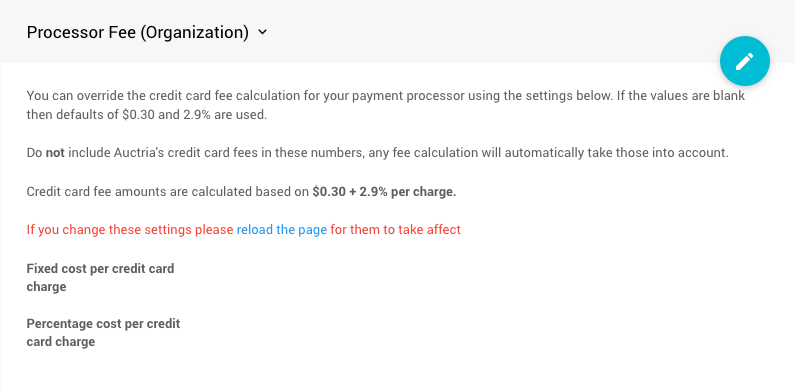
If you've negotiated different rates with Stripe, you can update the fee calculation:
Important
Do not include Auctria's integration fees in these numbers—they're calculated automatically.
Digital Wallet Options
Apple Pay and Google Pay
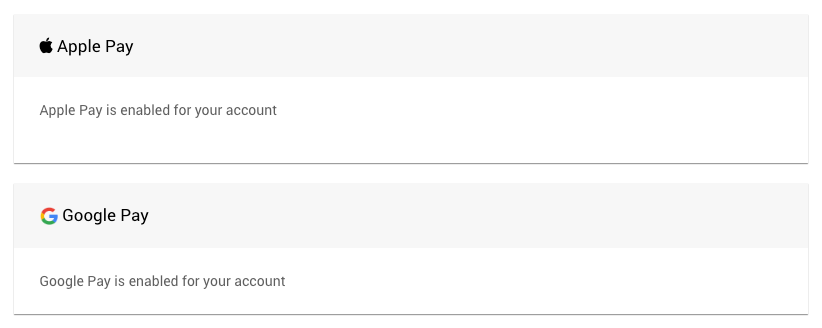
These payment options are automatically available when you use Stripe as your payment processor.
Browser requirements:
- Apple Pay - Requires Apple Safari browser
- Google Pay - Requires Google Chrome browser

Payment options in Safari browser

Payment options in Chrome browser
Link Pay

Stripe's Link Pay appears automatically for participants who:
- Have a Link-authenticated card registered with Stripe
- Use Google Chrome browser
- Don't have Apple Pay or Google Pay set up
Learn more: Stripe Link App
Additional Tools
Remove All Registered Cards
This removes all registered credit cards from participant records in your current event. This action:
- Only affects the current event in Auctria
- Does not affect other events or your payment processor records
- Cannot be undone
Payment Processor Connections
- Stripe - Connection guide
- Authorize.Net - Connection guide
- Card Readers - Setup guide
Credit Card Reports
View transaction data:
- All Charges - Detailed report of all credit card transactions
- Charge Summary - Summary of total charges
Both reports available under Reports Financial | Payments