
Learn how to hide website pages from your event website's navigation menu.
Hiding a page removes it from the navigation menu without deleting it. This is useful when you are still building a page, or when you want to show only a single page — like a Save The Date — while setting up the rest of your event website.
Hiding a Page from the Menu
To hide a page, open the Website Editor and double-click on the Header element to open the Header Links window.
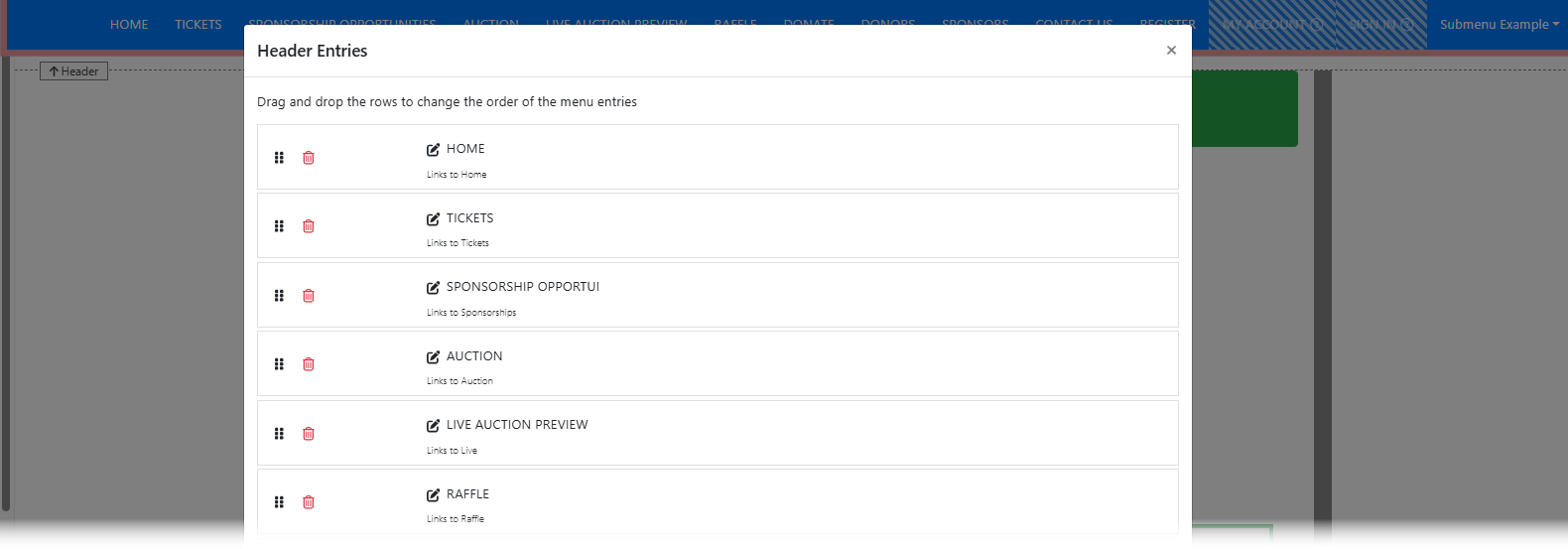
An example from a demonstration event.
More ways to open Header Links
You can also open Header Links by clicking the Configure button beside Menu Entries in the Website Editor Sidebar with the Header element selected.
Click the trashcan icon beside the page you want to hide. This removes it from the navigation menu but does not delete the page.

An example from a demonstration event.
Editing a Hidden Page
Although a hidden page does not appear in the menu, you can still edit it. Click Manage Pages in the Website Editor Sidebar to open the Website Pages window, then click on the page's entry row to open it in the editor.
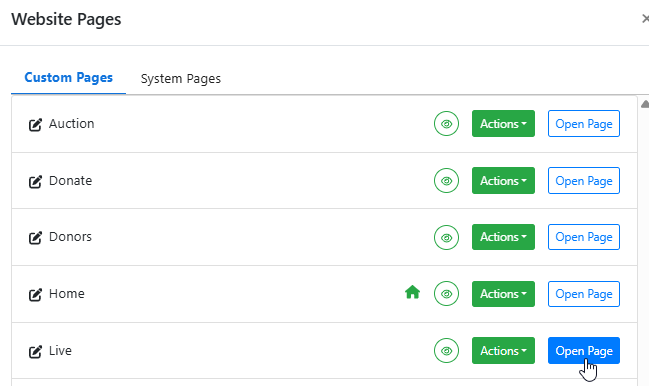
An example from a demonstration event.
Previewing a hidden page
To preview a hidden page without publishing it, use the preview icons in the Website Editor Sidebar. See Preview Website Pages for more information.
Adding a Hidden Page Back to the Menu
When you are ready to show the page again, open the Header Links window and use the appropriate button:
- Custom Pages — Click Add Link To Page and select the page from the list.
- Special Pages — Click Add Link To A Special Page and select the page from the list.
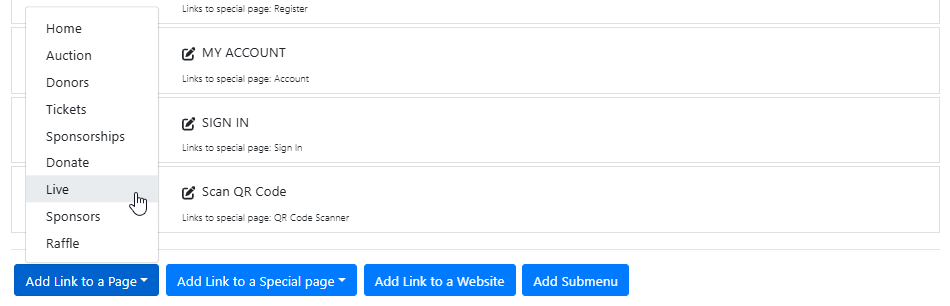
An example from a demonstration event.
The page will be added back to the end of the navigation menu. You can then drag it into the desired position using the six-dot handle on the left of its row.
Other ways to control visibility
- See Website Element Visibility to hide specific elements on a page rather than the whole page.
- See Date and Time View to show or hide elements and pages automatically at a scheduled time.