
An overview of the ways to collect payments after bidding ends, from online payments to the Checkout page and Batch Checkout.
You can record payments yourself on the Checkout page. If credit card processing is turned on, guests can also pay online from their My Account page.
Checkout 101 Video
Pay Online
If credit card processing is turned on, Item Won notifications include a Checkout button by default. Guests click it to pay their balance from their My Account page. A Statement is sent automatically after each online payment.
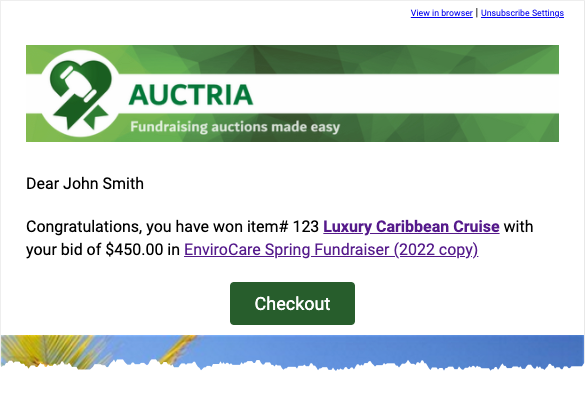
An example Item Won notification, from the System Email preview.
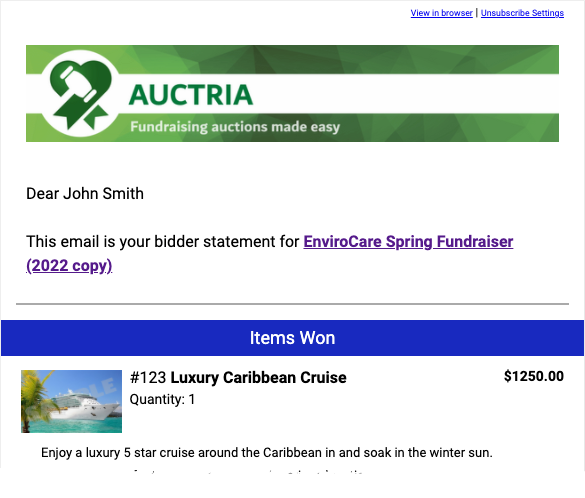
An example Statement, from the System Email preview.
Checkout Page
To record a payment yourself, click Checkout in the left sidebar of the Event Dashboard.
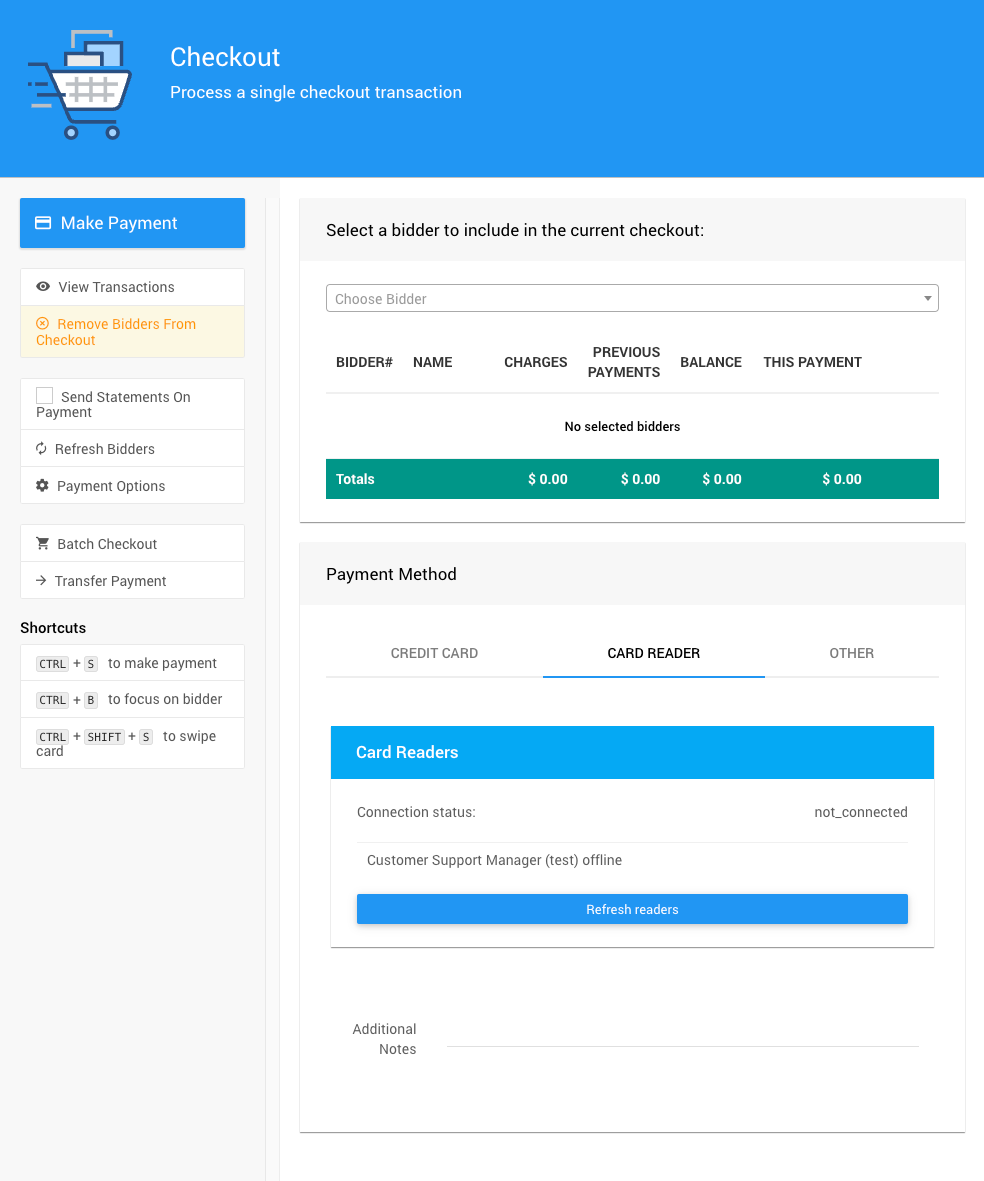
An example Checkout page from a demonstration event.
Payments recorded here don't send a statement unless Send statement when payment made is turned on.
Checkout Payment Options
For an in-person event, you'll likely accept cash and checks as well as cards. Set these up in Checkout → Payment Options.
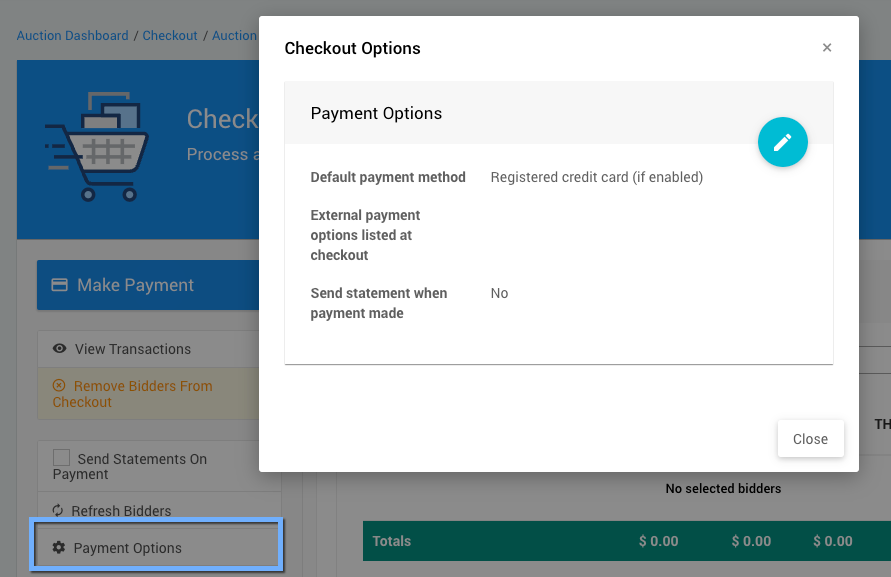
The Checkout Options window.
Set the Default payment method to the method you'll use most on event night. Events created after August 2019 start with Registered credit card (if enabled).
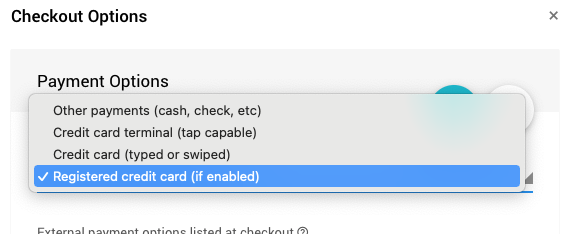
The Default payment method choices.
See Checkout Payment Options for more information.
Batch Checkout
Batch Checkout charges registered credit cards for outstanding balances. It needs credit card processing turned on, and only lists participants with a registered card and a balance of at least $1.00.
Give Guests Time To Pay First
You can run Batch Checkout at any time. Many organizers wait a while after the event so guests can pay on their own first. To see who still owes, check the Participant Accounts reports.
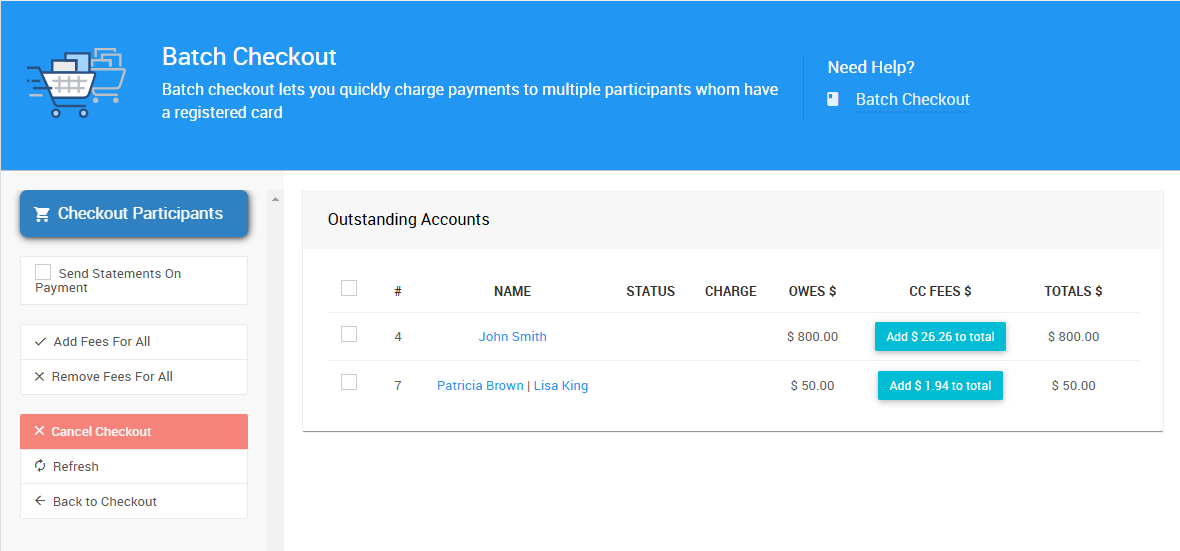
An example Batch Checkout page with Fee Handling set to Optional.
If Fee Handling is Optional, you can add or remove credit card fees for each row or for everyone. See Batch Checkout: Credit Card Fees.
An empty Batch Checkout list means no participant owes money and has a registered card. Check the Participant Accounts reports for balances owed by participants without a card.
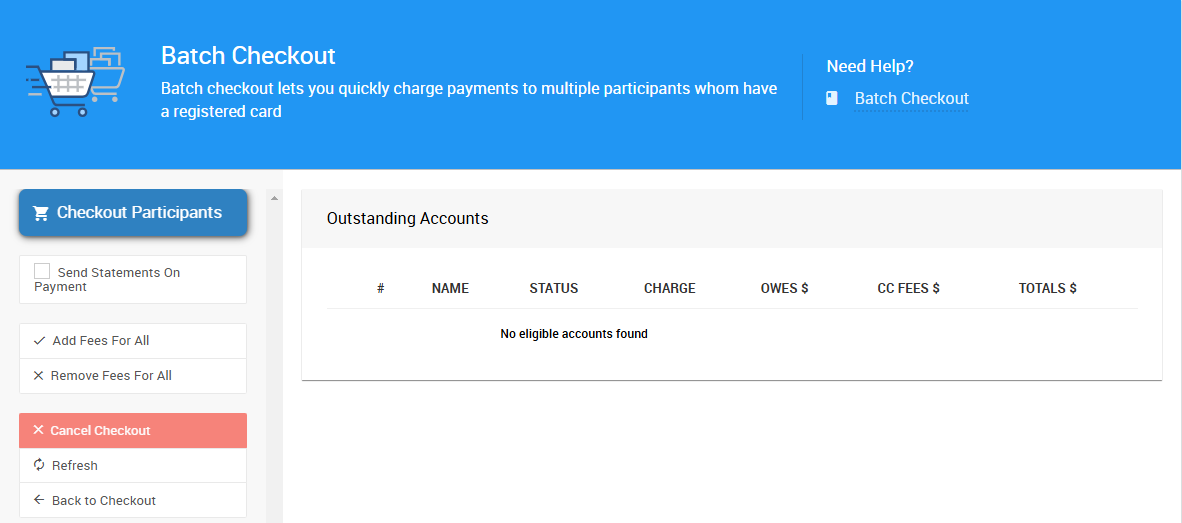
An example Batch Checkout page with no outstanding accounts.
See Batch Checkout for more information.
Pay Credit Card Processing Fees
Credit card payments carry an Auctria integration fee. The rate depends on your license. See the Auctria pricing page.
| Payment Processor | How The Integration Fee Is Paid |
|---|---|
| Stripe | Taken when each transaction is processed. |
| Authorize.Net | Added up from each transaction and shown on the Auctria Balance page of your organization. Pay the outstanding balance from that page. |
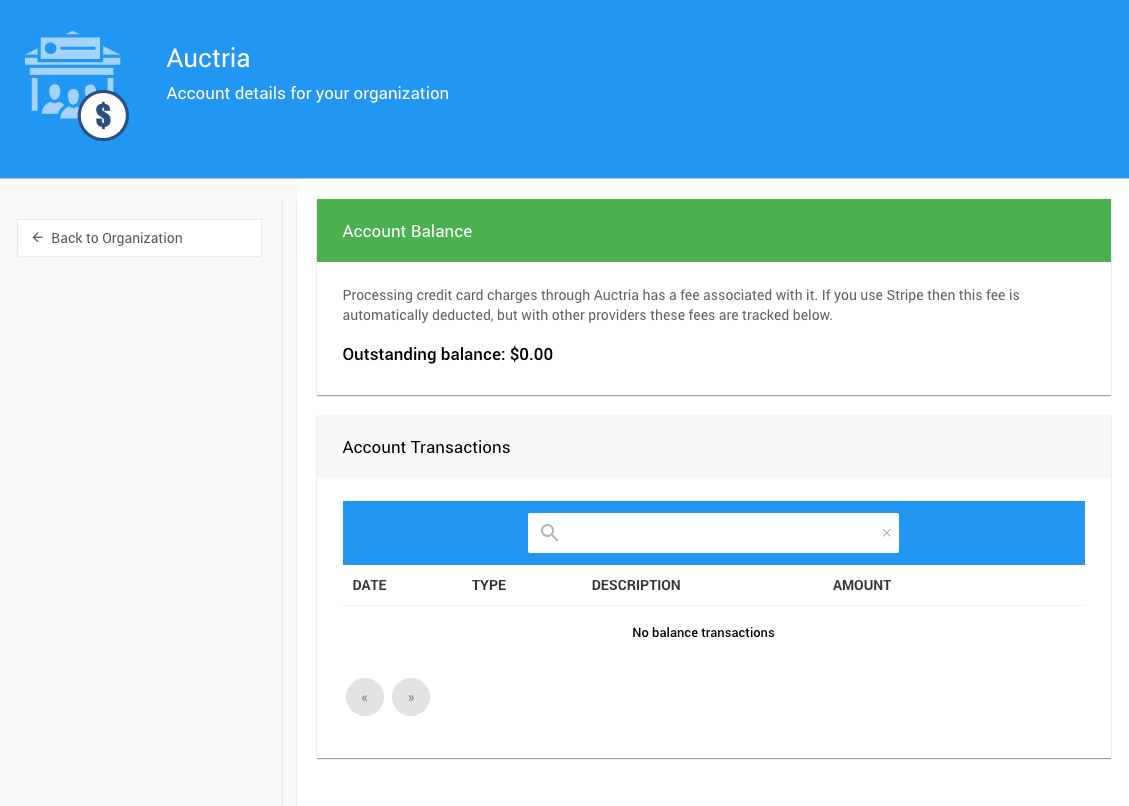
An example Auctria Balance page.
After The Event
| Question | Where To Look |
|---|---|
| How much did we raise? | The Income Summary on the Event Dashboard. |
| When will the money reach our bank account? | When Do Credit Card Funds Get Transferred? |
Note
Auctria doesn't transfer funds to your bank account. Your payment processor does. See When Do We Get Paid By Stripe? for more details.